
Add care coordinator
Table of Contents:
Instructions
- Log in to OnCare360.
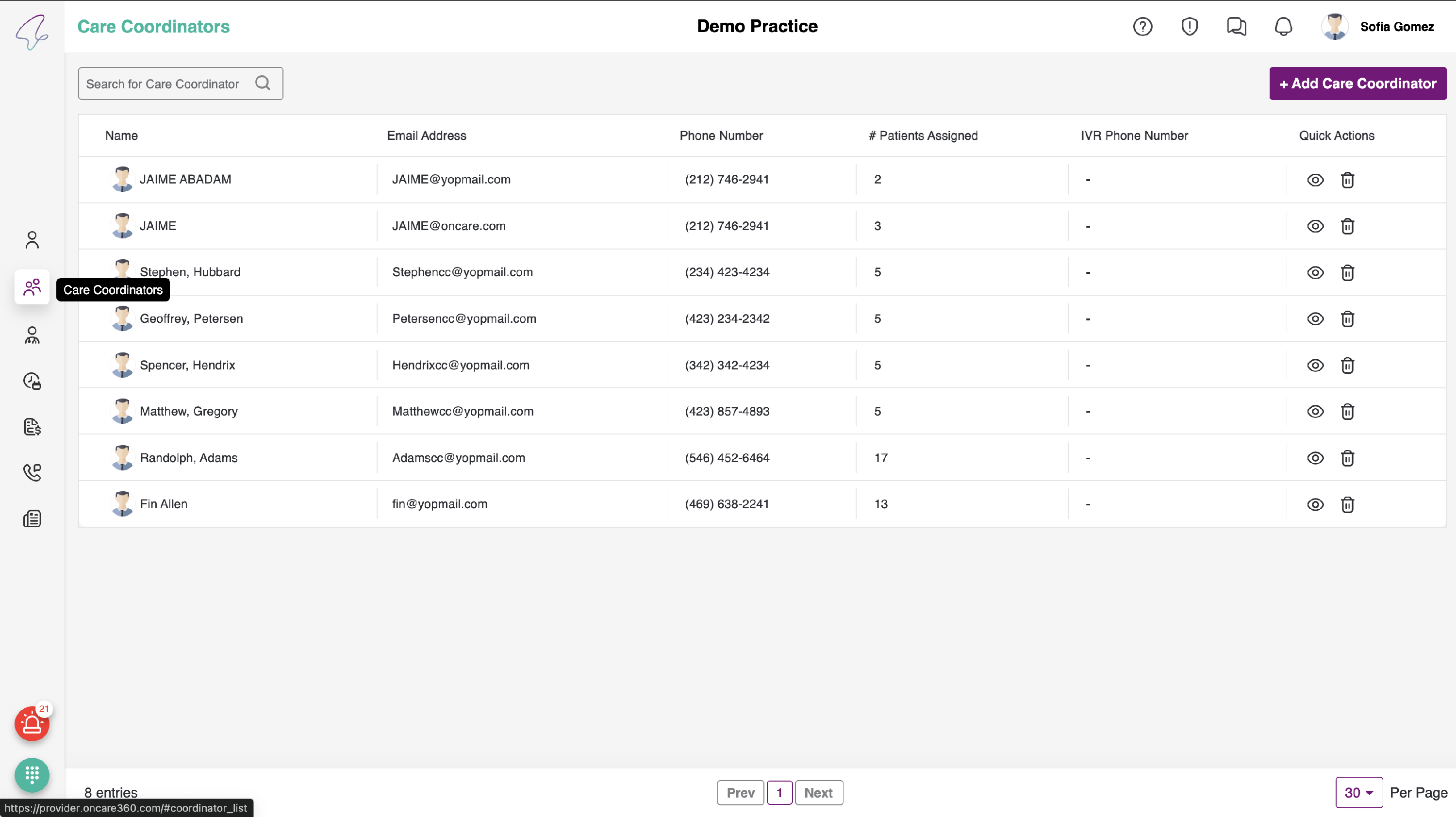
- On the Dashboard, locate the Care Coordinators tab on the side nav bar.
- Click on 'Add Care Coordinator' to add a new Care Coordinator.
- You can view the phone icon beside the Mobile number of the Care Coordinator, this is to call them directly on their cell.
- The Add provider page contains a form with the following fields:
Basic Information
-
Add a photo to display it as the provider's profile picture.
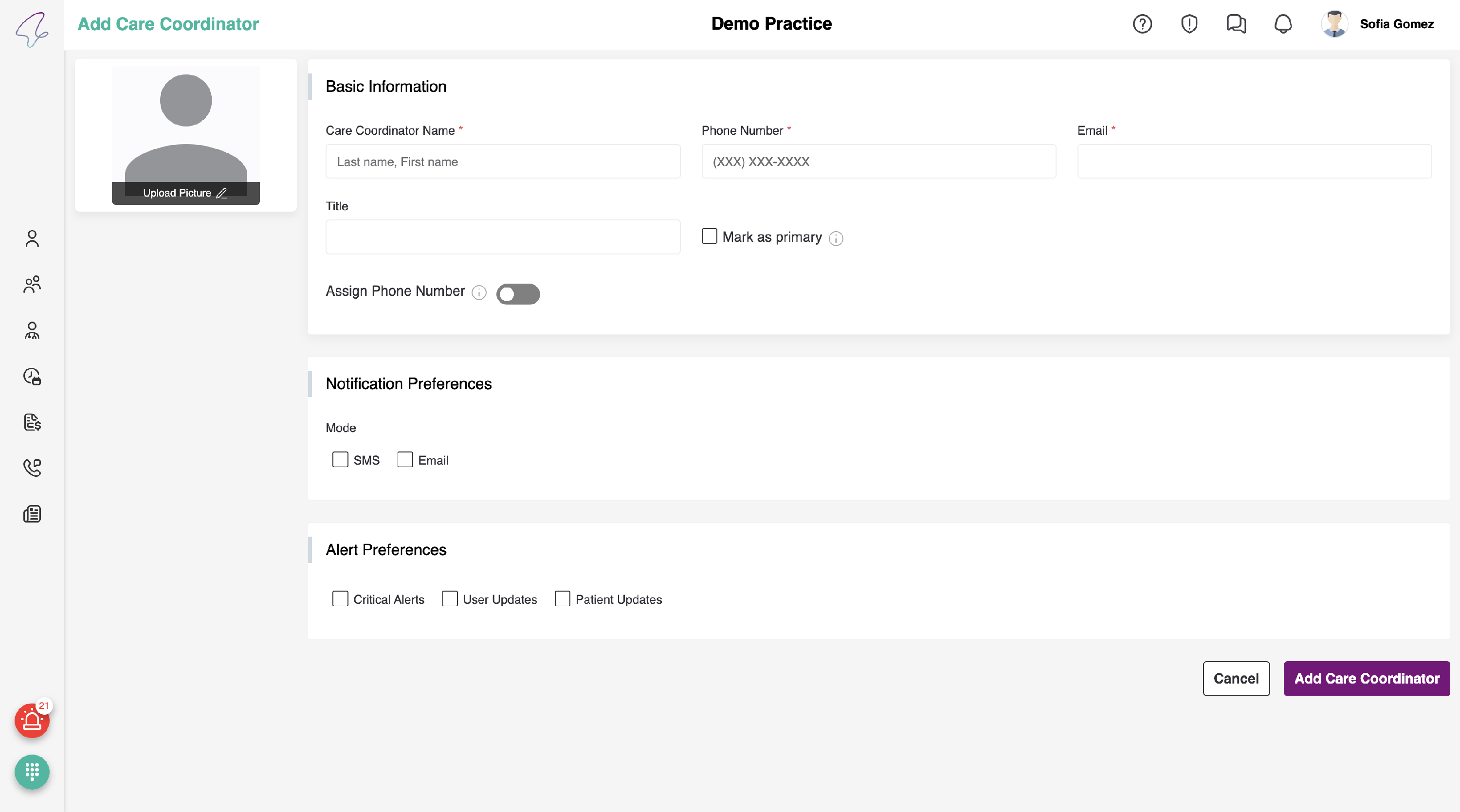
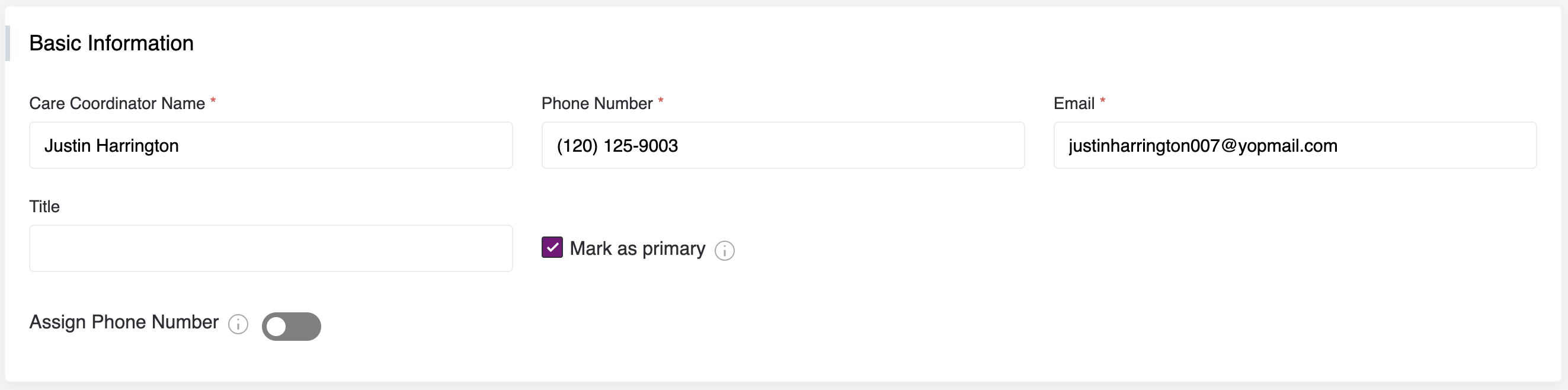
- Add the Name, Phone Number & Email Address of the care coordinator.
-
We also mark the care coordinator as primary by checking the checkbox. This means that the patient which will be added in the future will have this care coordinator as their primary care coordinator in the patient care team until it is changed.
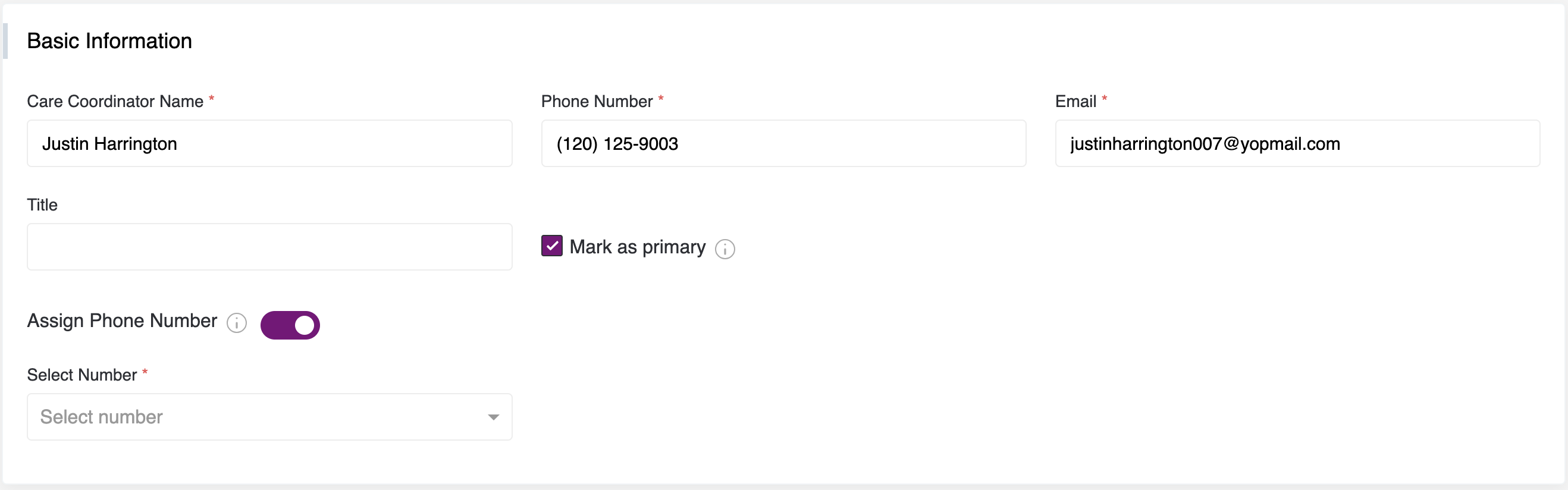
- We also facilitate the IVR for the care coordinator, allowing us to assign a phone number to the care coordinator by enabling the toggle button. Once the toggle is enabled, a drop-down menu will appear where a number can be selected.
Notification Preferences
We can get notifications via
- SMS

Alert Preferences
We can get notifications via
- Critical Alerts.
- User Updates.
- Patient Updates.
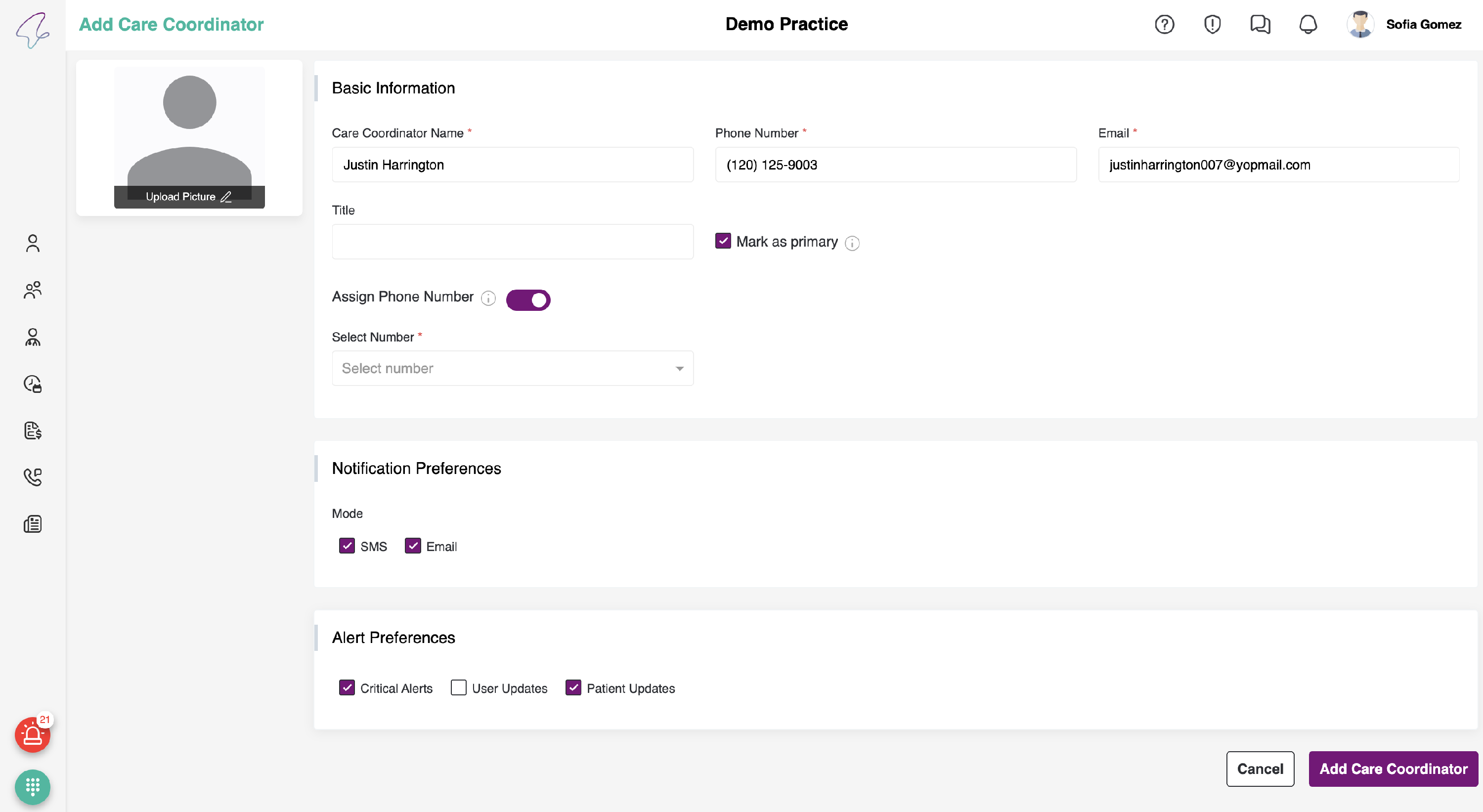
- After you enter all the details, click on 'Save & Add Care Coordinator', to save the details and add care coordinator.
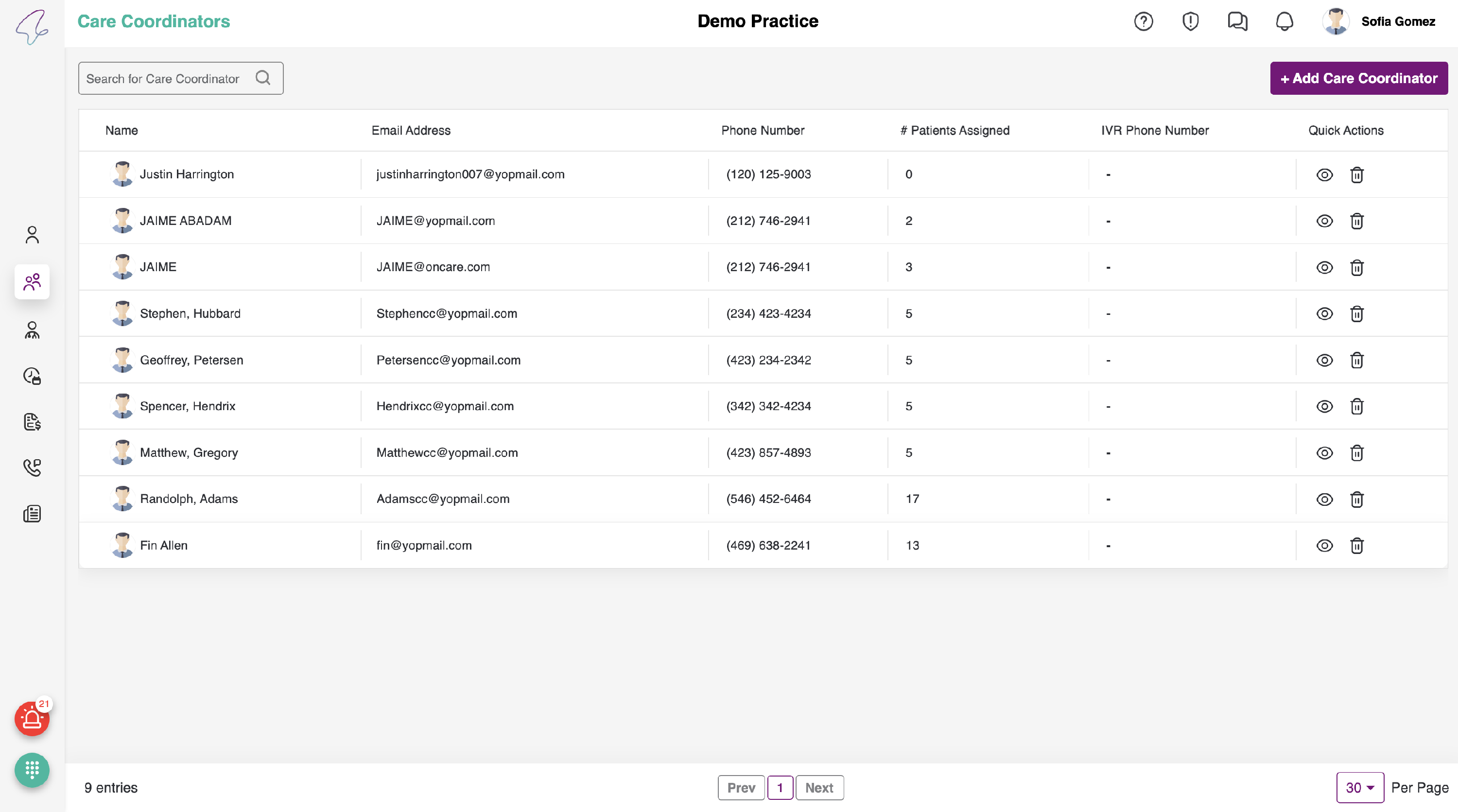
- Care Coordinator added can be seen in the dashboard - Care Coordinator Listing.
View/Edit Care Coordinator Profile:
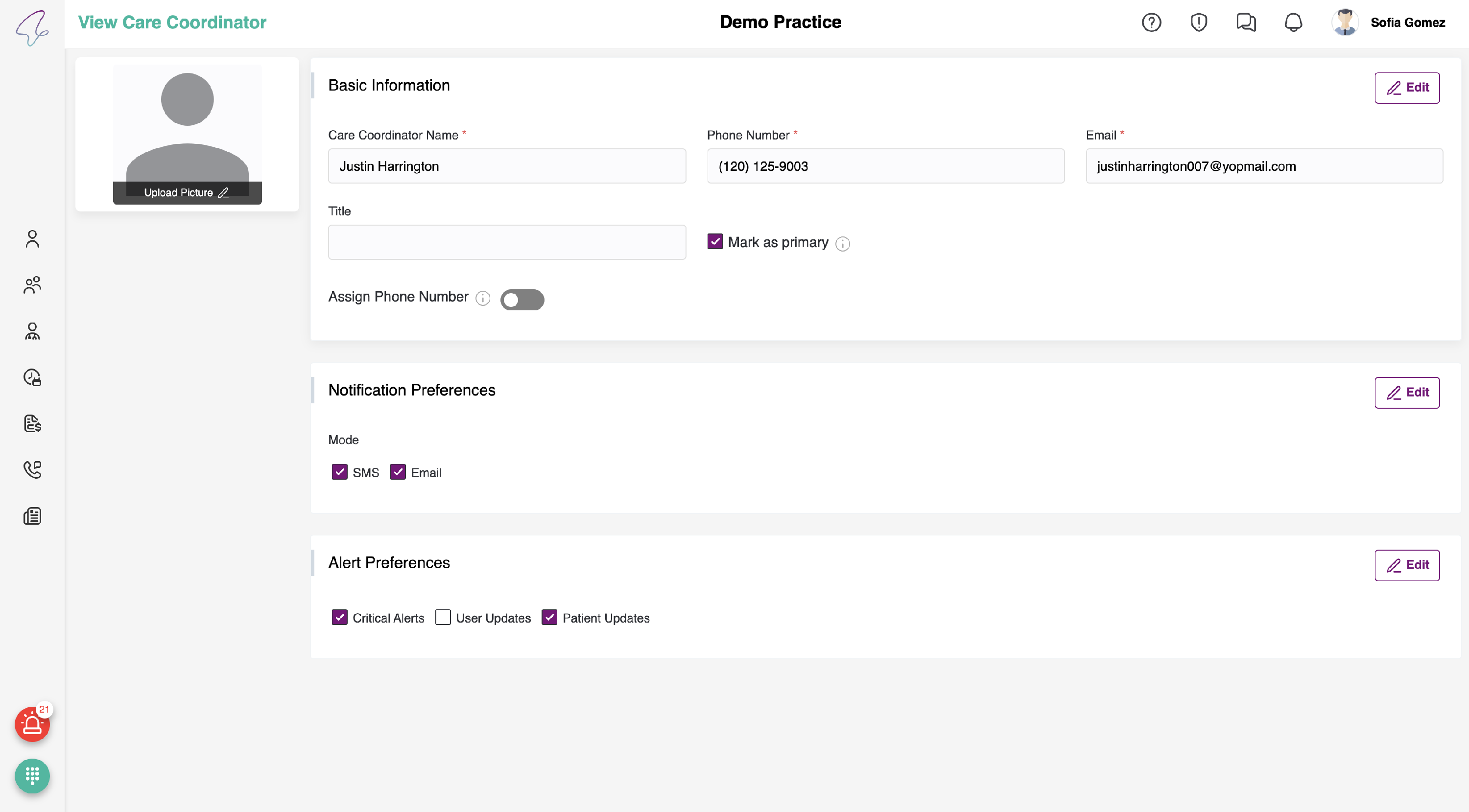
To view the Care Coordinator Profile, please click on the eye icon of the required coordinator record in the list of care coordinators.
- Upon clicking on the eye icon, you will be navigated to the care coordinator profile of that record. All the sections will be disabled mode, If you would like to edit any of the sections, then click on the edit button, which is on the top right corner of each section.
-
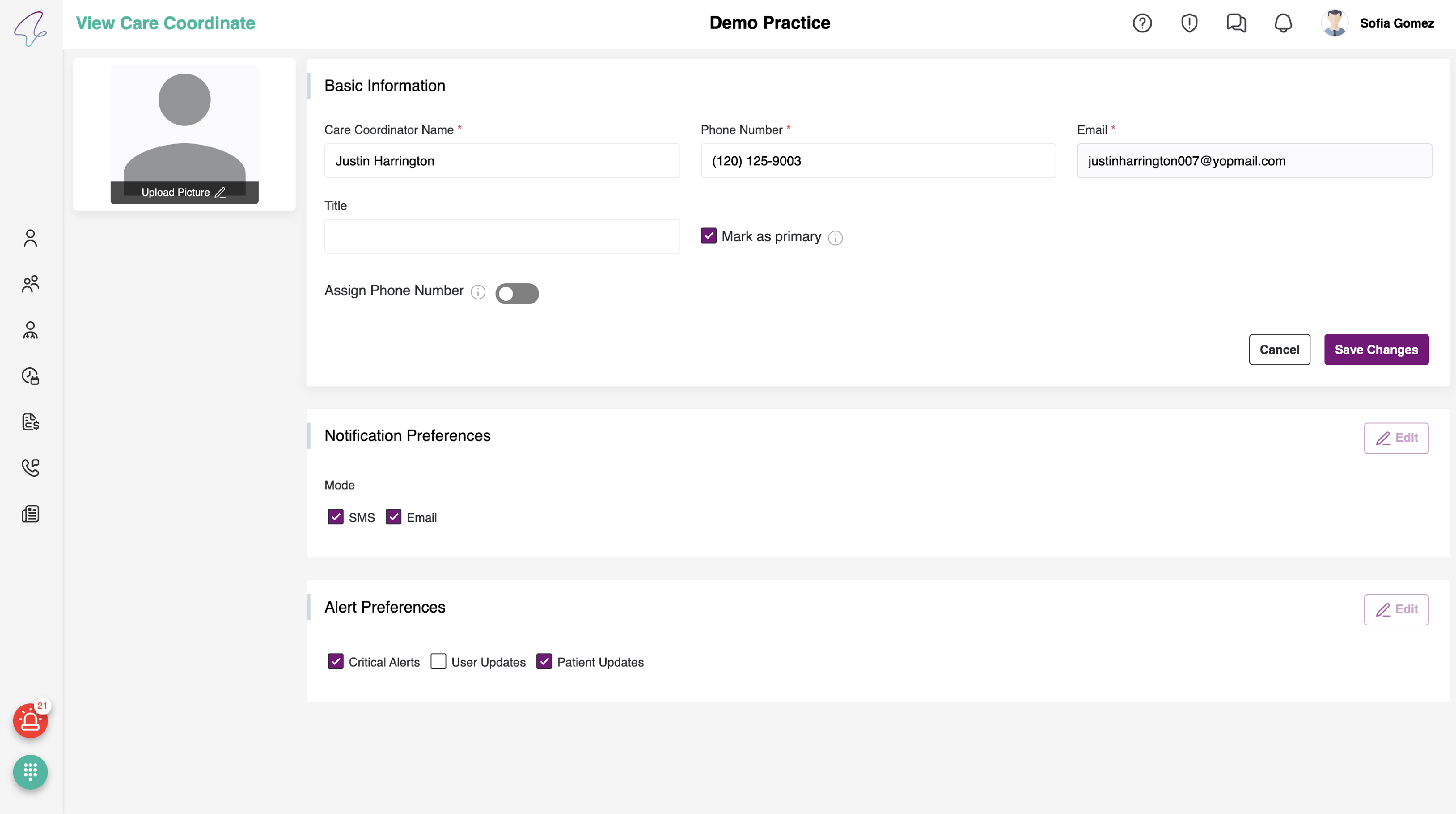
Once the necessary changes have been made, click the "Save Changes" button to apply them. If you wish to revert the changes, click the "Cancel" button.
-
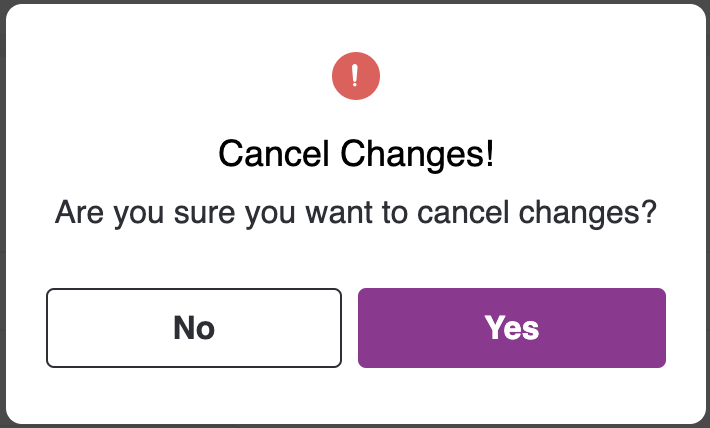
Upon clicking the "Cancel" button, a pop-up will appear to verify that you want to cancel the changes you made.
- All the sections in the View/Edit Care Coordinator are editable, and you cannot save the changes without answering the mandatory fields.
