
Patient Claims
Table of Contents:
Eligibility Rules:
Eligibility Rules to Add a bill:
For services such as CCM, RPM, PCM, and AWV, you can add a bill without any episode or care plan, but not without a TCM episode.
CPT Rates:
For TCM:
- There are only two CPT codes for TCM.
- Below are the details of these CPT codes with their complexities and rates.
| CPT Code | Complexity | Rate |
| 99495 | Moderate | $205.36 |
| 94496 | High | $278.21 |
For CCM:
- There are six CPT codes for CCM.
- Below are the details of these CPT codes with their rates.
| CPT code | CPT code type | Rate |
| 99487 | Complex | $133.87 |
| 94489 | Complex | $70.49 |
| 99490 | Non-complex | $62.69 |
| 99439 | Non-complex | $47.44 |
| 99491 | Physician driven | $85.06 |
| 99437 | Physician driven | $59.98 |
For RPM:
- There are five CPT codes for RPM.
- Below are the details of these CPT codes with their rates.
| CPT Code | Rate |
| 99453 | $19.32 |
| 99454 | $50.15 |
| 99457 | $48.80 |
| 99458 | $39.65 |
| 99091 | $54.22 |
For PCM:
- There are Two CPT codes for PCM.
- Below are the details of these CPT codes with their rates.
| CPT Code | Rate |
| 99424 |
|
| 99425 |
|
Instructions:
-
To view Patient Activity, click on the briefcase icon in the Patient's listing - Quick Actions.
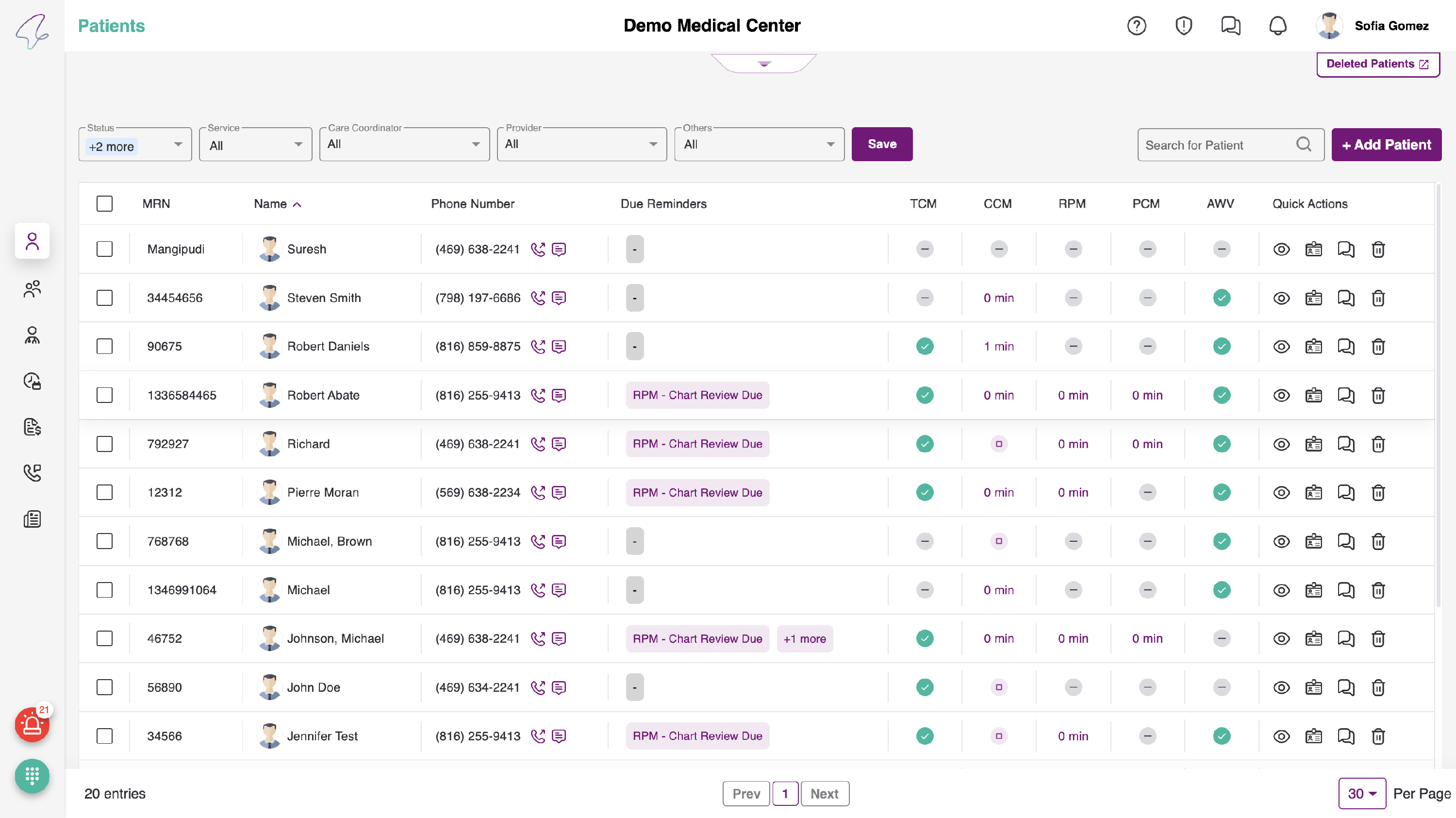
- You will see an accordion on top, it can be expanded and closed when needed. By default, the patient details accordion will be closed.
When accessing the Bills section on the dashboard, you will be automatically directed to the TCM sub-tab within the Bills section as it is the default tab upon navigation.

-
And, once when clicked on the expand button, you can see the expanded Patient details as follows. On the left, you can also view a call icon beside the mobile, that is used to call the patient on his cell.
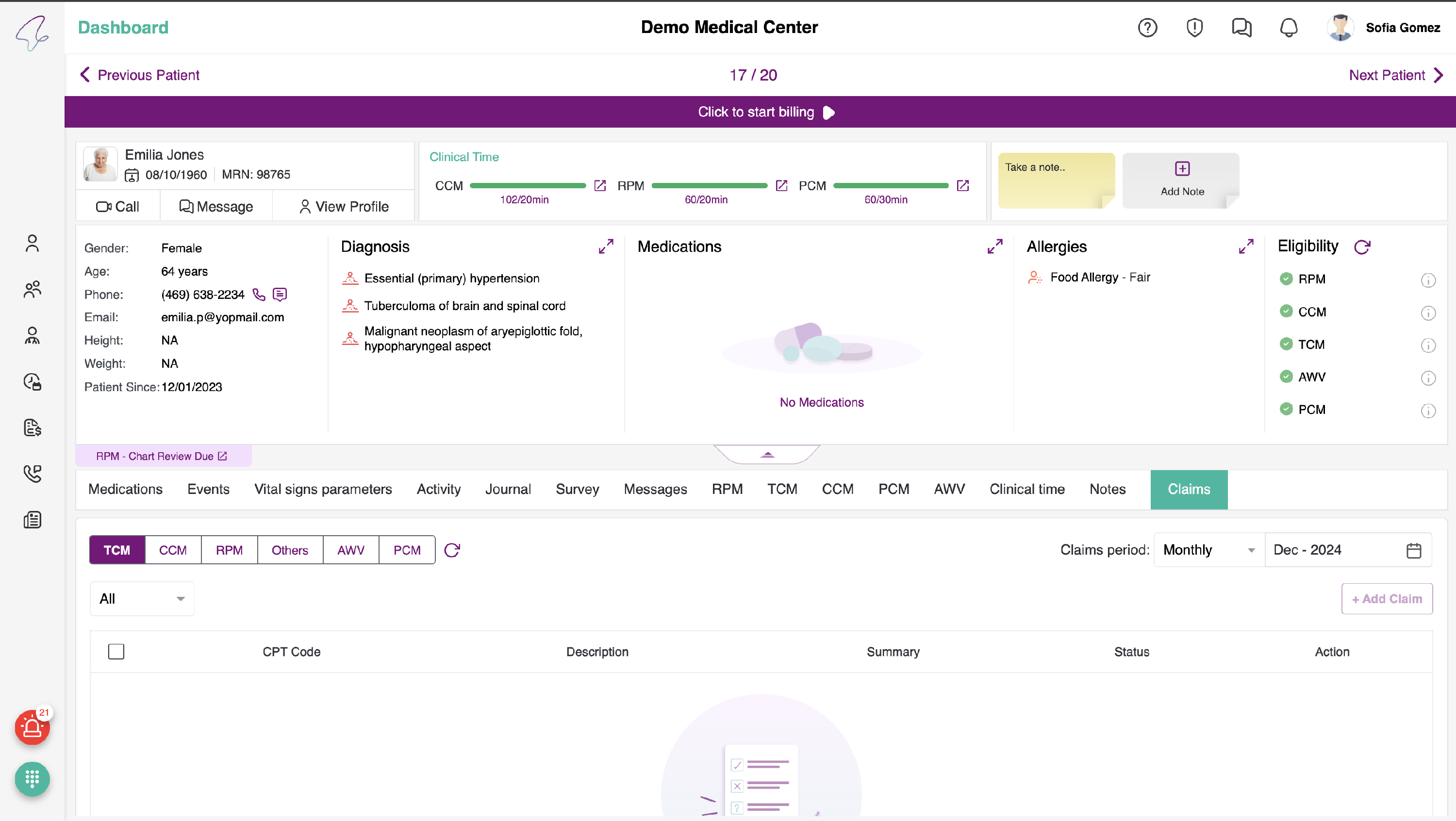
- The billing period will default to the previous month. You have the option to change it if necessary.
- The +Add Bill button will only be enabled when the patient has that particular service active.
- You will find a "+Add Bill" button located at the top right corner of the table. Please click on it to display a pop-up for adding a bill, as described below.
- Clicking on RPM, CCM, TCM and Others tab, will display calls list with checkboxes for each row with details as follows:
- CPT code
- Time
- From (Date & Time)
- To (Date & Time)
- Topic
- Summary
- Status
- Action
- CPT codes are different for all types i.e., RPM, CCM, TCM and Others. CPT codes for all reimbursement types are different.
- Billing Period- From and To date range can be selected in the Billing period to display the calls between the selected range.
- Click on CCM tab.

- User can use the Add Row option to add a row in the given list with entering the details like Billing Type, CPT code, topic, Provider, Patient, Date, Start Time, End time, Meeting Notes and call type.

- To edit the call details click on the Edit icon in Action, allows user to edit the details like Billing type, CPT code, topic, Date, Provider, Meeting Notes, call type for selected row in the list.

- User can select the record from the list and click on Submit.
- The submitted bills cannot be edited.

- Each reimbursement type tab have filters as shown:
- All - Shows all the CCM call logs
- New - Displays all the newly submitted calls/ bills and are represented by Blue Color
- Submitted - Displays all the submitted calls/ bills and are represented by Light Green Color
- Rejected - Displays all the rejected calls and are represented by Red color
- On-Hold - Displays the calls which are kept on-hold and are represented by Amber Color
- Approved - Displays all the approved calls and are represented by Green color
- You can view 2 actions in the Action - Edit and Delete. All New/ Rejected bills will have these icons enabled.
- Once the Bill is submitted/ kept on-hold and Approved, these icons will be disabled.
- On clicking the Rejected calls/bills, User can view the Rejected reasons, which shows the date with rejected reason.

- Upon clicking the download icon, you will be able to access the Summary of the CCM Episode. Additionally, you can download it by clicking on the floating download button or use the print button to print the PDF.

- we can also download the each bill document by clicking on the download icon.
- we can also download the bulk bill document by clicking on the Download Supporting Documents Button

Approve Time:
- The calls logs that are being submitted are saved in the Billing Portal. When the Admin logs in he can view the following screen.
- By default, we have All Programs and All Providers selected. You can change it based on your preferences.
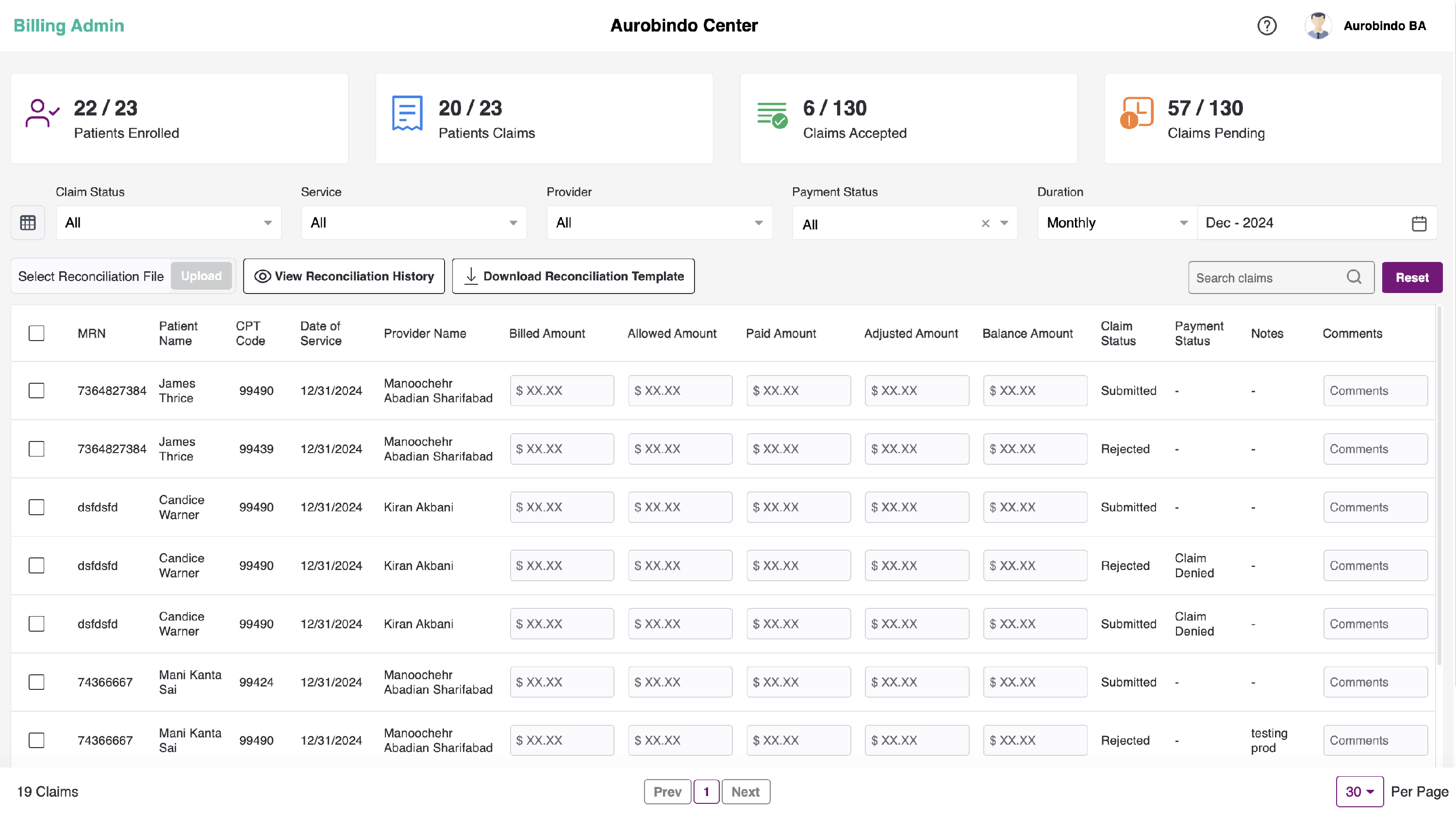
- On the dashboard, count for Patients enrolled, Patients billed, Bills accepted, Bills pending will be displayed.
-
On the left-hand side, there is a table icon. Upon clicking on it, a pop-up will appear where you can select the required table columns, as shown below.
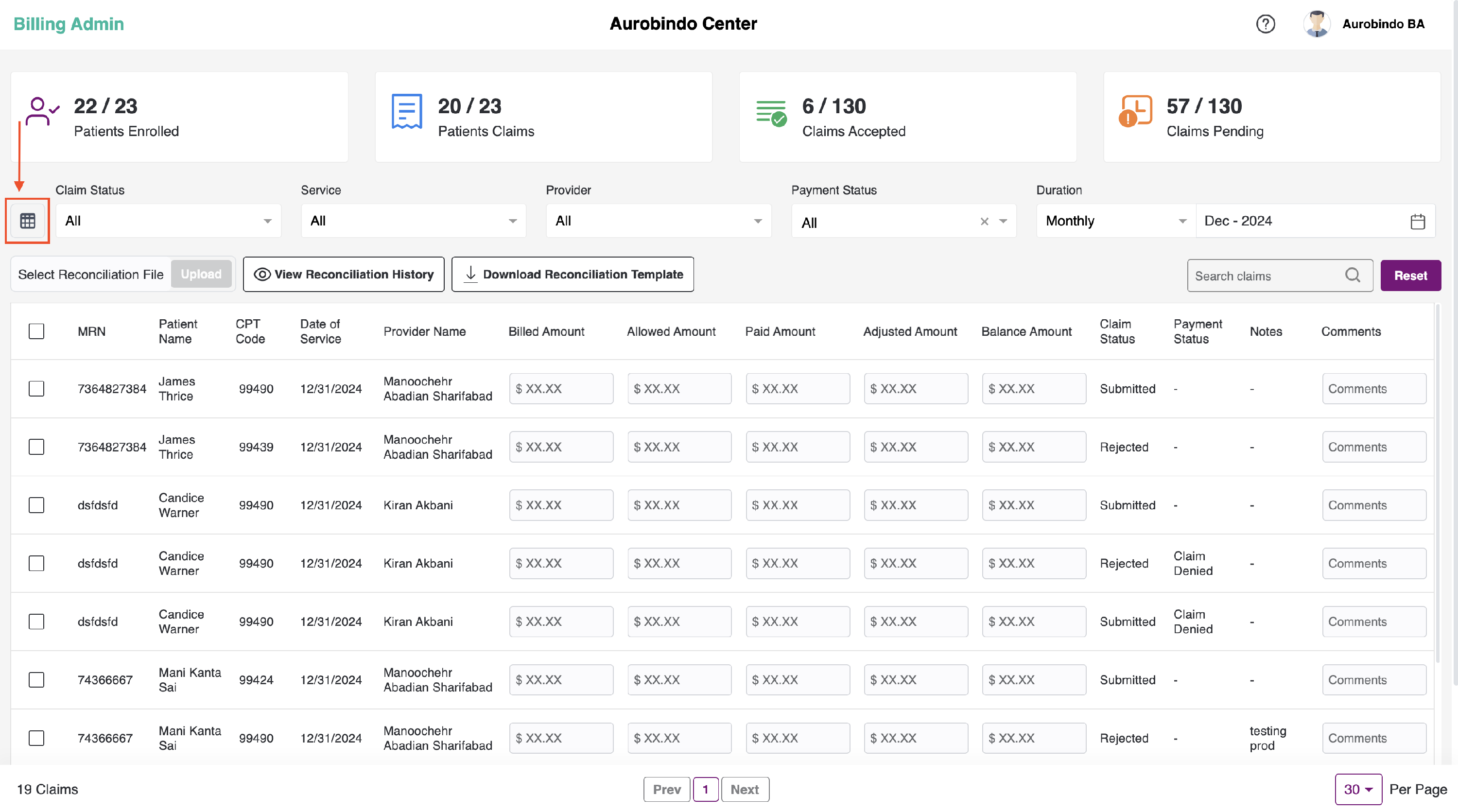

- There are 5 filters - Status, Program, and Provider, Duration and Search Bills, using which we can search the bills to review.
- User can filter the submitted billing list based on the Status of the bill in 4 categories.

- Submitted Bills
- Bills on Hold
- Accepted bills
- Rejected bills
- Patients which are qualified by rules engine for the set of rules mentioned for respective CPT code, will be ready to Bill and patients which do not qualify the set of rules mentioned are rejected by rules engine.
- User can filter the submitted billing list based on the type of billing or product (All/RPM/CCM/RTM/TCM/PMPM)
- Click on the Status filter and select Submitted Bill option and Program filter and select CCM . The following screen can be seen.
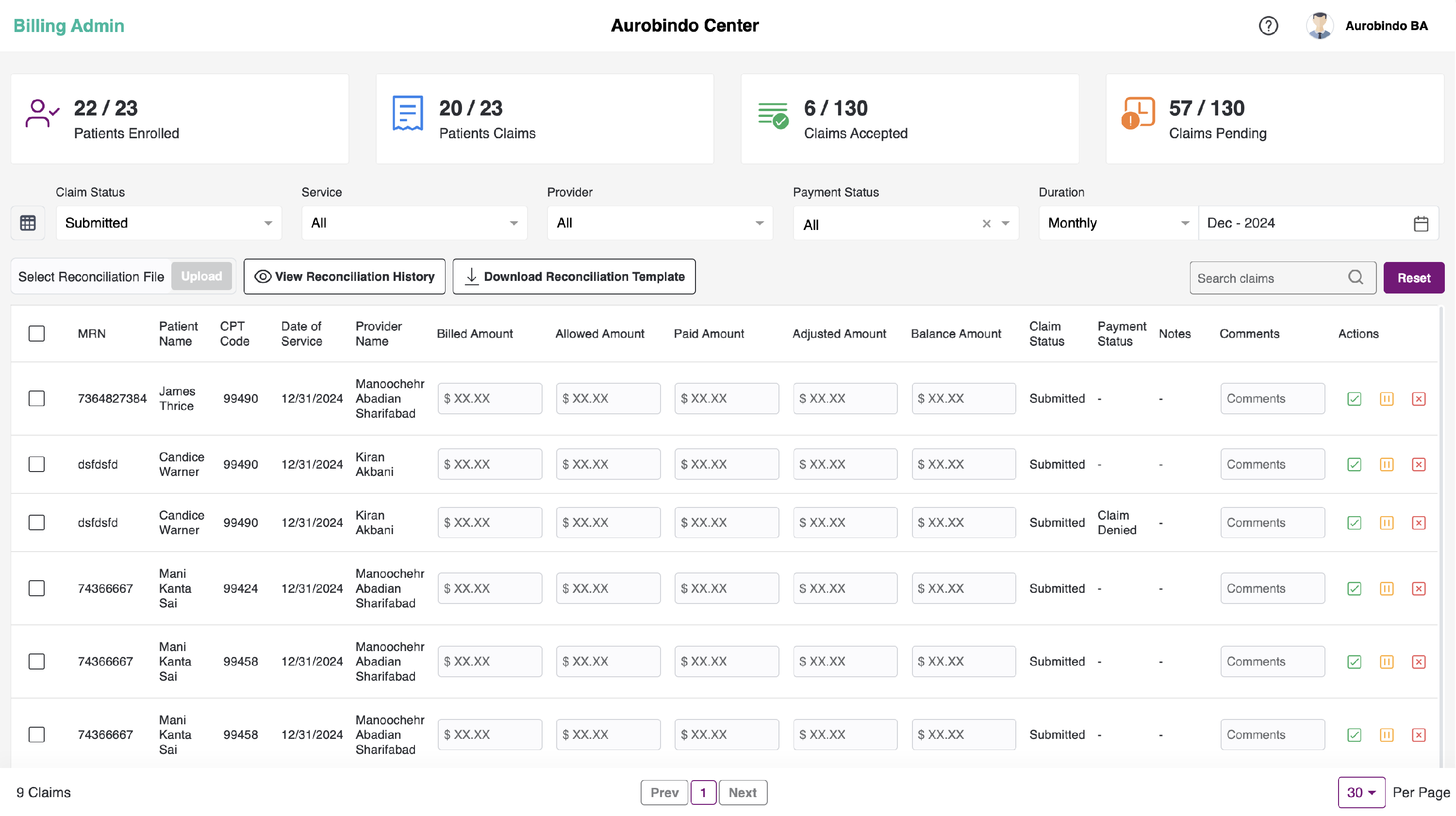
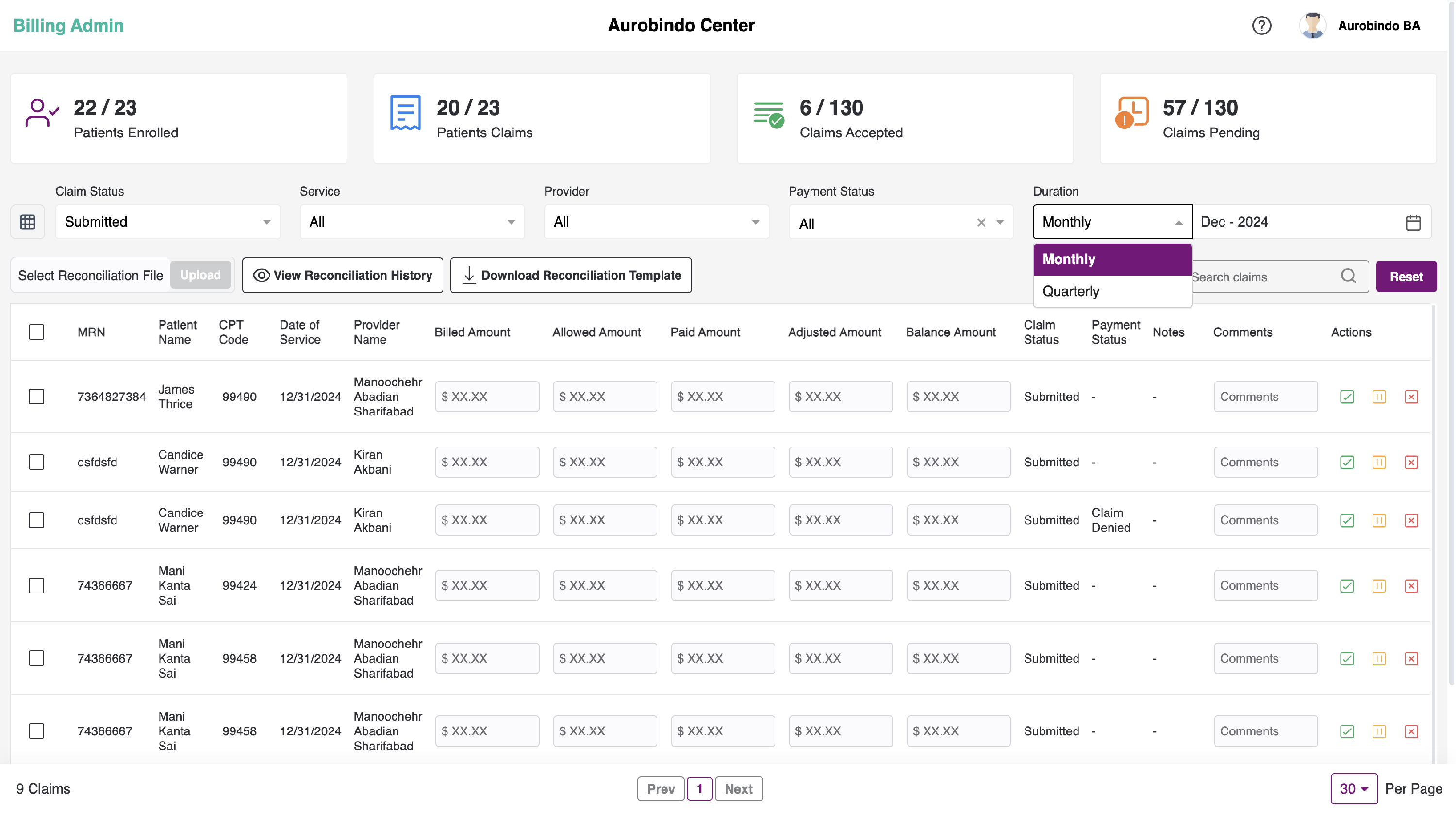
- User can filter the submitted billing list based on the selected duration of Date from and Date to. We can view the bills based on the Duration type - Monthly or Quarterly, by default, we have Monthly selected.
- User can filter the submitted billing list based on the provider name for the specific center.
- Search field will be available to search the required data on the dashboard.
- Below the filters, we can see the table with following headers:
- Checkbox - To select all the records
- Patient EMR ID
- Patient Name
- Date of Service ( Date on which the service was provided)
- CPT Type (RPM/CCM/TCM/Others CPT code and Topic)
- Note (Meeting Notes while scheduling)
- Provider Name
- Bill details (Bill ID and Month Date, Year on which billing was submitted )
- Actions (Approve /On Hold /Reject)
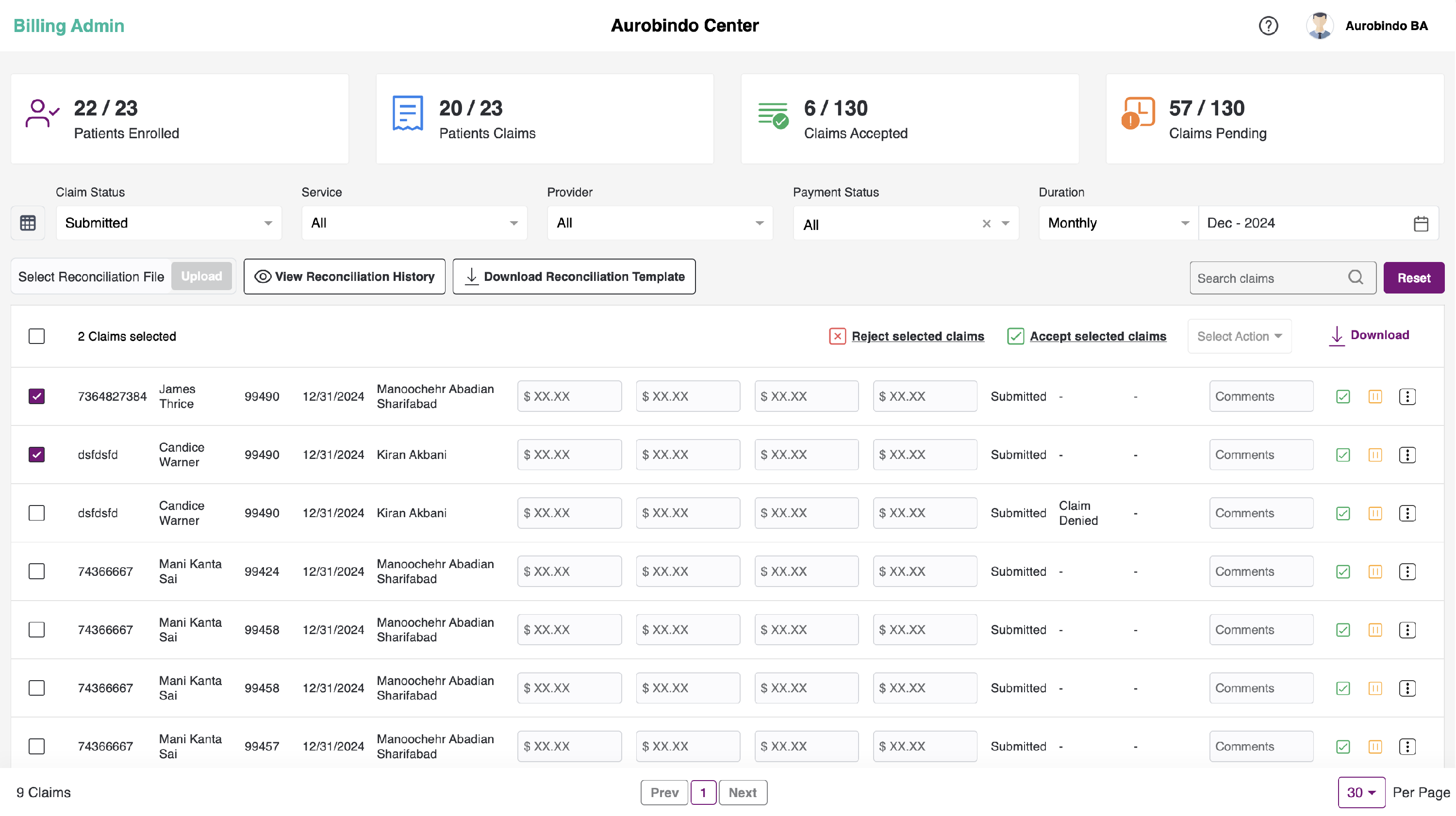
- All the submitted bills in the list, in the checkbox form, user can select the bulk actions to mark the selected bills as Approved or Rejected. And also can download the bills by clicking on the Download option.
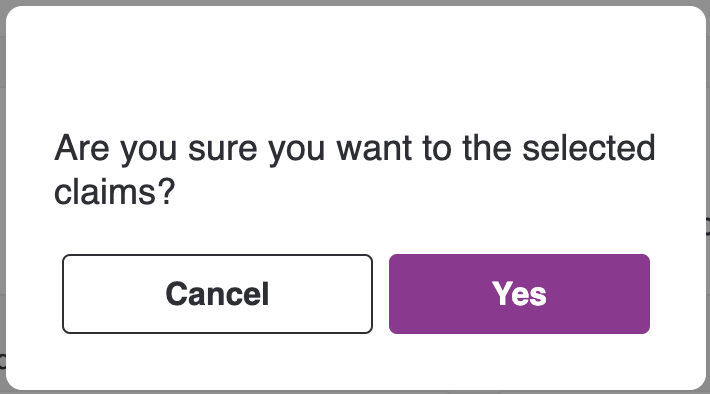
- Click on the checkbox and click on the Accept selected bills at the right, to submit the bills. You will view a pop-up to confirm if you want to accept the bill or not. Click on Yes to accept the bill.
-
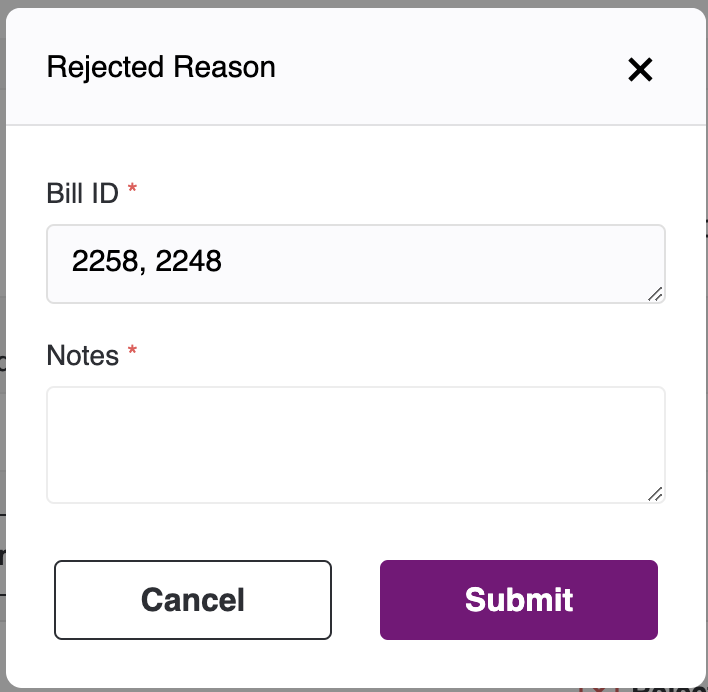
We can also reject bulk bills by selecting the records and clicking on the "Reject selected claims" button, which will be visible in the headers once you select the bills. Upon clicking the button, a pop-up will appear where you have to enter the reason for rejecting the bills and click submit. The bills will then be seen under rejected bills.
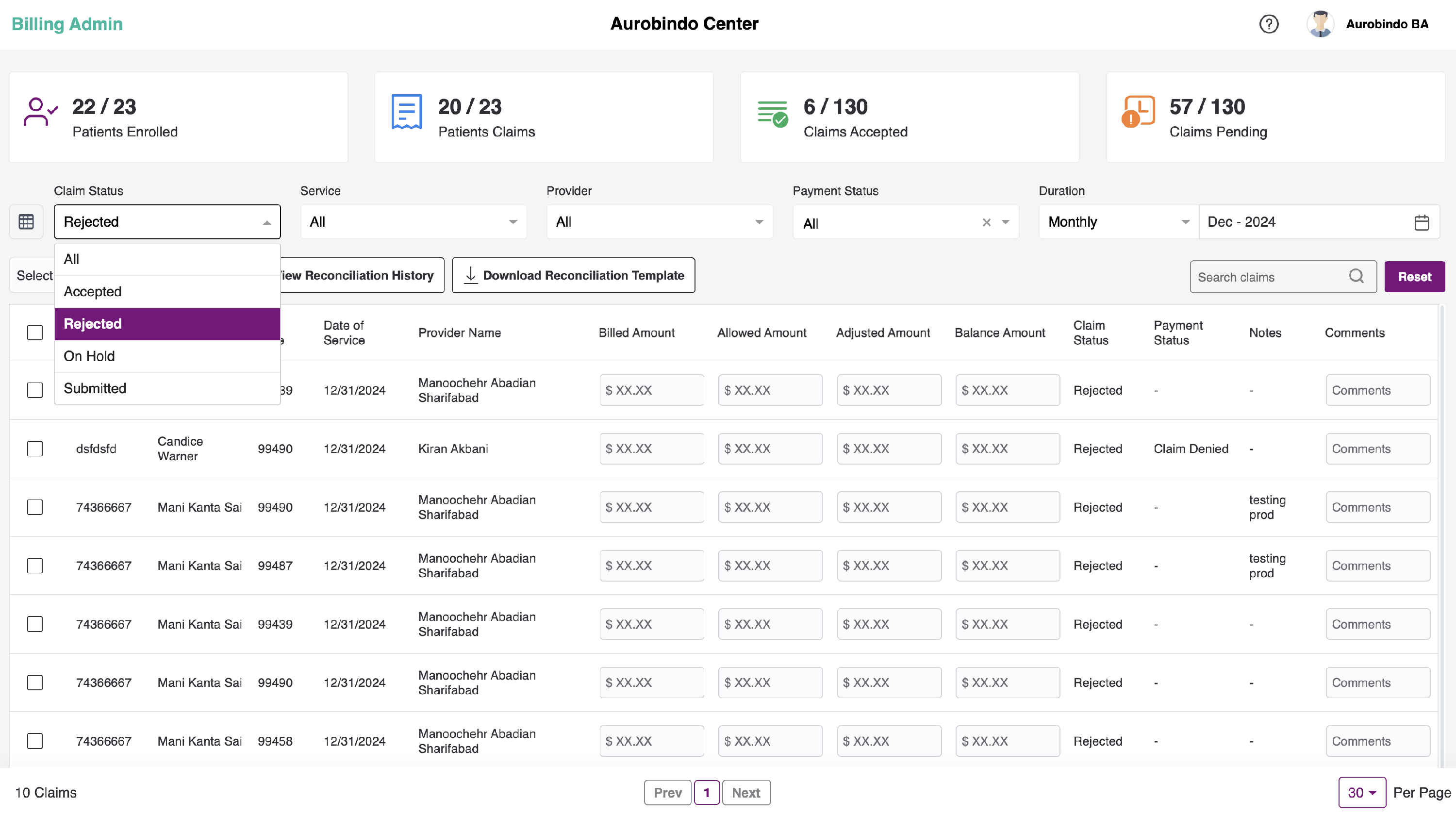
- You can perform actions - Approve, On Hold and Reject for individual calls. After the call log is being Approved/ is On Hold / Rejected. Those call logs will be categorised into Accepted/Rejected/On Hold respectively.
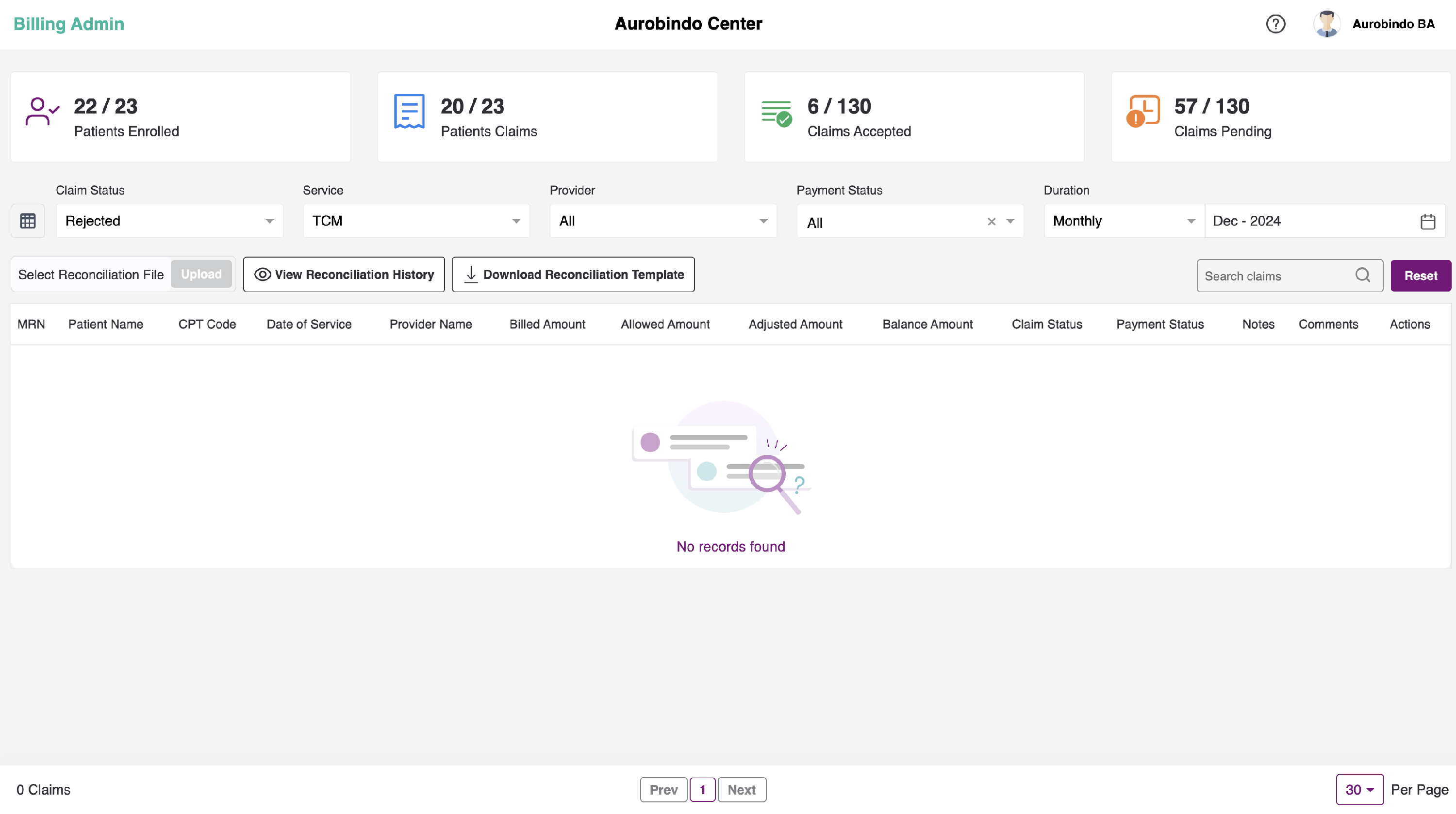
- If there are no calls logs, you will see an empty state showing No records found.
- After the bills are accepted, we can view them by selecting the Status as Accepted.
- Here, to download the Bill report, check the box for an individual record or check the box in the header to download report for all the reports.
- We can download the report w.r.t any Status - All, Ready to bill, Submitted, On-Hold, Rejected and Approved.
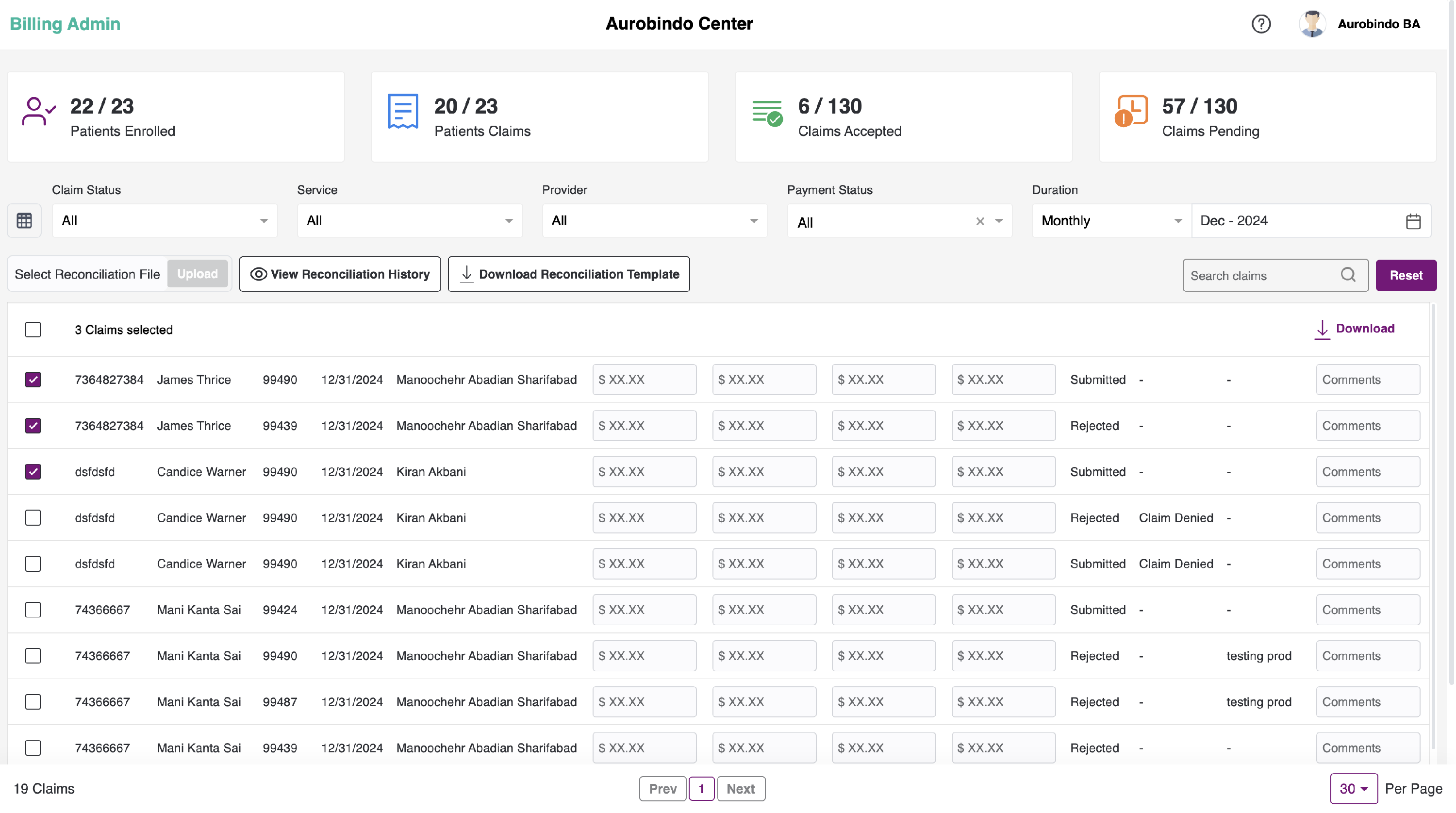
- You can view download option at the right, click on the download to download the report. You can view it in your downloads.
-
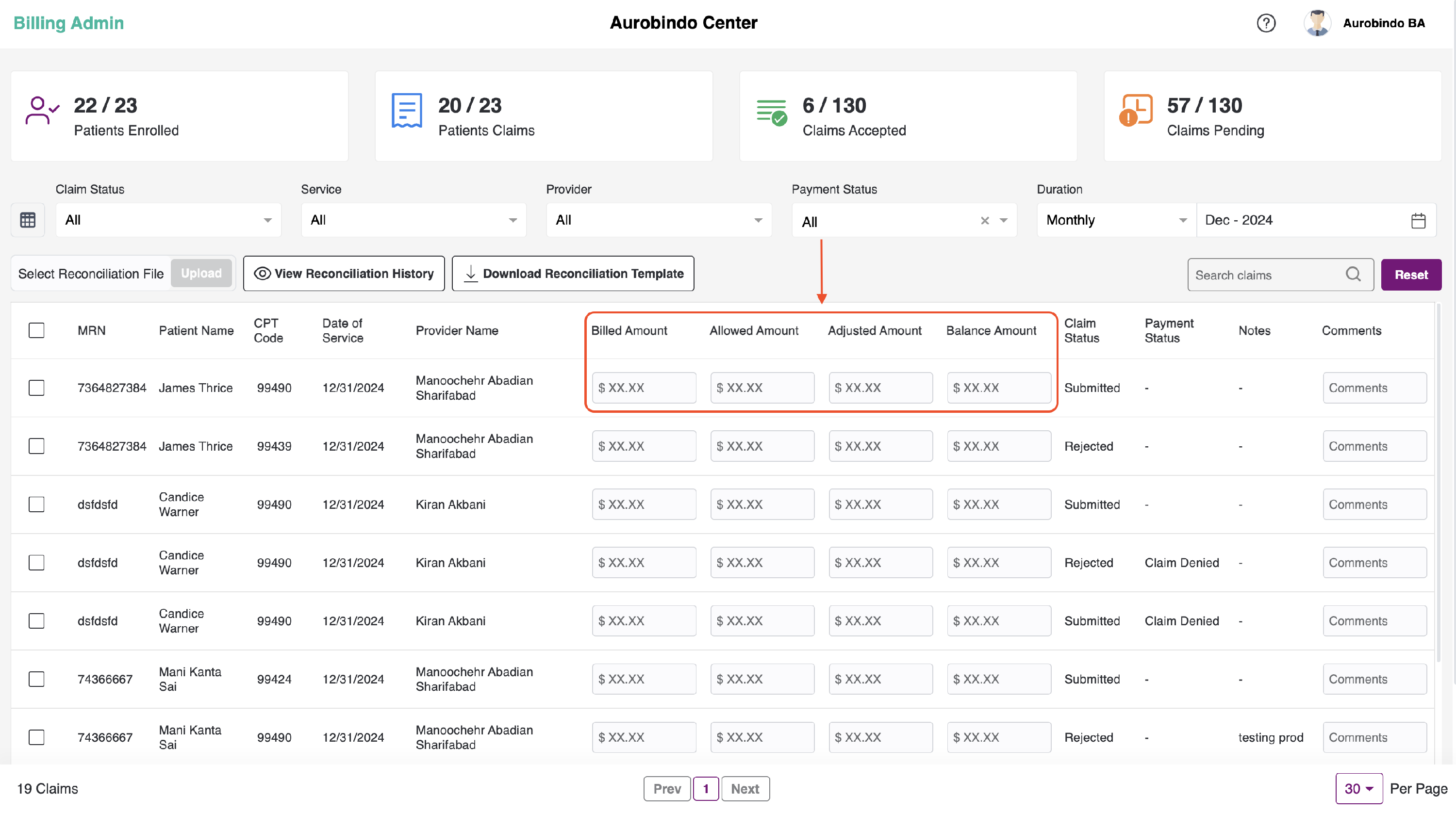
We can also add the Billed Amount, Allowed Amount, Adjusted Amount, Balance Amount for each bill in the input field where you can enter the amount and click outside the field. It will be saved, but it is only for reference and will not be referenced anywhere else.
-
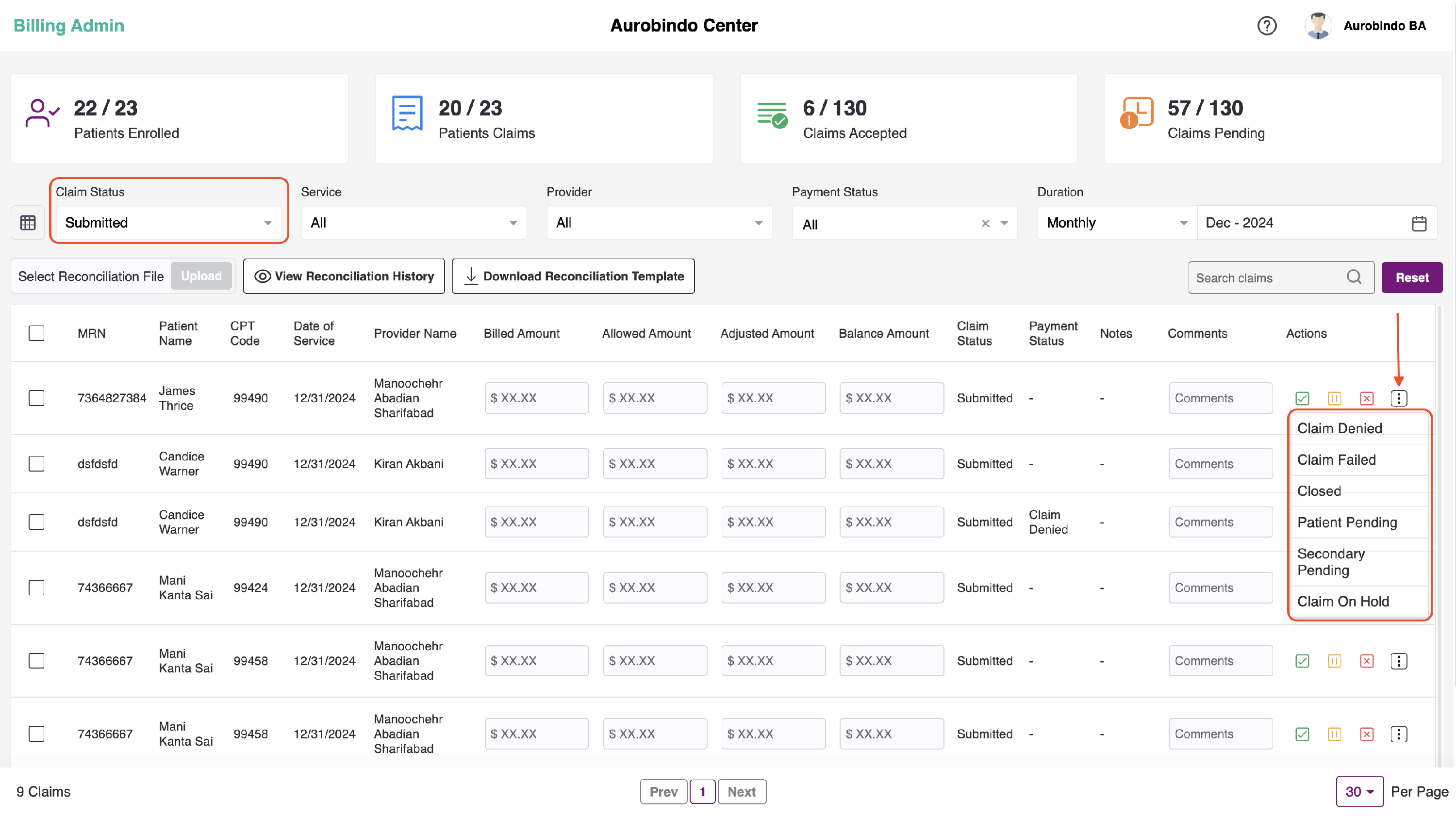
We also have the options of Claim Denied, Claim Failed, Closed, Patient Pending, Secondary Pending, and Claims On Hold to change the payment status of each claim. To access these options, select the submitted claim status and click on the more icon as shown in the below image.
-
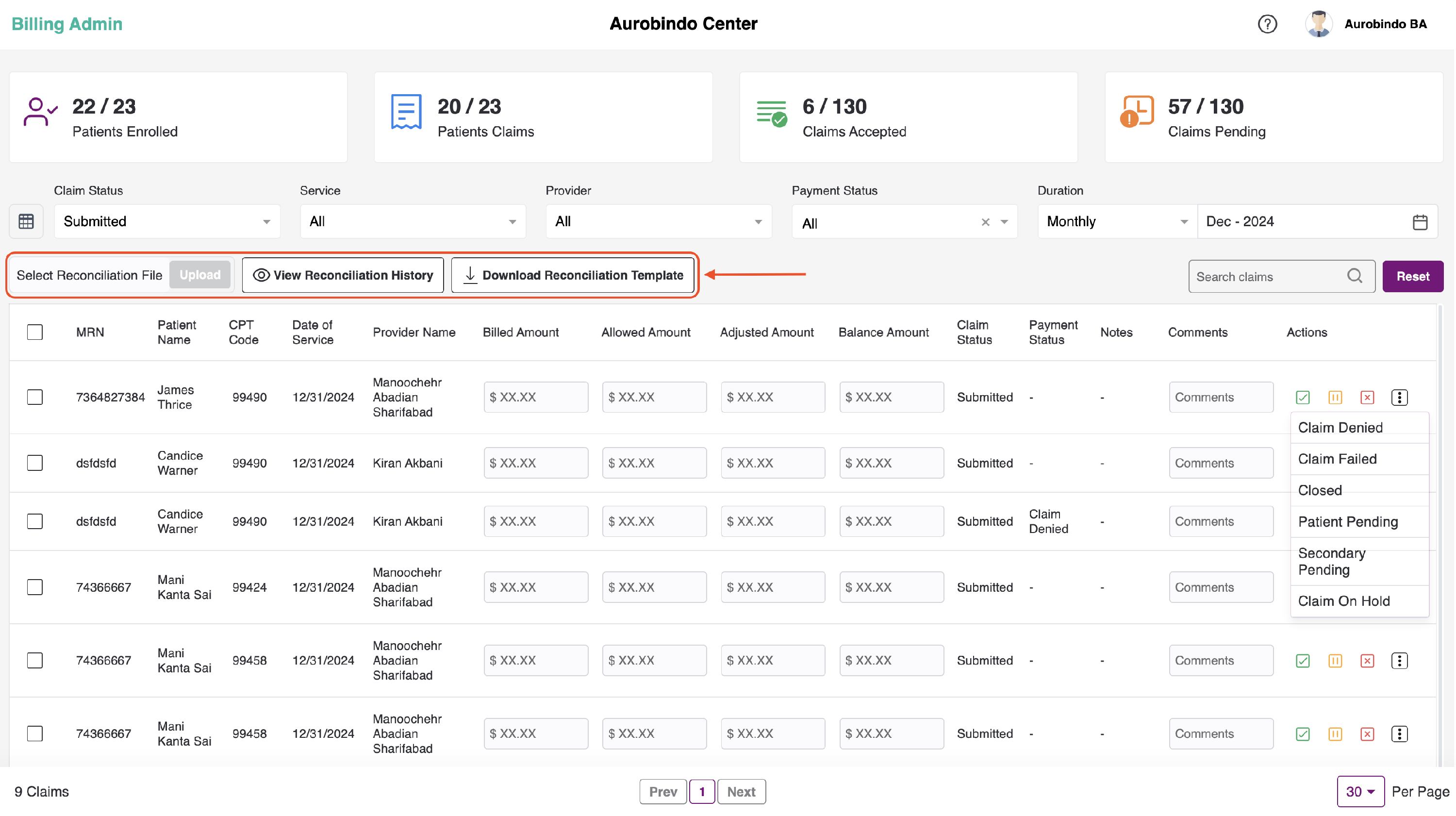
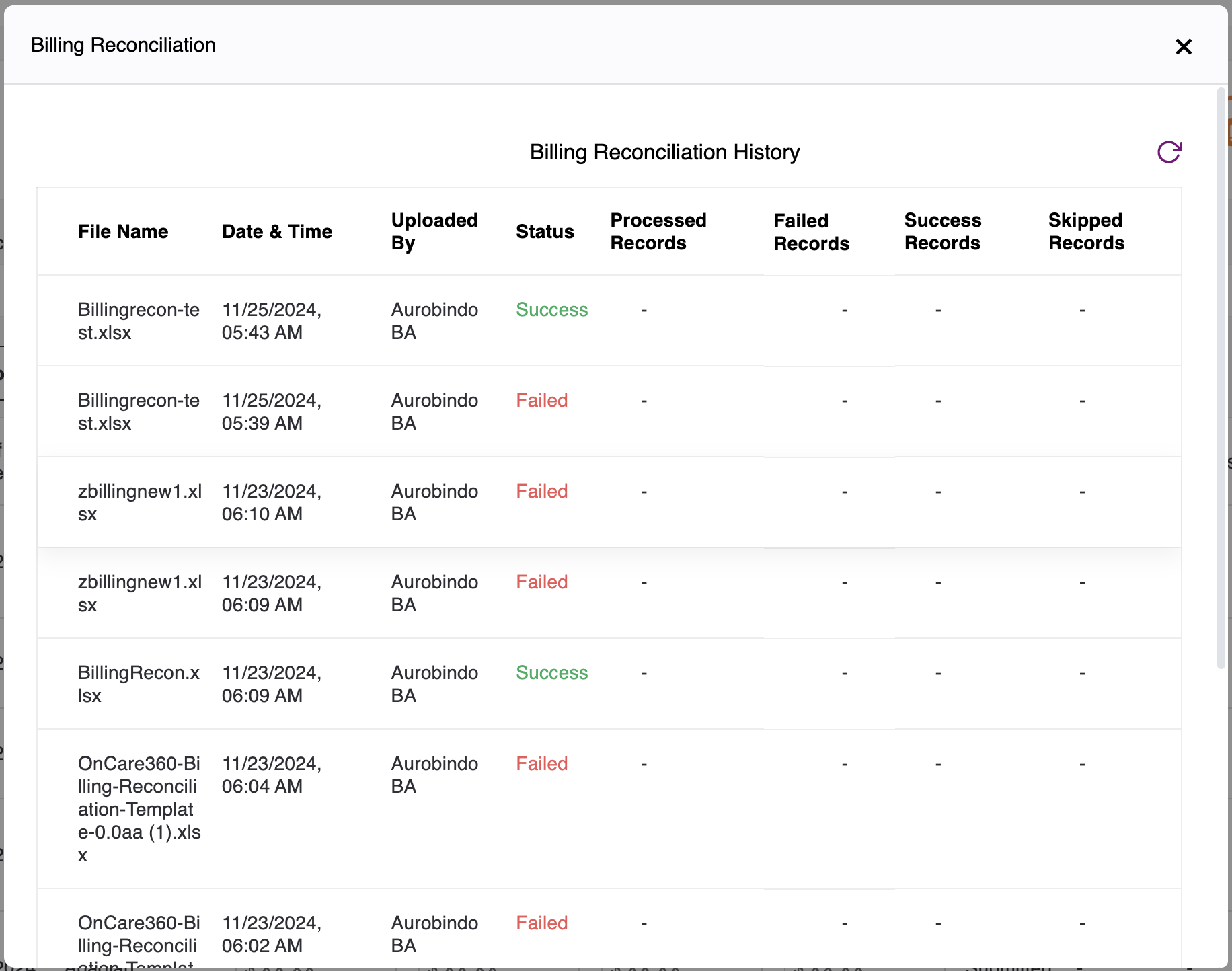
We also have the option to upload the billing reconciliation file. You can upload an Excel file with the claims data of each patient and check the history of the uploaded file. Additionally, you can download a sample file or sample reconciliation template by clicking on the "Download Reconciliation Template" button.
Note:
- Patients enrolled – the count of patients who have given the consent for subscriptions available for a center/ total number of patients of a specific center.
- Patients billed – the count of patients for whom the bills are submitted / the total number of patients enrolled.
- Bills accepted – count of bills approved / count of total bills(accepted+ rejected+ on hold+ submitted)
- Bills pending - count of bills in ready to bill state/ count of total bills(accepted+ rejected+ on hold+ submitted)