
Add/ Edit Prescription
Table of Contents:
Instructions
Add Prescription
- Tapping on the Add Prescription icon(plus) in the Medications tab redirects patients to the ‘Add Prescription’ screen.
- Patients can add medicine in 3 steps/sections
Medicine:
• Medicine name – Enter medicine name
• Manufacturer name
• Type - Type displays the type of medicine, like capsule, syrup, table etc
• Dosage - It displays 2 input fields
a. Dosage amount- It is a numeric field and allow numbers, enter quantity of the dosage.
b. Dosage units- Based on the selection of Type, Dropdown should change. It displays mg related for capsules and tablets whereas ml information for syrups, injection, lotion to select from the dropdown
• Continue button- Upon clicking continue, you will be redirected to Schedules Section
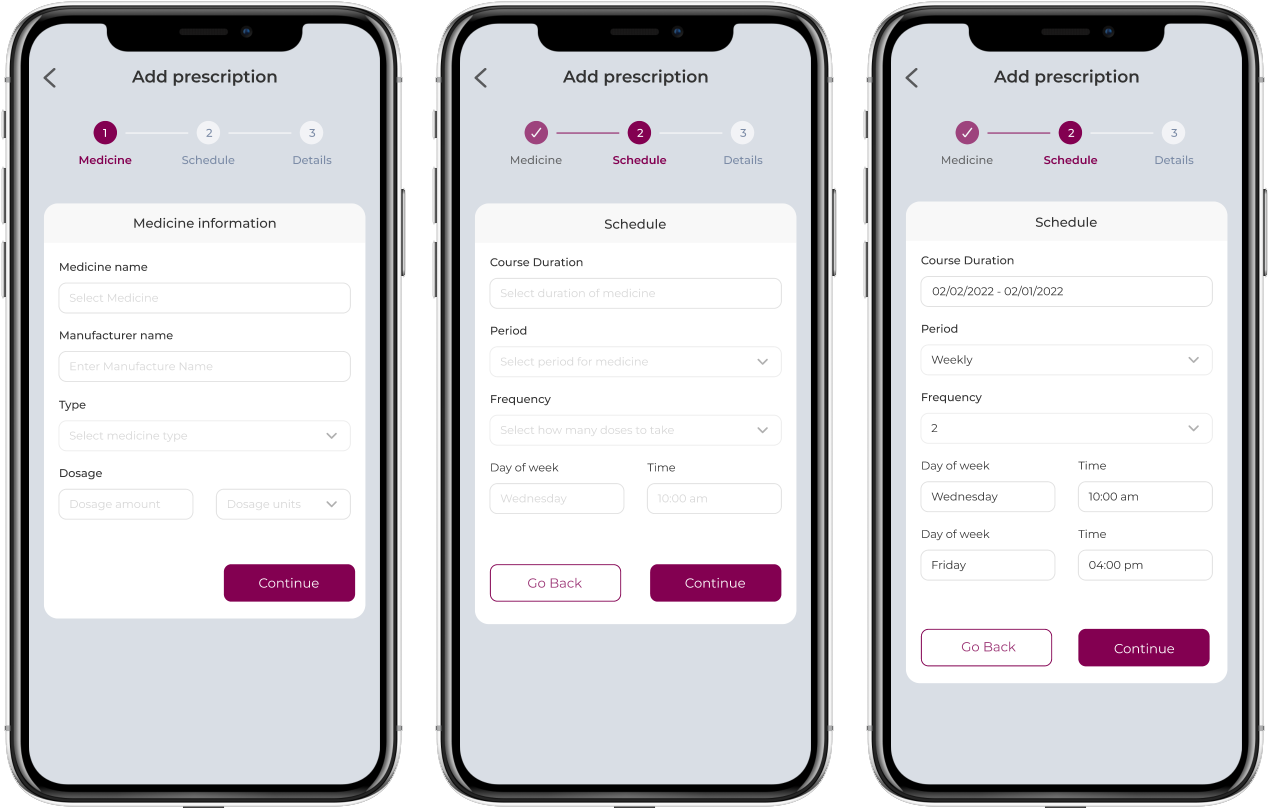
Schedule:
• Course Duration - It is a date picker and allows user to select Start Date and End date till when the course should be continued .
• Period - Daily , Weekly, Monthly, Days Interval and As needed will be available. Based on the selection reminder notifications are triggered
• Frequency - Frequency displays the number of times it should be taken
• Time- Displayed once frequency is selected, allows users to select the time when the medication is to be taken. Based on the frequency selected, the number of time fields gets added. if Frequency is selected as 2 then 2 Time fields should be available
• Go back and Continue buttons – Go back redirects you to Medicine Section and Continue redirects you to Details Section.
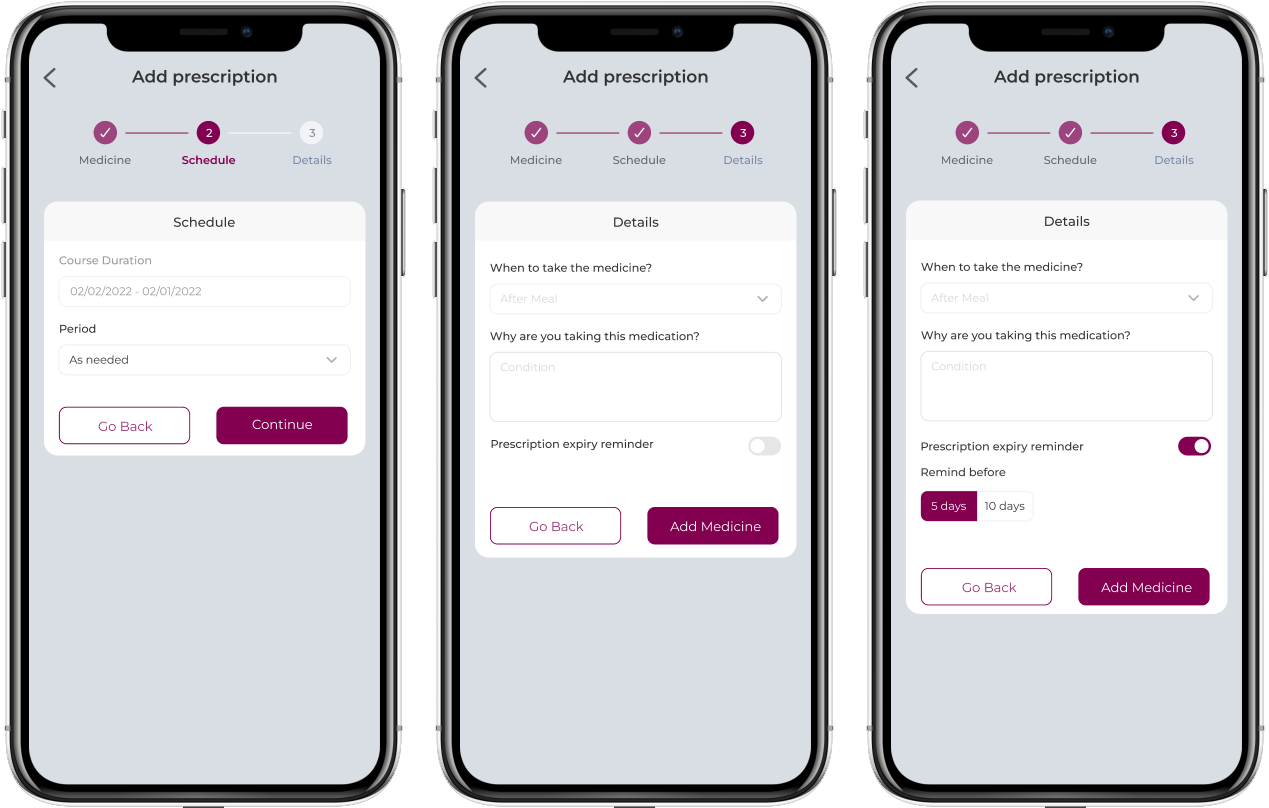
Details:
• When to take the medicine - Dropdown shows only 2 options: Before Meal and After meal
• Why are you taking this medication - Section allows users to enter the details about the medicine and reasoning.
• Prescription expiry reminder- By default, the toggle is disabled, when enabled, it displays “Remind before” with 2 options – 5 days and 10 days. If 5 days is selected, you will receive reminder 5 days before its expiration. Similarly when 10 days is selected.
• Go back button – Go back redirects you to Schedules Section
• Add medicine button- Adds medicine and redirects you to Medications screen.
- Tapping on the info icon of the medicine shows When to take the medication, Manufacturer's details, Why are you taking this medication information.
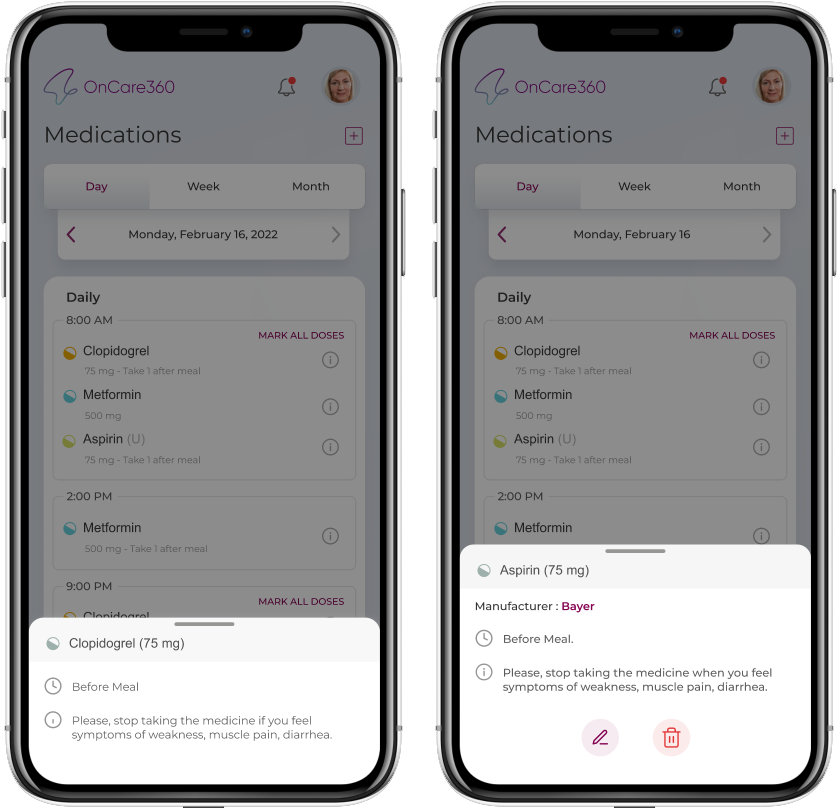
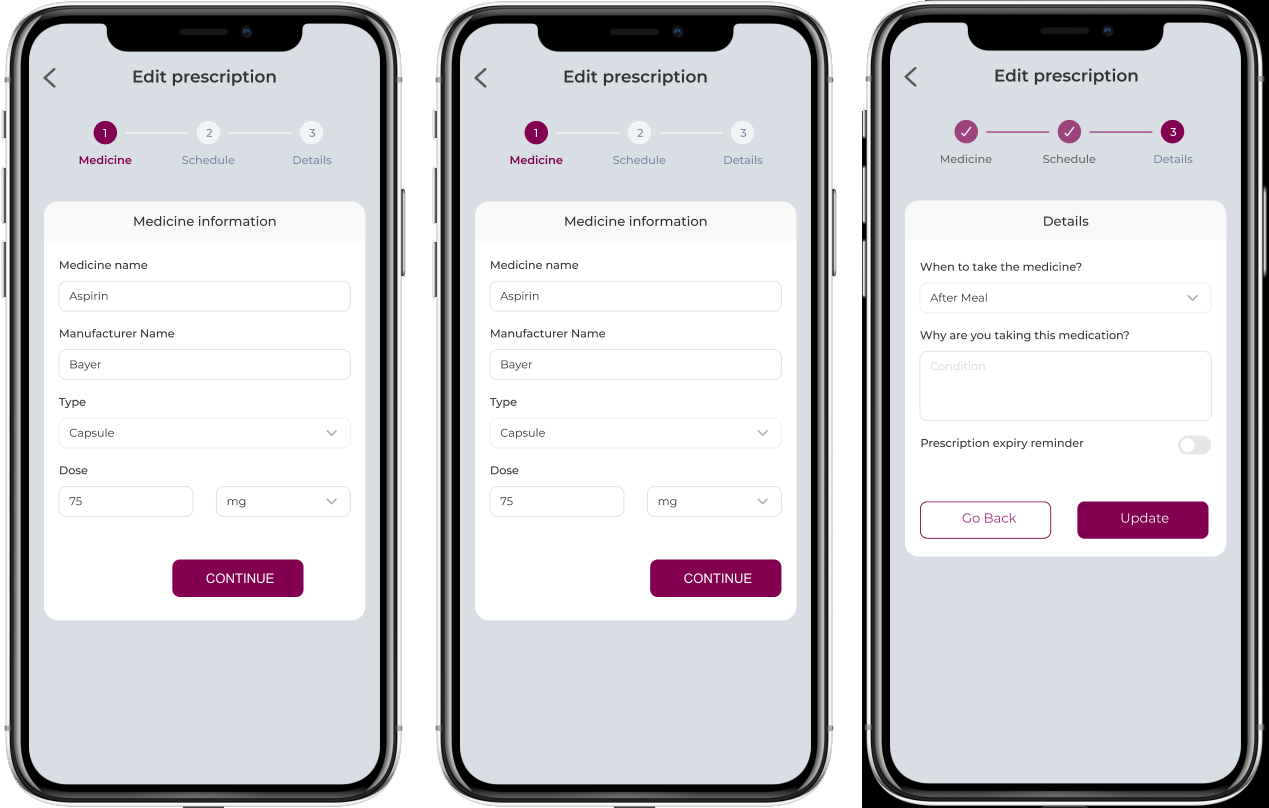
- An Edit icon displayed for all the displayed medications. But Delete icon along with Edit is displayed only for patient added medications, clicking on ‘Edit’ icon redirects user to Edit Prescription screen with information pre-filled with ‘Continue’ and ‘Go back’ buttons to update the content.
- Tapping on ‘delete’ icon shows a popup confirming the deletion with DELETE and CANCEL buttons- only for patient added medications.
- Tapping on ‘DELETE’ deletes all the information of the medicine
Note:
The medicines added by the patients are “others”, prescribed will be the ones which are added by the provider.