
Patient Messages
Table of Contents:
-
To view Patient Messages, click on the briefcase icon in the Patient's listing - Quick Actions.
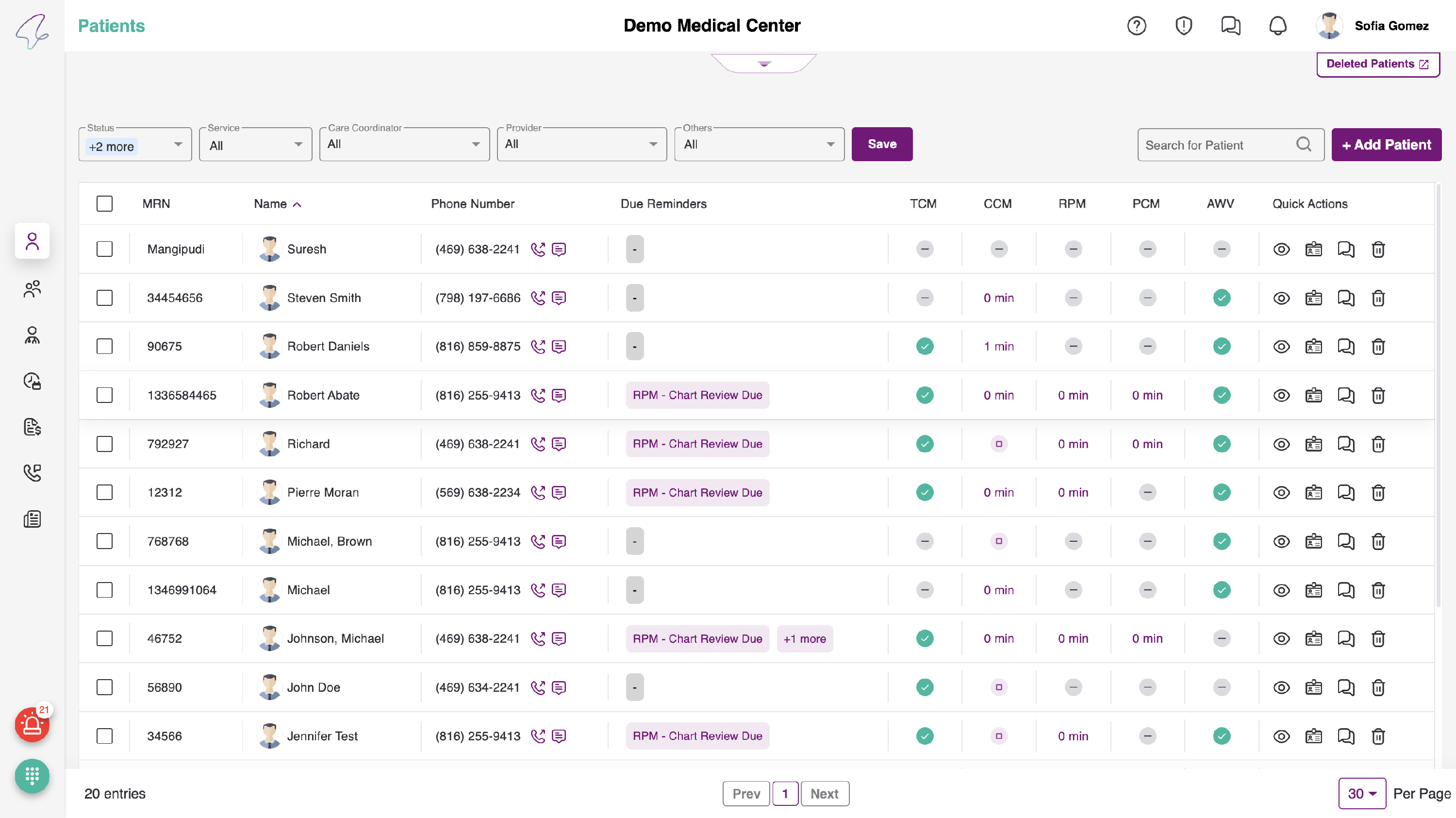
- You will see an accordion on top, it can be expanded and closed when needed. By default, the patient details accordion will be closed.
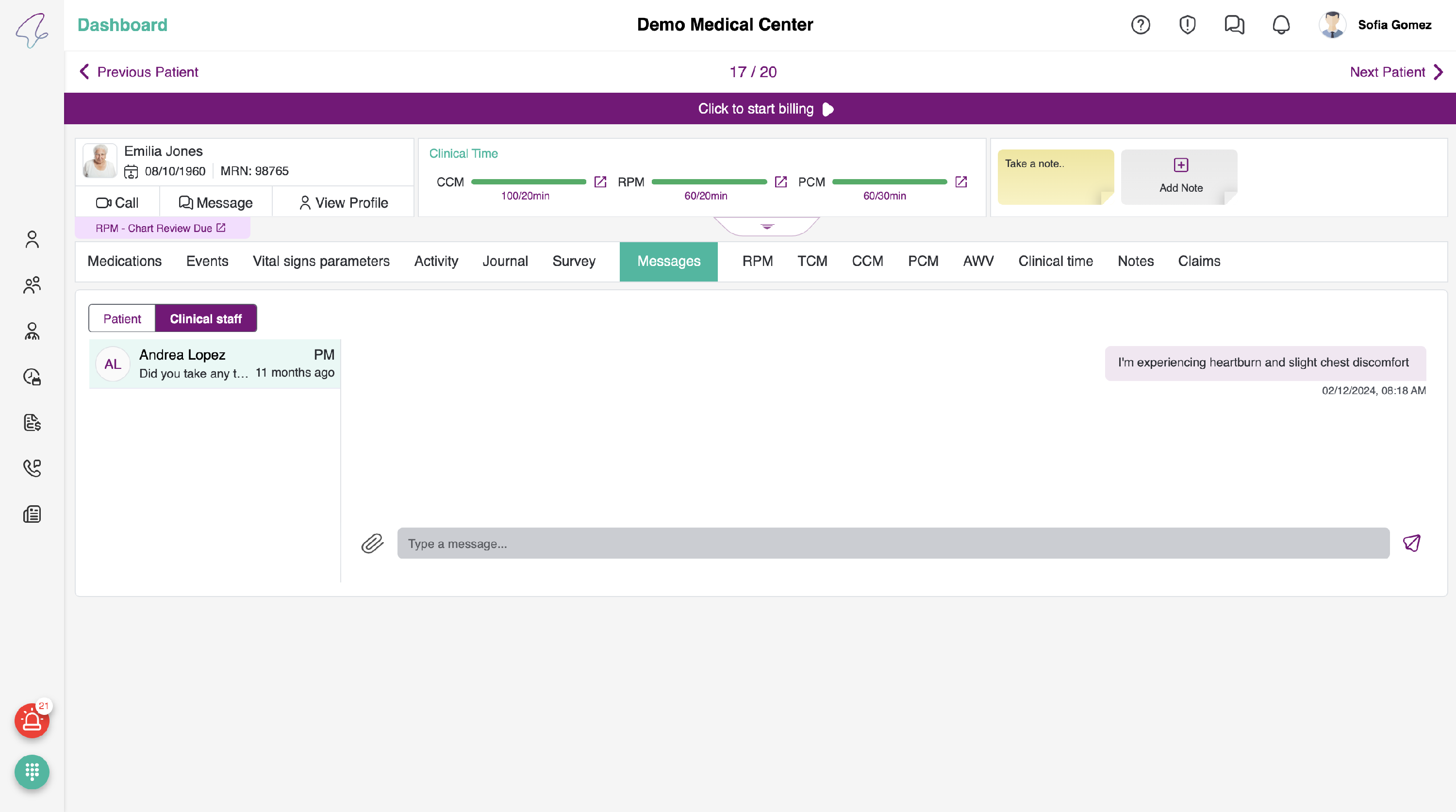
- And, once when clicked on the expand button, you can see the expanded Patient details as follows. On the left, you can also view a call icon beside the Mobile, that is used to call the patient on his cell.
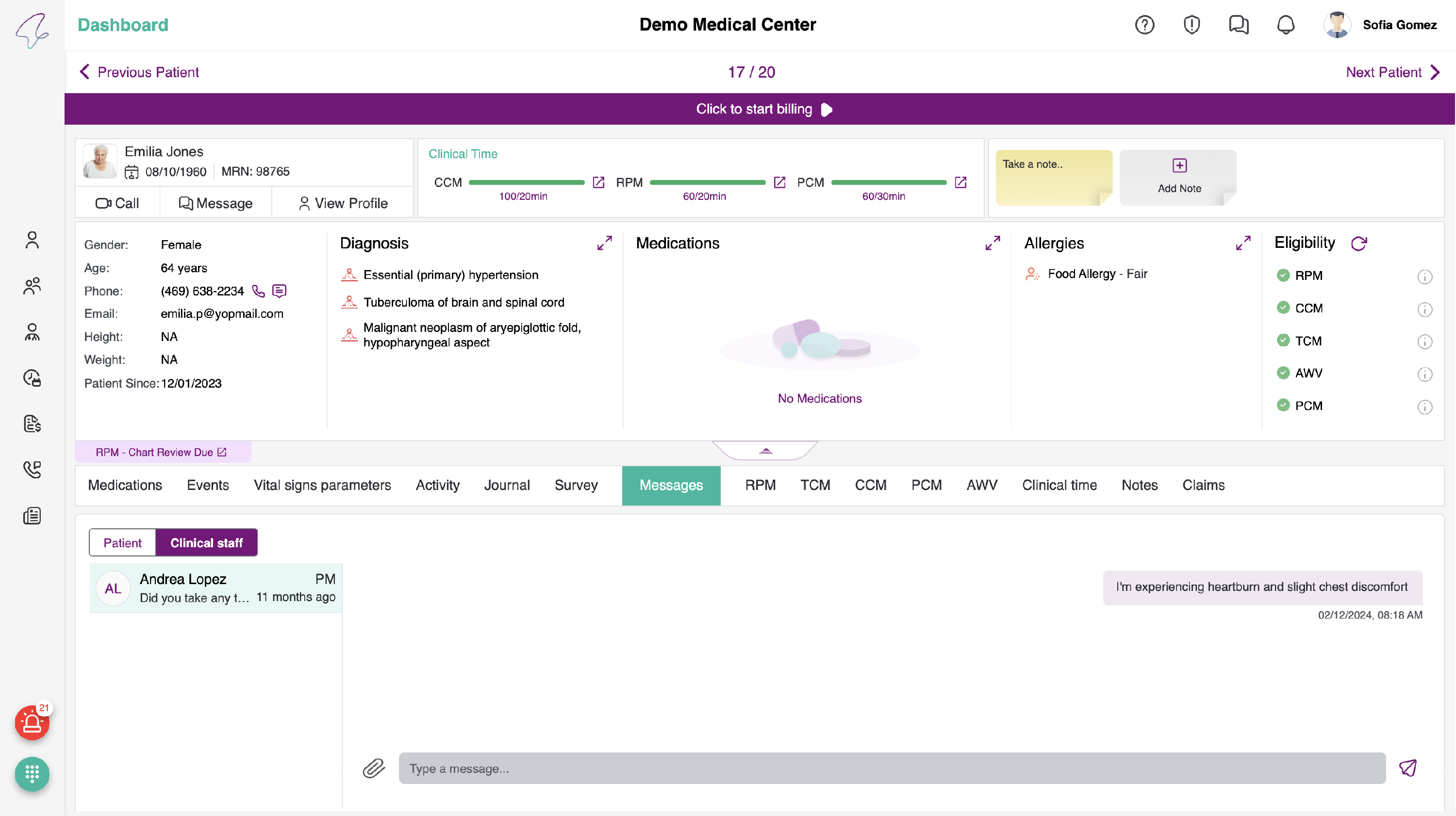
Messages
- Click on the Messages tab to view messages. There will be two sections: Patient and Clinical Staff.
- By default, the tab will display the Patients tab. You can view the message history if there has been any conversation, otherwise, it will display an empty state indicating that no conversations available.
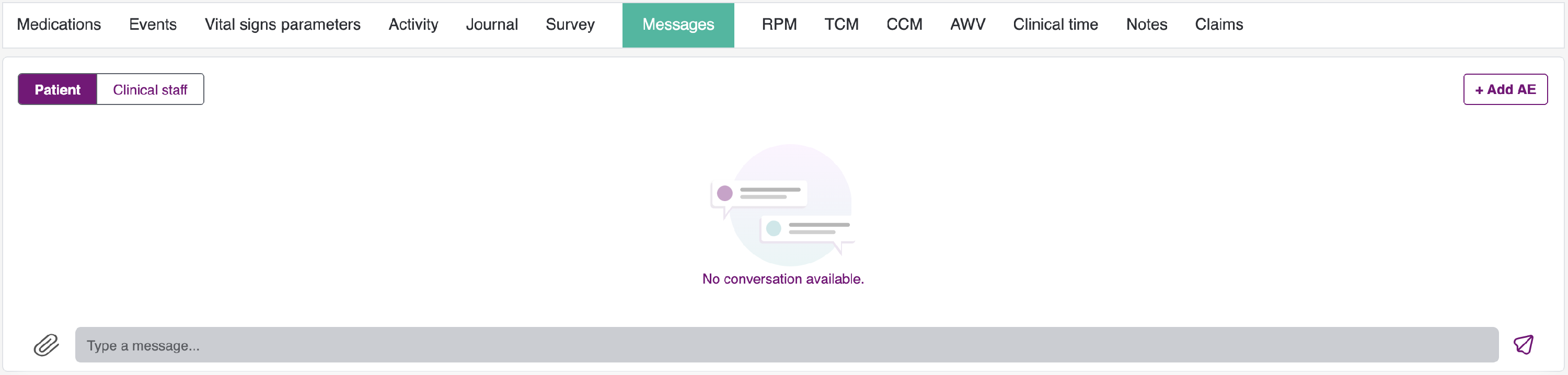
Patients Tab:
- The complete list of messages initiated by the patient is accessible here.
- The provider has the capability to send and receive media in various formats (document, image, video, audio) as attachments in a message.
- All the messages exchanged between the patient and provider are logged and maintained.
- Each message will include the timestamp indicating the delivery/receipt time.
- We can see a '+' icon for the messages sent by the patient. On clicking it, Add AE pop-up opens, we can add a message as an Adverse Event.
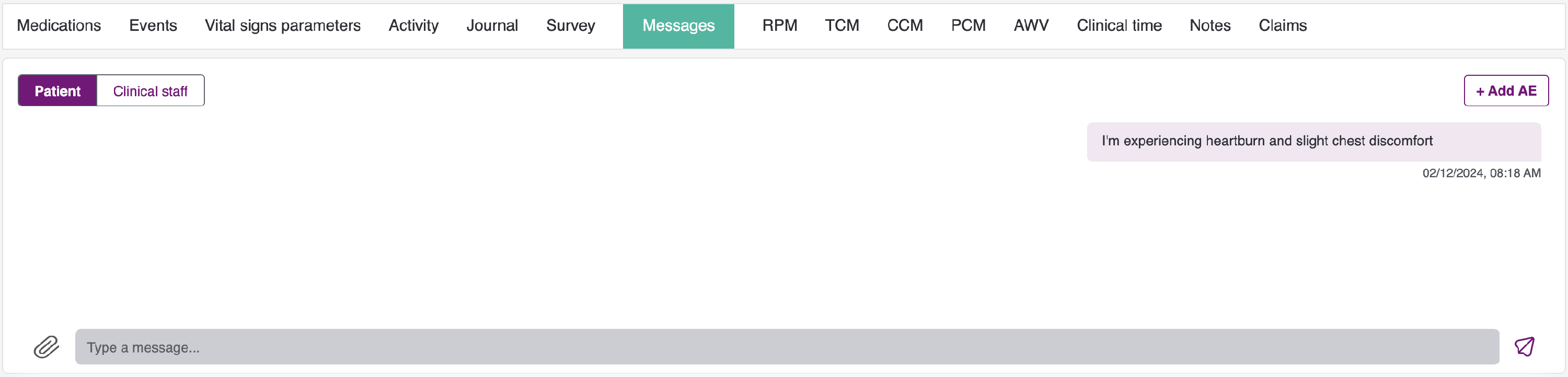
- Date/ Time and Message content goes in 'Add Adverse Event' pop-up and Adverse Event can be created from the message.
Add AE
- We can also see an Add AE button at the right, clicking on it displays Add Adverse Event pop-up.
- Date & Time will get auto-populated to today's date and current time.
- User can select the Category, Symptoms, Grade and add Notes based on the input received from the patient.
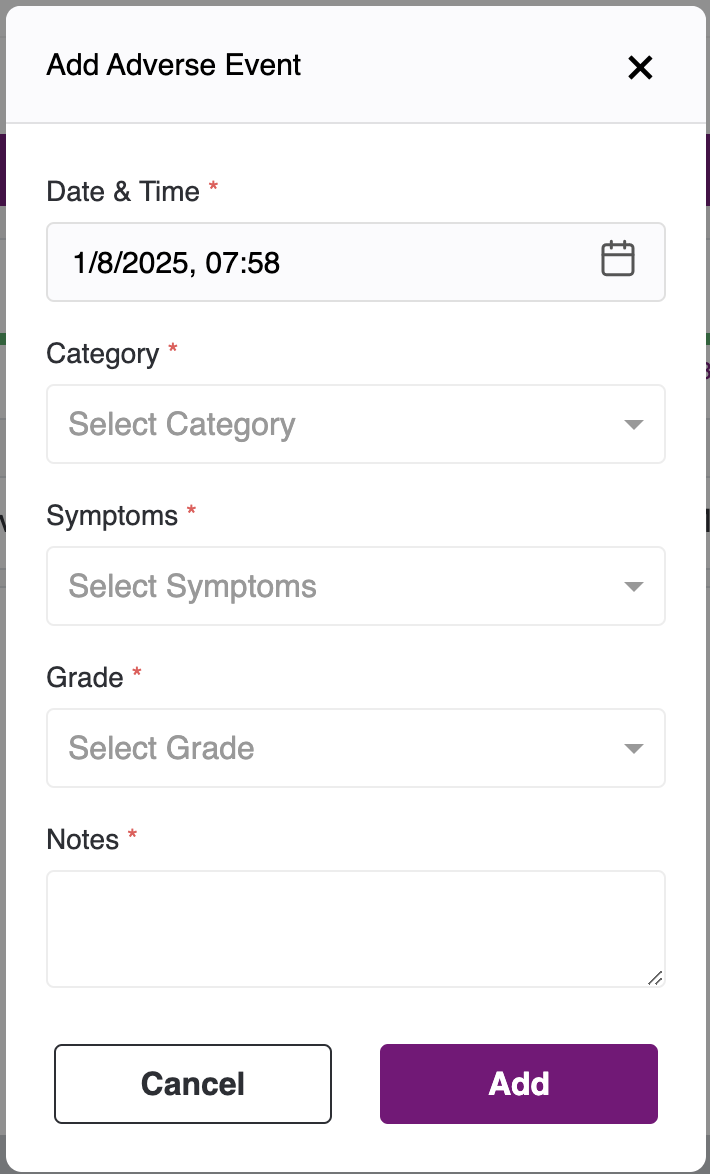
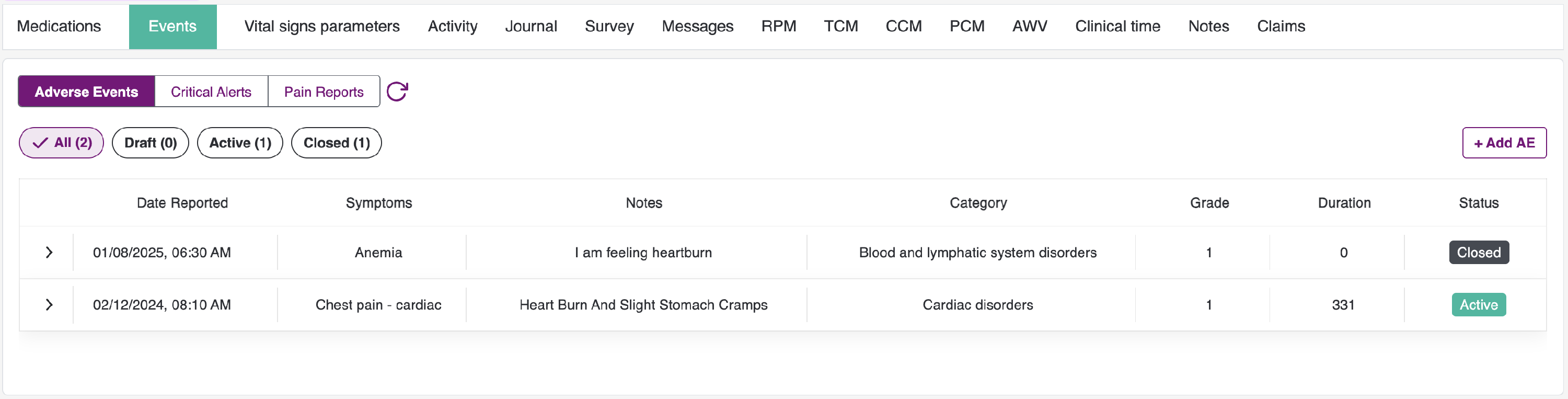
- All the above fields are mandatory, after filling all the fields, click on Add button to save and add Adverse Event. Once saved, it will redirect to the Events screen with the New AE listed at the top.
Clinical Staff:
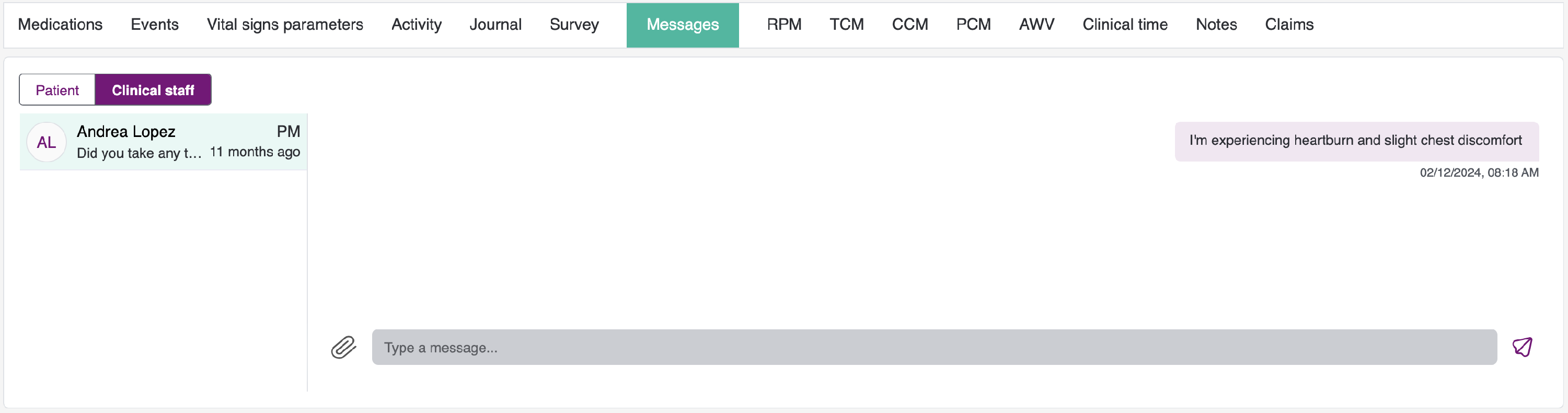
- The comprehensive list of messages initiated by the clinical staff is available here.
- The provider has the ability to send and receive media in various formats (document, image, video, audio) as attachments in a message.
-
Each message will include a timestamp indicating the delivery/receipt time.
-
On the left side, we can view the history of clinical staff with whom we have had conversations.
Note:
Adverse Events added from the Provider Dashboard directly goes into the Active AE Status.