
Patient Activity
Table of Contents:
- Steps
- Exercise
-
- To view Patient Activity, click the briefcase icon in the Patient’s listing under Quick Actions.

- You will find an accordion at the top; you may expand or close it as needed. By default, the patient details accordion will remain closed.
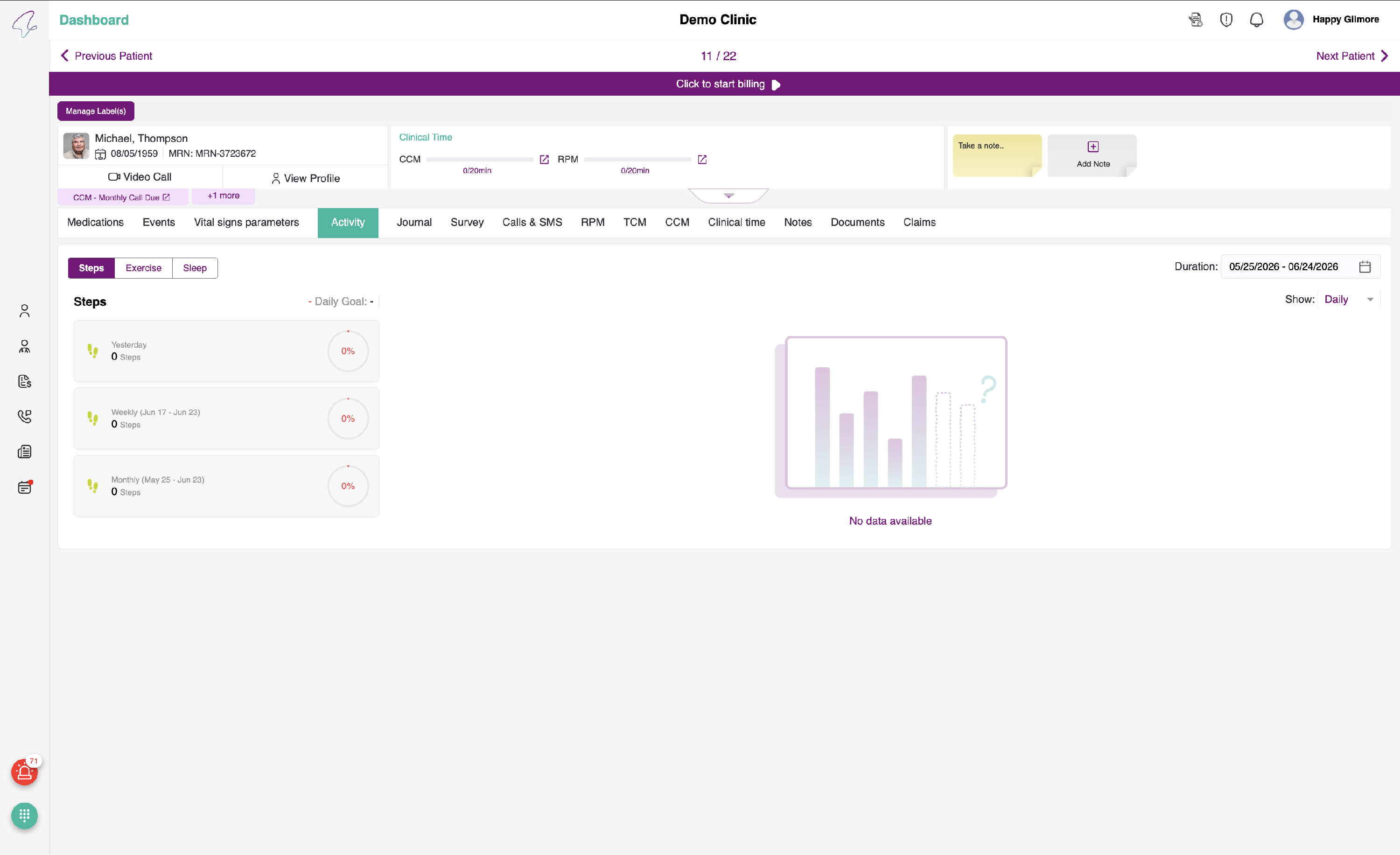
- Once you click the expand button, you will be able to view the expanded Patient details, as shown below. On the left side, you can also see a call icon next to the mobile number, which you can use to call the patient on his cell.
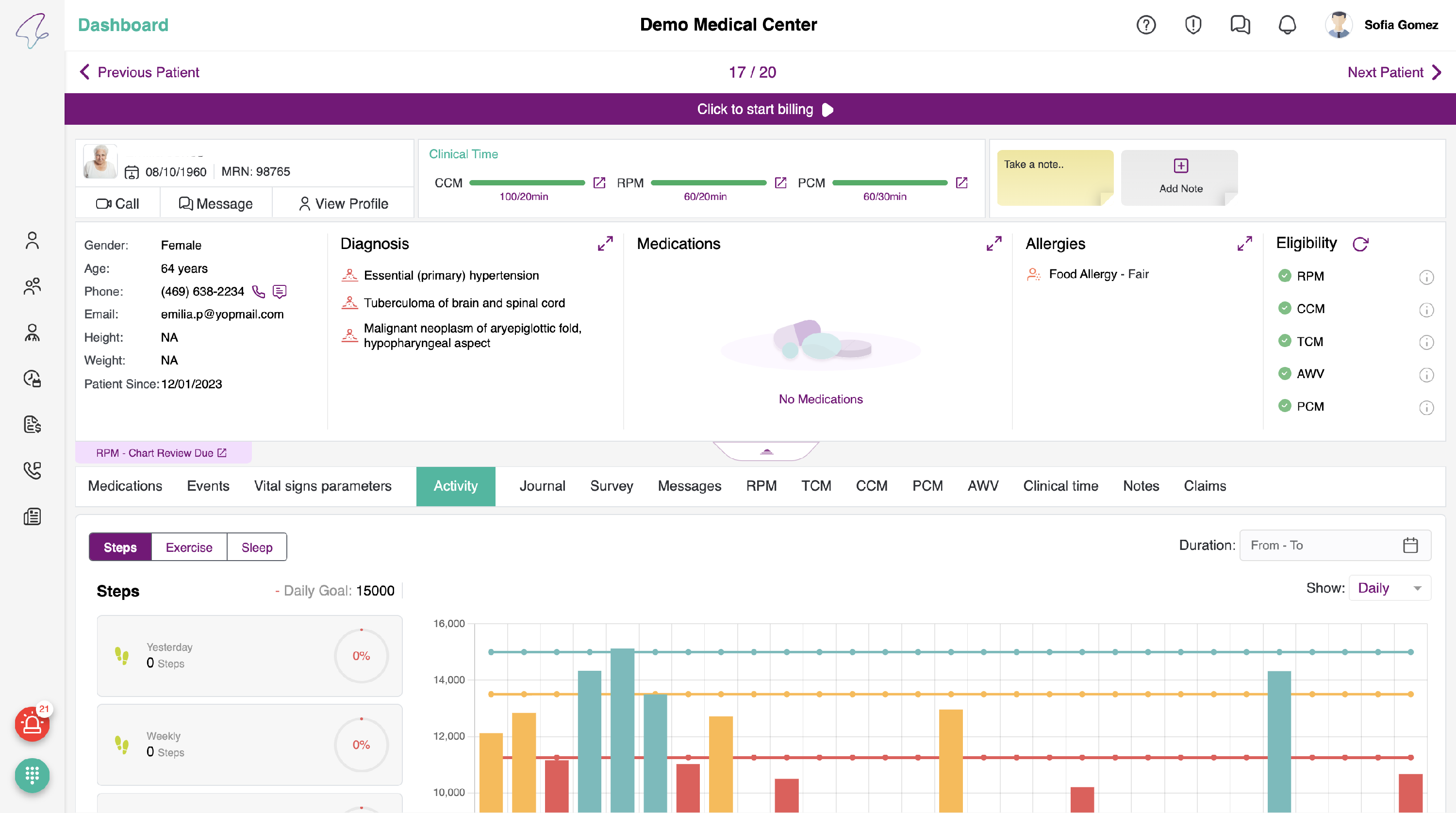
- Please click the Activity tab to view Patient Activity. You will see three sub-tabs: Steps, Exercise, and Sleep.
Steps:
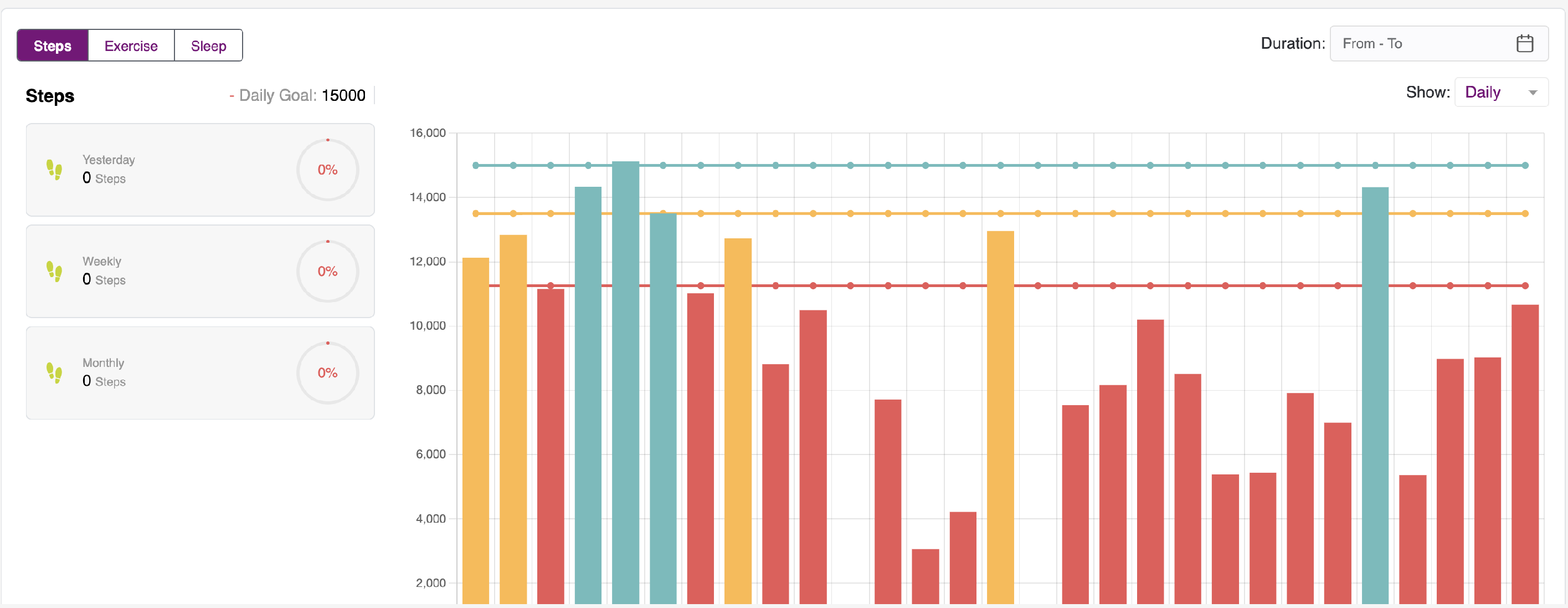
- By default, the Steps tab is active, and Activity can be viewed using the Daily, Weekly, and Monthly options. You can also select the time period by clicking Duration in the top-right corner.
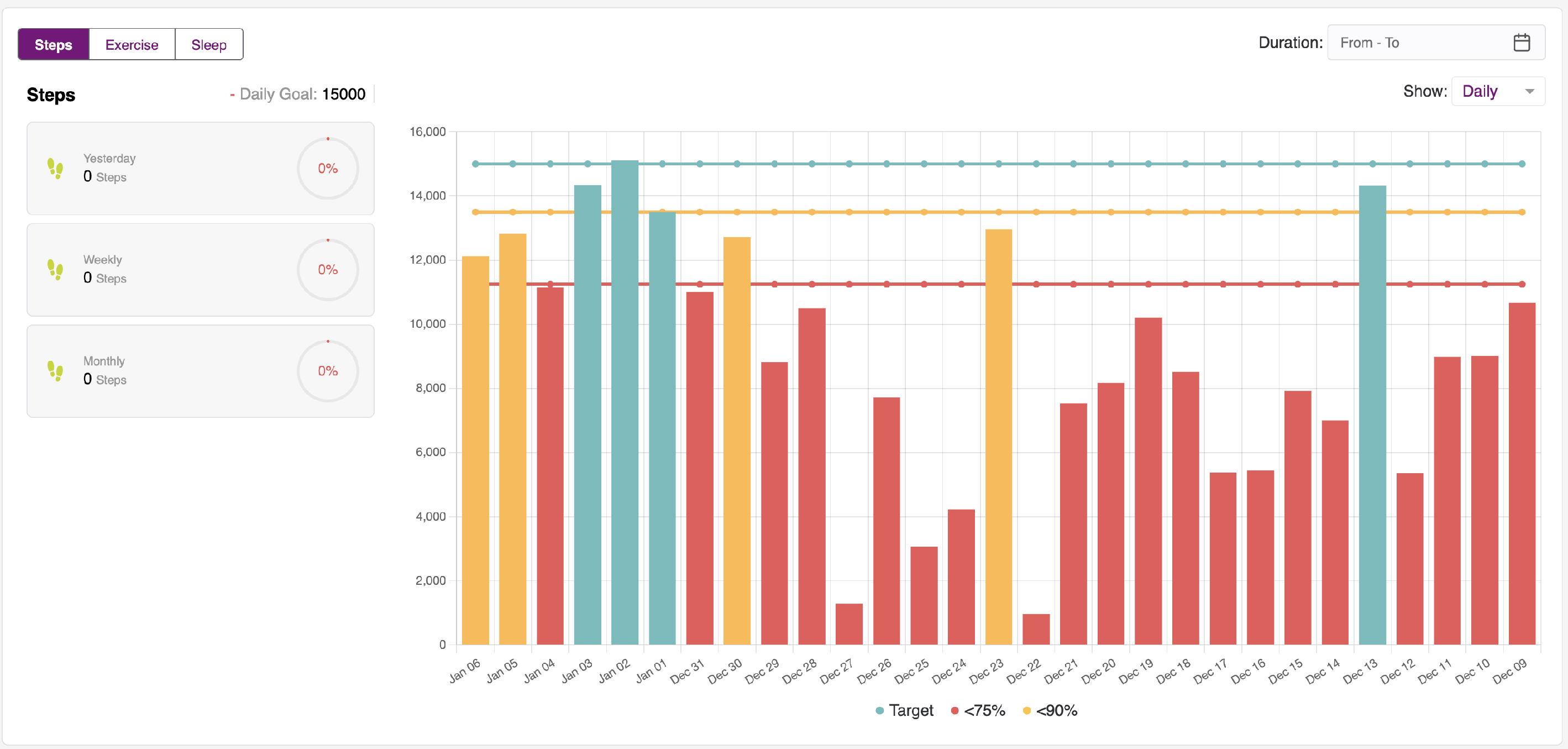
- On the left side of the chart, Yesterday’s, Weekly, and Monthly activity will be displayed based on the activity tab you select. For example, if the Steps tab is selected, then Yesterday’s weekly details with the Start date and End date, as well as Monthly (Start date and End date) step values, will be shown alongside the Daily Goal. You can also view the circular progress indicator, including the percentage.
Exercise:
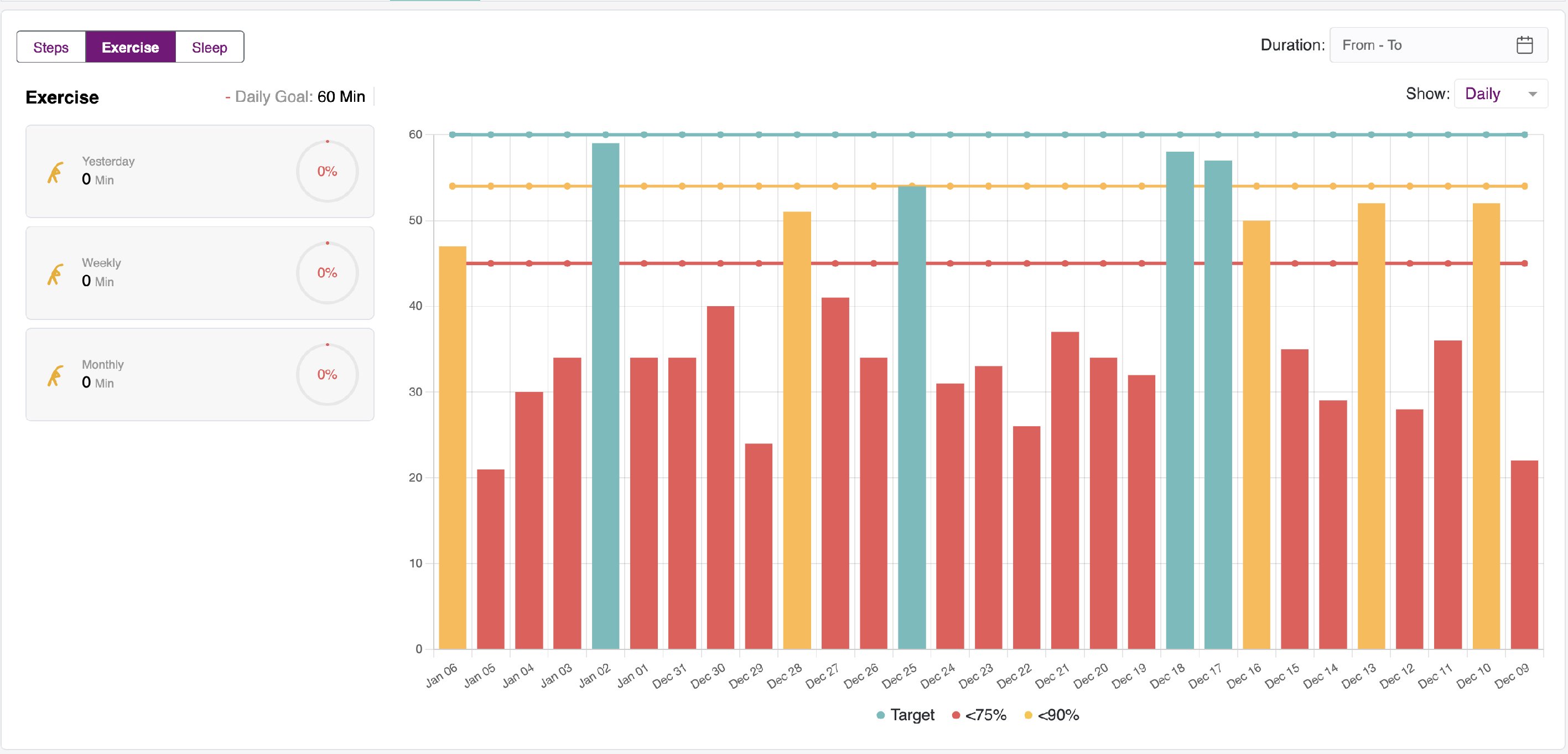
- By selecting the Exercise tab, you will be able to view the Exercise duration alongside Yesterday’s, Weekly, and Monthly activity, as well as the Bar graph for the corresponding data.
Sleep:
- Clicking the Sleep tab will display the sleep time along with yesterday’s, weekly, and monthly activity, including the bar graph for the corresponding data.
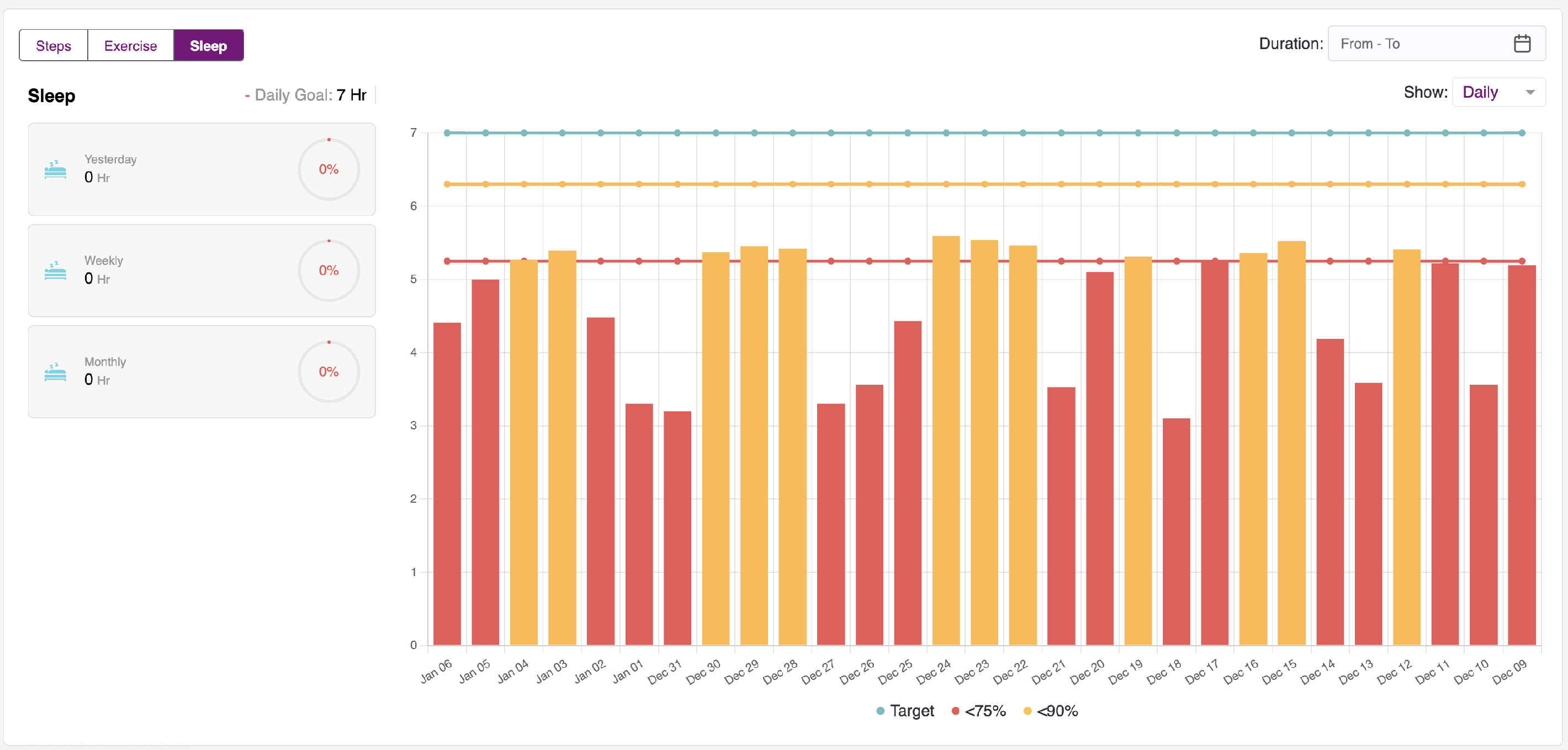
- When you click on an Activity, the bar graph for the selected activity is displayed.
- The X-axis updates based on your selection of the Daily, Weekly, and Monthly options. This also depends on the duration range you choose. If no duration date is selected, the current days, weeks, and months will be shown.
Daily - X axis shows all the dates
Weekly - X axis shows by week (Week start and end date should be shown)
Monthly - Shows the axis by Months.
Note:
- The Y-axis will be dynamic and will adjust based on the activity type selection. For example, Steps should display the axis in 1,000 intervals, while Exercise should present intervals in minutes and Sleep should represent intervals in hours.
- Color coding of the progress bars is based on the adherence percentage outlined below.
- 90 and above - Green
- 75 to 90 - Amber
- Less than 75 - Red