
Task Management
Table of Contents:
Upon successful login, you will land on the Patient List page.
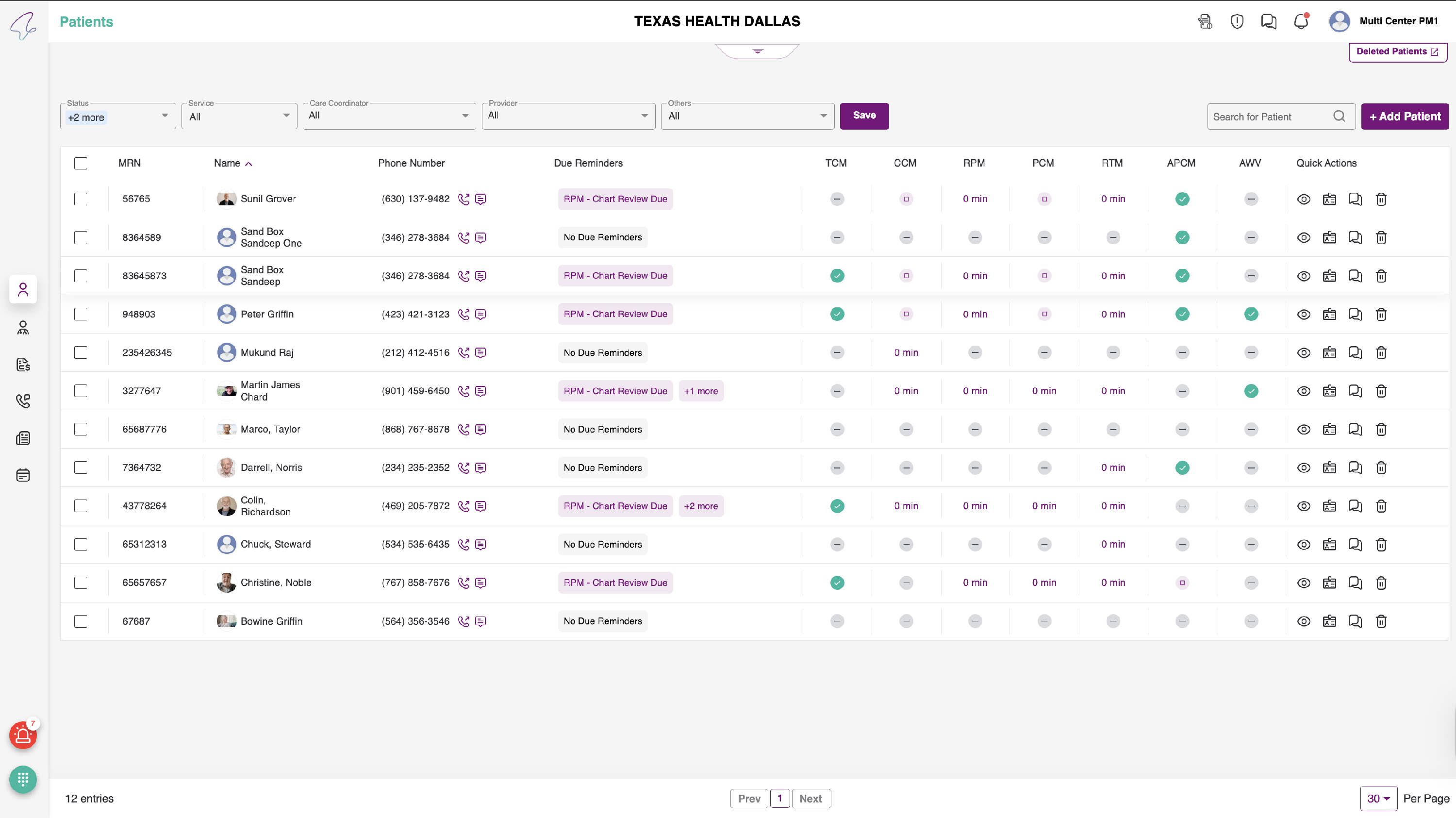
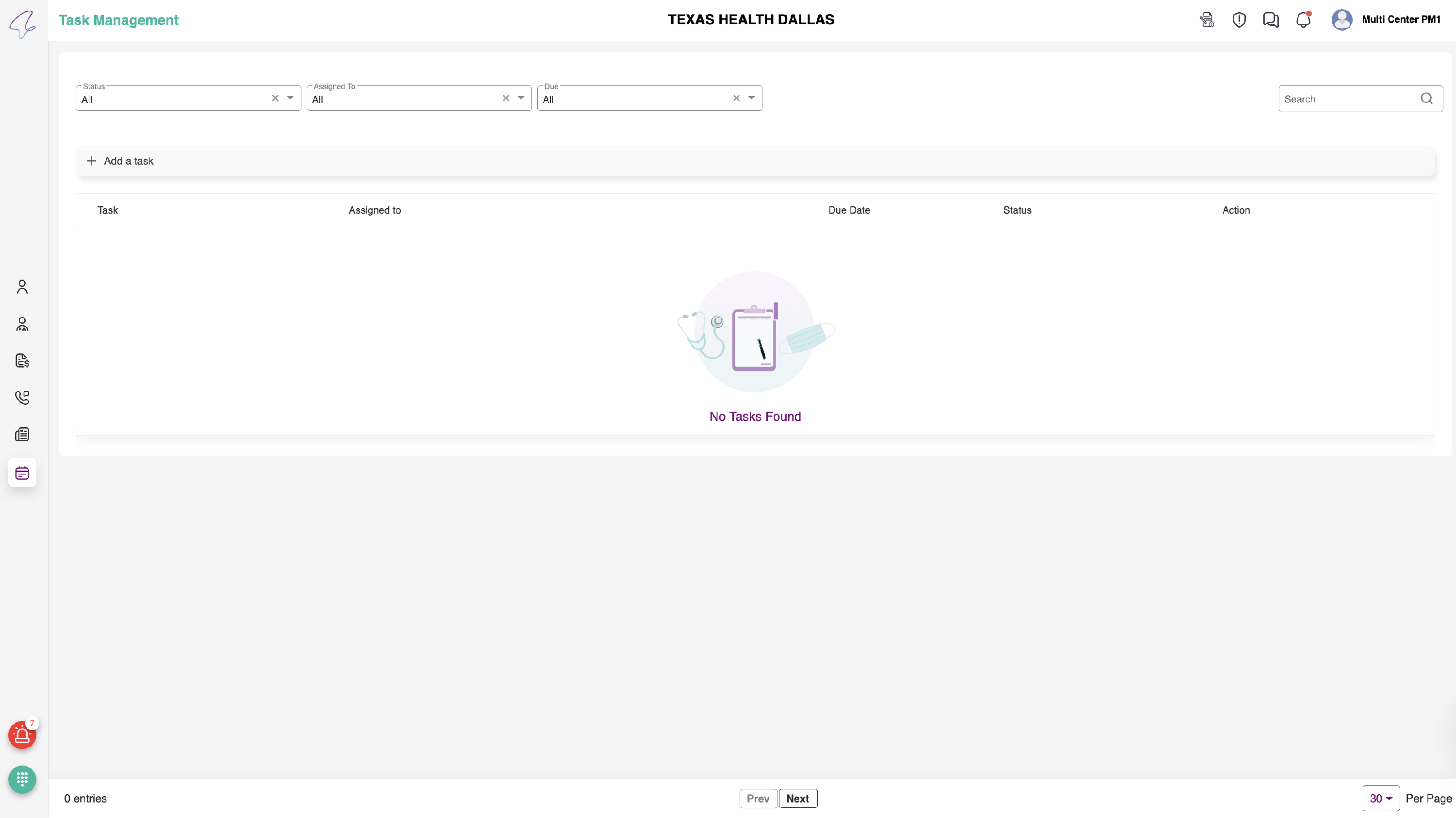
To navigate to the task management section, click on the Task Management icon in the side navigation bar. Initially, you will see an empty table.
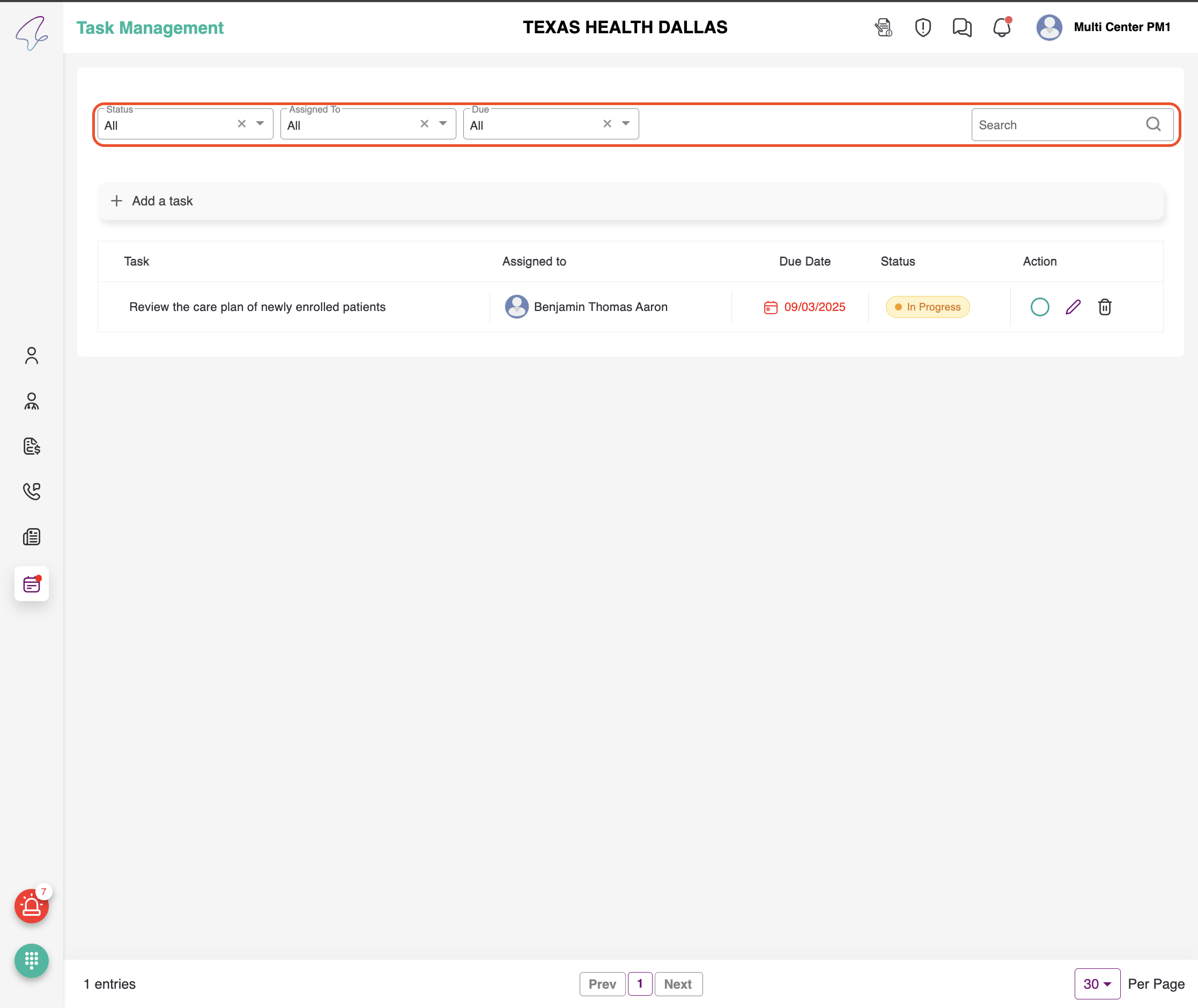
Filtering and Searching Tasks
You can filter the displayed tasks using the following options located above the table:
- Status: Filter tasks by their current status. Options include Open, In Progress, and Completed. By default, this is set to All.
- Assigned to: Select a specific team member to view their assigned tasks. The list includes all users, from care coordinators to providers.
- Due: Filter tasks based on their due date. Options include Overdue, Today, Tomorrow, and Later.
You can also use the search bar to find tasks based on their name, assigned user, due date, or
Adding a New Task
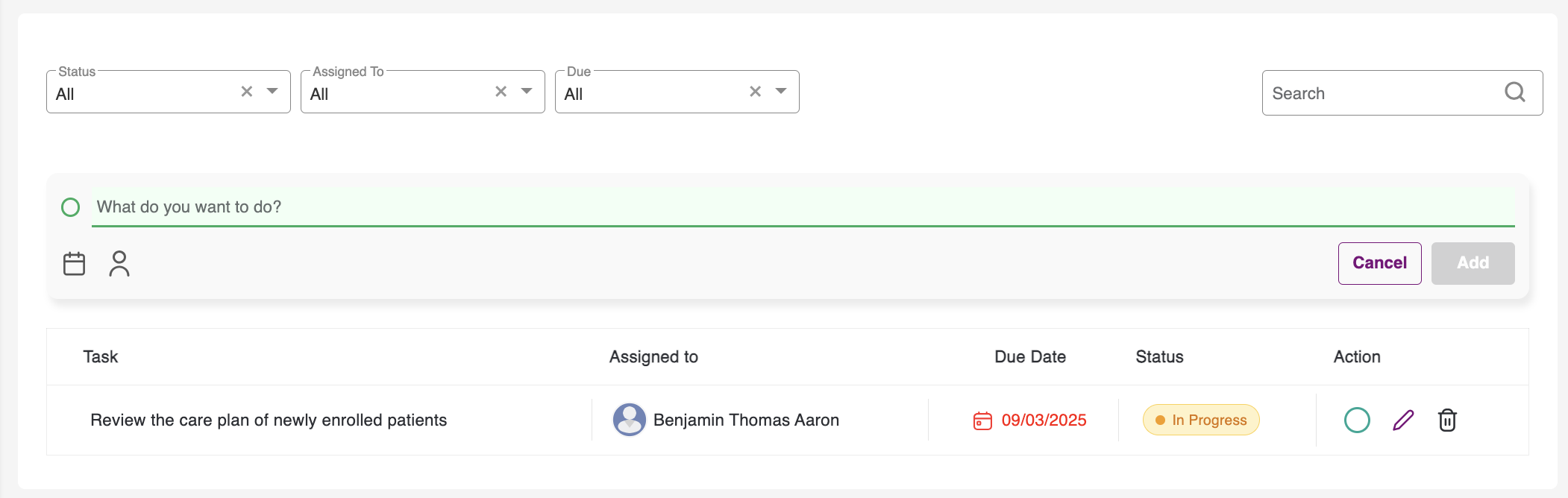
To create a new task, click the + Add a task button below the filters. A new input field will appear.
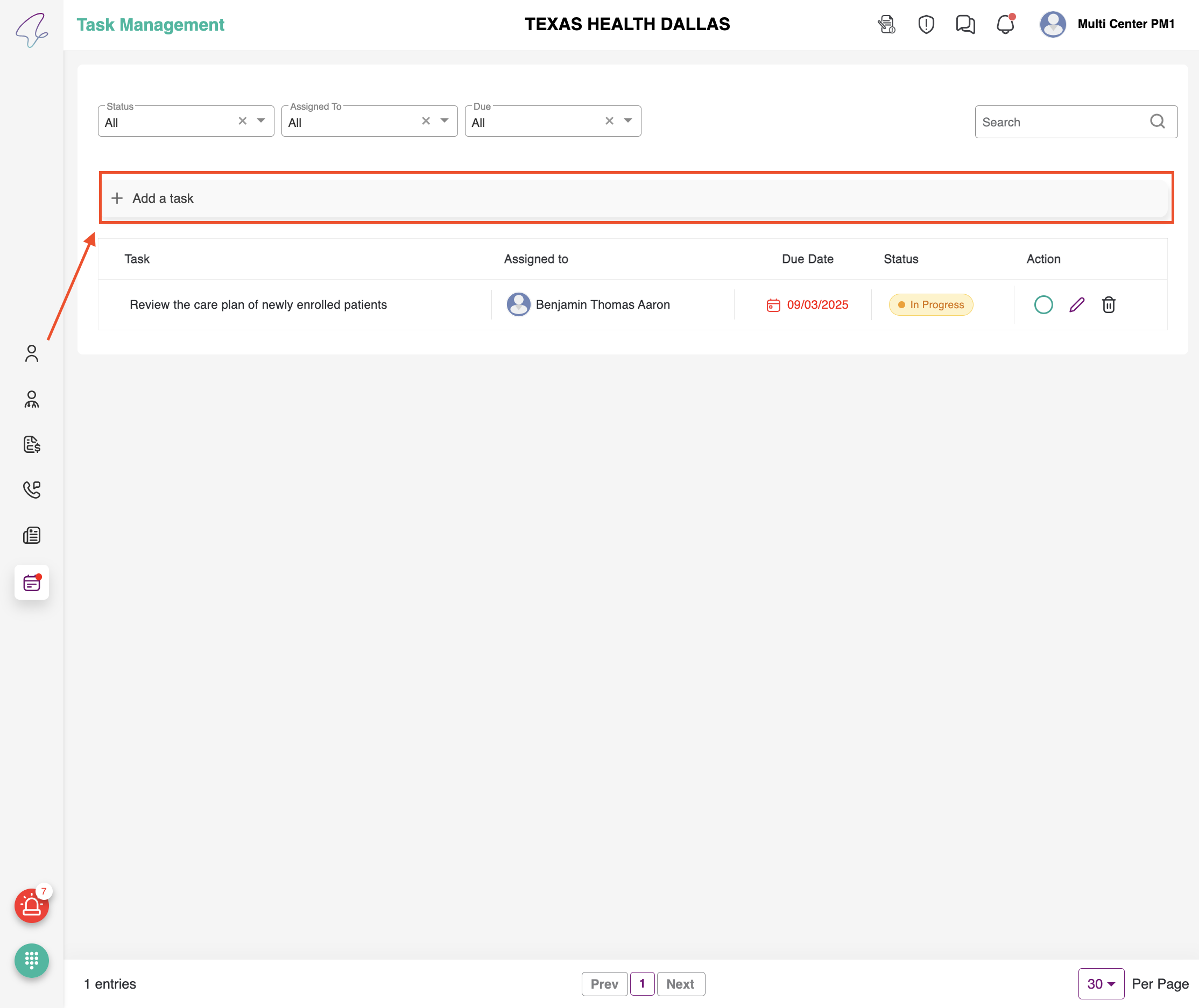
- Enter a task name in the text field.
- Click the calendar icon to select a due date for the task. This is a mandatory step.
- Click the user icon to assign the task to a team member. This is also mandatory.
- Click Add to save the new task.
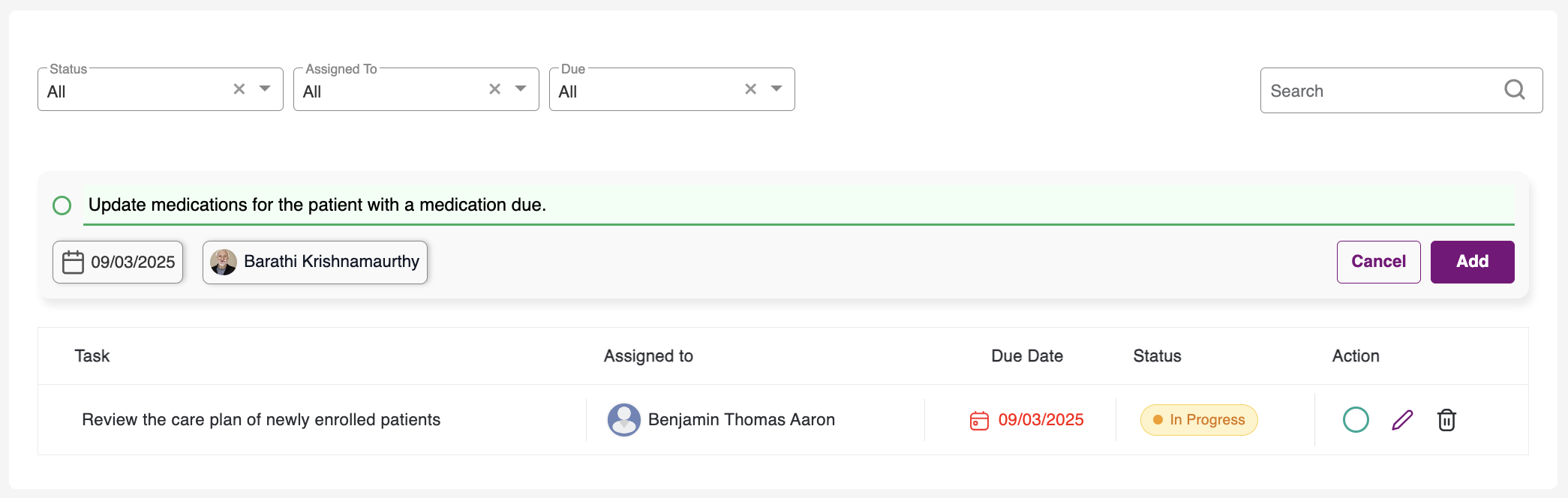
The newly created task will now appear in the table below.
Managing Existing Tasks
The table displays all relevant task details. You can manage tasks in the following ways:
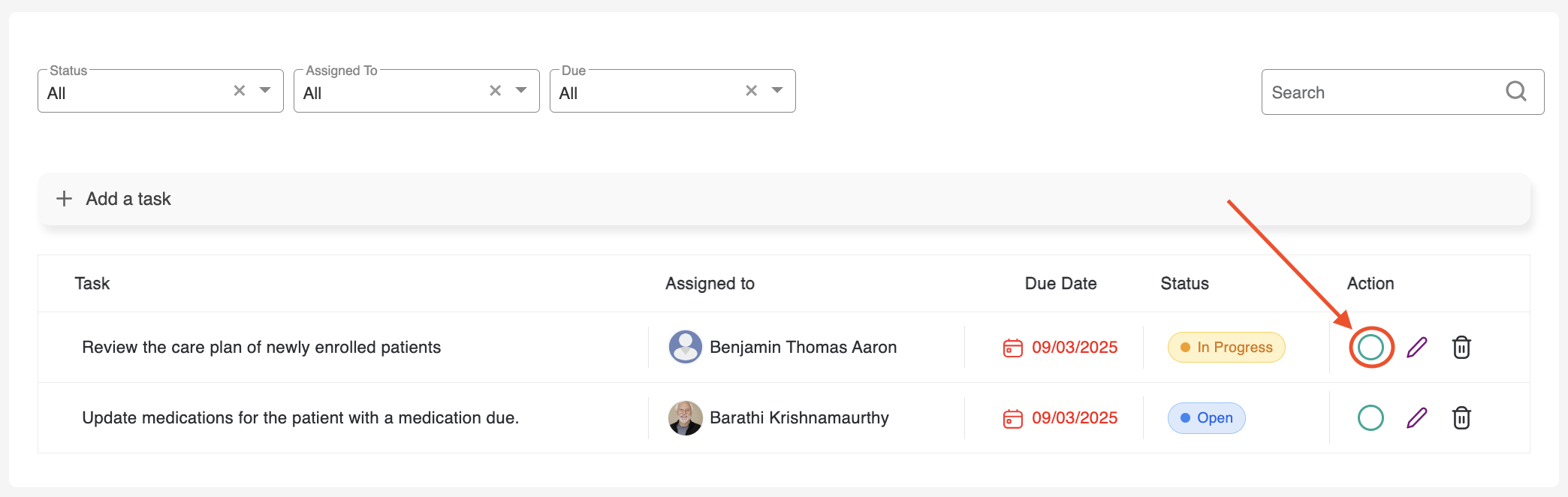
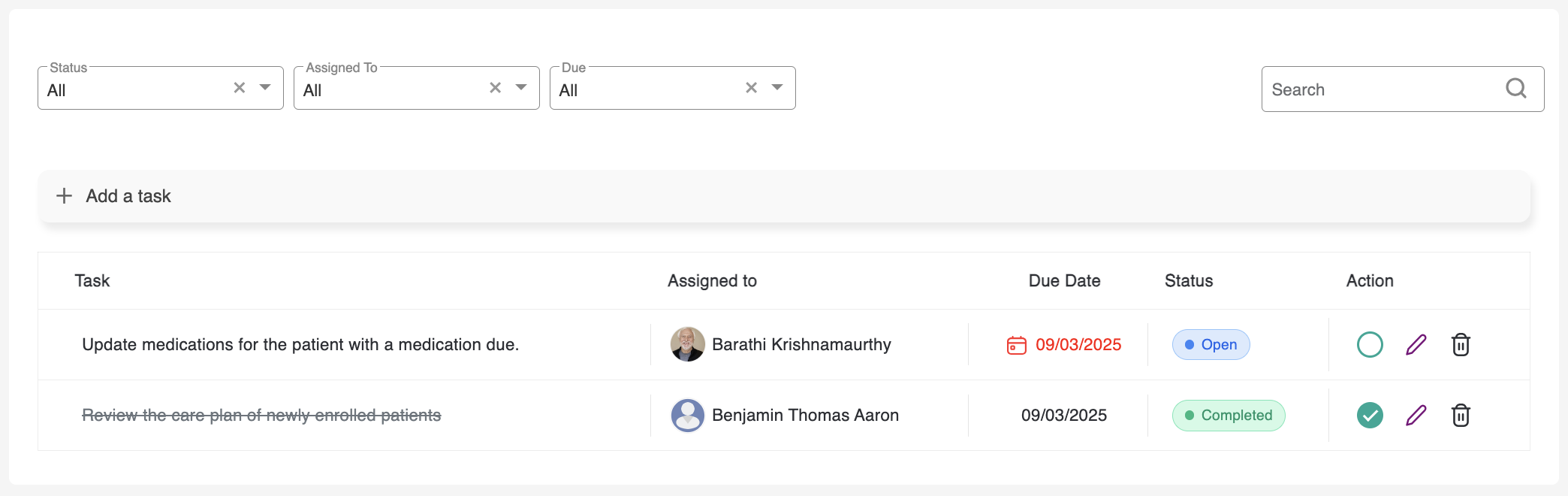
- Mark as Complete: Click the circle next to a task record to mark it as completed. The status will change to Completed, and a line will appear through the task text. Unchecking the circle will revert the status to Open.
- Edit: Click the edit icon on a task record to modify it. Three fields will appear below the record: Assigned to, Date, and Status. Make your changes and click Save to update the task, or click Cancel to discard the changes.
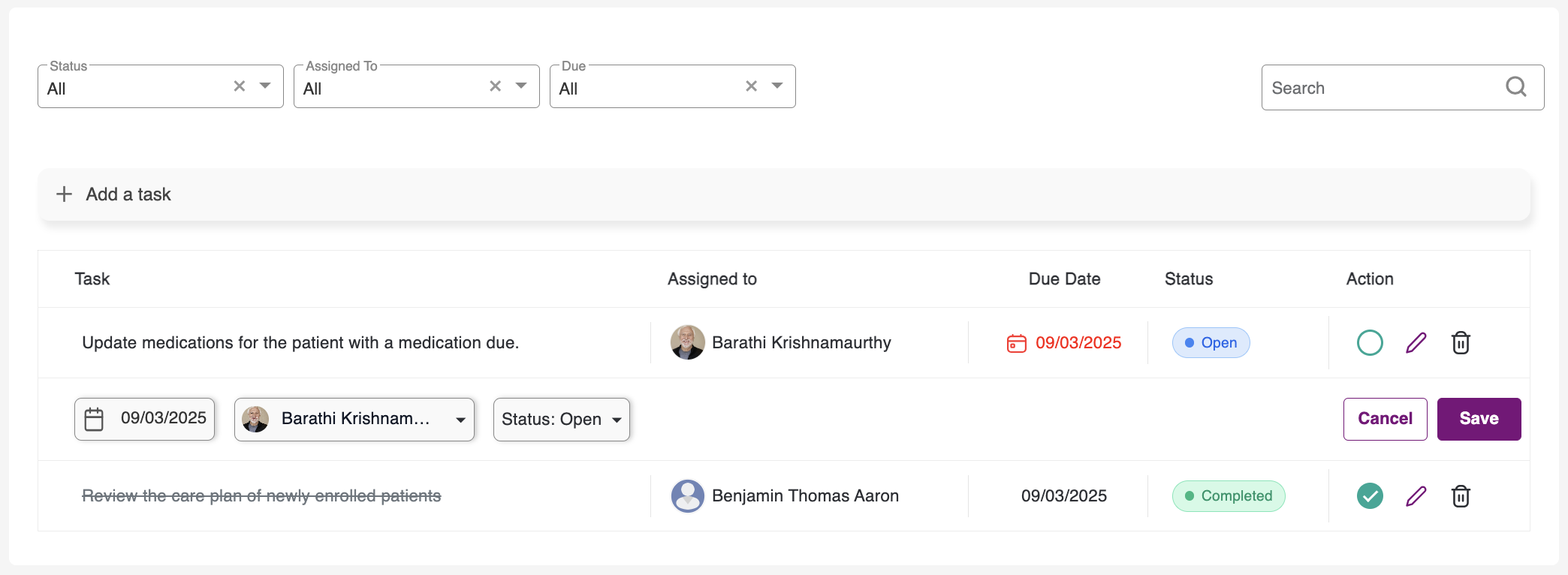
- Delete: Click the delete icon to permanently remove a task. A confirmation pop-up will appear, asking you to confirm the deletion.