
Privacy Policy
Table of Contents
- Login Page Overview
- Forgot Password Process
- Reset Password Instructions
- Accessing the Privacy Policy
-
Login Page Overview
When accessing the OnCare360 portal:
- You will be directed to the Login Page.
- Input your email address and password to sign in.
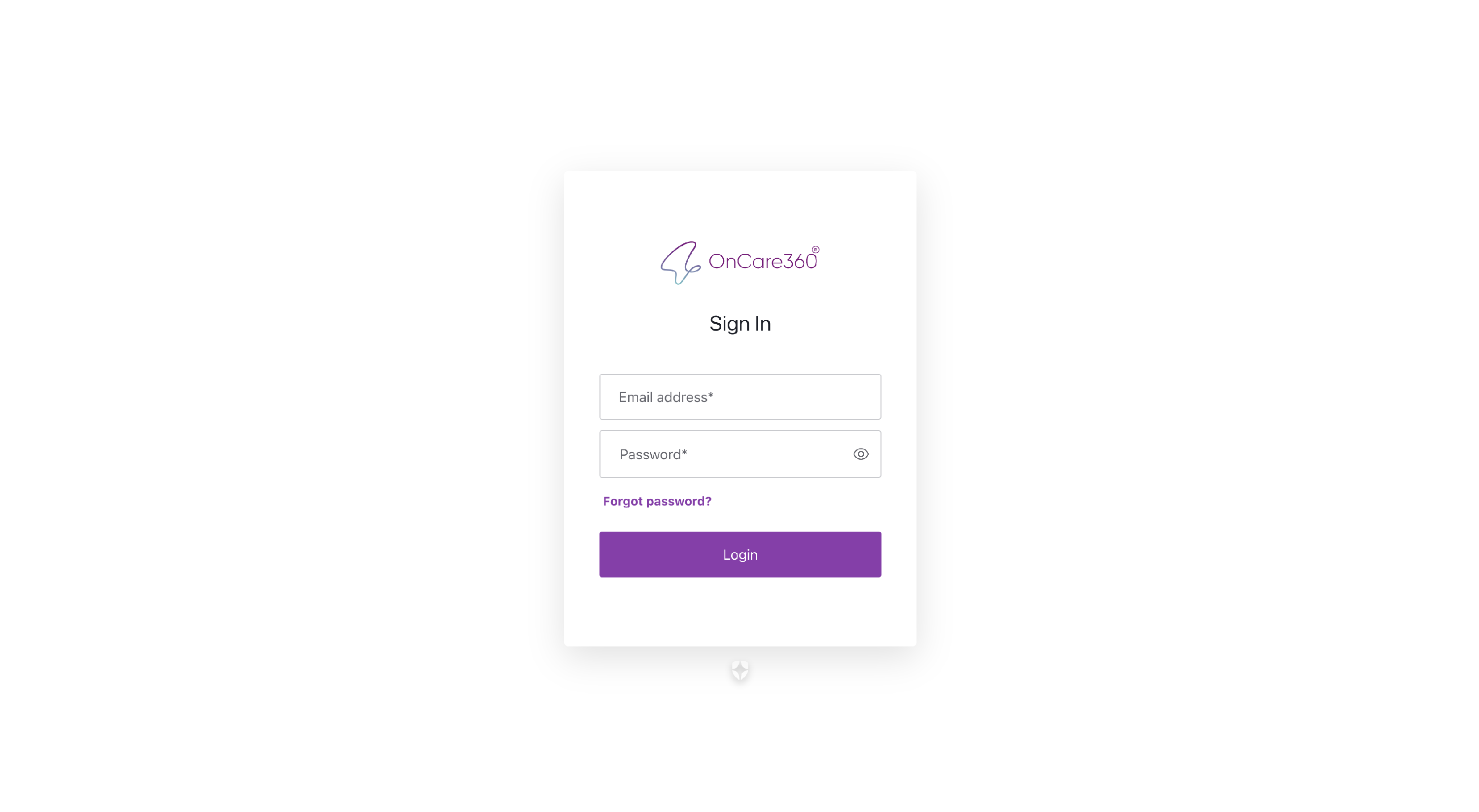
Forgot Your Password?
Click the “Forgot Password” link below the login form.
-
Forgot Password Process
Upon selecting "Forgot Password":
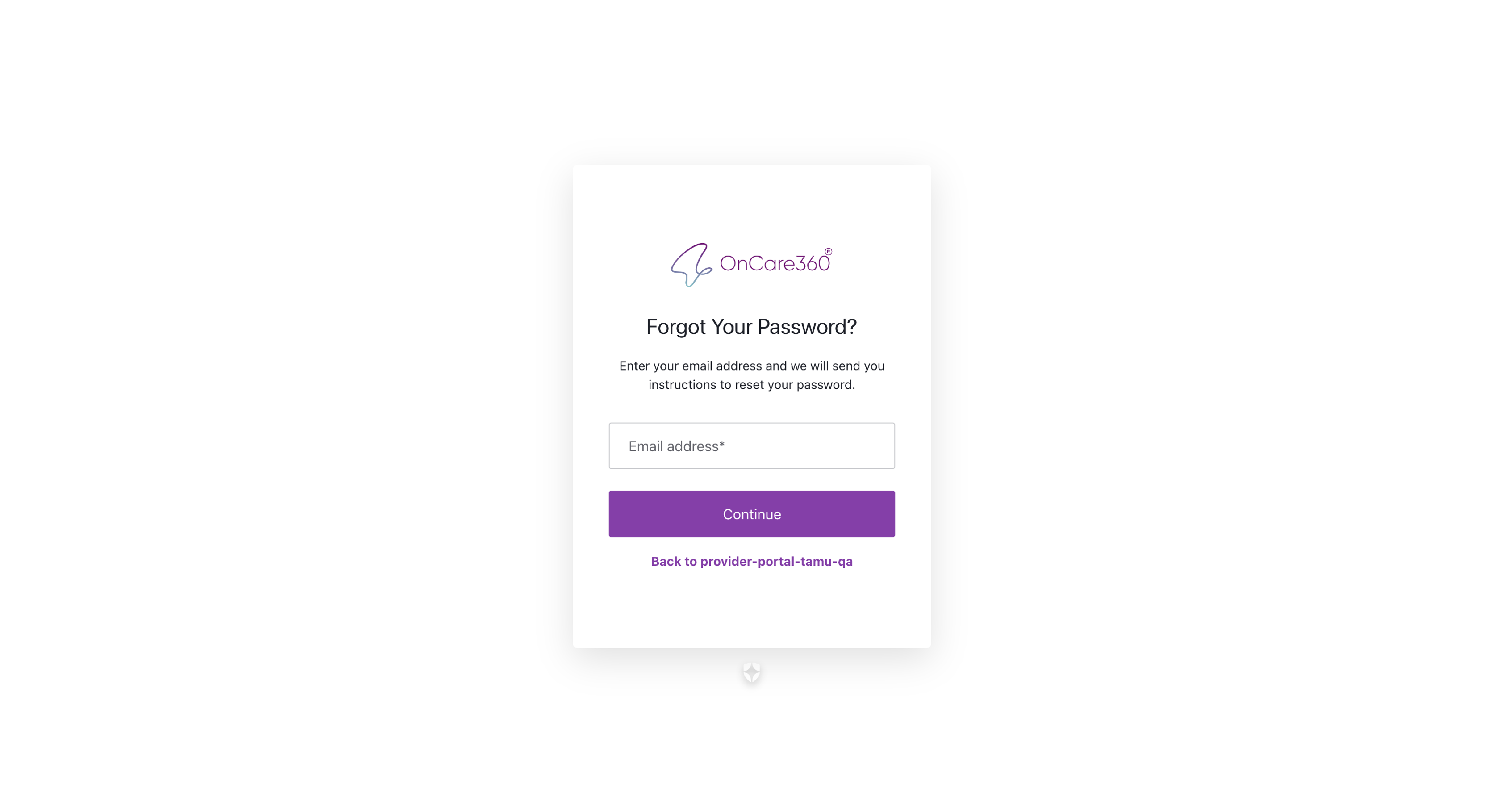
- You will be redirected to the Reset Password page.
- Enter the email address associated with your login.
After submission, a reset link will be sent to your email inbox.
-
Reset Password Instructions
- Open the email with the subject line related to password reset.
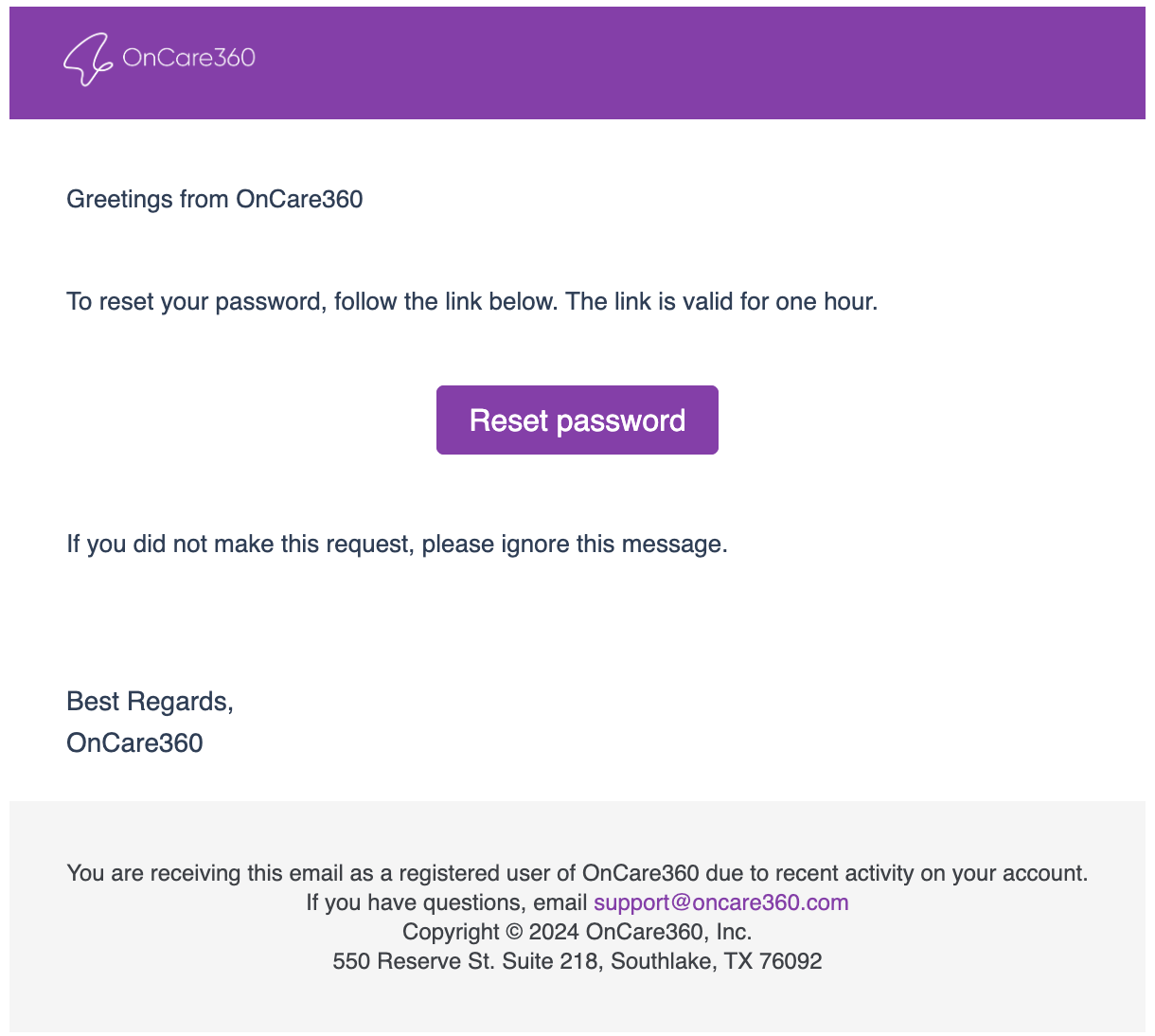
- Click the “Reset Password” button in the email.
- You’ll be directed to the Create New Password page.
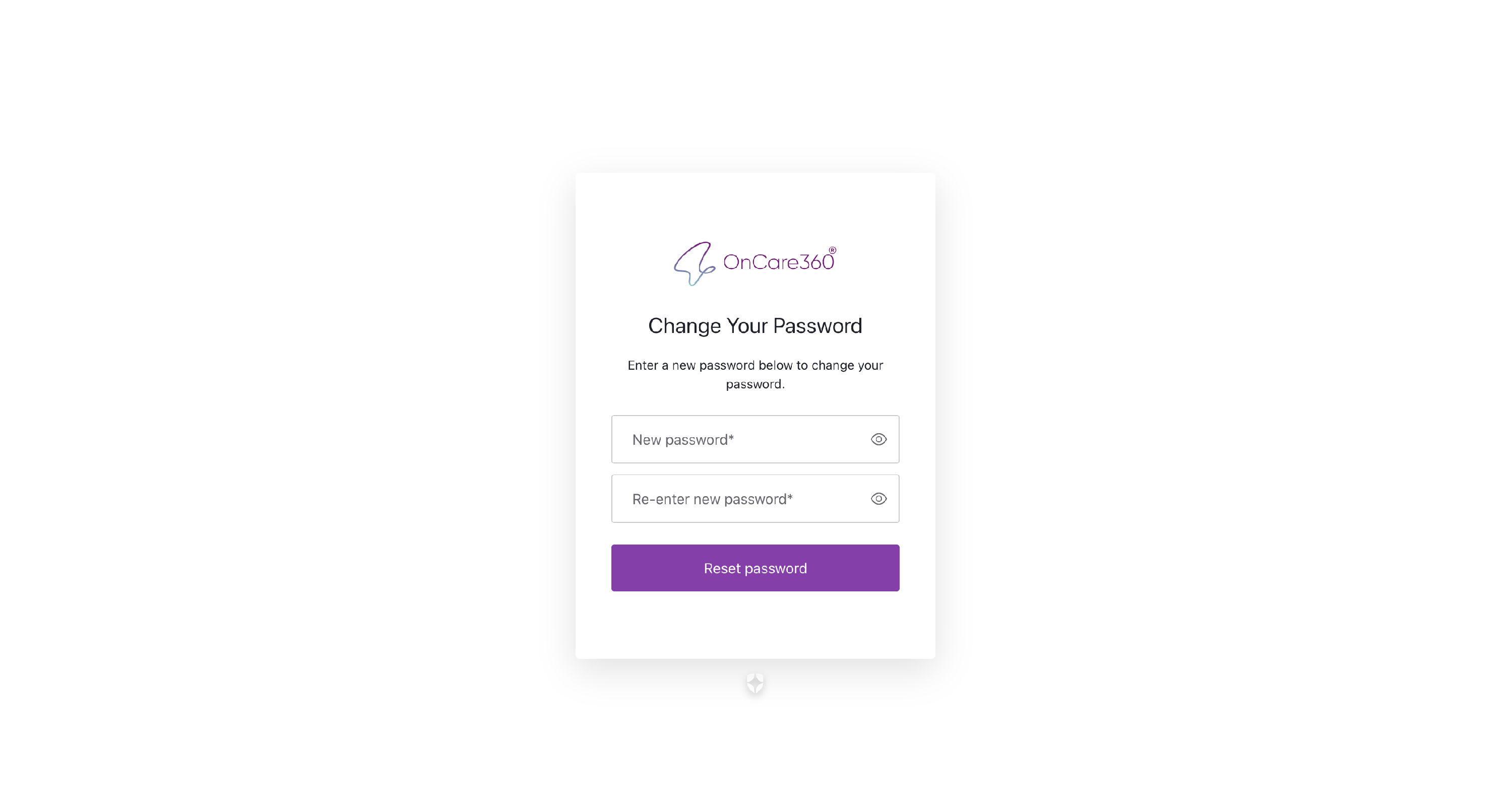
- Enter your new secure password and click Reset Password.
Once done:
- Return to the login page.
- Log in using your updated credentials.
Upon successful login:
- You will see the list of available clinics.
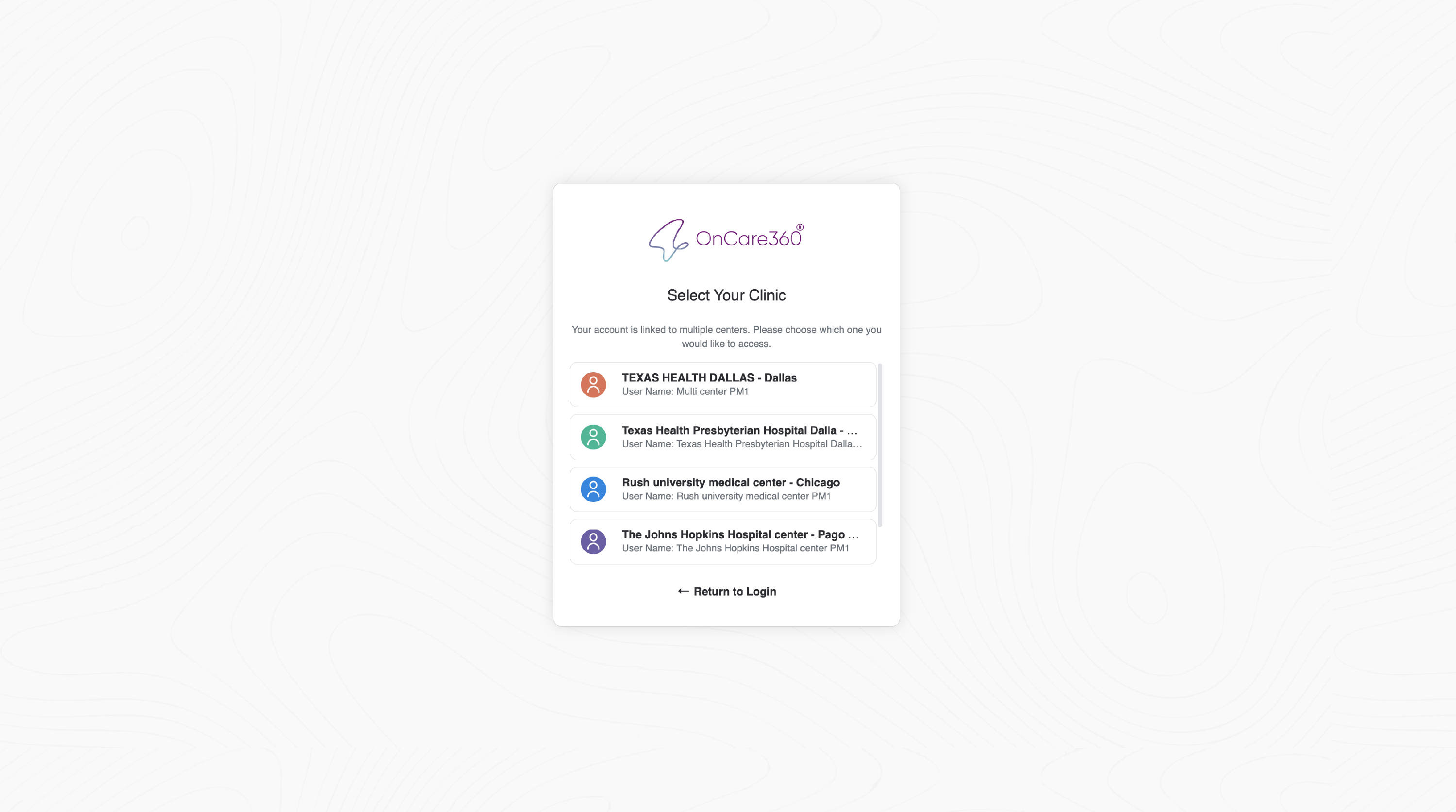
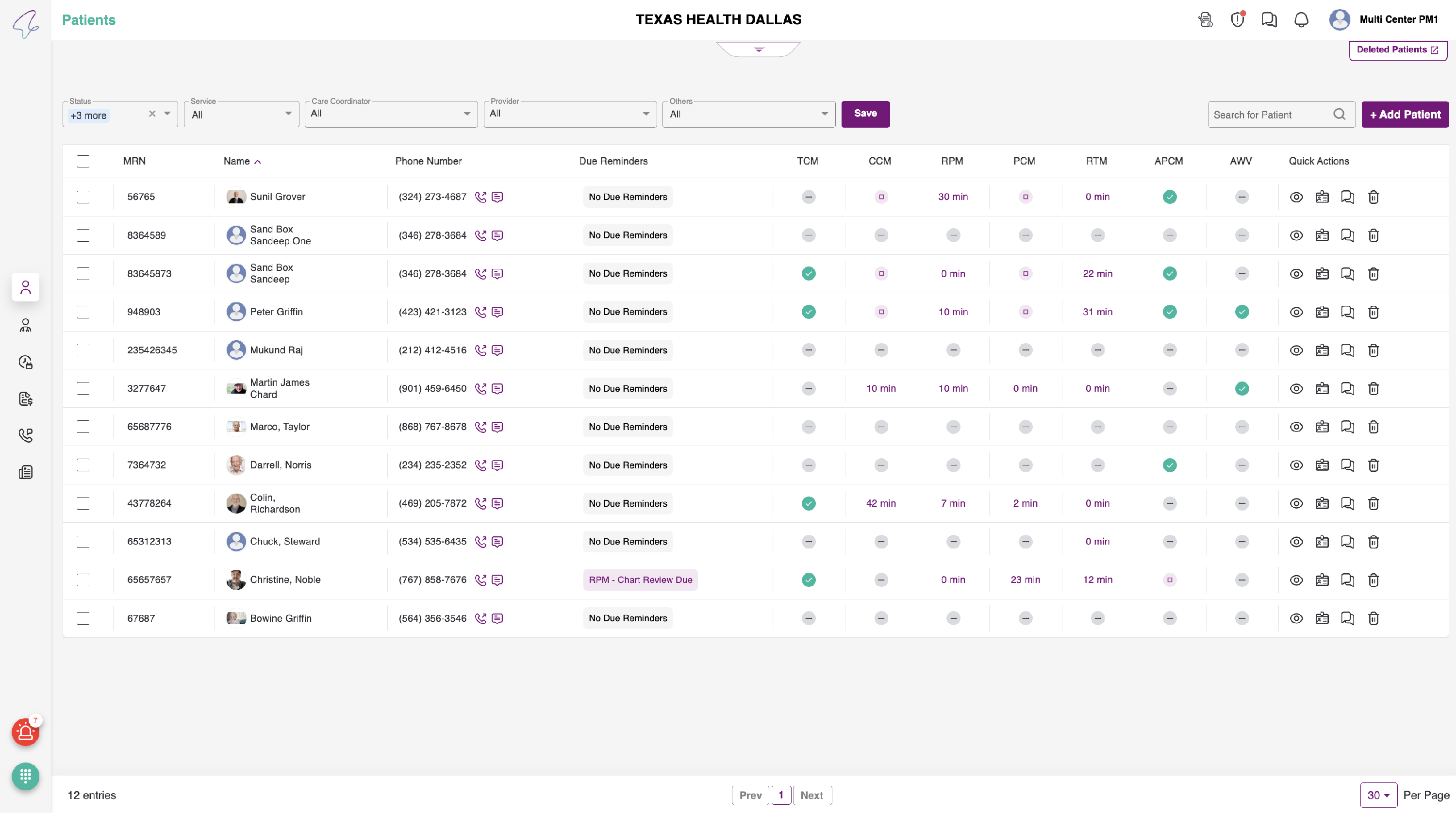
- Select a clinic to enter the Patient Listing Page.
-
Accessing the Privacy Policy
To view the Privacy Policy after login:
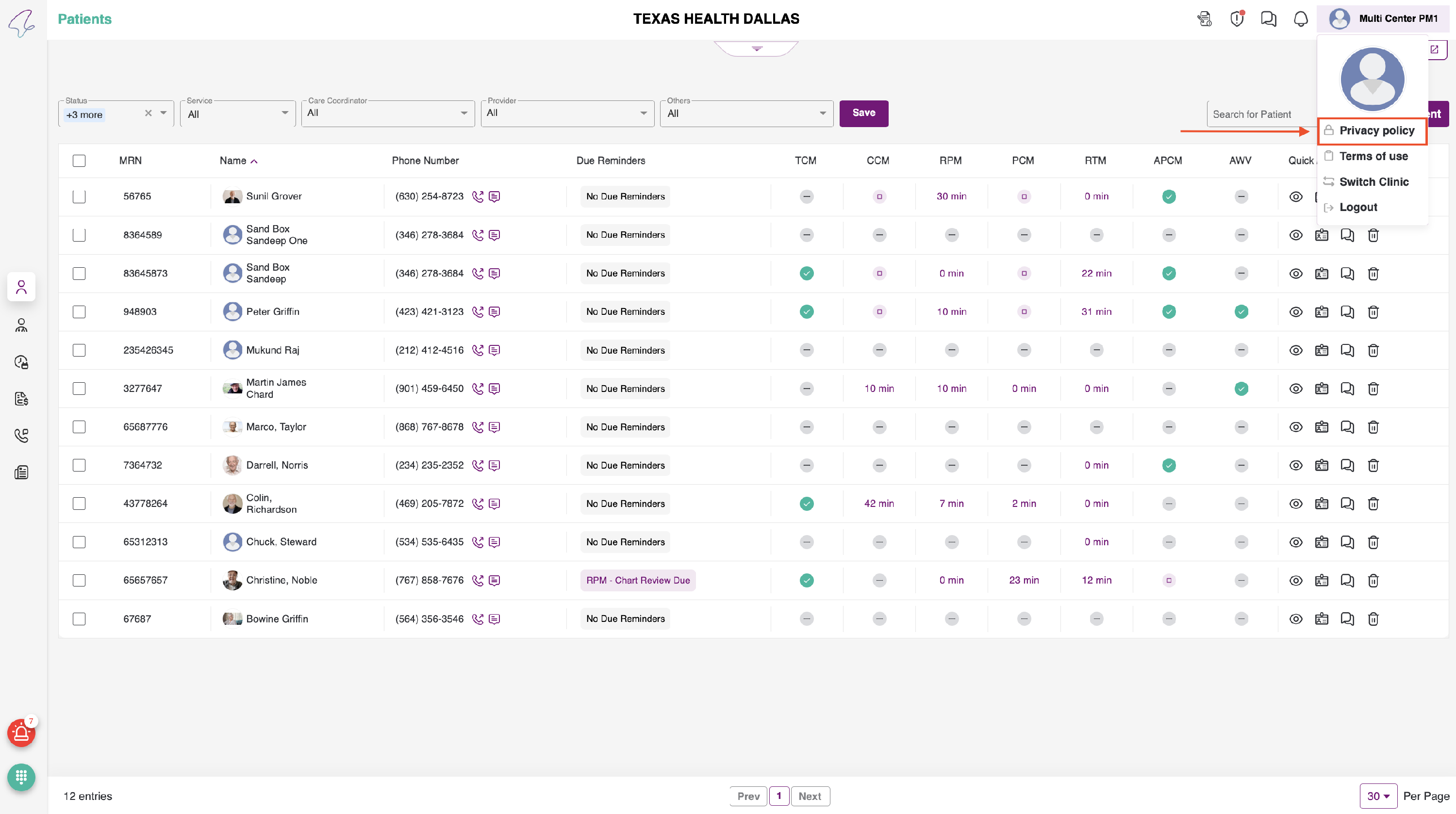
- Click the 👤 User icon at the top-right corner of the dashboard.
- From the dropdown, select “Privacy Policy”.
- A popup window will appear displaying the policy terms.
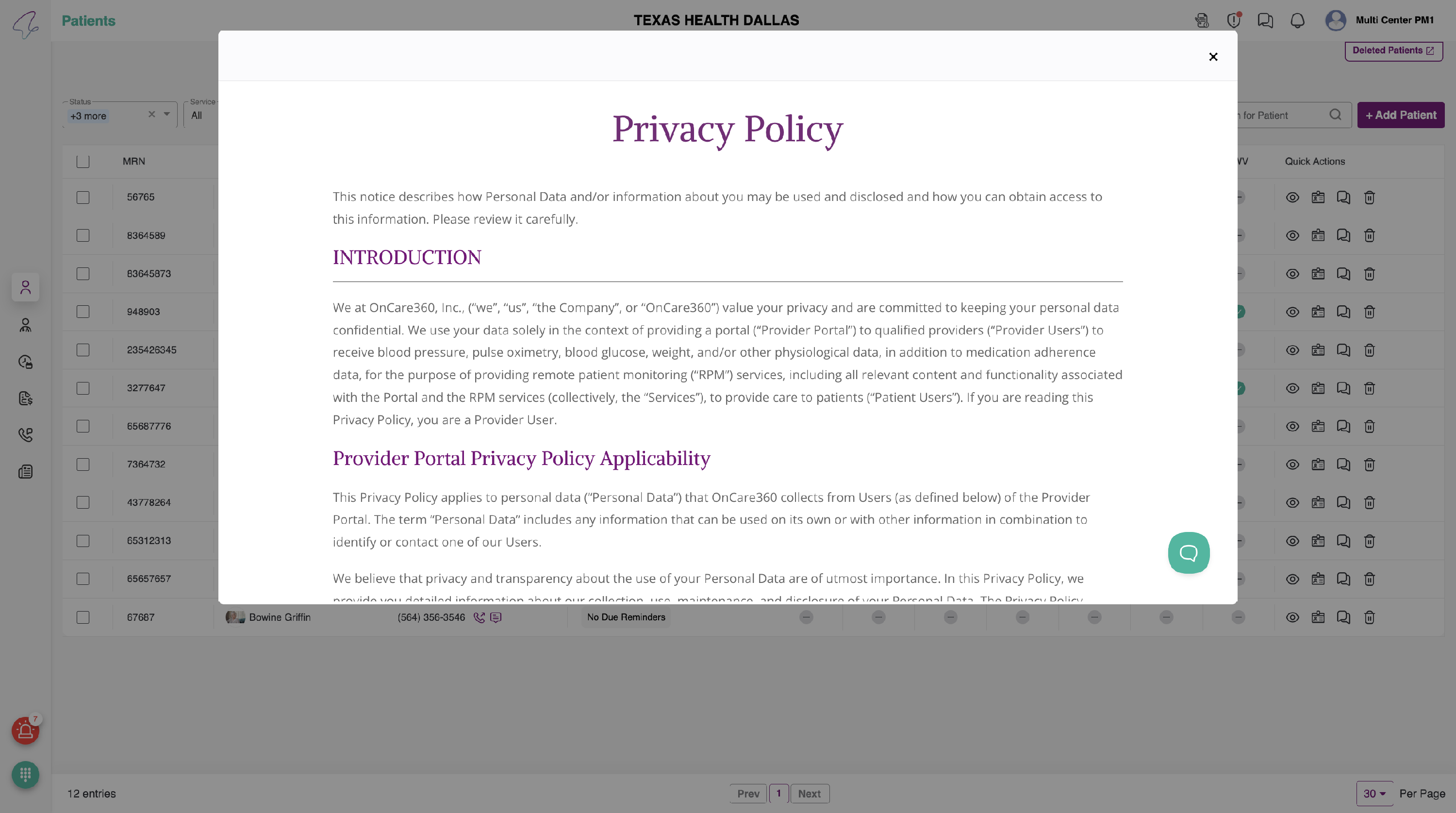
You can read the full privacy policy here without leaving your current session.