Terms of use
Table of Contents
- Logging In
- Forgot Password?
- Choose a clinic
- Access Terms of Use on First Login
- Accepting the Terms
- Viewing the Terms Later
-
Logging In
To access OnCare360:
- Go to the login page.
- Enter your email and password.
-
Click the Login button.
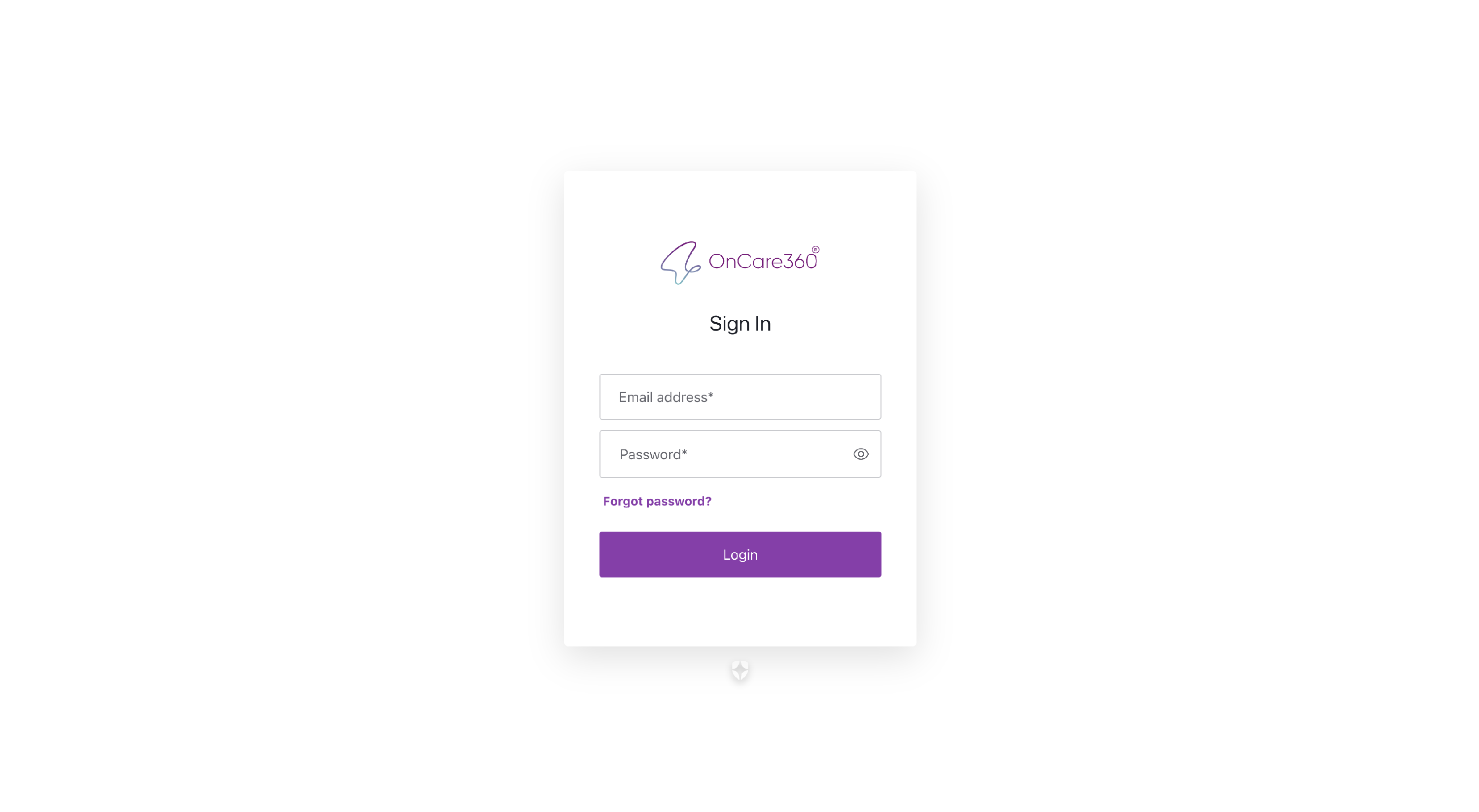
Note: Forgot your password? No worries! Follow the steps below.
-
Forgot Password?
If you can’t remember your password:
- Click Forgot Password on the login page.
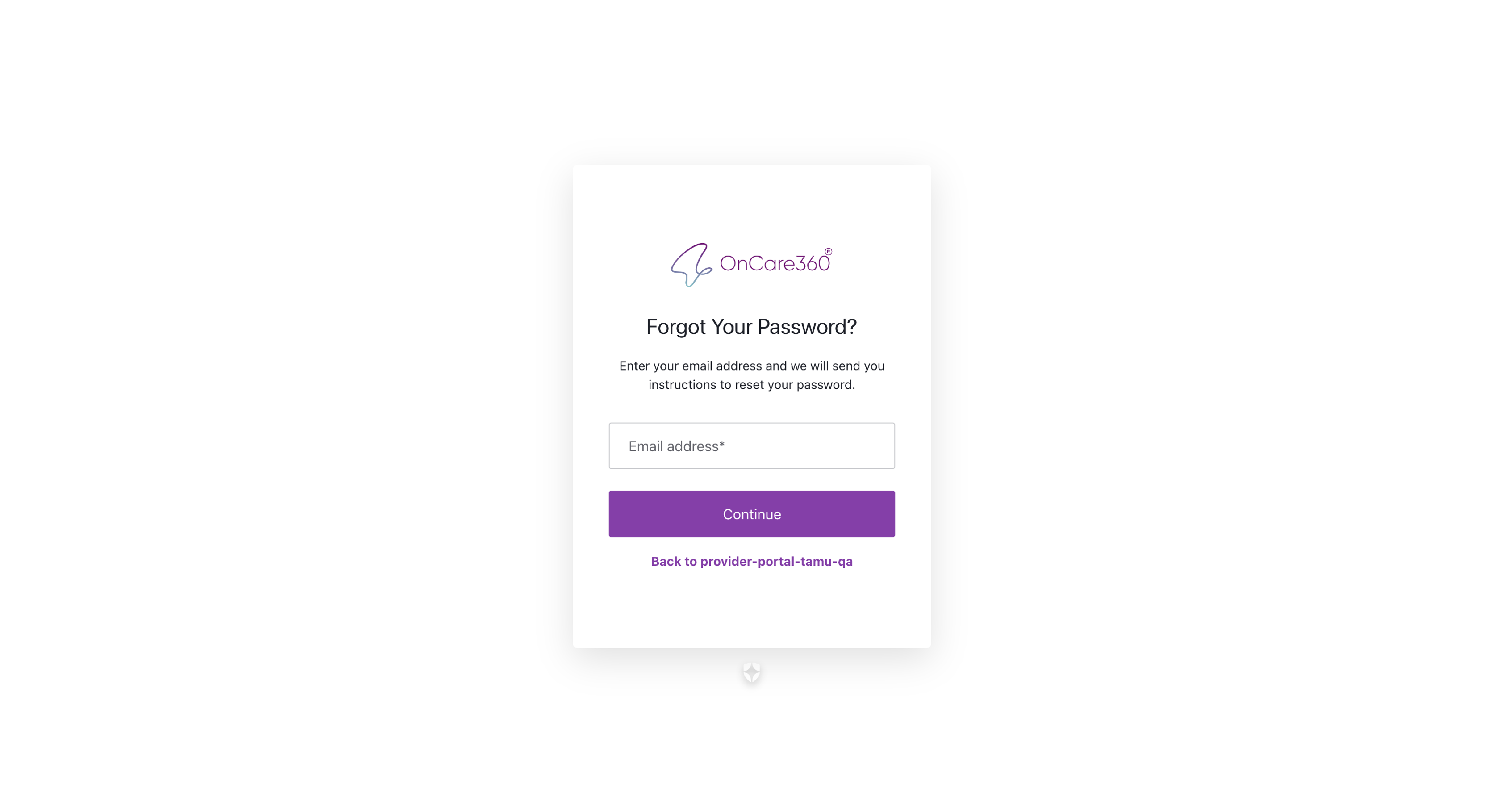
- Enter your email address linked to your OnCare360 account.
- You’ll receive an email with a reset password link.
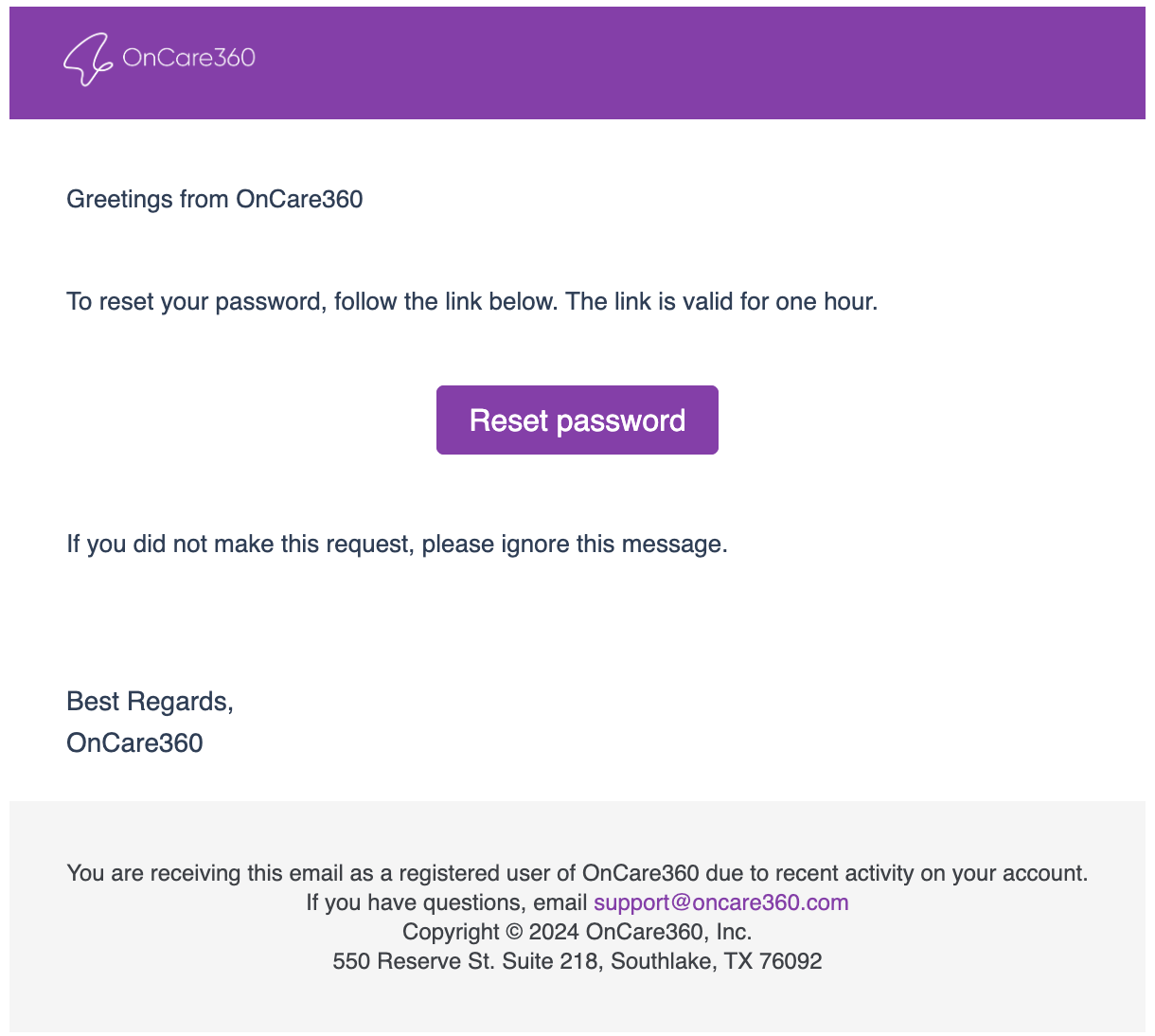
- Click the button in the email and create a new secure password.
- Log in using your new password.
3. Choose a Clinic
After you log in:
- You will see a list of clinics connected to your account.
- Click on the clinic you want to enter.
- You will be taken to that clinic’s Patient Listing Page.
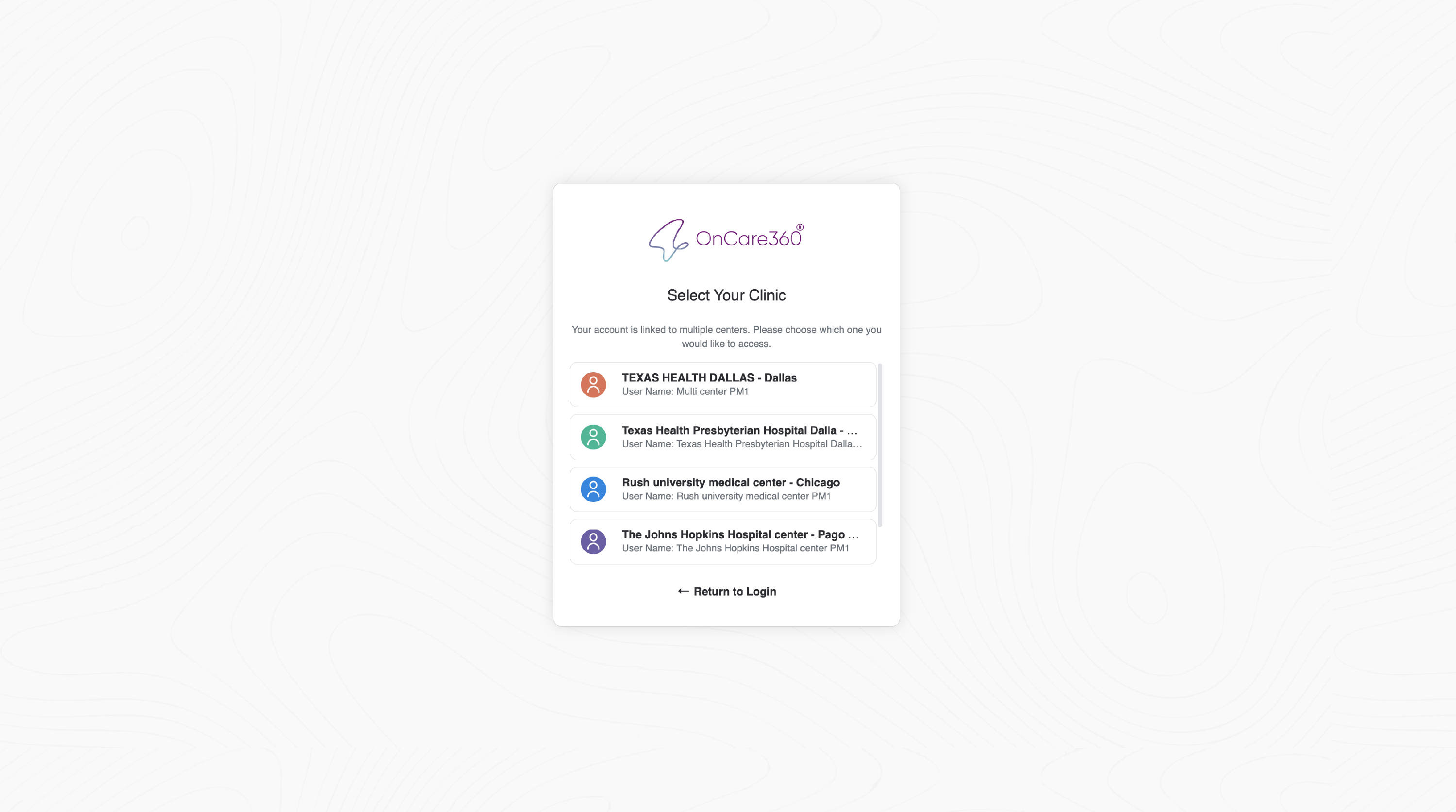
Note: If there’s only one clinic in your account, you’ll be taken there automatically without needing to choose.
-
Access Terms of Use on First Login
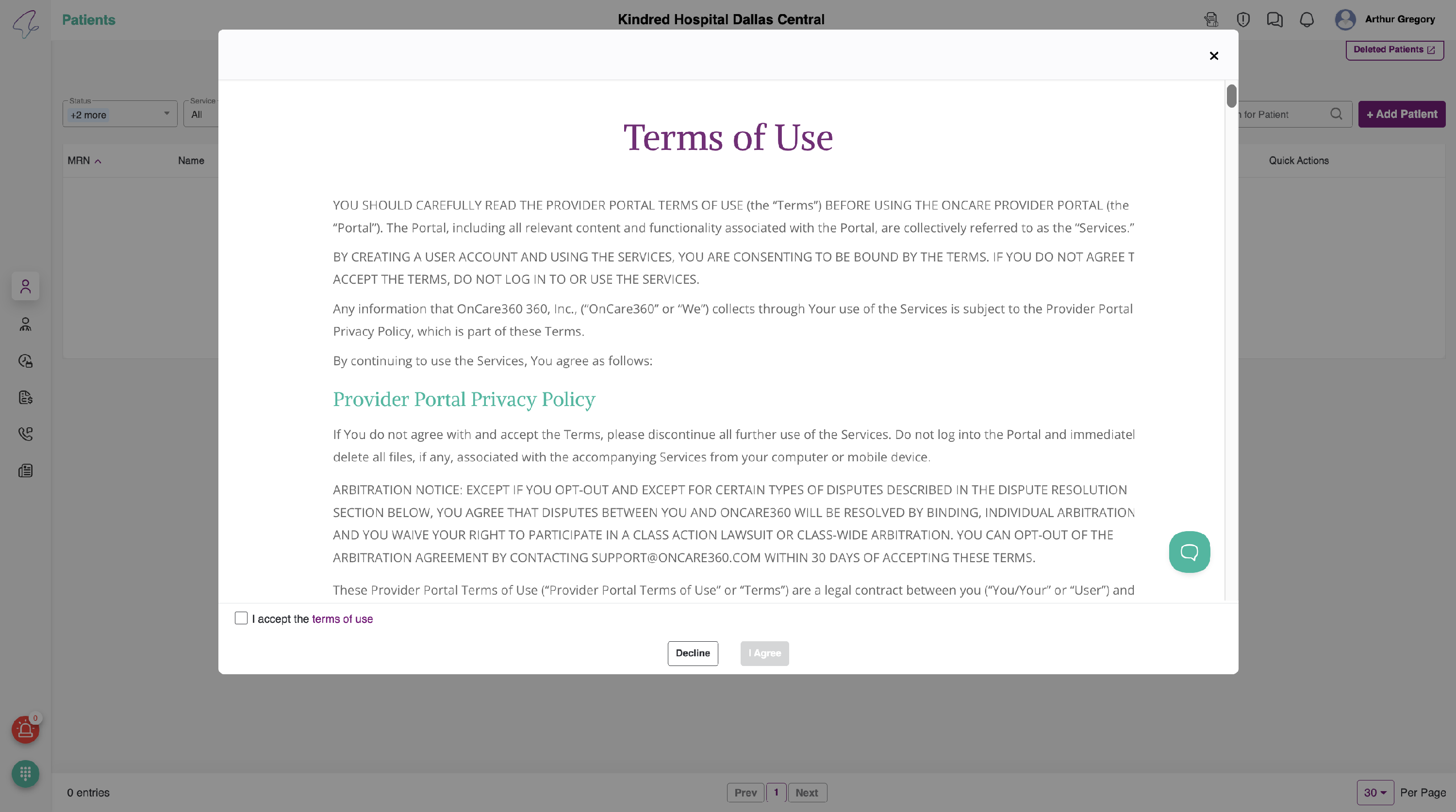
If this is your first time logging into a new clinic, you’ll see a Terms of Use popup.
- The popup shows the complete terms and conditions of using the portal.
- You must accept these terms to proceed.
-
Accepting the Terms
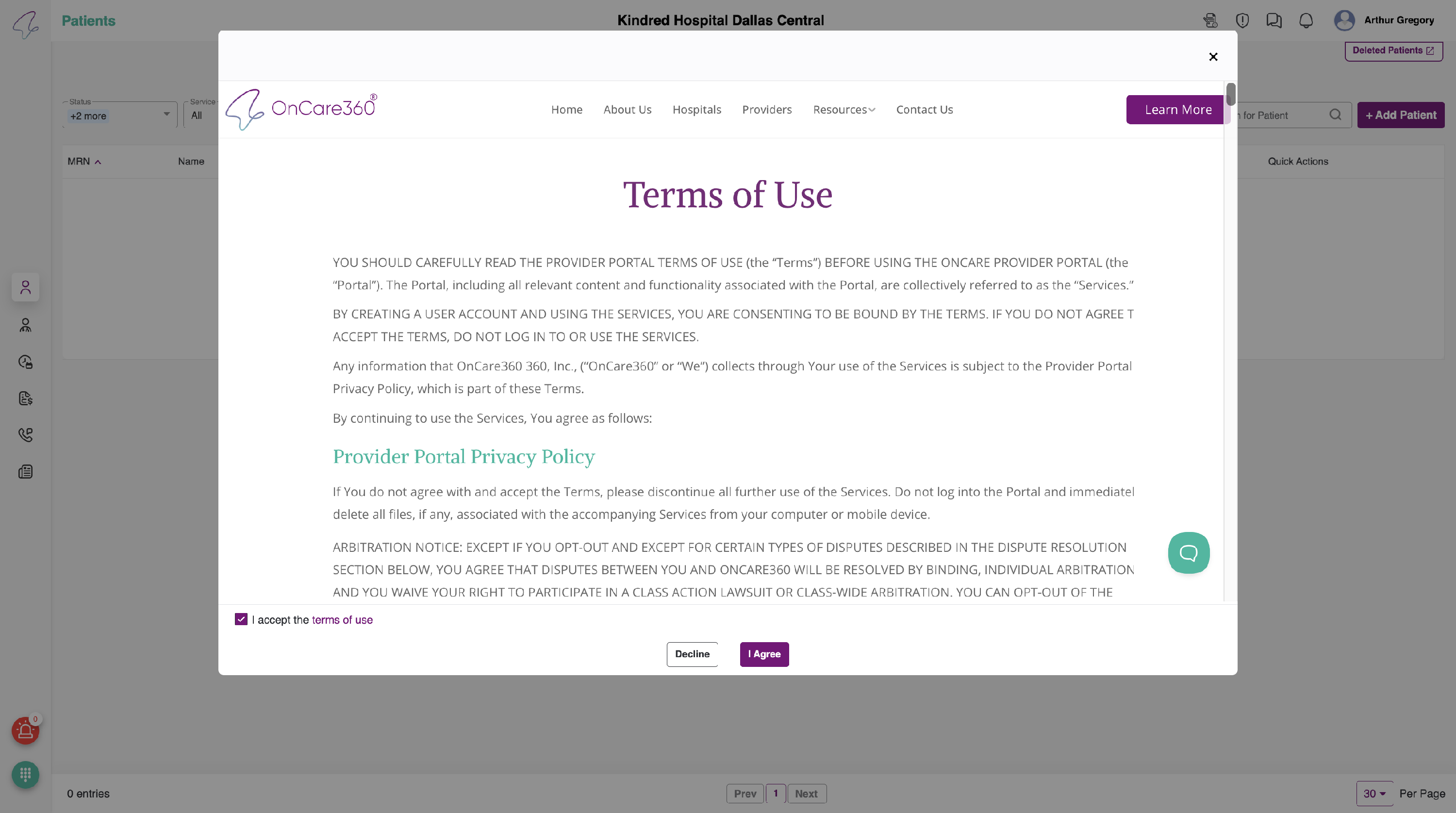
In the popup:
- Check the box: “I accept” (located at the bottom left of the popup).
- Click the “I Agree” button.
You will then:
- Get full access to the portal.
- Be able to add patients, manage care teams, and use all features.
Note: If you click Cancel or close the popup, you will be taken back to the login page.
-
Viewing the Terms Later
To view the Terms of Use at any time:
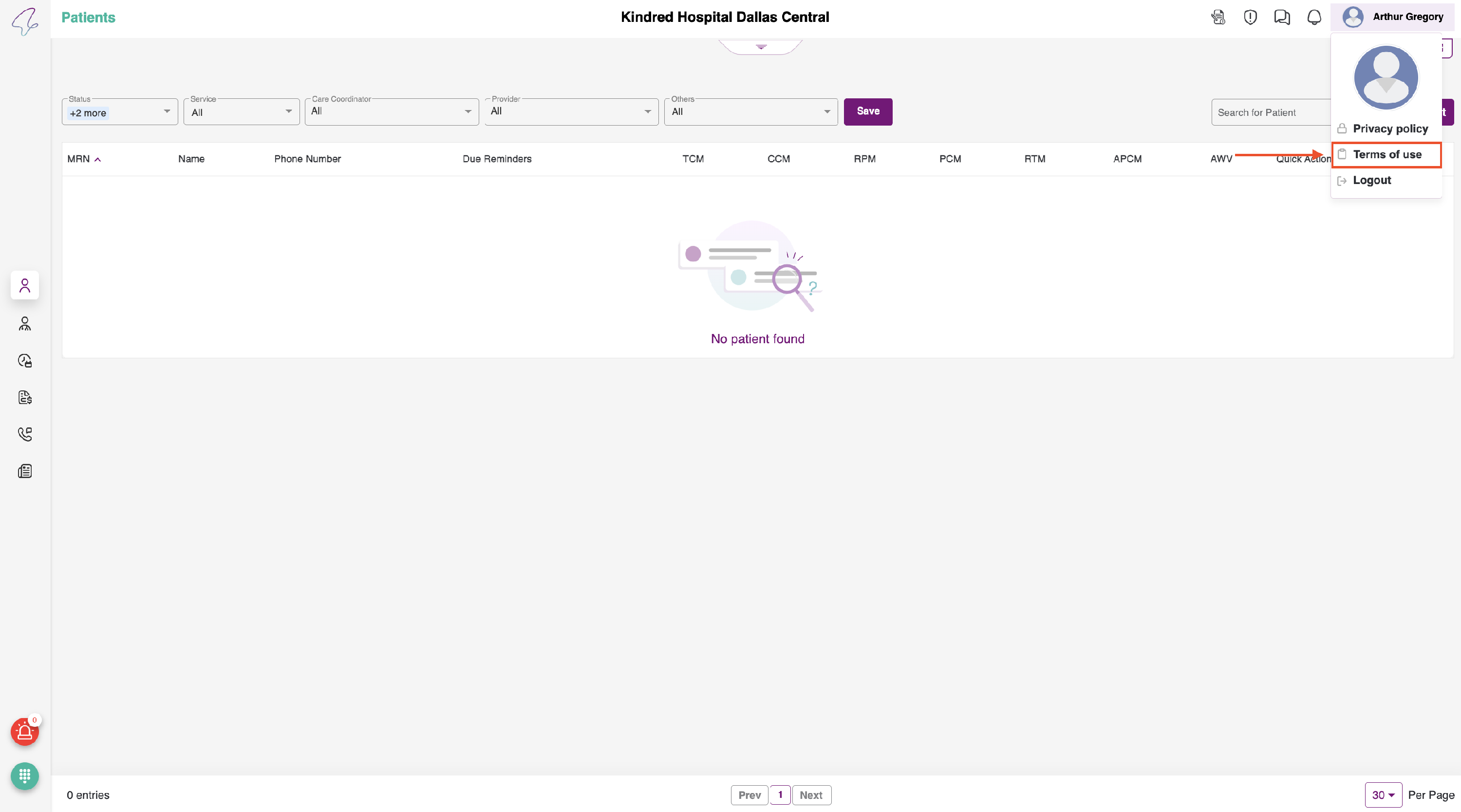
- Click the User Icon in the top-right corner.
- Select “Terms of Use” from the dropdown.
- The terms will open in a popup window.