
Logout profile
Table of Contents
1. How to Log In
- Go to the OnCare360 portal login page.
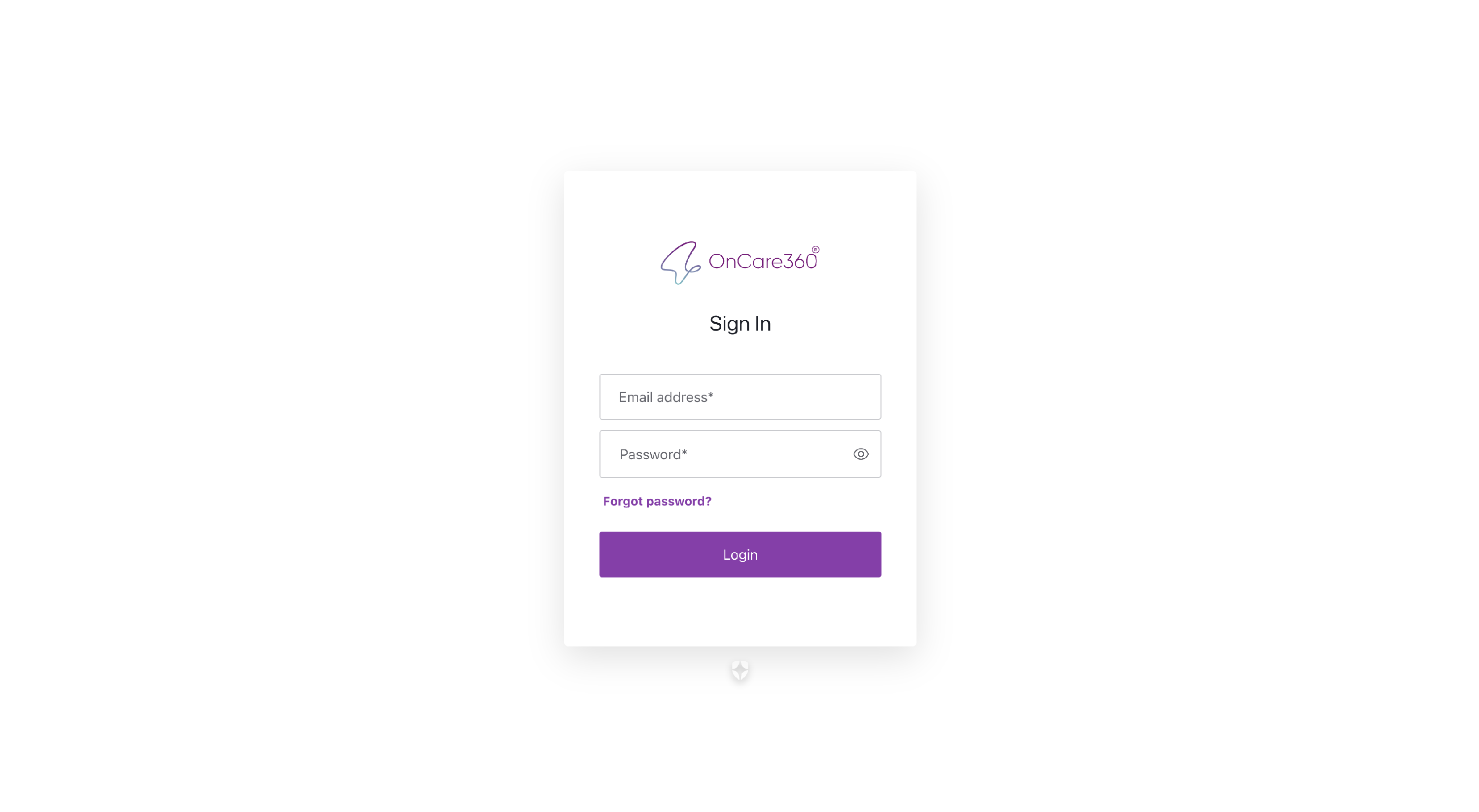
- Enter your email address and password.
- Click the Login button.
Forgot your password? No problem! Follow the next step.
-
Resetting Your Password
If you clicked Forgot Password:
- Enter your registered email address.
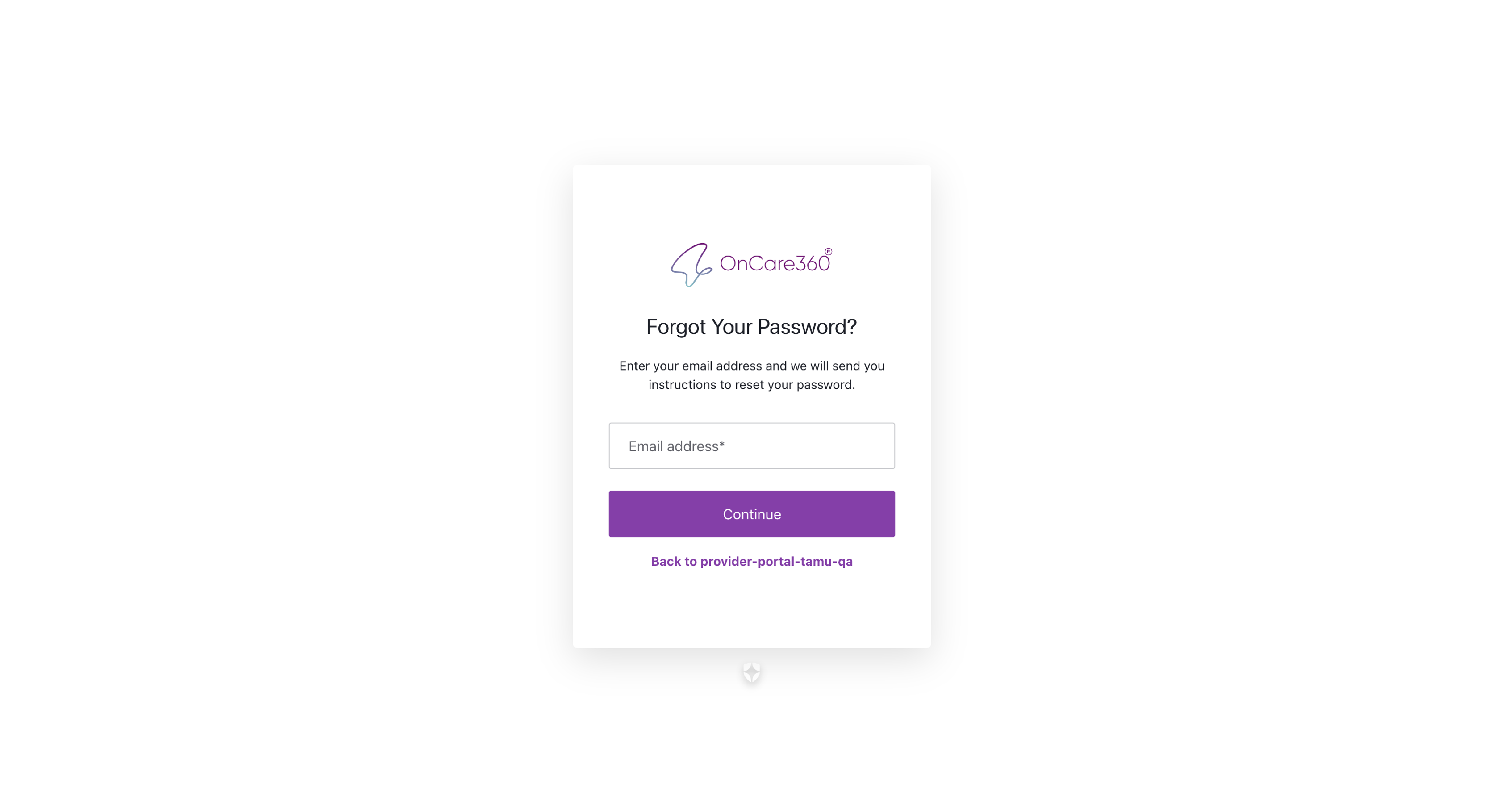
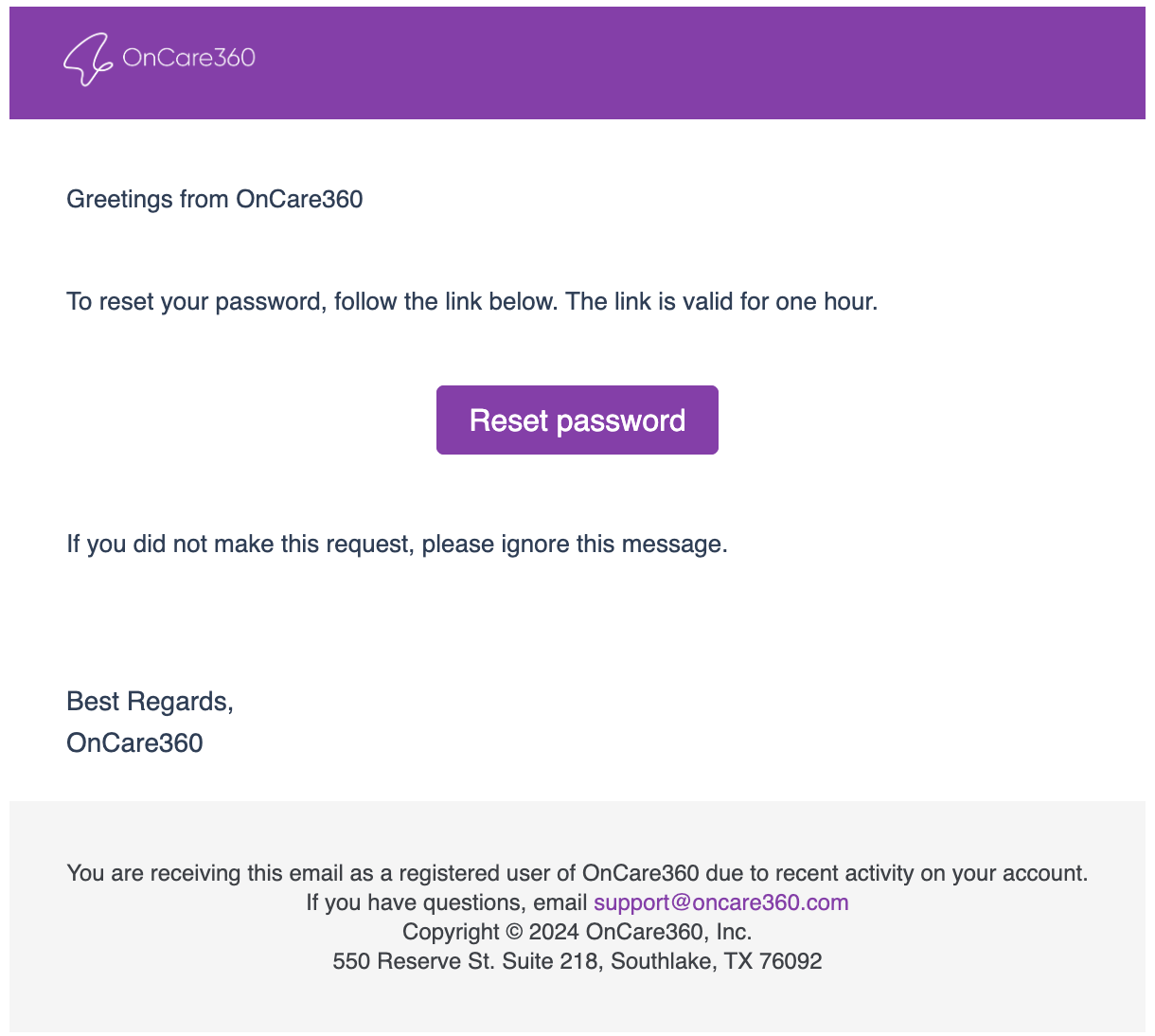
- You will receive an email with a Reset Password link.
- Click the “Reset Password” button in the email.
- Create a new secure password.
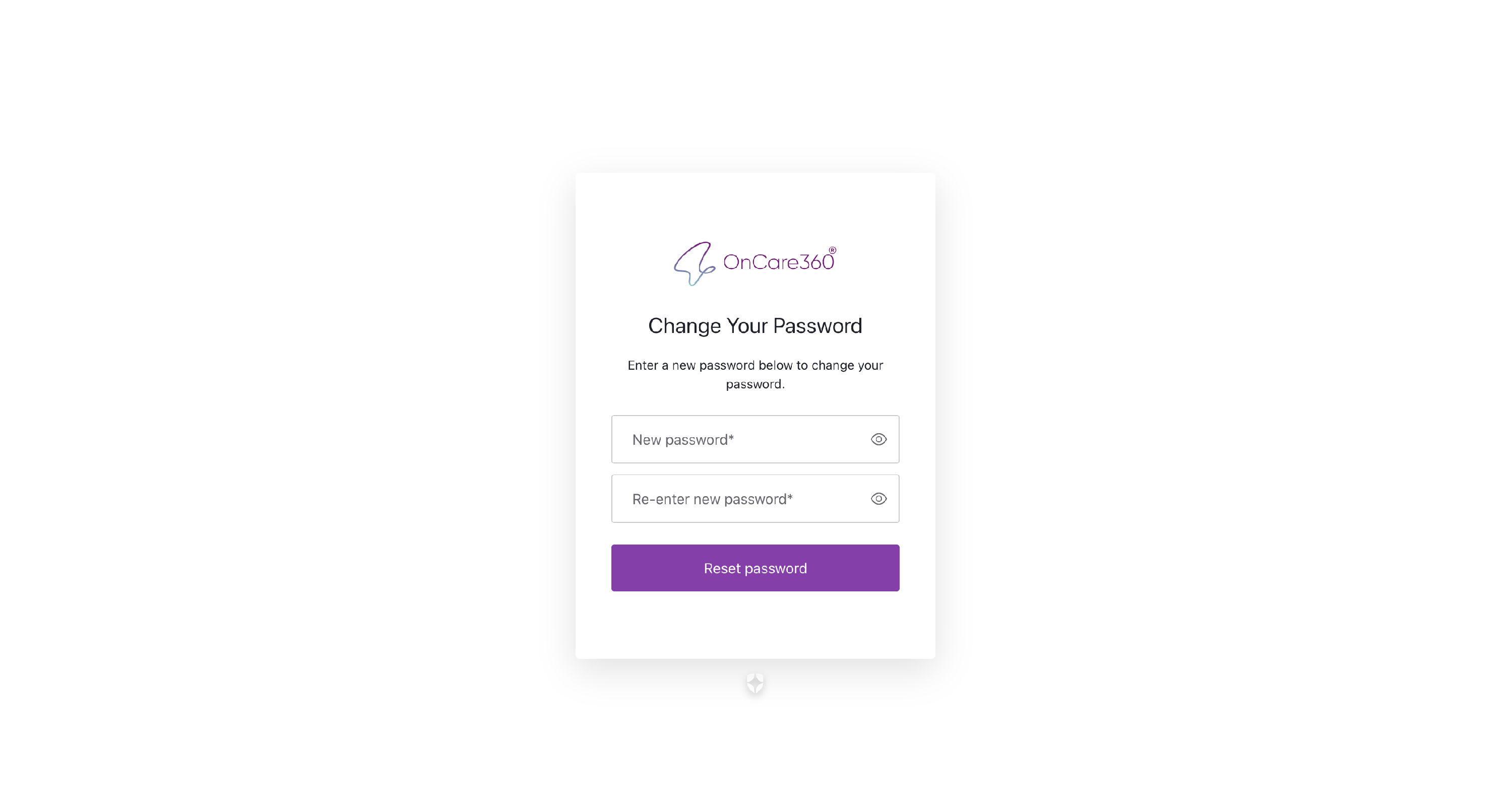
- Return to the login page and log in using the new password.
-
Choosing a Clinic
After logging in:
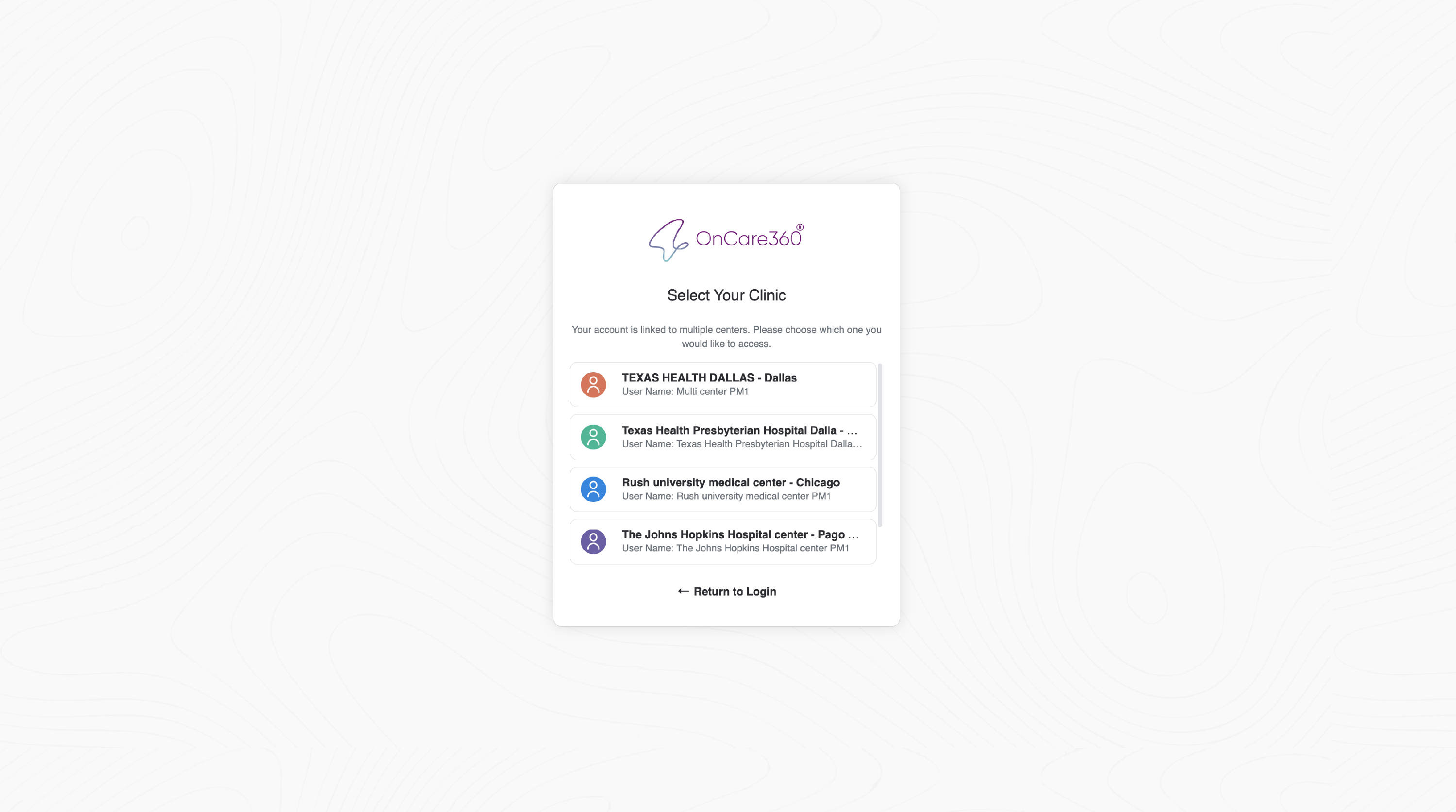
- You will see a list of available clinics.
- Select your desired clinic to enter its dashboard.
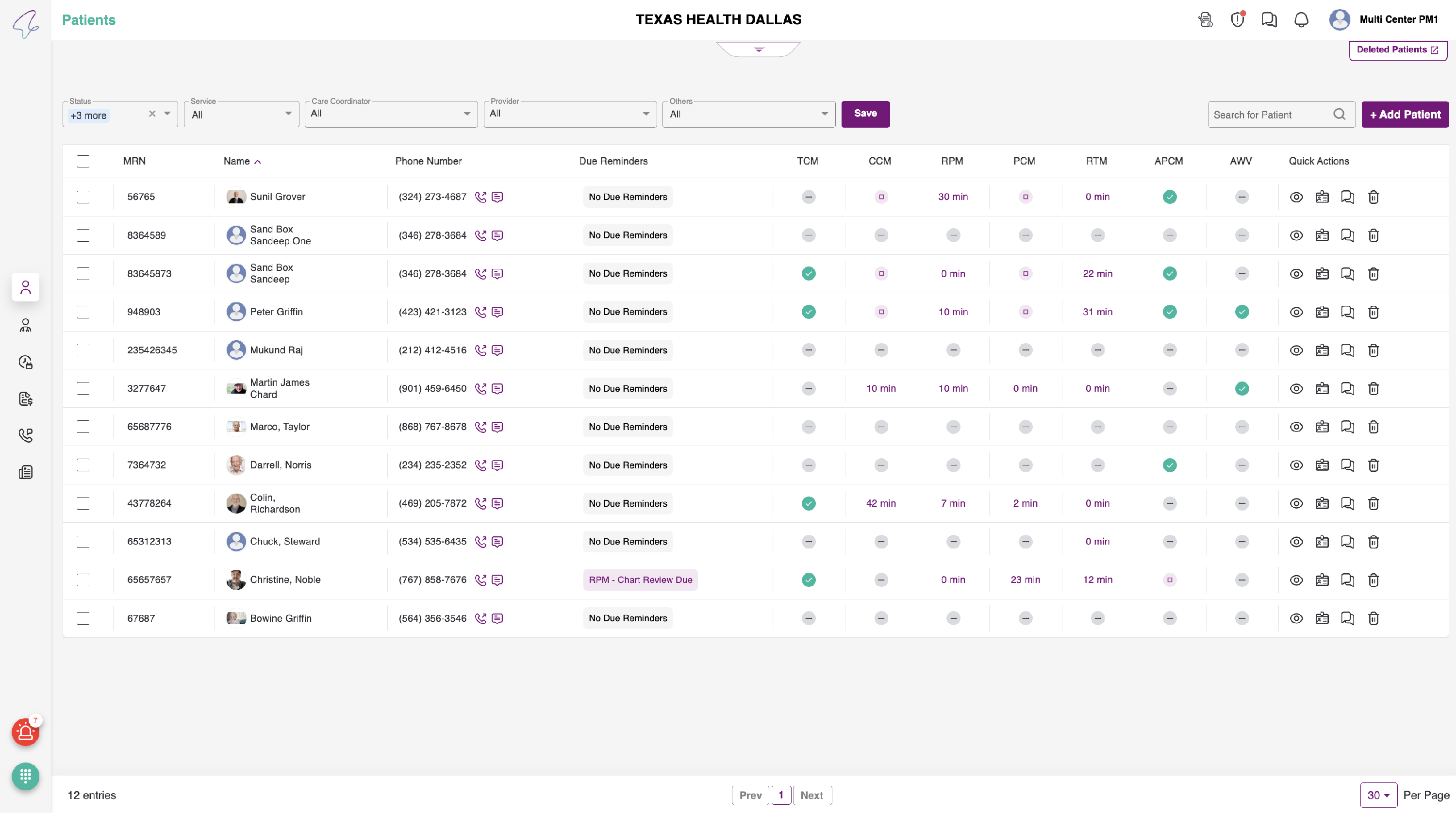
- You’ll be taken to the Patient Listing Page.
-
How to Log Out
To log out of your profile:
- Click the User Icon in the top right corner of the screen.
- A dropdown will appear.
- Click on Logout.

You’ll be safely redirected back to the login page.