
Switch Clinic
Table of Contents
- How to Log In
- Forgot Your Password?
- Choose a Clinic After Login
- How to Switch Clinics
- How to Log Out
1. How to Log In
- Open the OnCare360 portal.
-
You will see the login page.
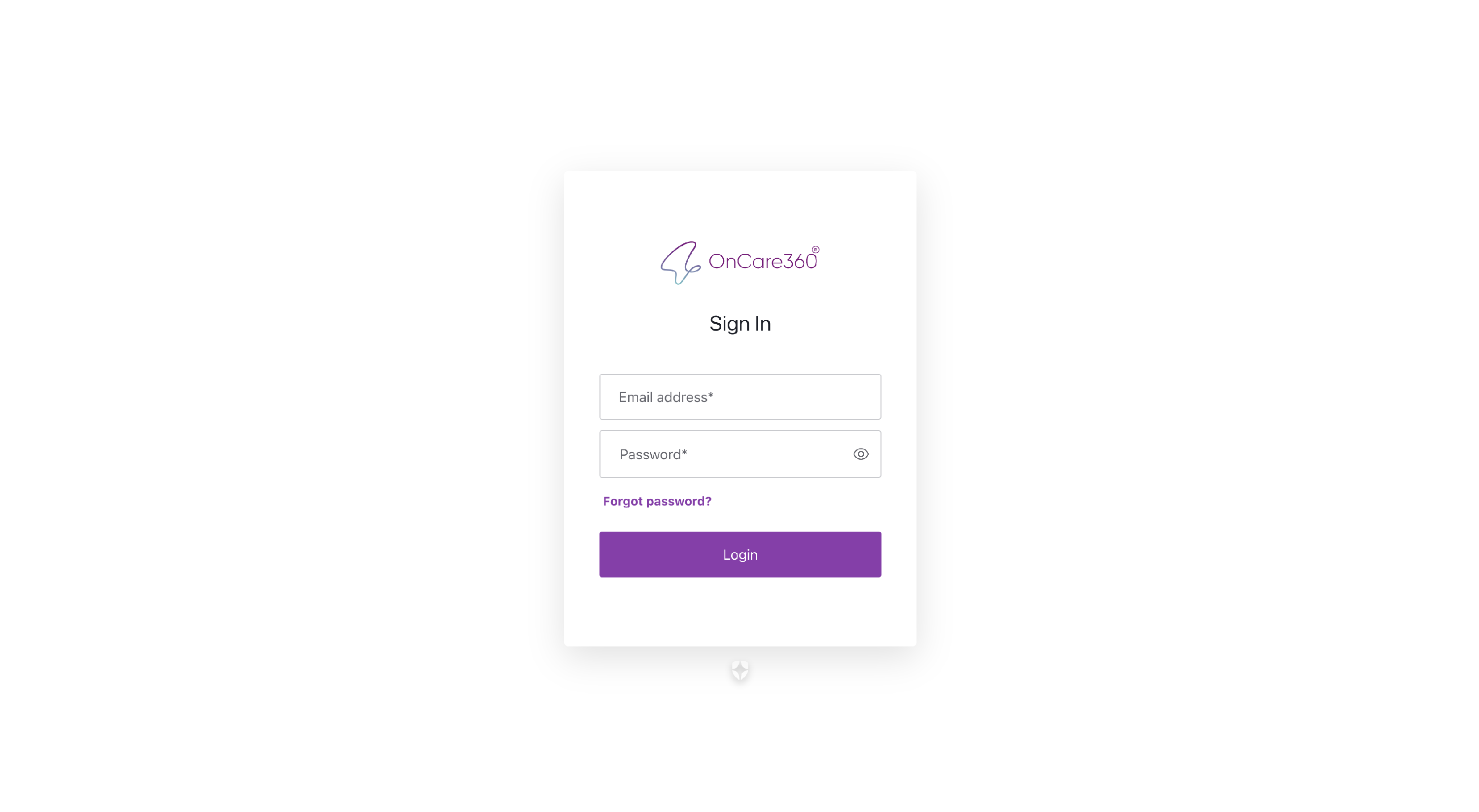
- Enter your email address and password.
- Click Login.
Note: If you don’t remember your password, click "Forgot Password?" to reset it.
2. Forgot Your Password?
If you clicked "Forgot Password":
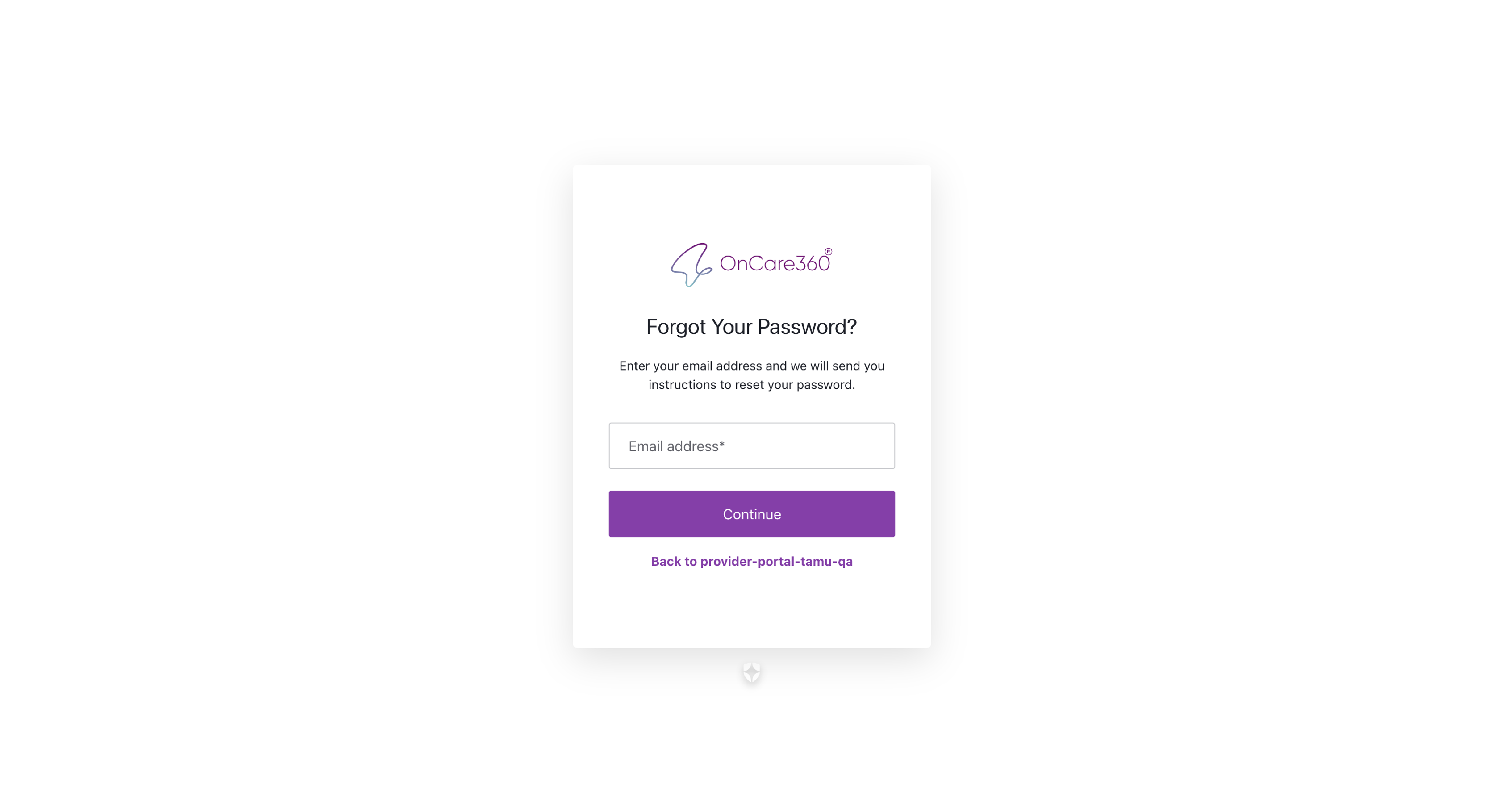
- Type your email address (the one linked to your OnCare360 account).
- Check your inbox for an email from OnCare360.
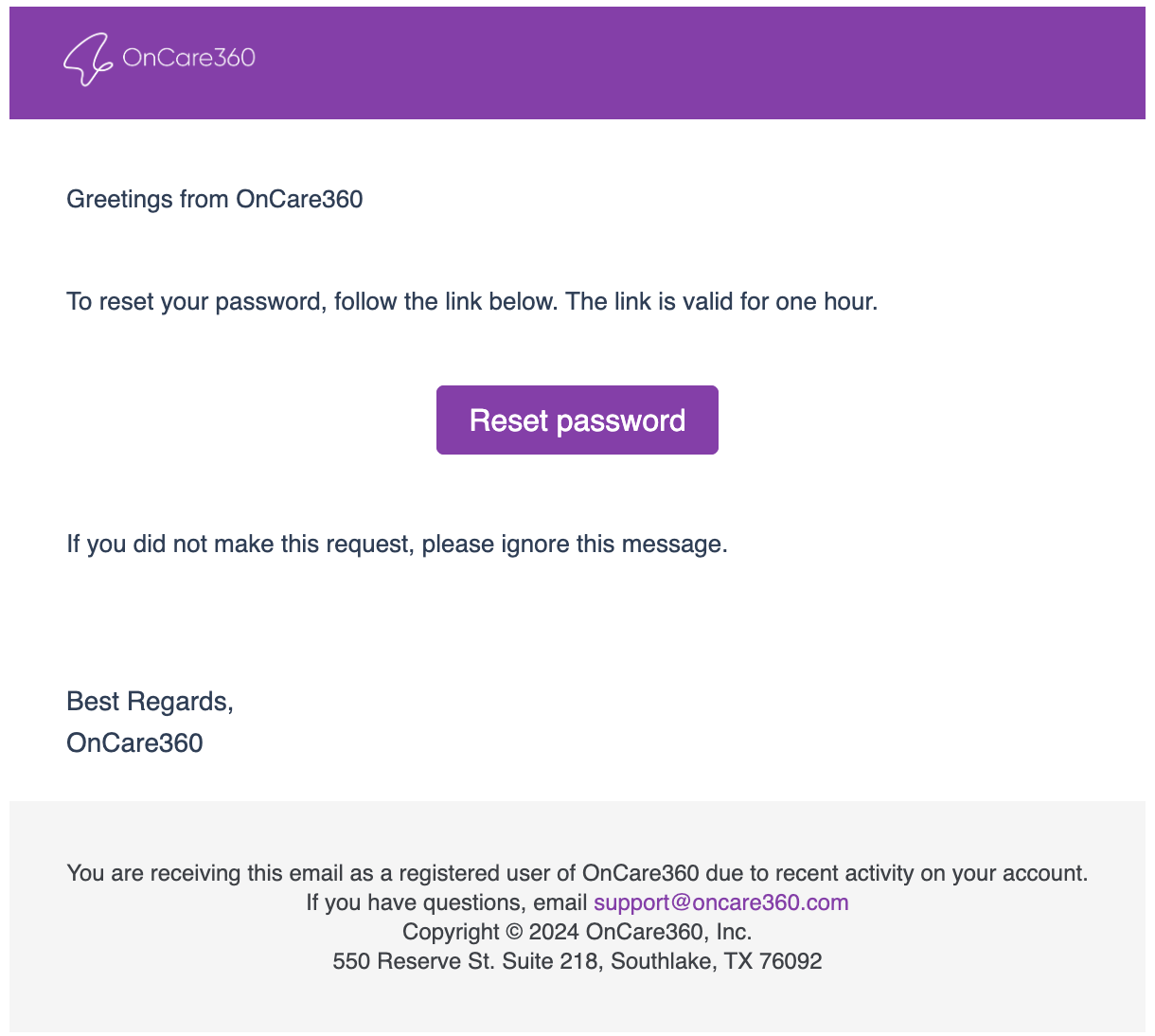
- Click the "Reset Password" button in that email.
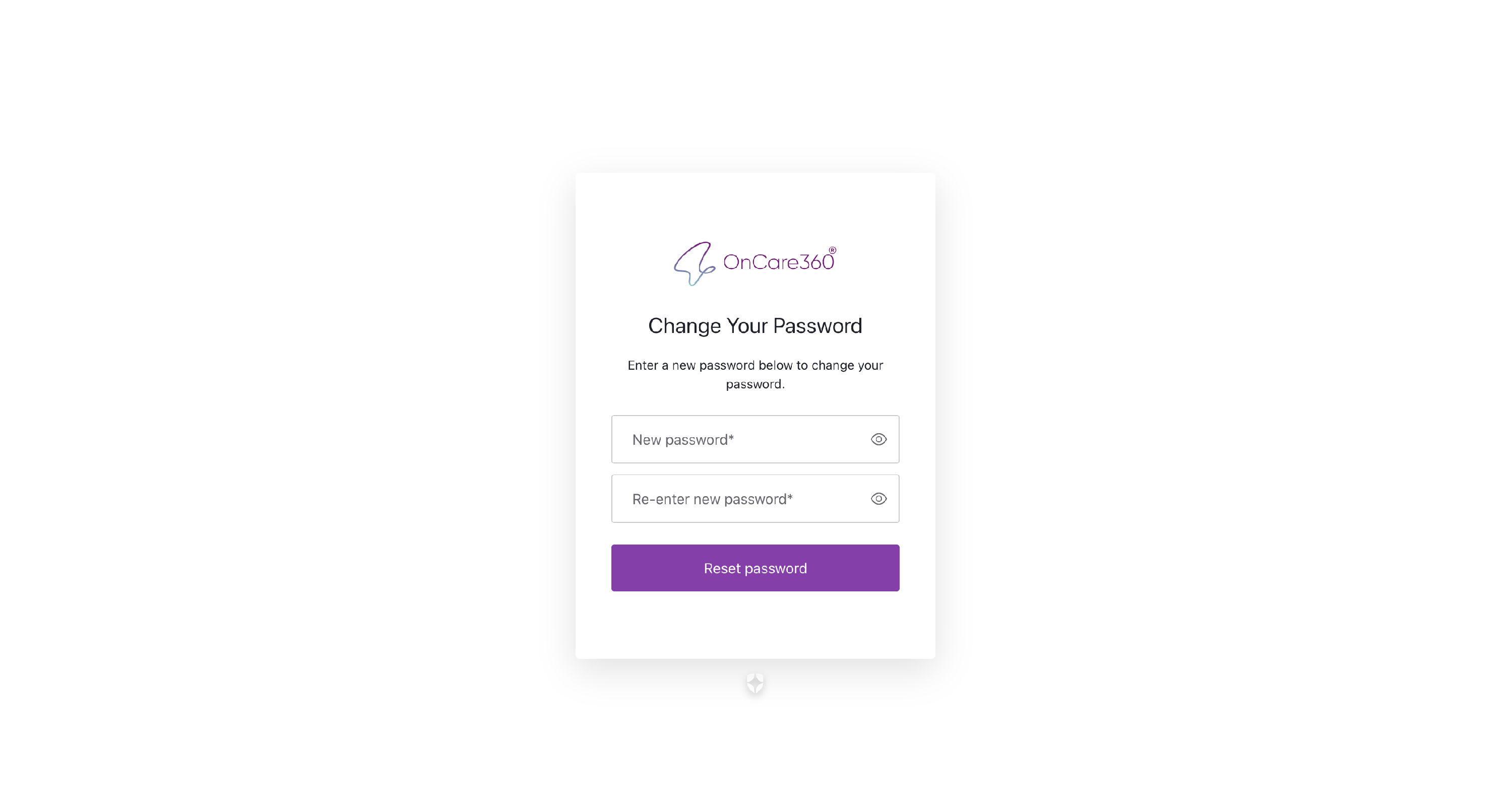
- Create a new password and confirm it.
- Go back to the login page and sign in with your new password.
🔝Table of contents
3. Choose a Clinic After Login
After you log in:
- You will see a list of clinics connected to your account.
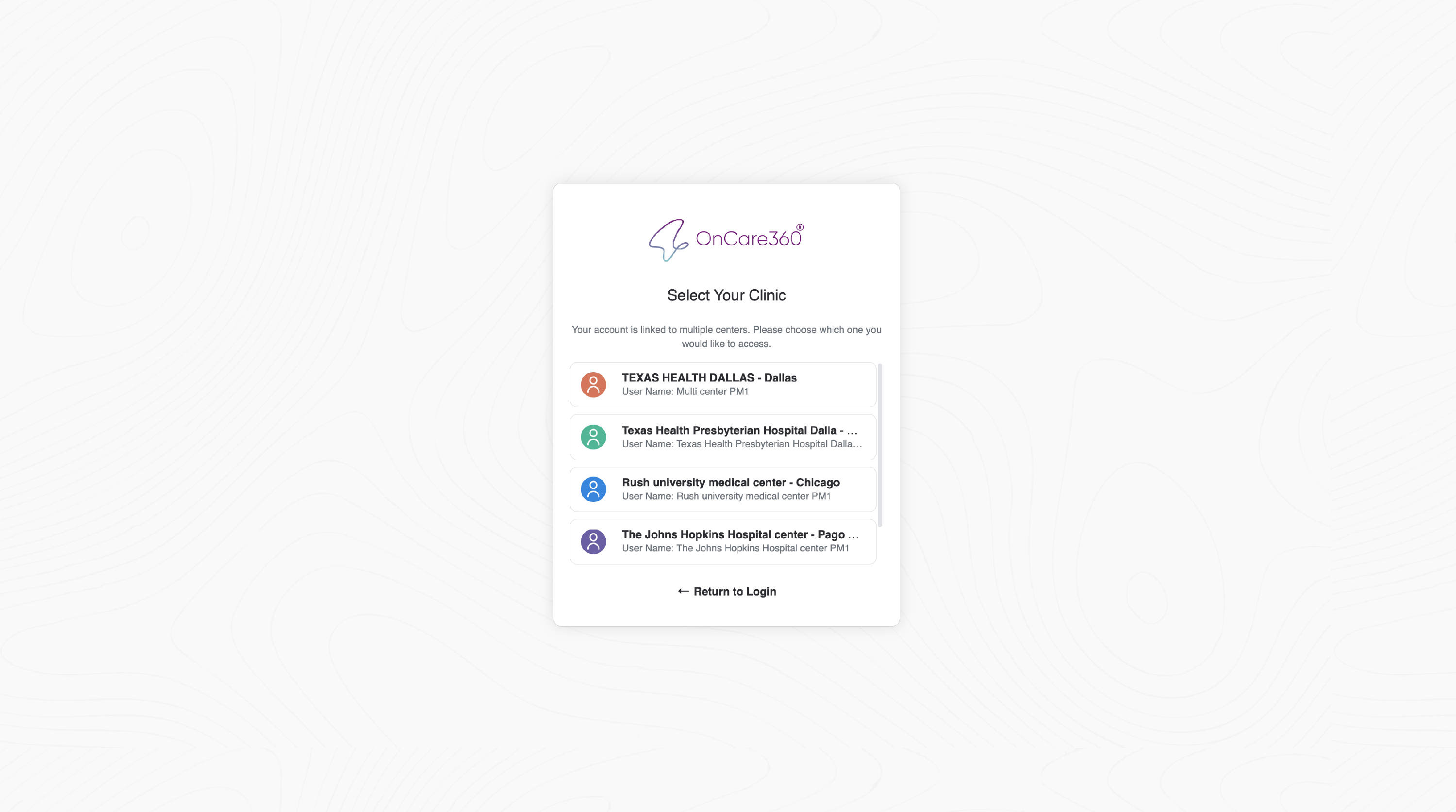
- Click on the clinic you want to enter.
- You will be taken to that clinic’s Patient Listing Page.
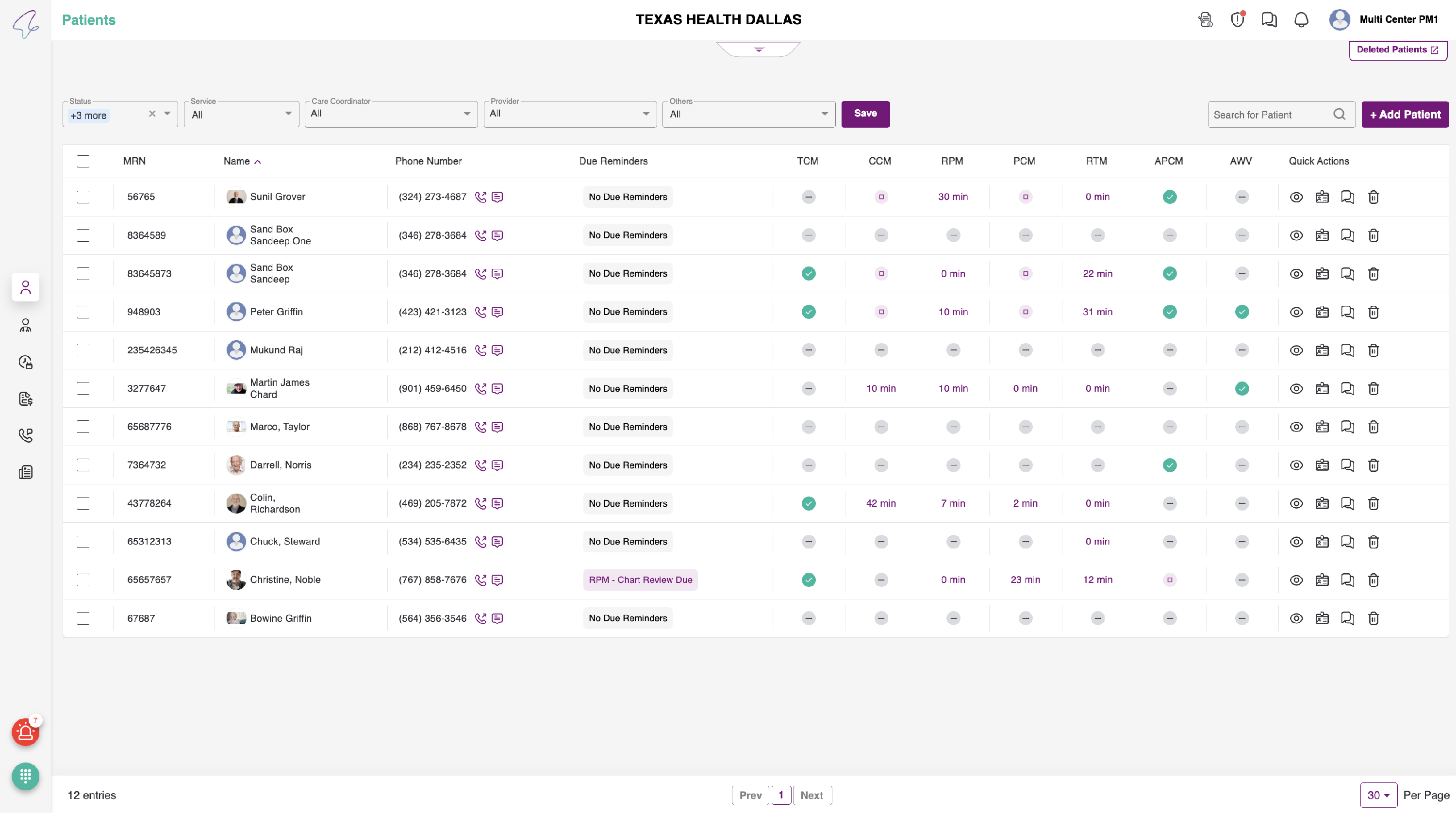
Note: if there’s only one clinic in your account, you’ll be taken there automatically without needing to choose.
4. How to Switch Clinics
You can switch to another clinic anytime:
- Click the user icon in the top right corner.

- In the dropdown, click "Switch Clinic".
- You’ll see the list of clinics again.
- Select another clinic to switch.
Note: You’ll be taken to the selected clinic’s Patient Listing Page.
5. How to Log Out
To sign out of the portal:
- Click the user icon in the top right corner.
- Click "Logout" from the dropdown.

- You’ll return to the login page.