
Advanced Primary Care Management
Table of Contents:
- Eligibility Rules
- CPT Rates
- Consent
- Add Care Plan
- Manage Care Plan
- Clinical Time Logging
- Approve Time
- Due Reminders
Eligibility Rules:
- There must be no active CCM service.
- There must be no active PCM service.
- In addition, the applicant must have active Medicare insurance.
CPT Rates:
- There are six CPT codes applicable to APCM.
- The details of these CPT codes, along with their respective rates, are provided below.
| CPT code | Rate |
| G0556 | $15 |
| G0557 | $50 |
| G0558 | $110 |
Instructions:
- To add APCM, go to the Patient Dashboard. Click the APCM tab, then select the “Add Care Plan” button. The consent screen will appear.
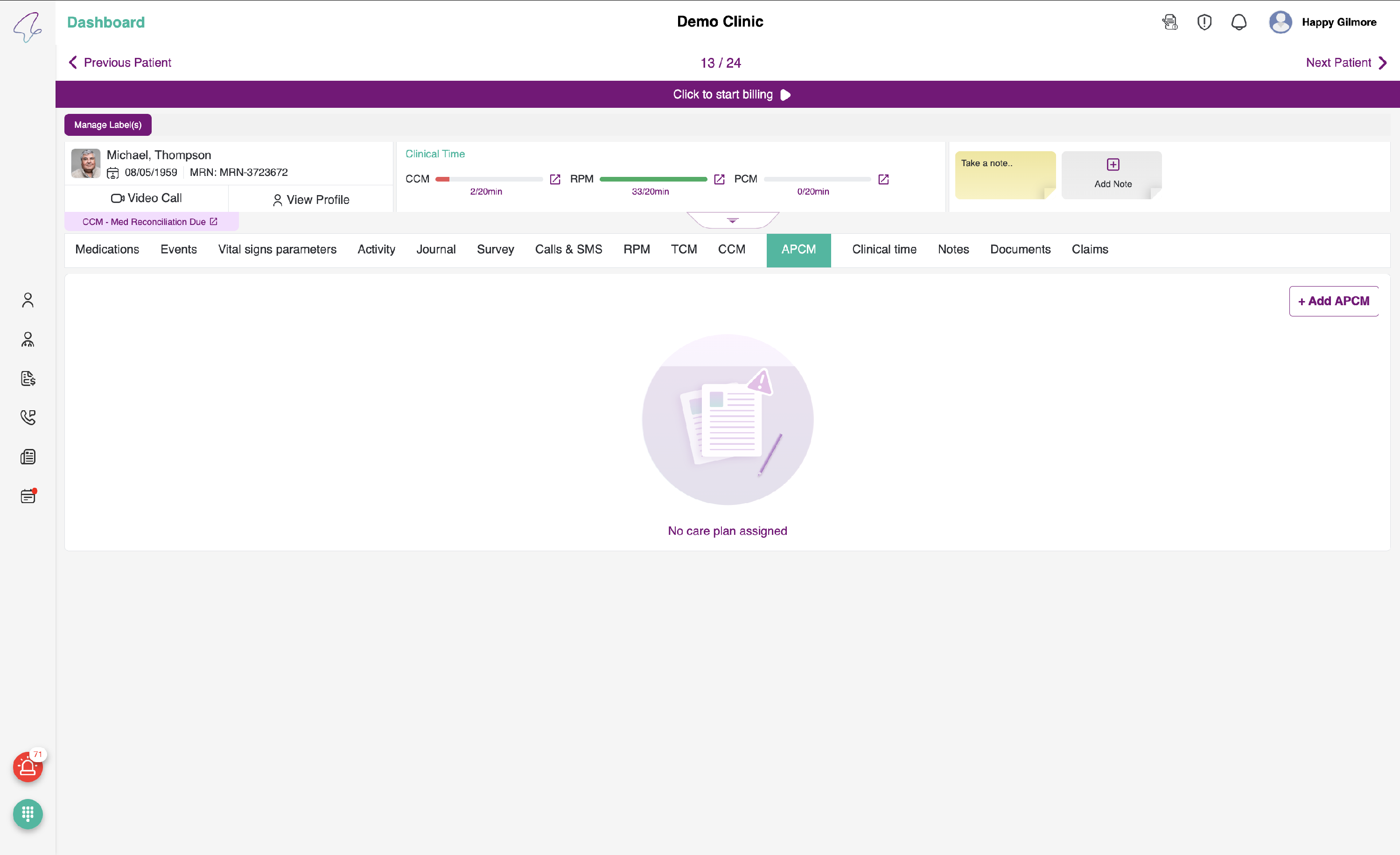
Consent:
Important:
- Within the APCM, we can migrate the CCM care plan if a CCM care plan already exists for the specific patient.
- If the patient has a CCM care plan, a checkbox will appear below the patient details. If no checkbox is displayed, please assume that no CCM care plan exists.
- The CCM care plan cannot be migrated once the APCM care plan has been submitted.
- If you have not yet submitted the APCM care plan and you would like to migrate the CCM care plan, you must discontinue the service and then resume it.
- When you resume the service in the APCM, please select the “migrate CCM care plan” checkbox, confirm your consent, and click Submit. After that, the completed CCM care plan data will be automatically filled in.
Note: If you choose to migrate the CCM care plan in APCM, any data you have already entered will be auto-filled. You will still need to complete the remaining required fields manually in order to submit the care plan.
- If the patient agrees to receive the APCM service, select “Accepted by patient.” If the “Migrate CCM care plan” checkbox is visible, choose the option that best fits your workflow, and then click Submit.
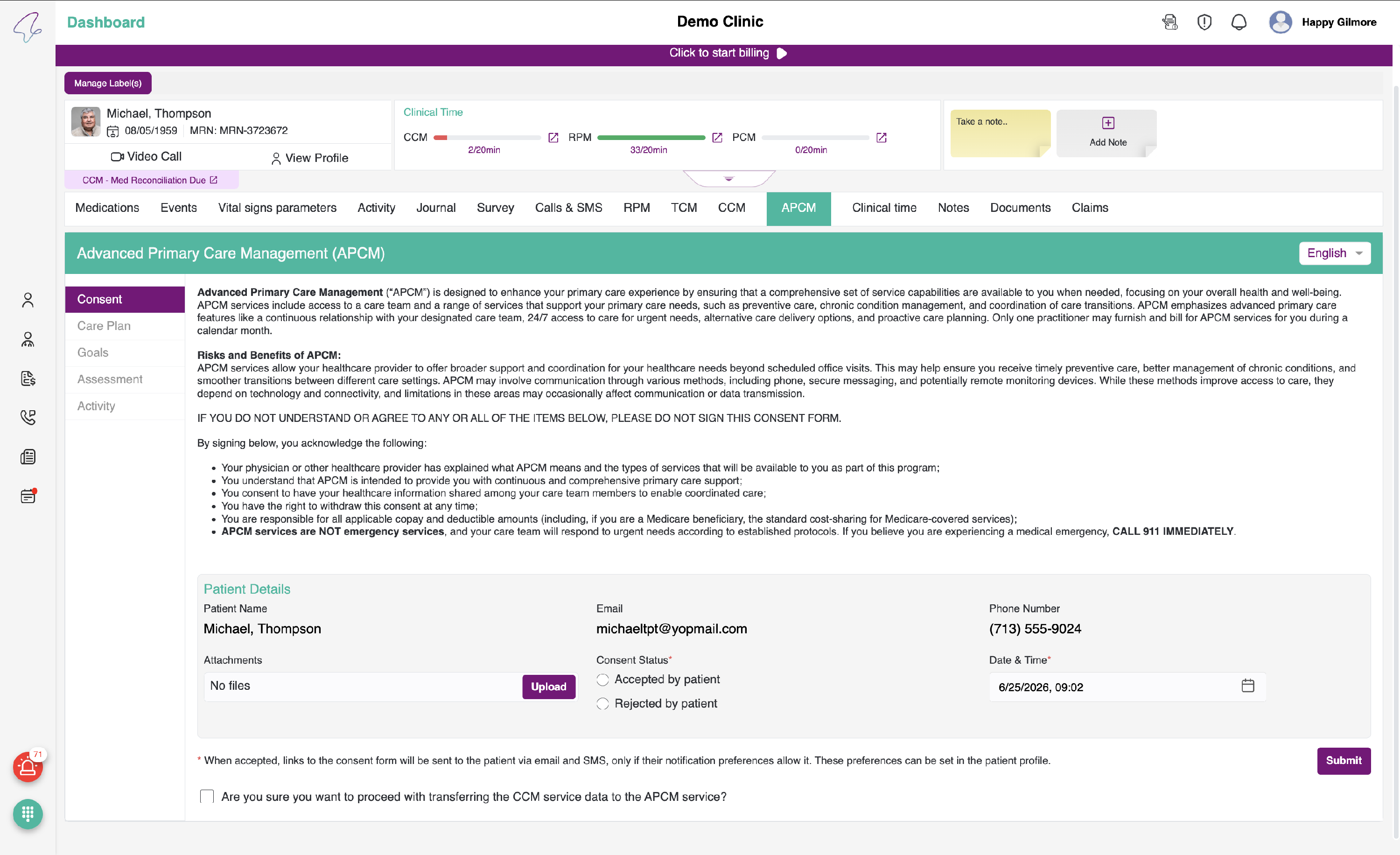
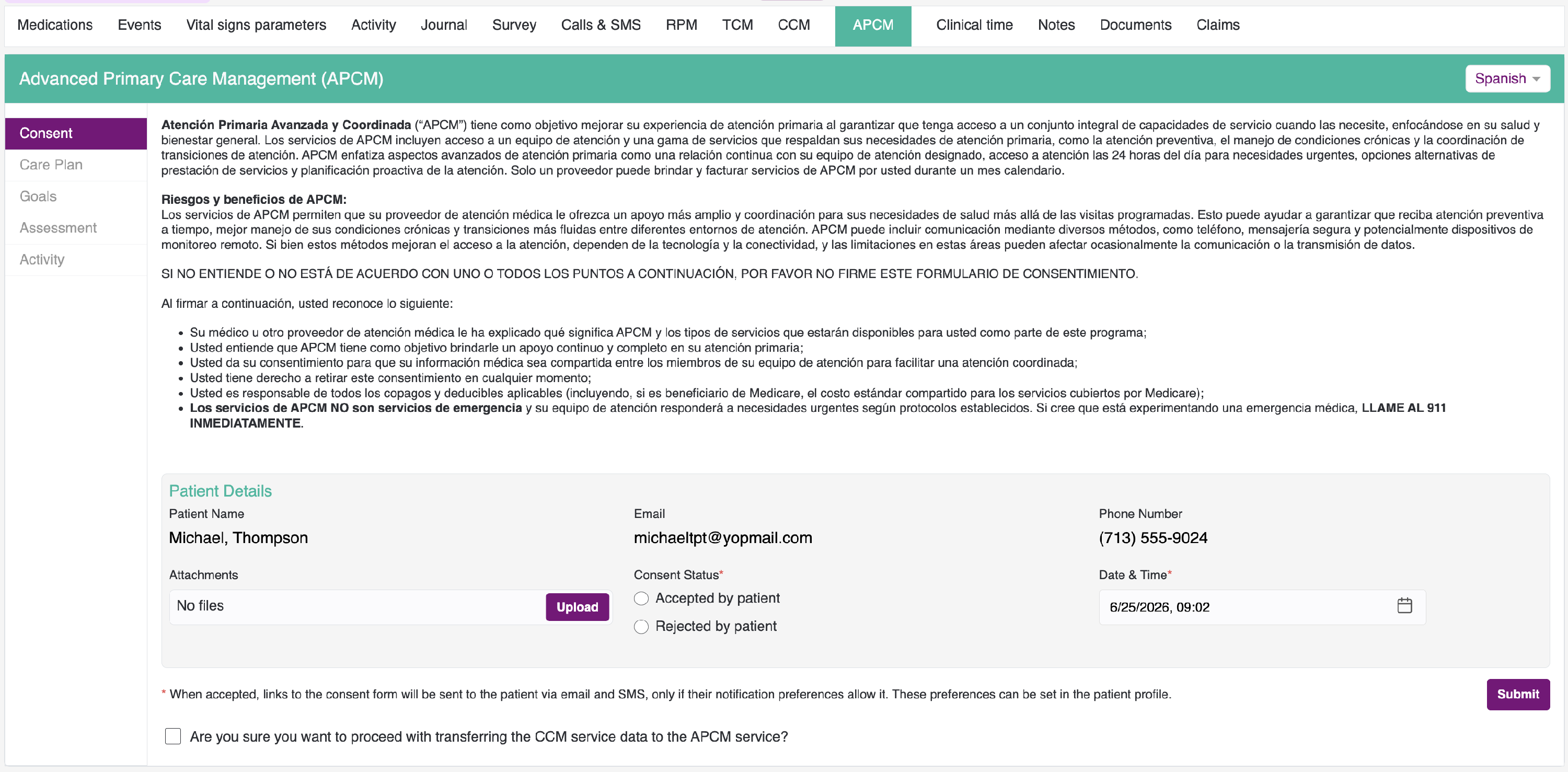
- You can view the Consent in two languages English and Spanish. By default, English is selected.
- An option is available to upload a file within the content; however, this is not mandatory.
- Above the Consent tab, you can access a clinical time clock to view clinical time and generate a bill.
- To view the Consent in Spanish, select the Spanish language as follows:
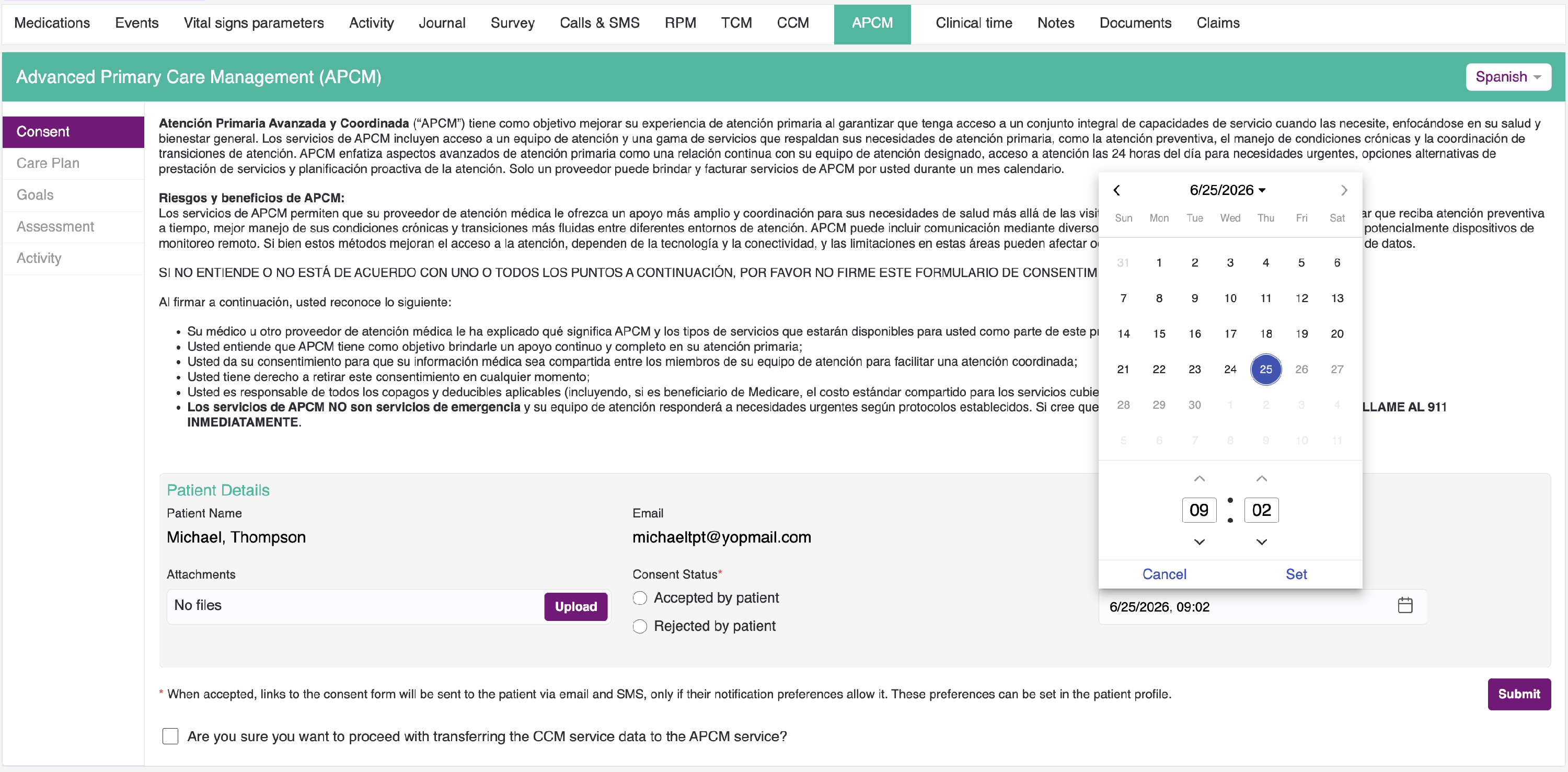
- You may select the consent date and time manually for previous dates; however, there are restrictions for future dates and times. By default, the current date and time are displayed.
- If the patient disagrees, then click on "Rejected by patient" and submit.
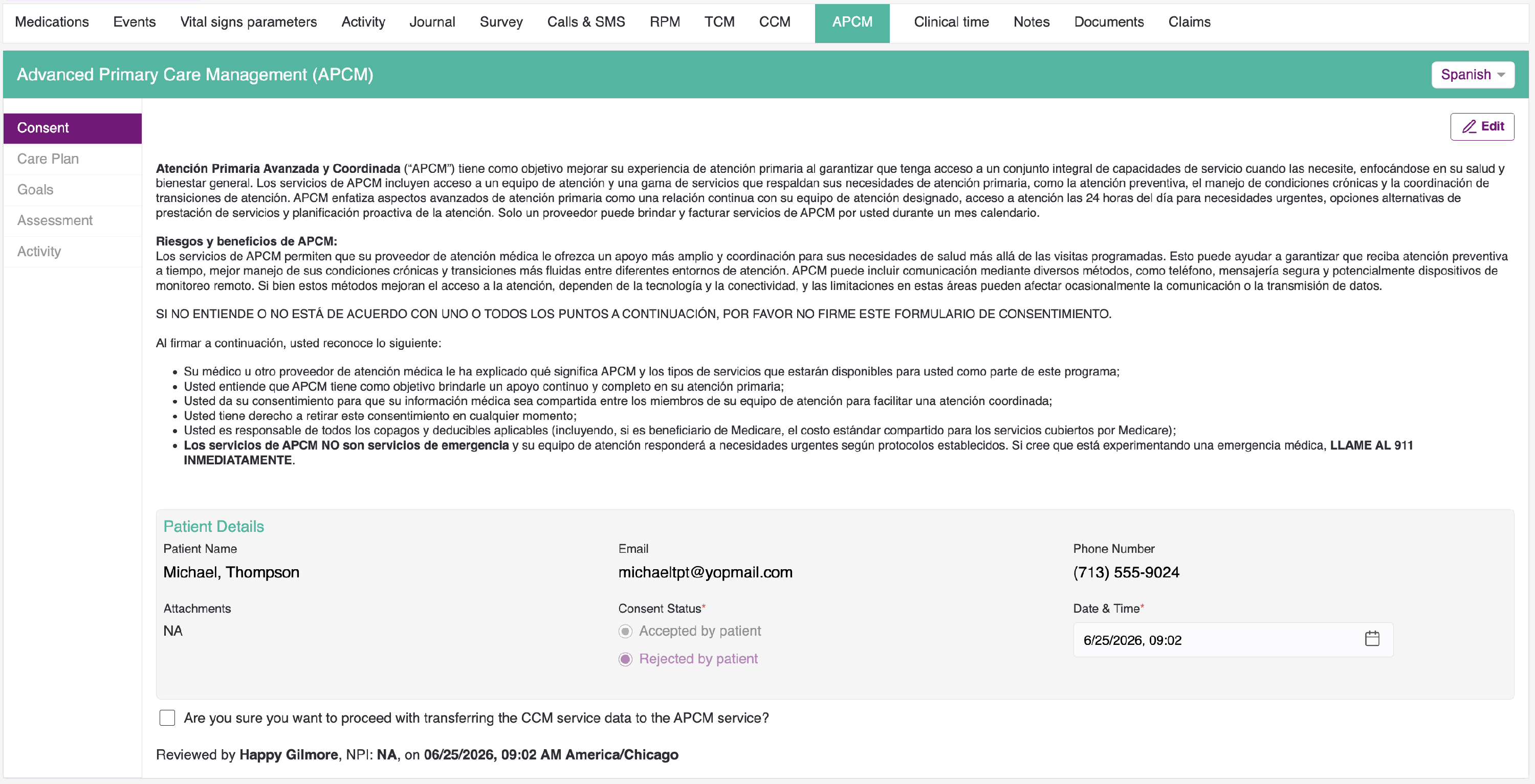
- You may view an “Edit” button on the right. You can edit and select the “Accepted by patient” option when the patient would like to take the service.
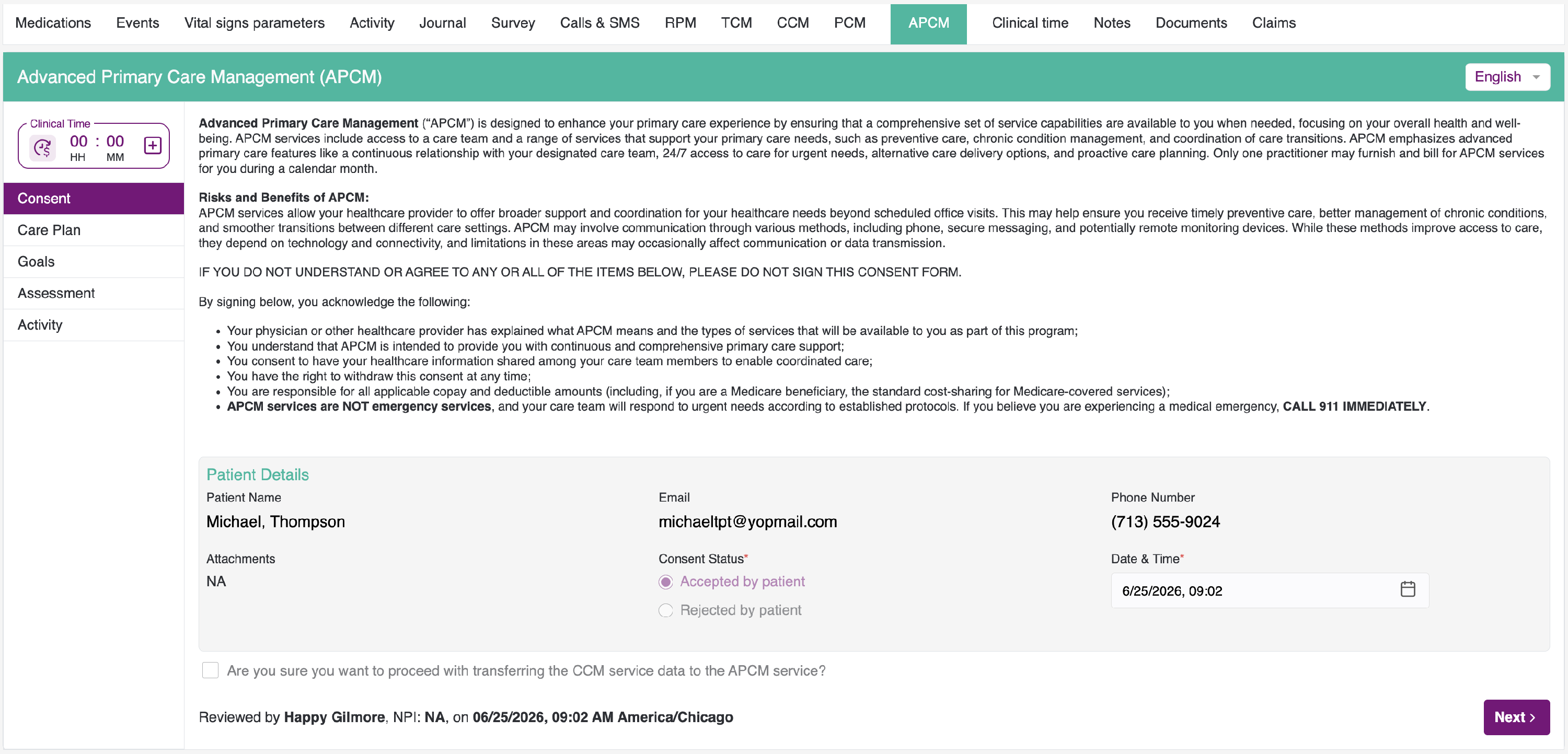
Note: You cannot view Care Plan and Activity before submitting Consent, they are disabled and only gets enabled once Consent is submitted. Once Consent is submitted, you can view last updated by, date and time details.
Add Care Plan:
- After submitting consent, you will see the Care Plan screen (Only when the consent is accepted by the patient).
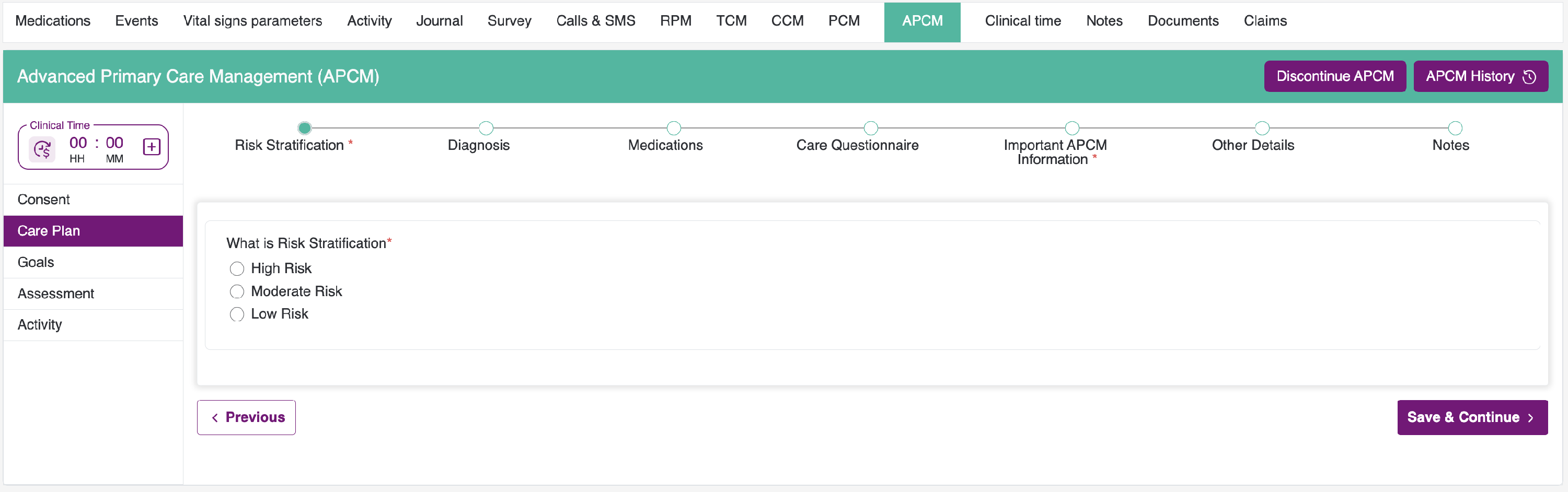
You will see a wizard at the top, with the following sections:
- Risk Stratification
- Diagnosis
- Medications
- Care Questionnaire
- Important APCM Information
- Other Details
- Notes
Note: This wizard is different when compared to the wizard in TCM, it is not a step-by-step wizard. You can add or edit these sections in any order, and navigate between sections by clicking on the Section Name or Previous and Next Navigation Buttons at the bottom.
- In the first section, Risk Stratification is required. We must select one option. After selecting the appropriate option, an intervention text box will appear below it; however, this field is not mandatory.
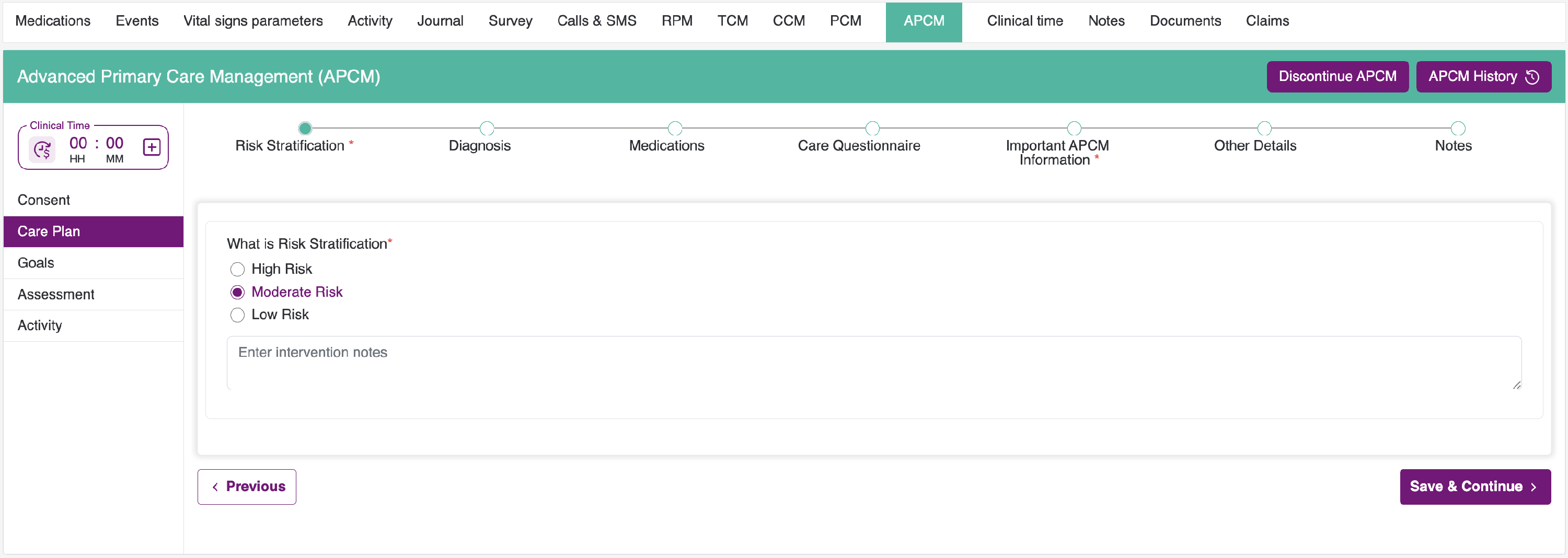
- After you have completed the Risk Stratification section, click the Save & Continue button. This will redirect you to the Diagnosis section.
- In the Diagnosis section, you will see fields for Chronic conditions and Allergy. To add information, use the add button next to each label. When you click the button, a corresponding pop-up will appear.
- In the Chronic Care Problem, Surgeries, and Test/Procedures pop-ups, click the Search button to find the relevant condition. Then fill in the remaining details and click the Add button to submit your entries.

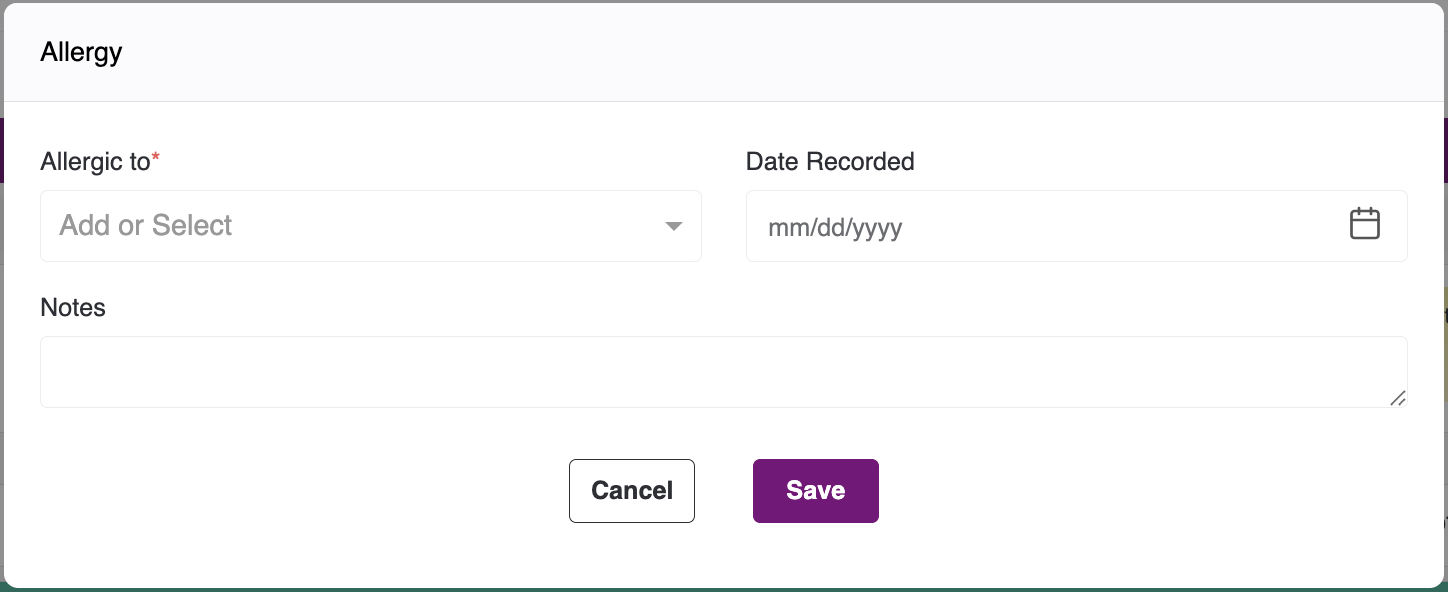
- To edit the data, hover over the input field to view the Edit and Delete options. After clicking the Edit button, the corresponding pop-up will appear. Make the changes you need to update the information, and then click the Update button. Once you have updated the Diagnosis, click the Save & Continue button to proceed to the Medications section.
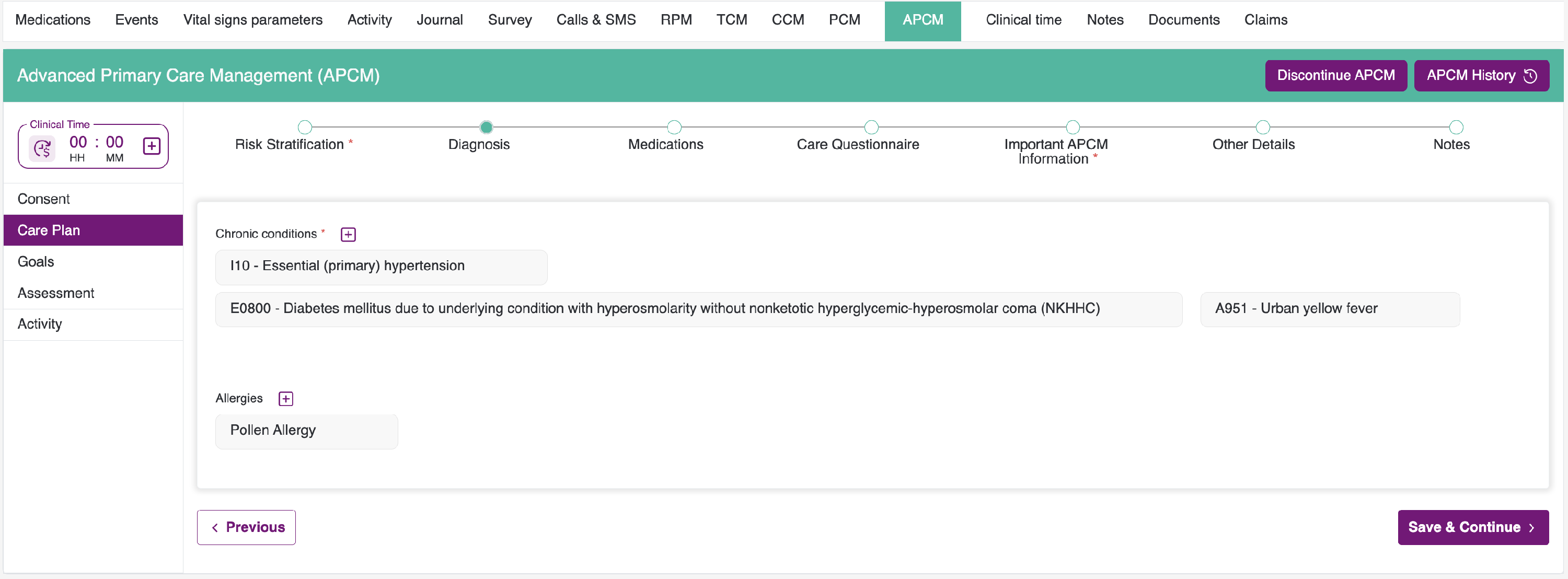
- You can view the list of active medications prescribed for the patient. You may add, edit, activate, and inactivate medicines, as well as delete them.
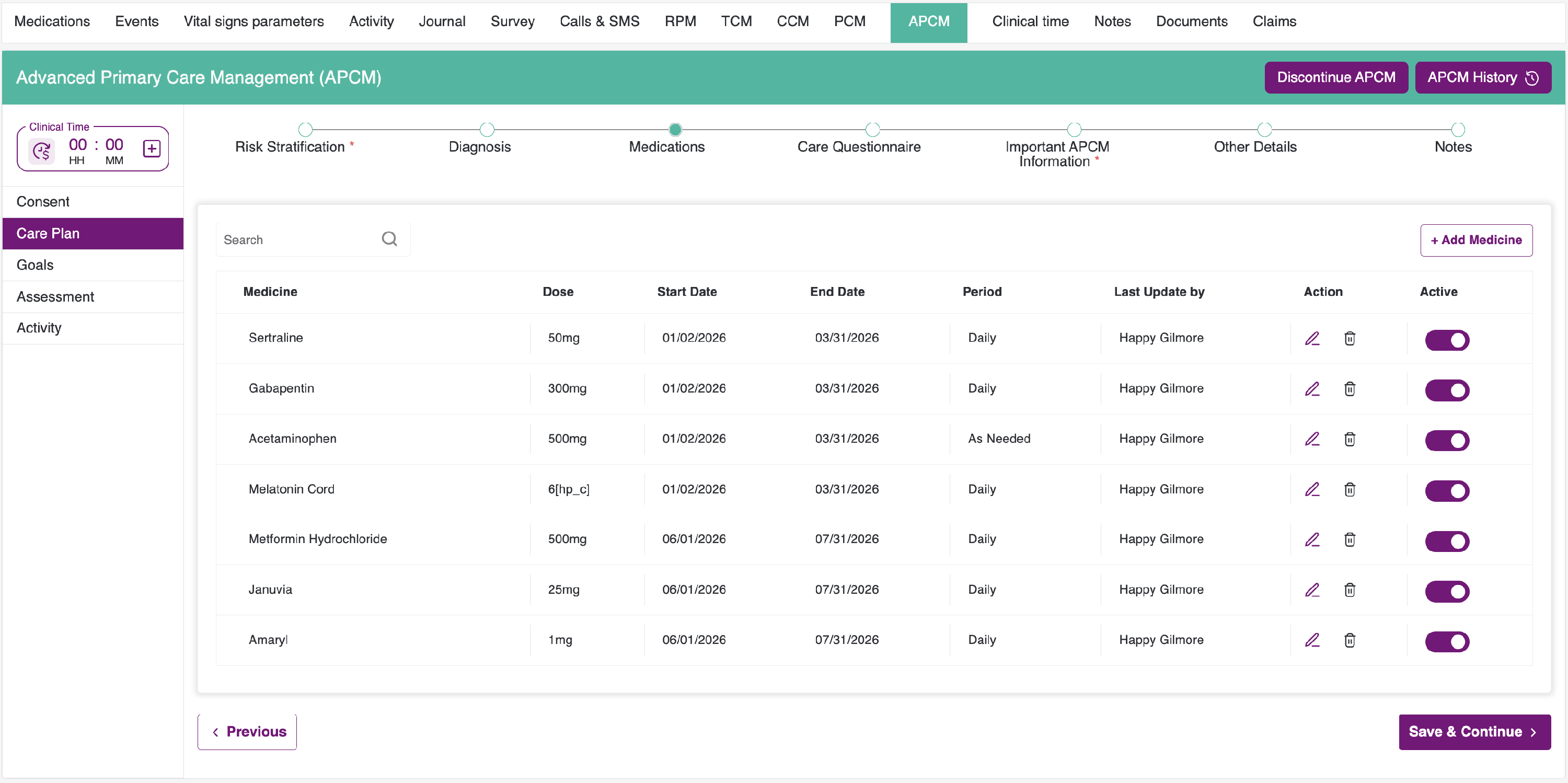
- To add medicines, click the "Add Medicine" button on the right. The Add Medication pop-up will appear. To enable the prescription expiry reminder, check the box and select one of the two options: Remind before 5 days or 10 days. Then click the "Add Prescription" button to save and add the prescription.
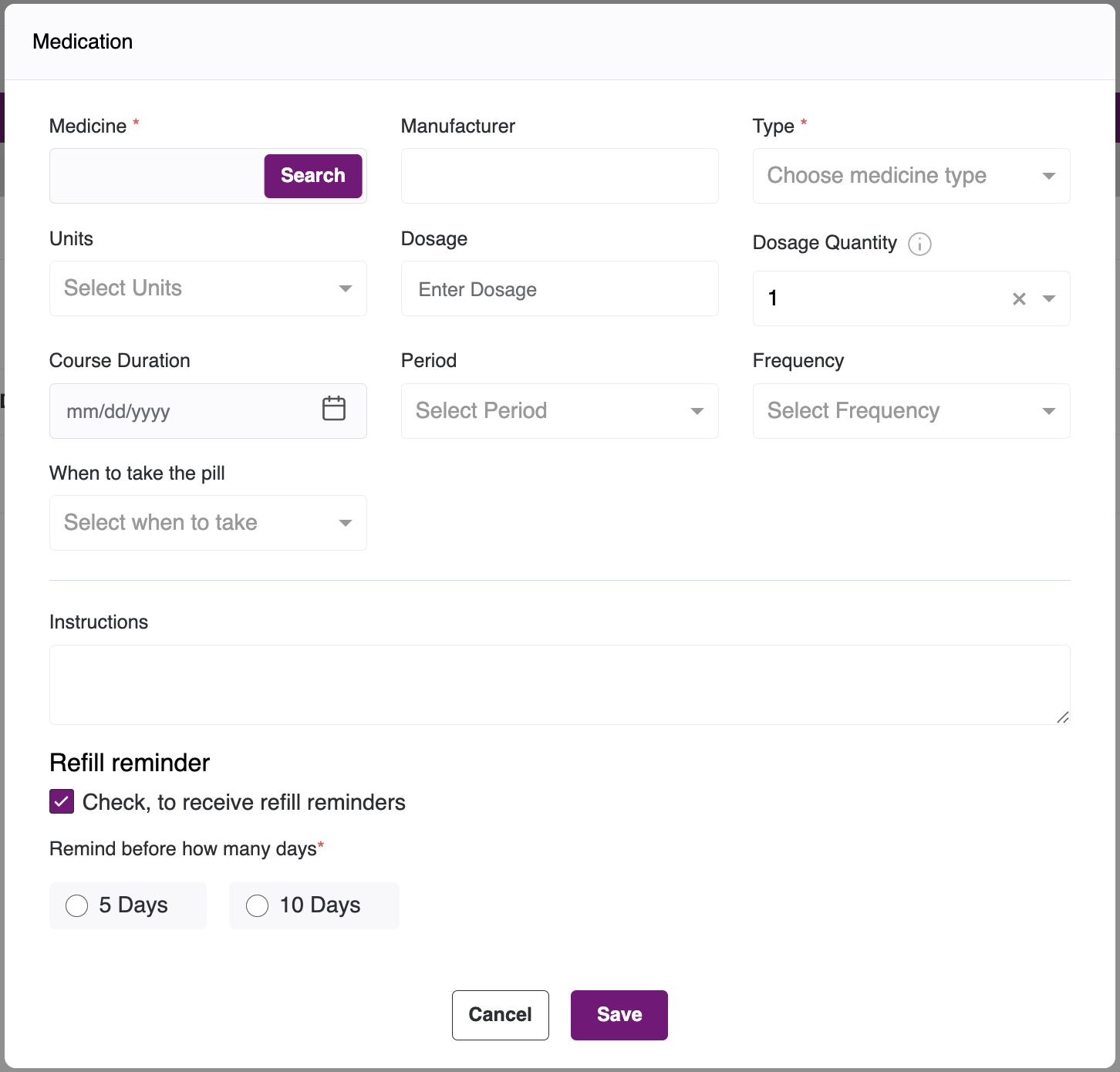
- To edit any medicine, click the corresponding Edit button. After you click the Edit button, the Update Prescription pop-up will appear. Make the changes you would like to update, and then click the Update button.
- To inactivate a medicine, switch the toggle to the OFF position. The medicine will be inactivated. To activate the medicine again, switch the toggle back to the ON position.
- Click the Next button once you have finished making your changes in the Medications section. The Care Questionnaire section will then appear.
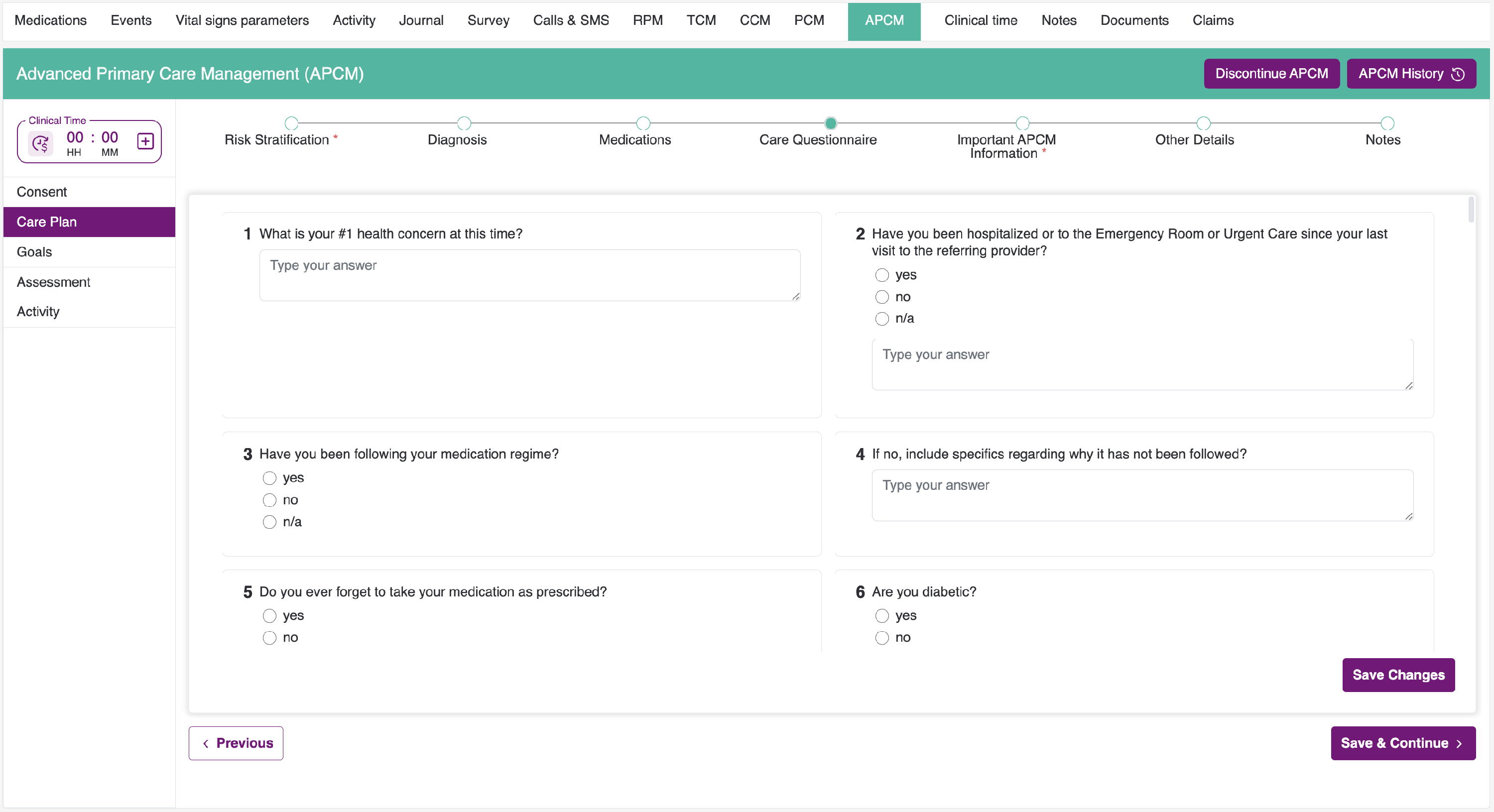
- Within this section, you will find all of the questions. This section is not required to be added to the care plan; however, you must answer the goals questions in order to enable the goals section.
- When you click on the accordion, you will see the section’s questions.
- After answering the question, please click on the "Save Changes" button to save the section.
- After saving, the section will be disabled. If you want to make changes, click on the edit button.
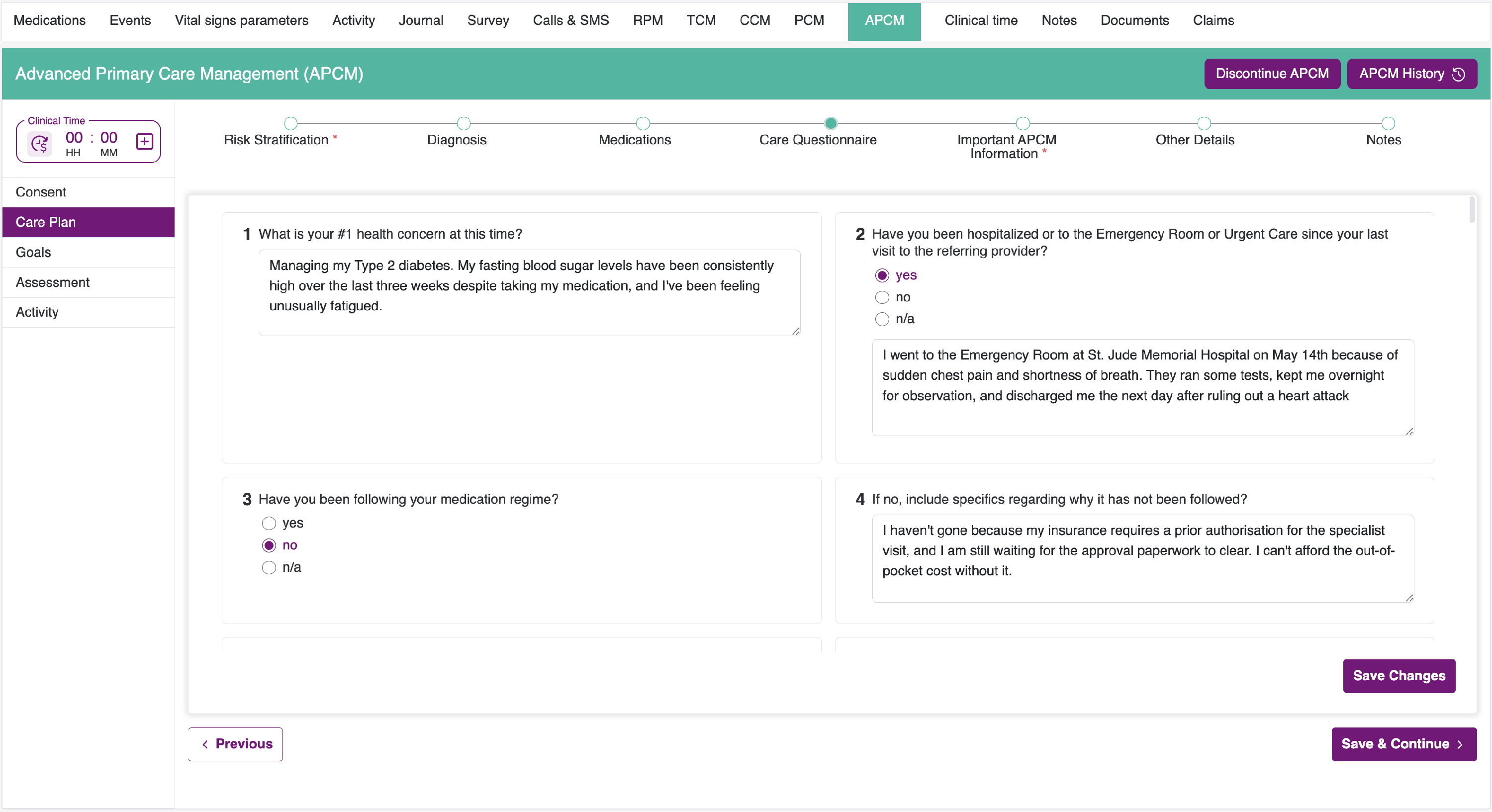
- After completing all required questions in the care questionnaire, click the "Save & Continue" button. The "Important APCM Information" section will then appear.
- Within this section, every question is mandatory. You will not be able to submit the care plan unless you answer all questions.
- Once you have answered all required questions in the care questionnaire, click the "Save & Continue" button. The "Other Details" section will then be displayed.
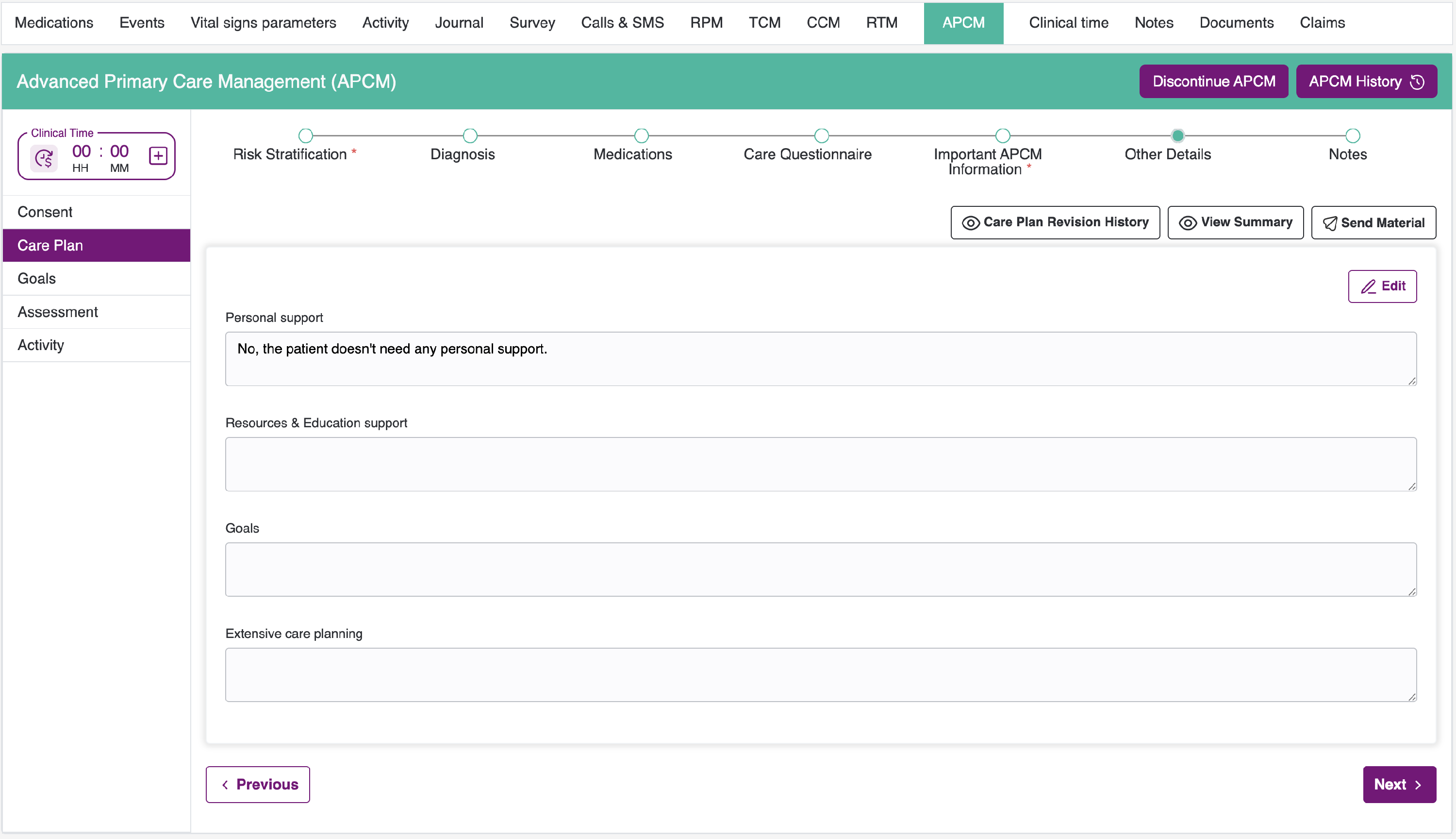
- Within this section, not every question is mandatory. You may submit the care plan without completing all questions; however, we recommend that you complete the required fields.
- After you have answered the questions, click the "Save & Continue" button. You will be directed to the Miscellaneous section.
Important Note: If we have migrated the care plan, you must review and check the checkbox before submitting the Add Care Plan form. If the checkbox is not selected, the care plan cannot be added, and the "Add Care Plan" button will remain disabled.
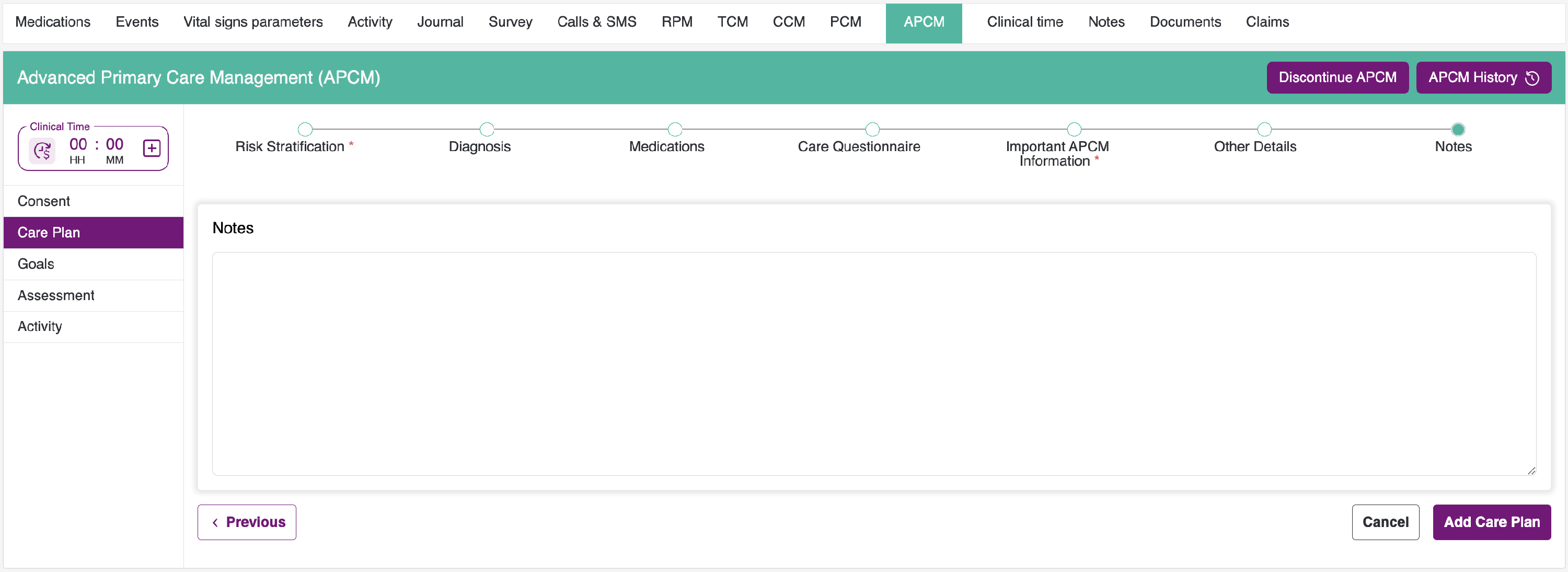
- After you add the notes, please click the "Add Care Plan" button to successfully submit the care plan.
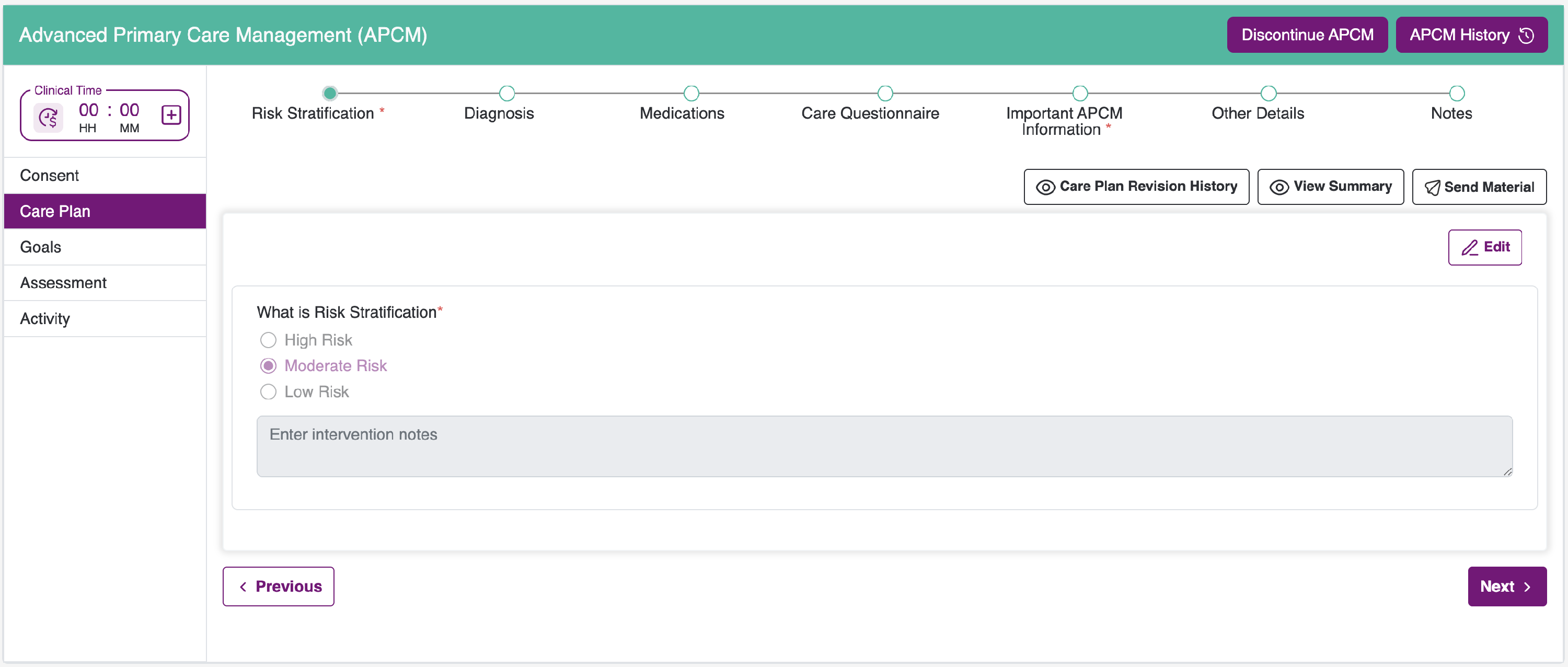
Following up on the Care Plan, the Goals section is shown below.
- Within the Goals section, there will be three areas: List of Goals, List of Options, and Comments.
- In the List of Goals, you will find all goal questions included in the care plan. In the List of Options, you will see the options selected for each question, and the Comments area is where you can enter your feedback.
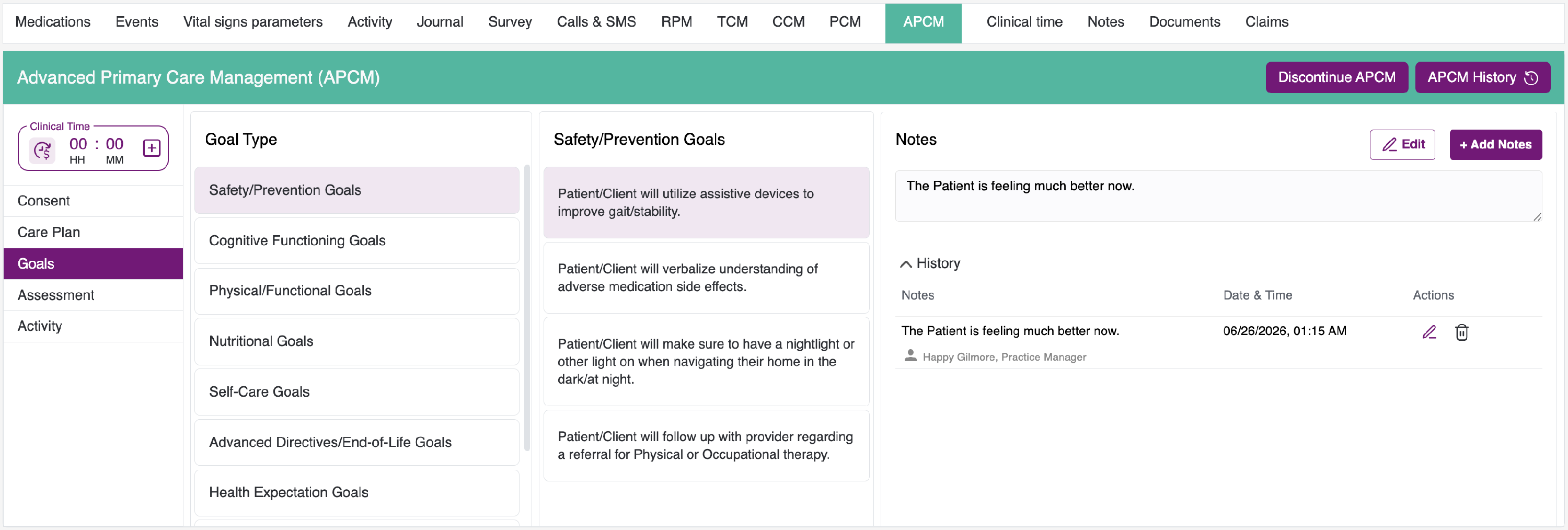
- After you add your comment, click the Add button to save it. Once saved, you can view it in the history.
Important Note: If you have migrated the care plan, the CCM care plan goals will also be migrated along with the corresponding added comments for the goals.
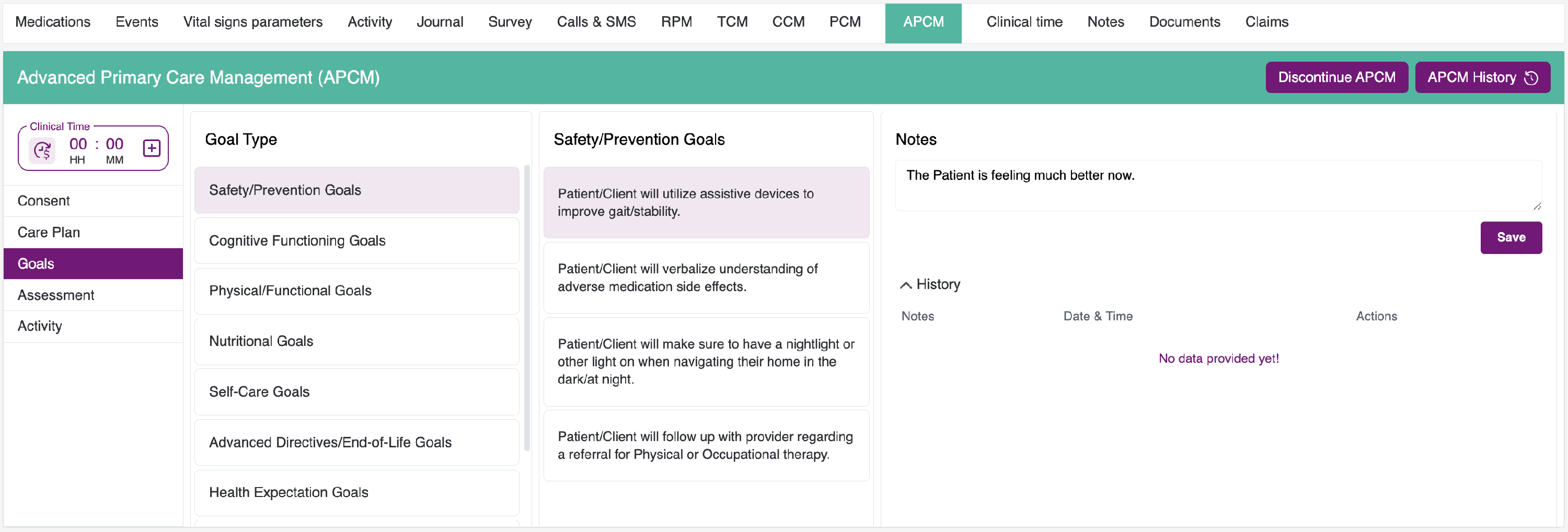
- After you save it, the interface switches to edit mode, where the field will be disabled. If you would like to add new information or make changes, please click the “Add Button" based on your requirements. You can also access the history by selecting “History,” where you can view, edit, and delete the comments.
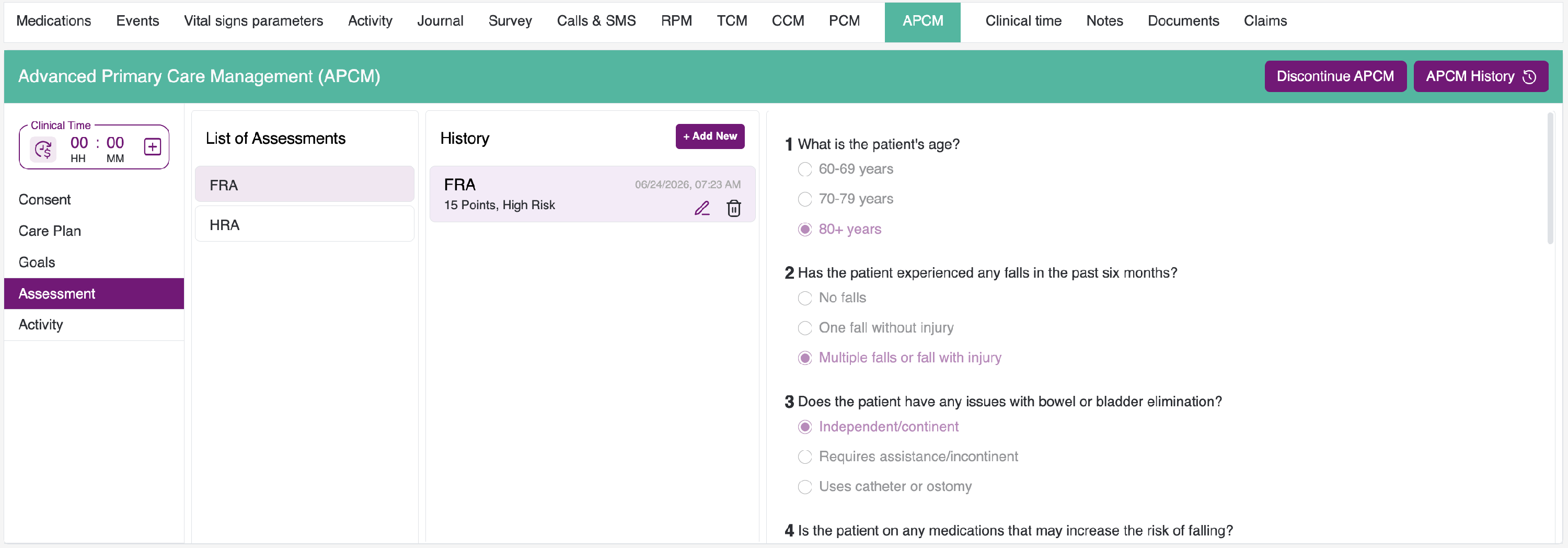
Following up on the Goals, you will find the Assessment section as shown below.
1. In the Assessment section, there are two sections: FRA and HRA.
2. To add an FRA, click the +Add New button. After clicking, you will see a list of questions. At least one question must be answered in order to submit the form. Once the form is submitted, the added history will appear under the history section.
3. After the FRA is added, you can view it in the history section. By hovering over the title, you will see the edit and delete icons. From there, you may perform the available actions.
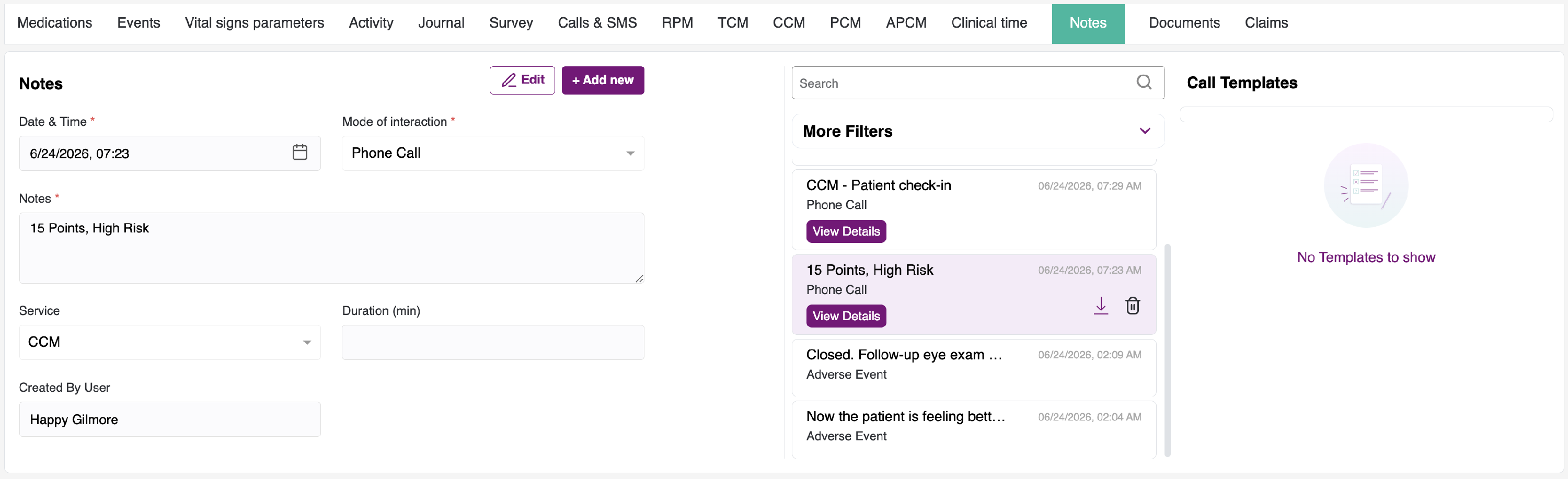
4. When the FRA is added, it will also generate entries in the notes section, with points calculated based on your responses. In addition, a non-billable record will be created based on the FRA time, and the FRA will be attached to that record.
- The same process applies to HRA; however, the only difference is that you will not receive points in the notes for HRA.
Important Note: If you have migrated the care plan, then the CCM care plan Assessment will also be migrated.
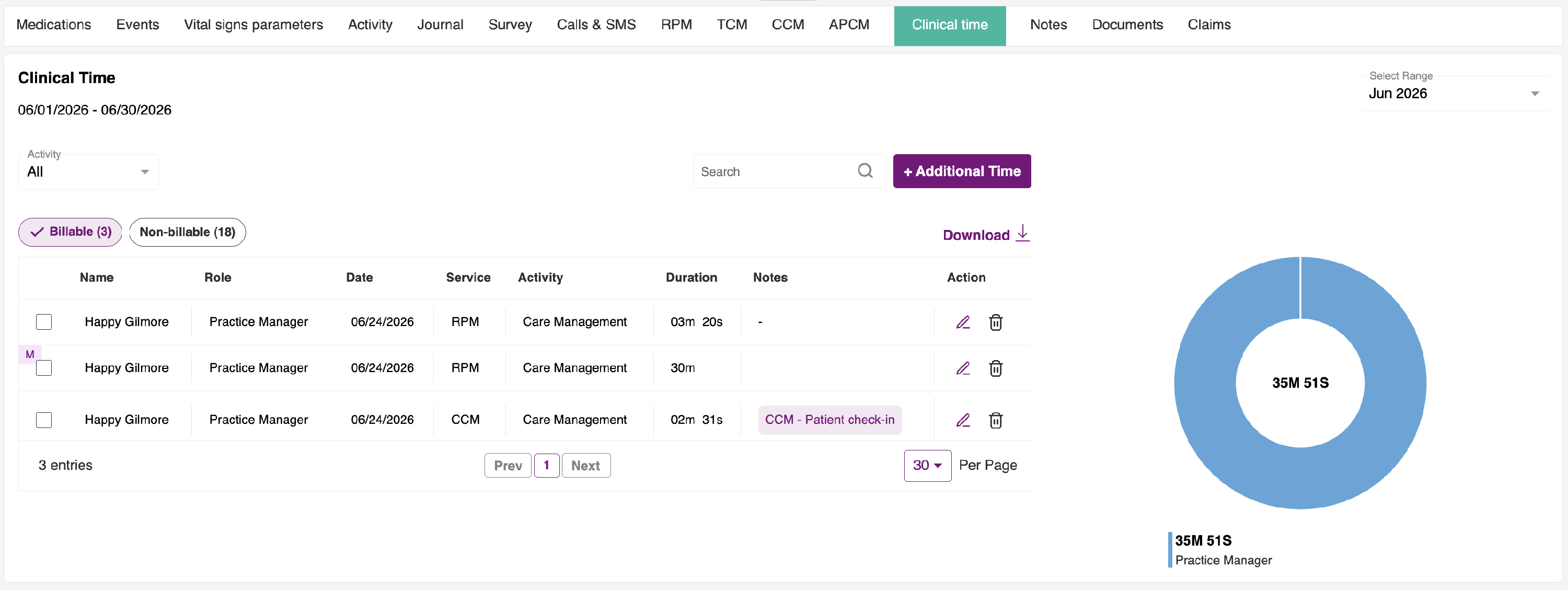
- Following up on the Assessments, you have an Activity section as shown below.
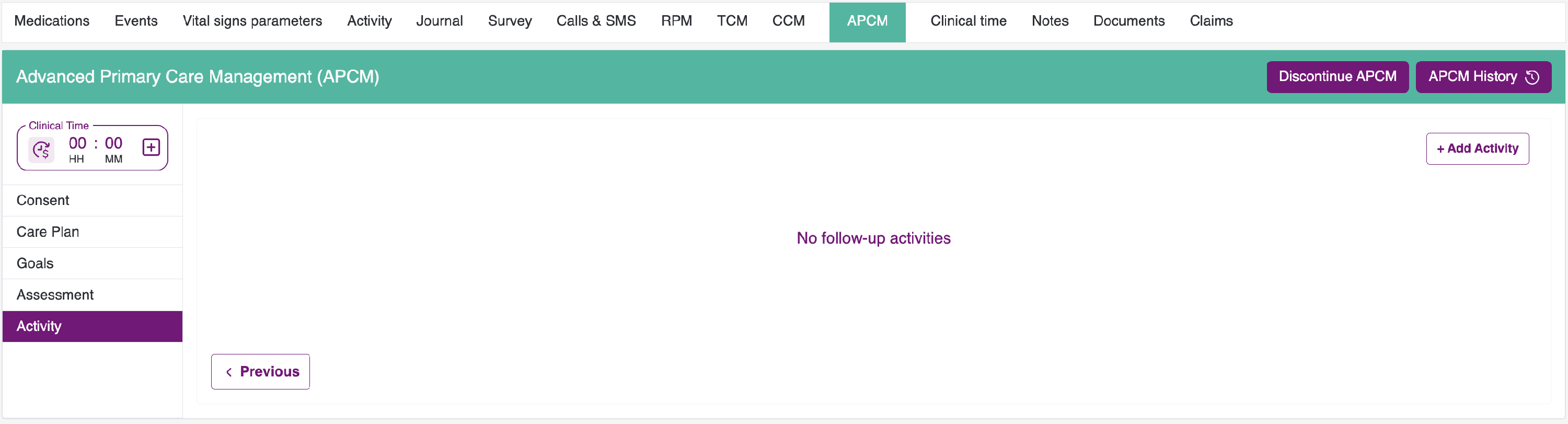
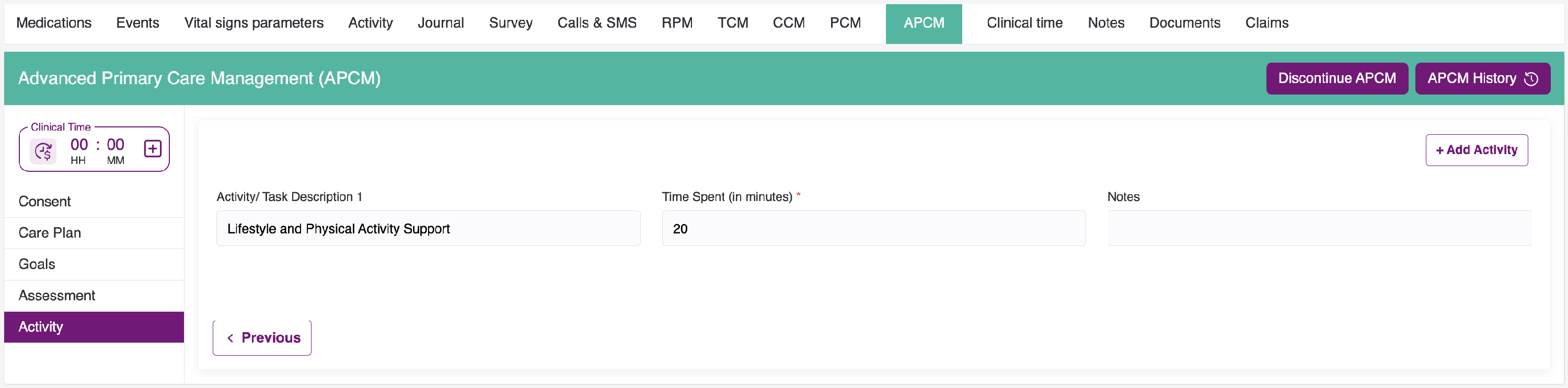
- To add an activity, click the "New Activity" button in the top-right corner. The Add Activity pop-up will appear. The Billing Type, Provider, Patient, and Date fields will be auto-populated. Enter the remaining details and click the "Add" button.
- The added activity will be saved as follows.
Manage Care Plan:
- After you add the care plan, you will see an upload button that allows you to upload a file. Please ensure the file size does not exceed 5 MB.
- Proceed to the right side of the screen, where you will find two buttons: View Log History, View Summary & Send Material, located below the wizard.
-
Once the care plan has been added, you may edit and update any field in any section.
View Log History: You can review detailed logs for all activities. This includes updates and modifications made by program coordinators and providers. Each log entry presents relevant information, such as names, dates, and timestamps. By selecting the designated button, a pop-up window will appear, enabling you to review the logs and download them in A4 format at your convenience.
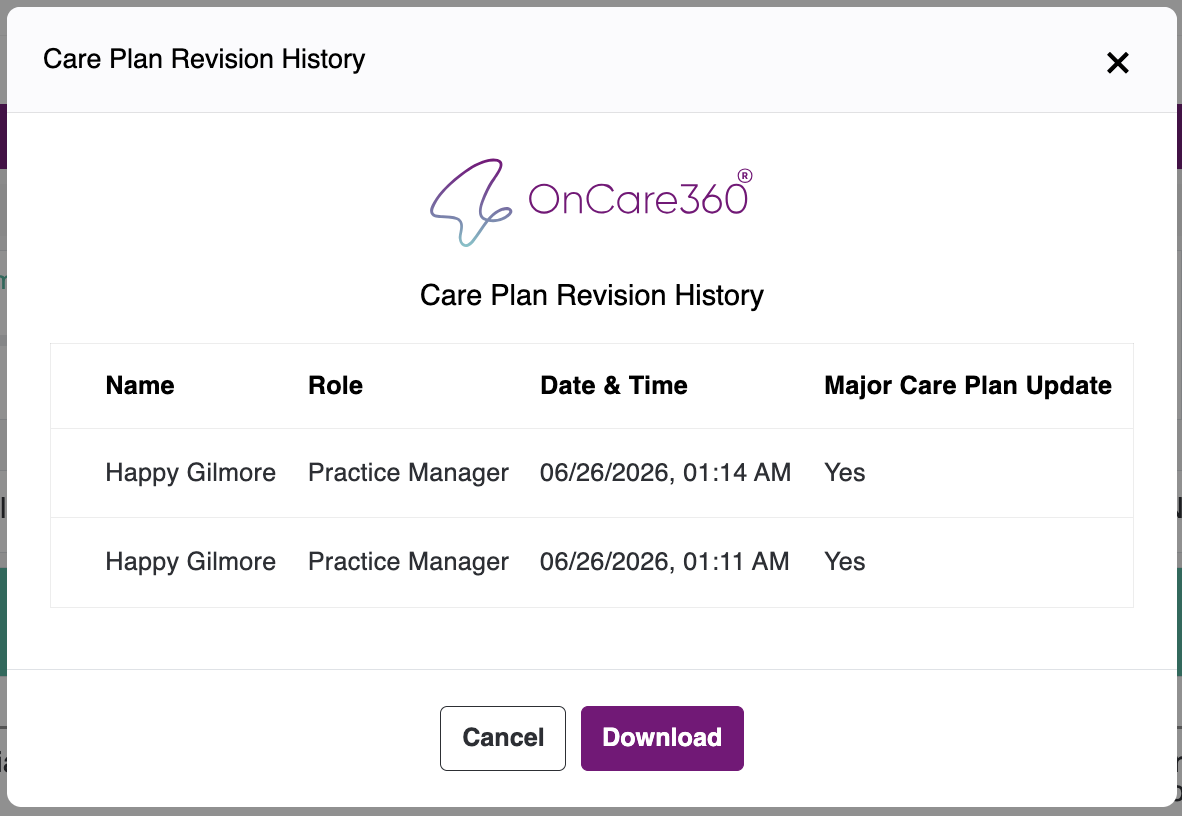
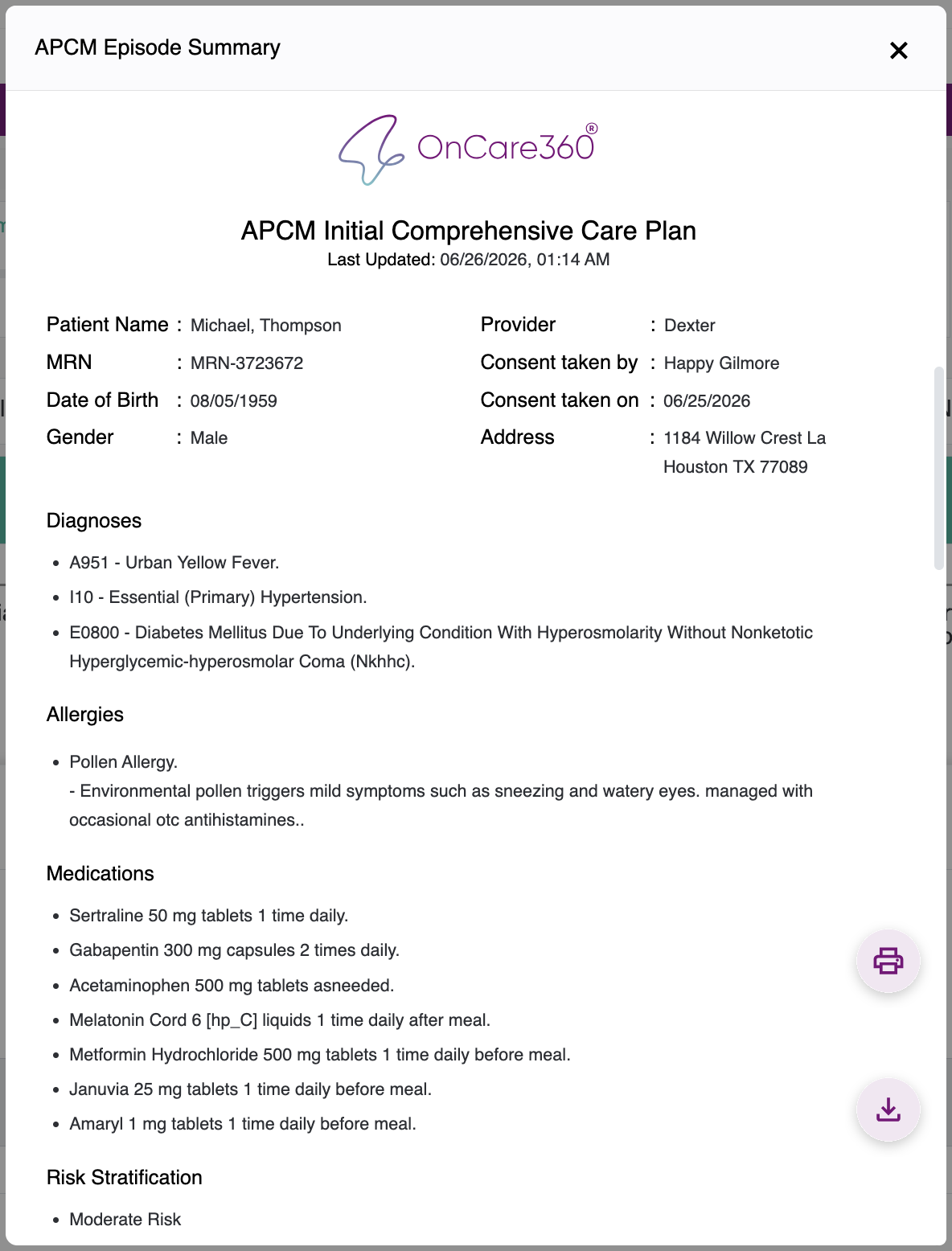
View Summary: In the Summary view, you will find a comprehensive overview of the APCM service, including the 'From' and 'To' details. In addition, you can download the summary using the available download option.
Send Material:
you will see a side panel on the right. In that panel, you will find the items listed below.
There are two sections
- Send Material.
- History.
1. Send Material:
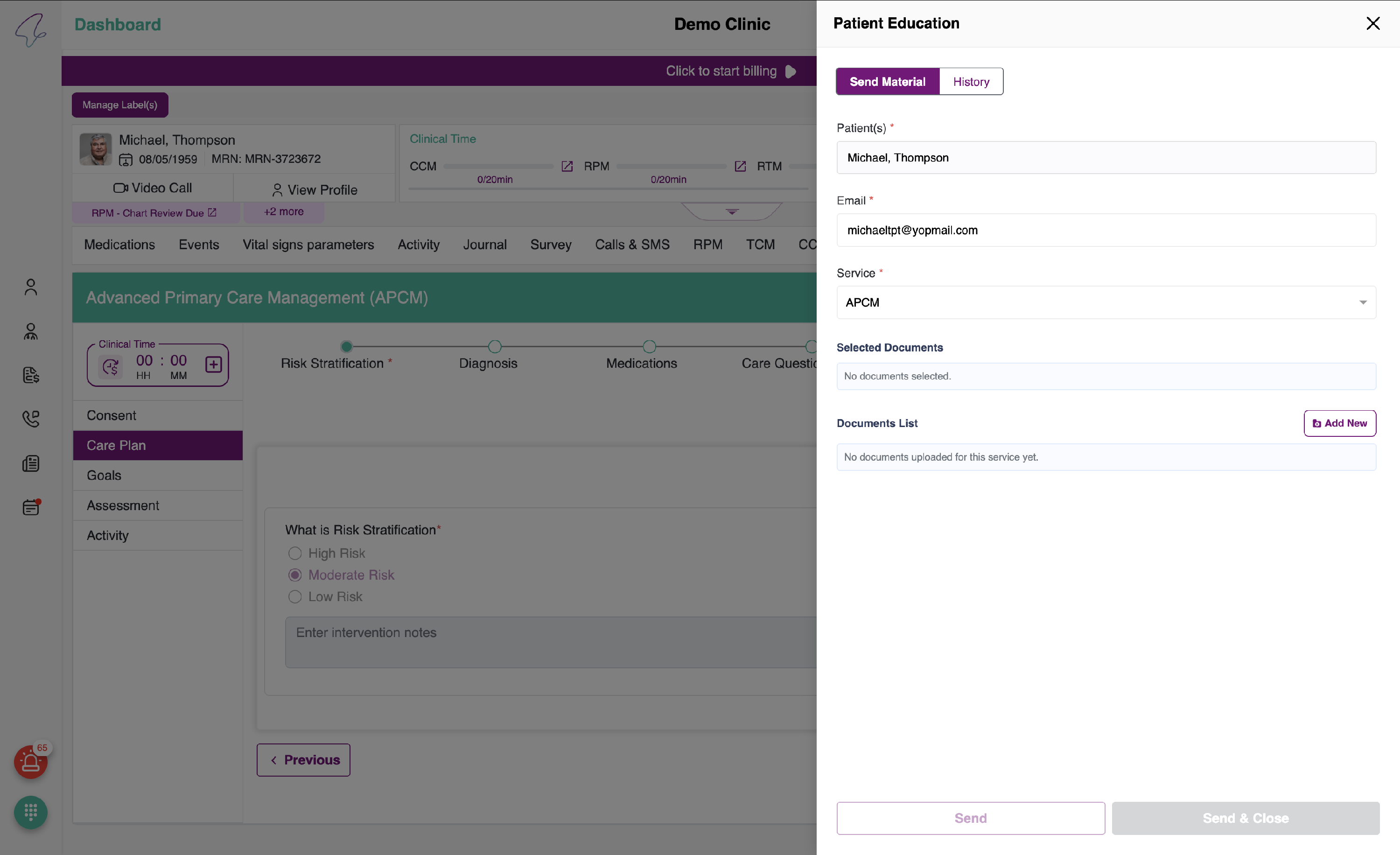
- Patients: Selected patient names.
- Service: The service will be automatically selected based on the care plan you are enrolled in for the education documents you would like to send.
- Selected Documents: You will see the list of documents you have chosen to send.
- Documents List: You will see the documents list based on the selected service. If no documents are available, click the Add New button.
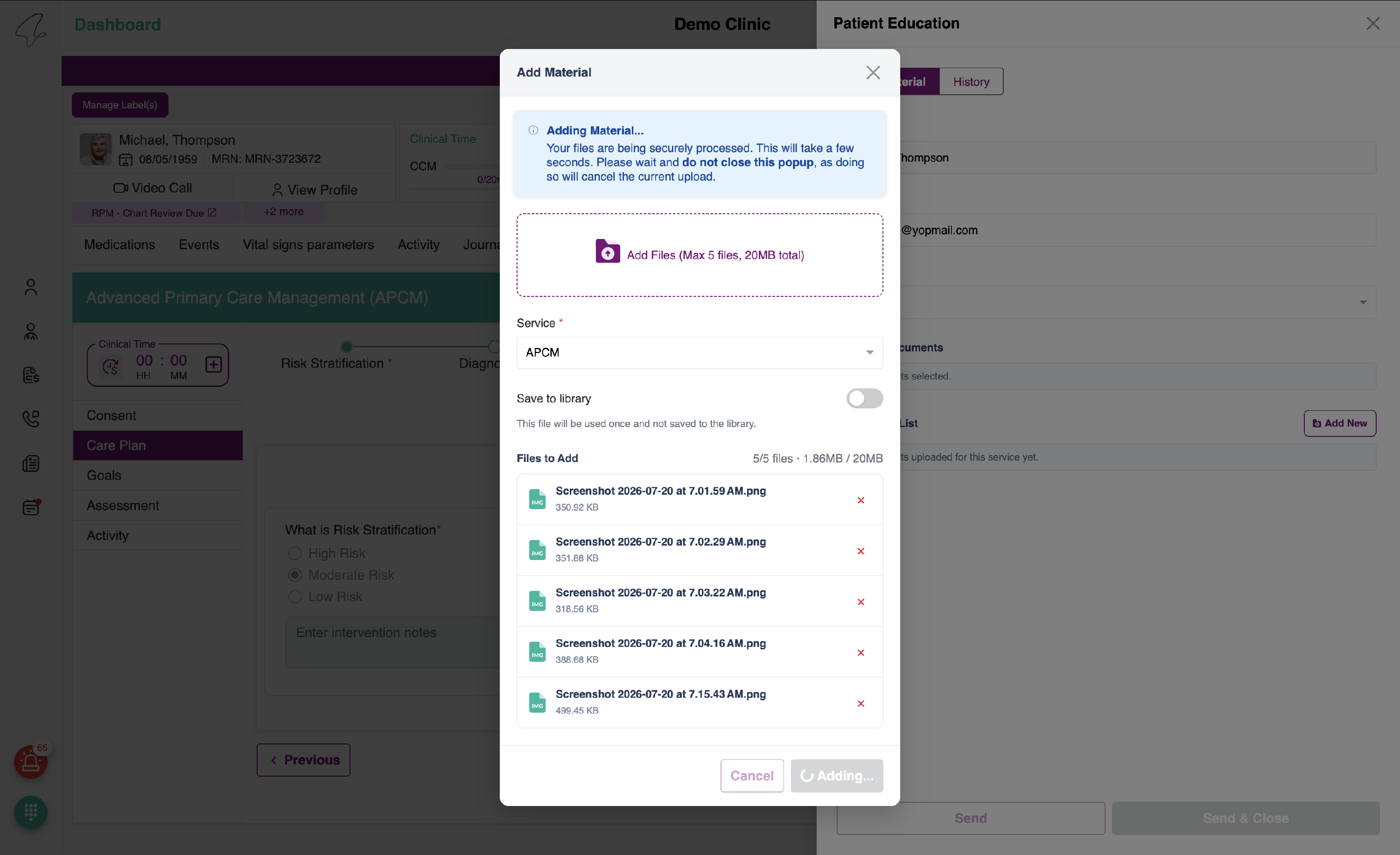
When you click Add New, you will see a pop-up as shown below.
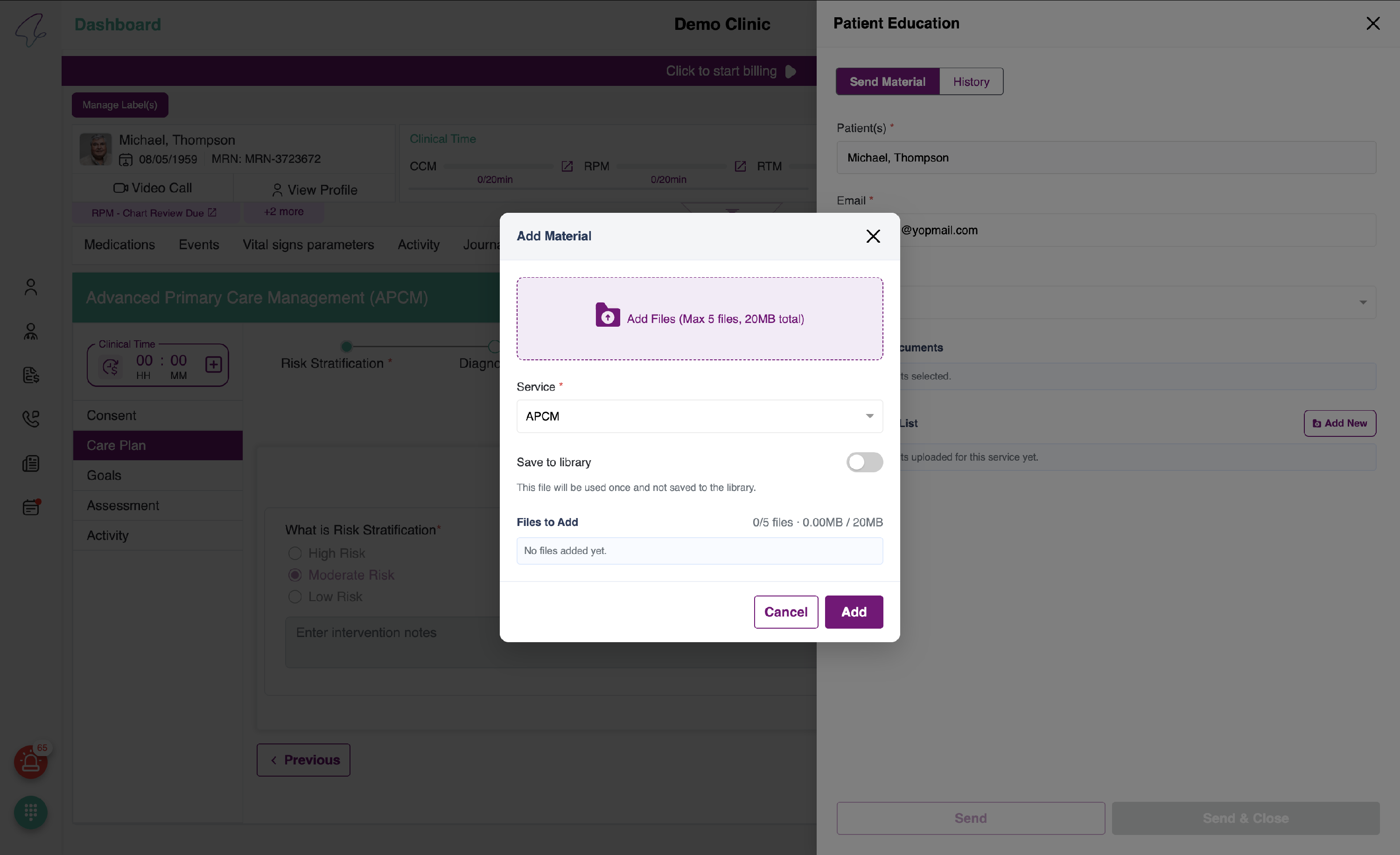
Click Add Files. You can choose up to 5 files, and the total file size must be less than 20 MB. Below, you will see the selected service under which you would like to keep the files. Further down, you will find a toggle labelled “Save to library.” If you want to reuse the document later, enable the toggle. (If you do not enable the toggle, the documents are available for one-time use only and will disappear when you close the complete tab).
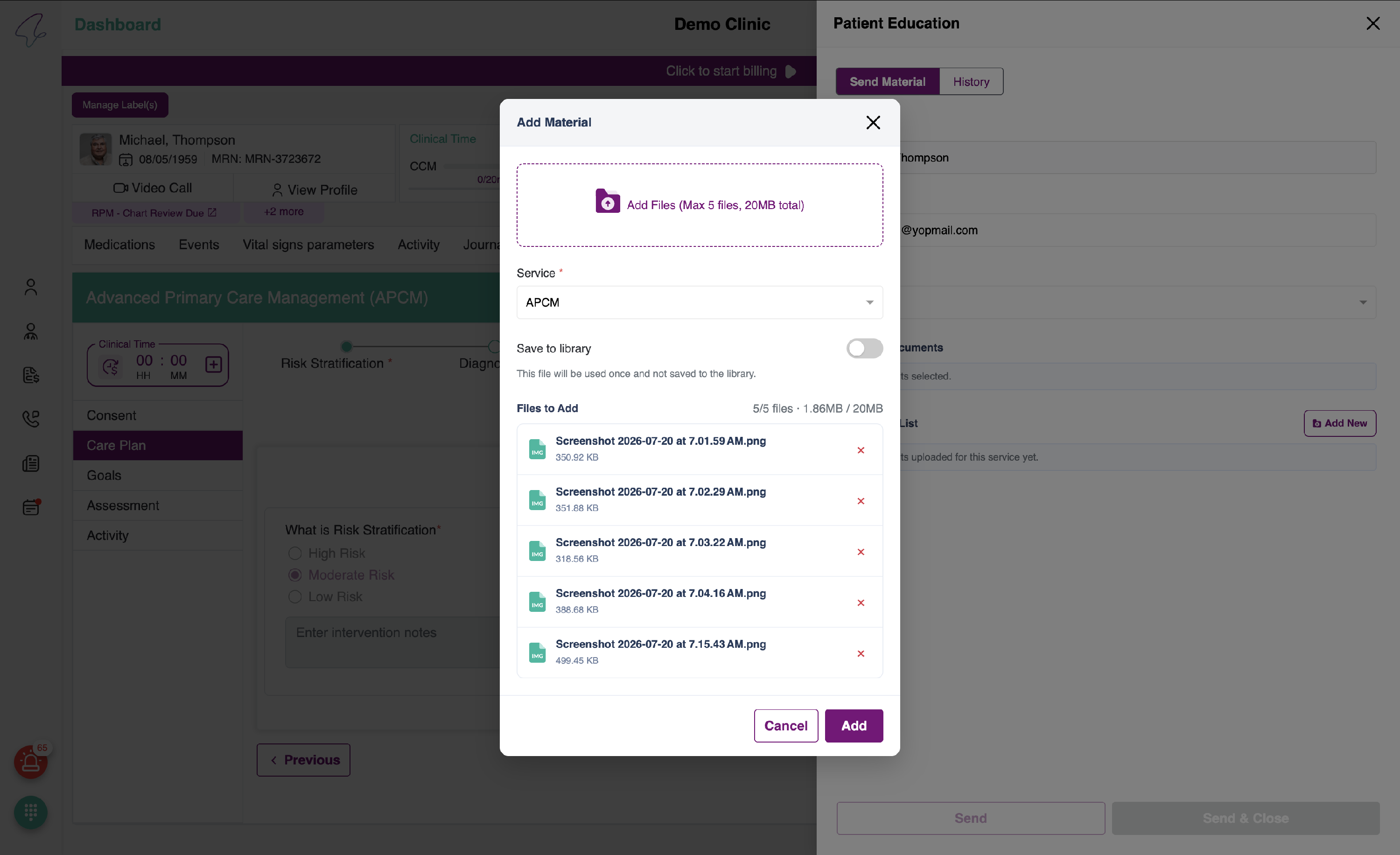
After you click Save, you can find the documents under the selected service. From there, select the documents you would like to send to the patients, and then click Send.
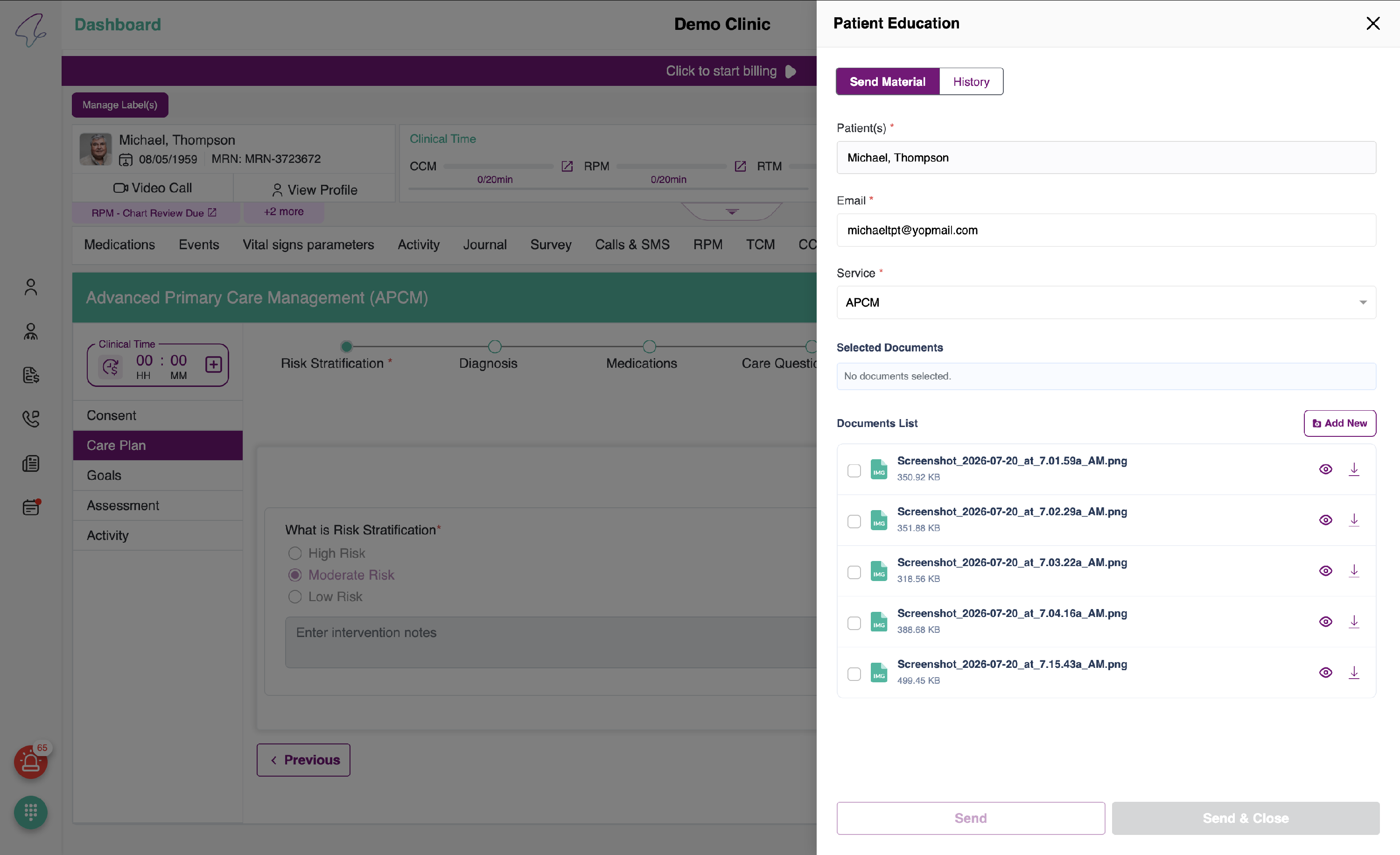
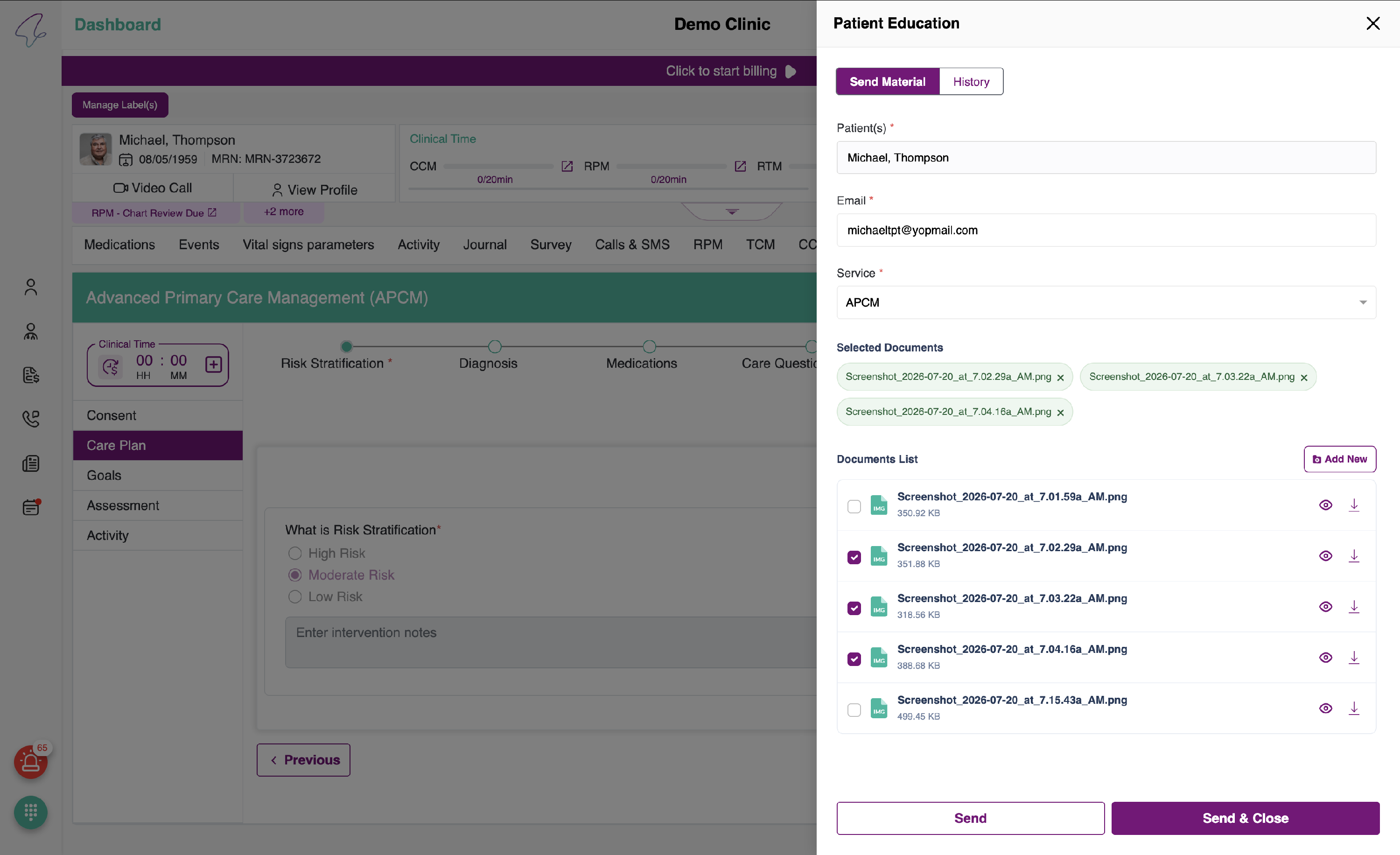
Note: You may send only documents with a total size of less than 20 MB.
When you click Send, the files will be sent to the patient’s email address, and the panels will remain open. If you click Send & Close, the emails will be sent, and once the process completes successfully, the panel will be closed.
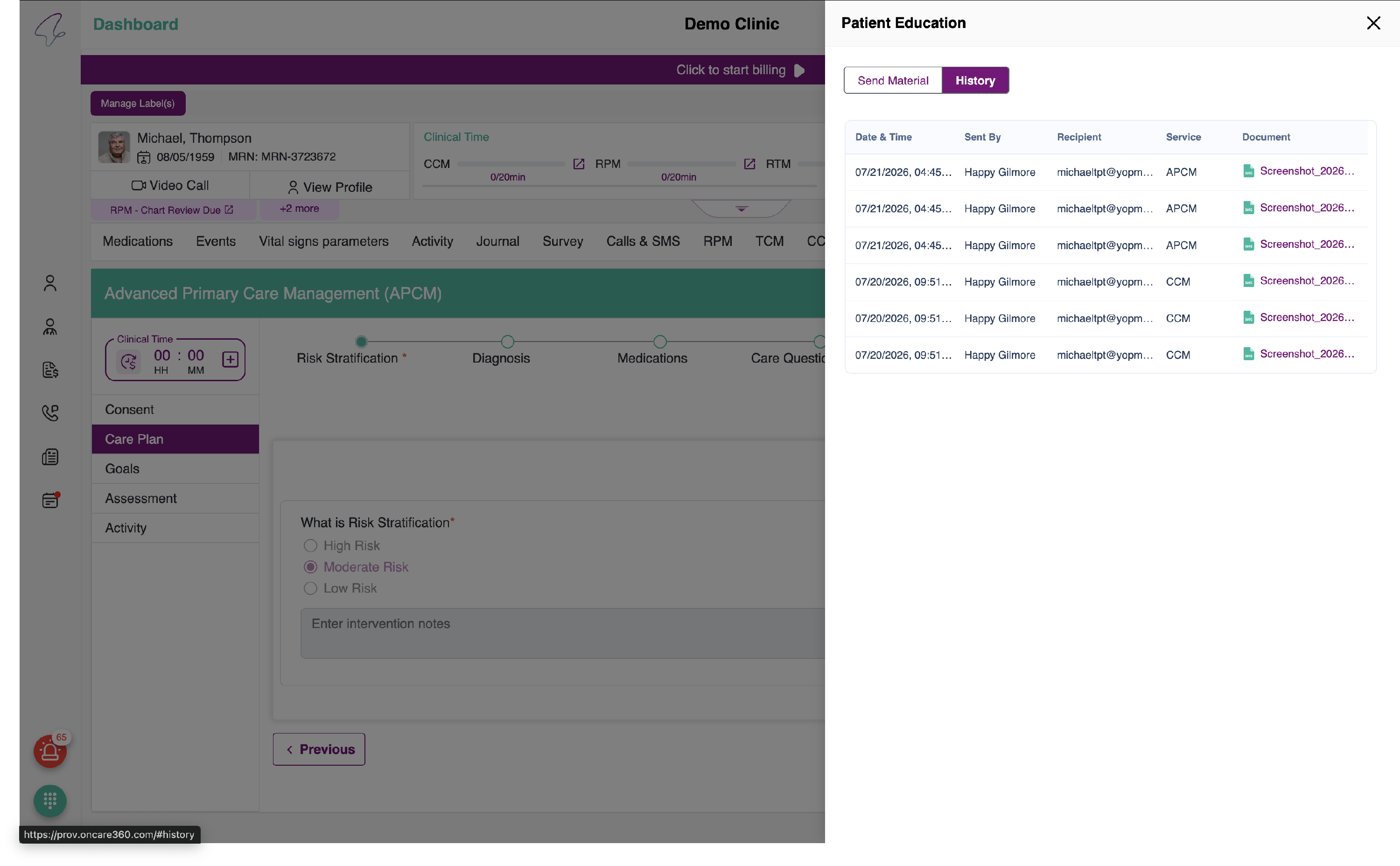
2. History:
You can review the history in the respective Patient Care Plan tab.
- In the Risk Stratification section, you will find a button to edit the section.
- In the Diagnosis section, you will have an icon to edit, and delete chronic conditions and allergies.
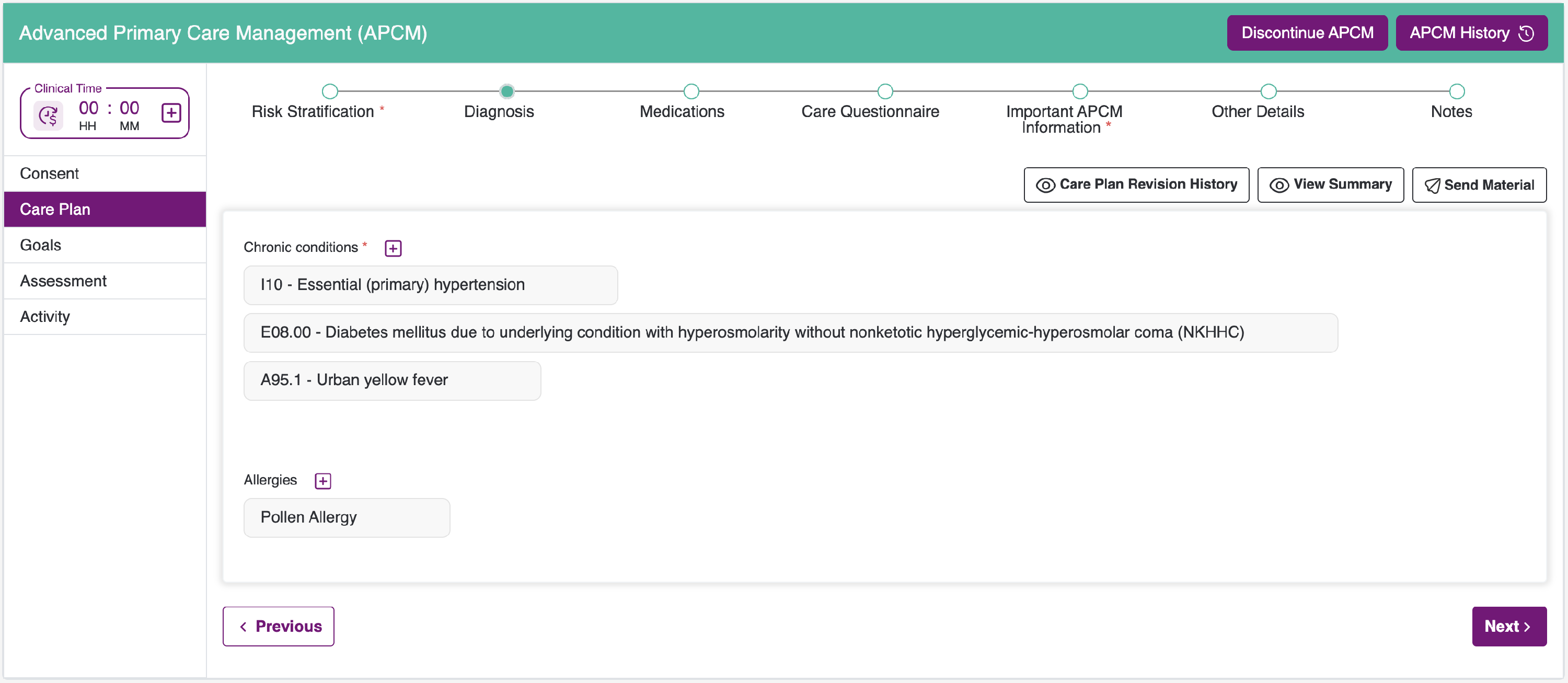
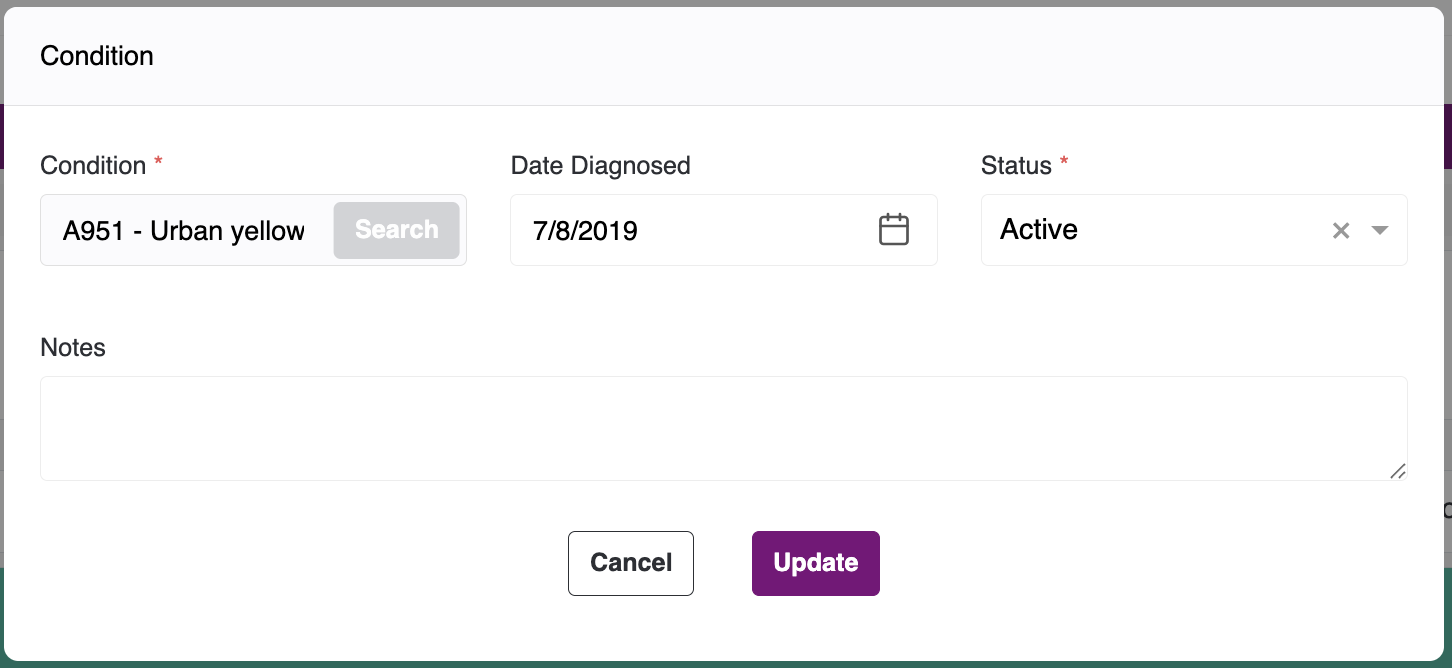
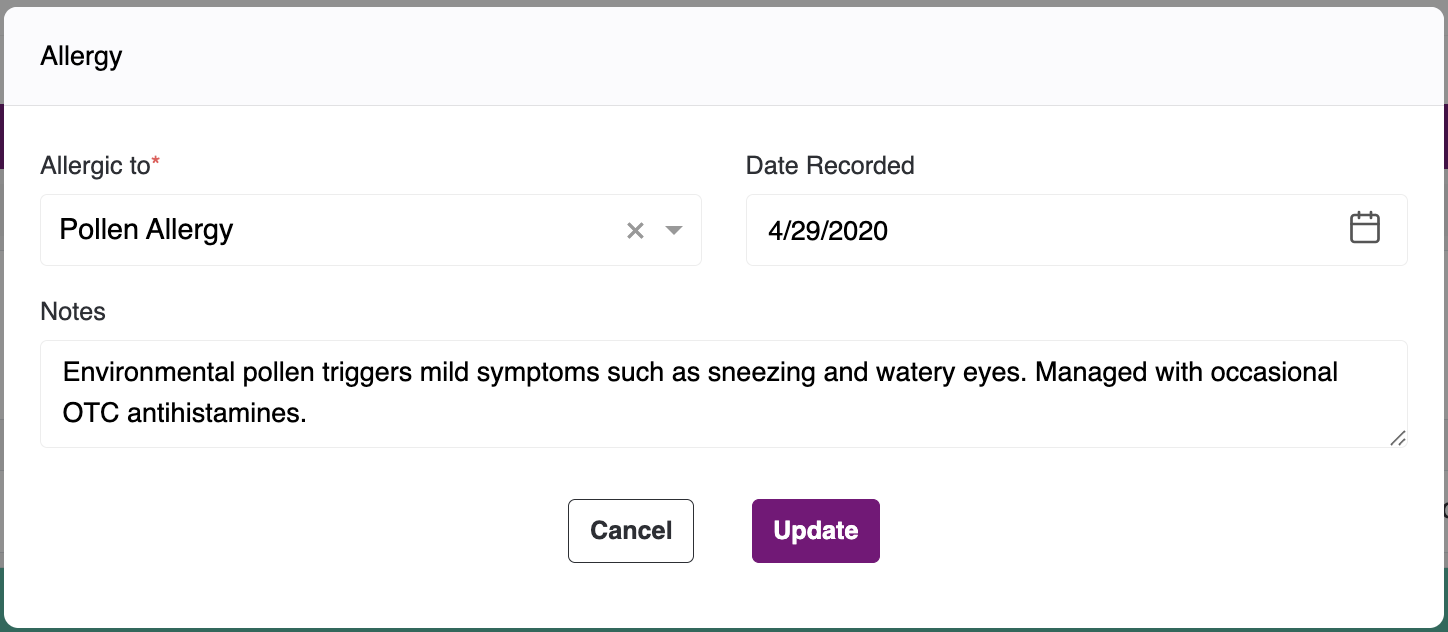
- To edit the Diagnosis list, hover over the fields. You will see an Edit icon, as shown below. After you make your changes, click the Update button to save them. Otherwise, click the Cancel button to discard the changes.
- Click the Edit icon to make updates to the Conditions. Then, use the Search button to review other conditions. Once you have made your changes, click the Update button.
- Similarly, to make changes in Allergies, click the Edit icon and then the Update button to save your changes.
- You can also use the Delete icon. When you click it, you will be prompted to confirm whether you want to proceed with deletion.
- You cannot update the Condition itself; you can only update the Condition details. If needed, you can go back and add a new condition by clicking the + icon.
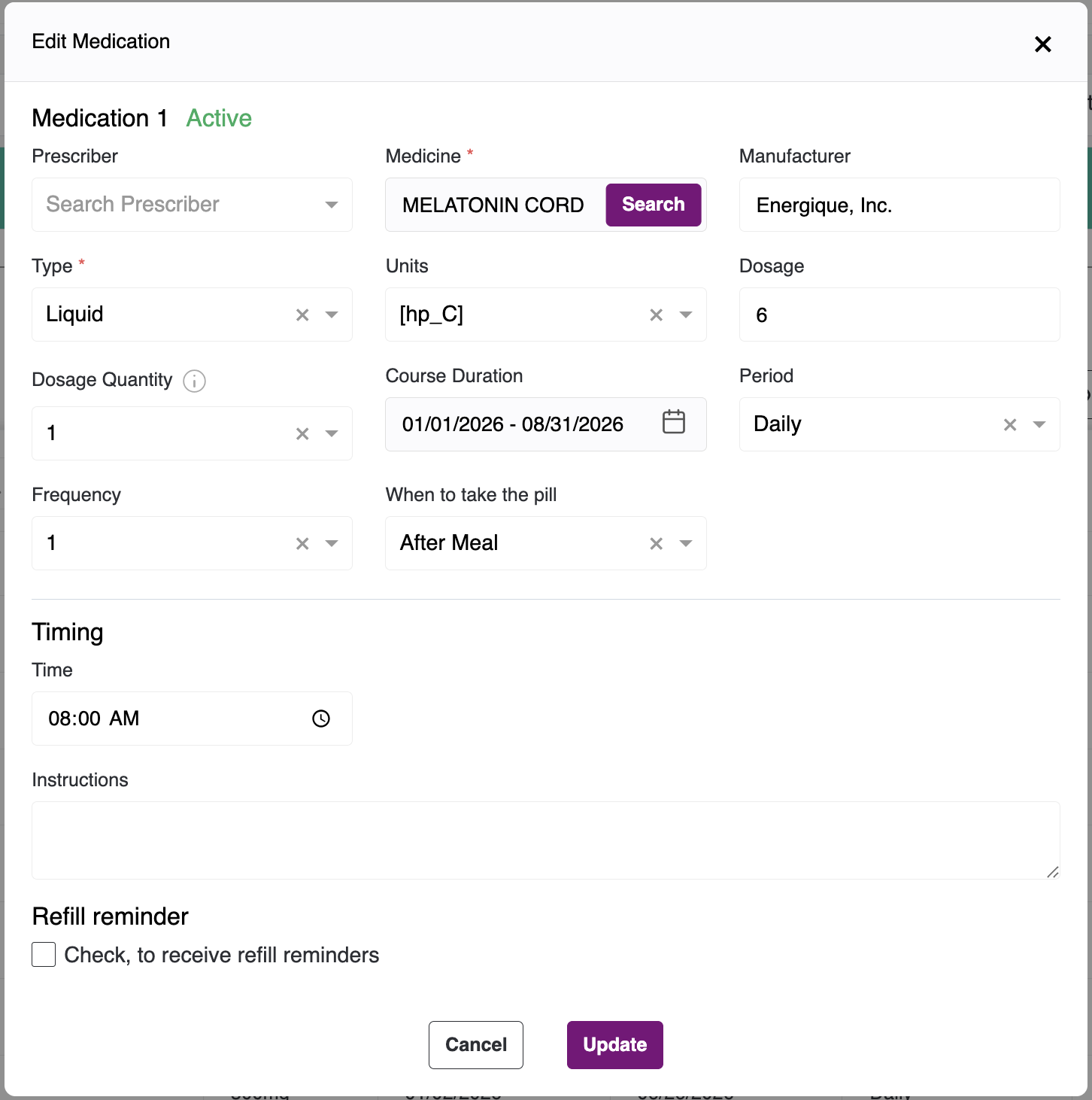
- In Medications, click the Edit icon in the Actions menu to edit the medication.
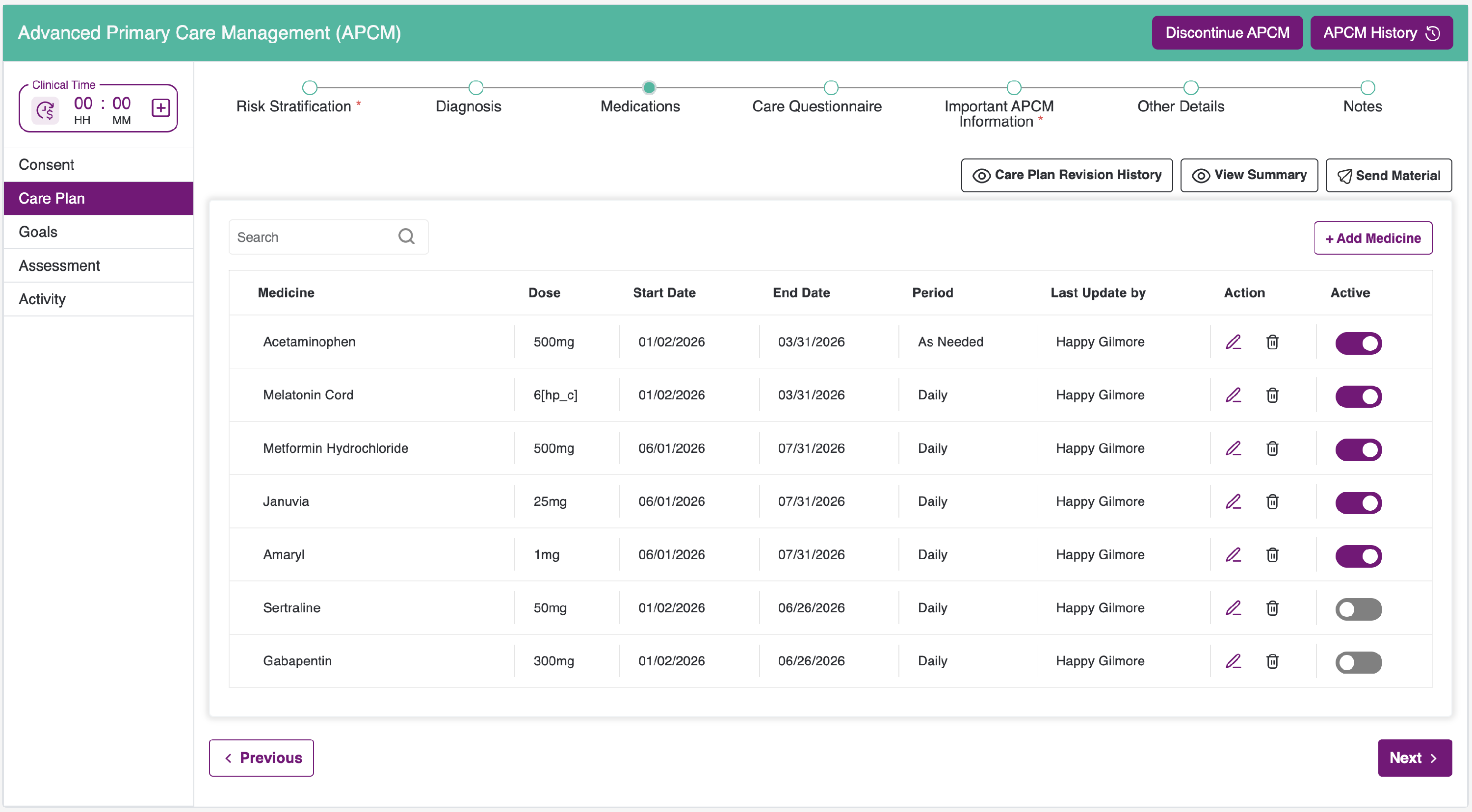
- You will see the pop-up as shown below. After you have made your changes, please click the Update button once.
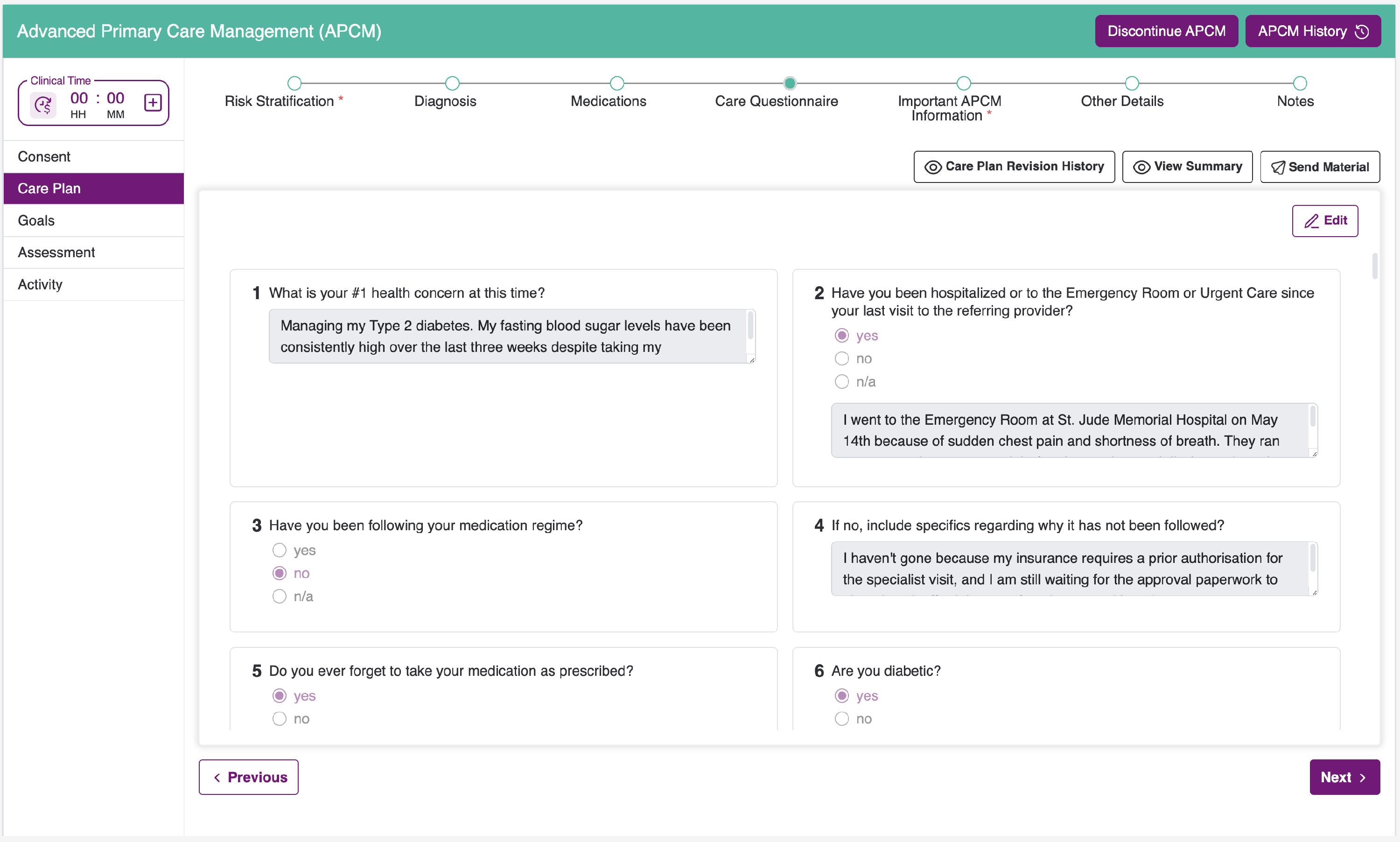
- In the care questionnaire, you will find an Edit button on the right to make any necessary changes.
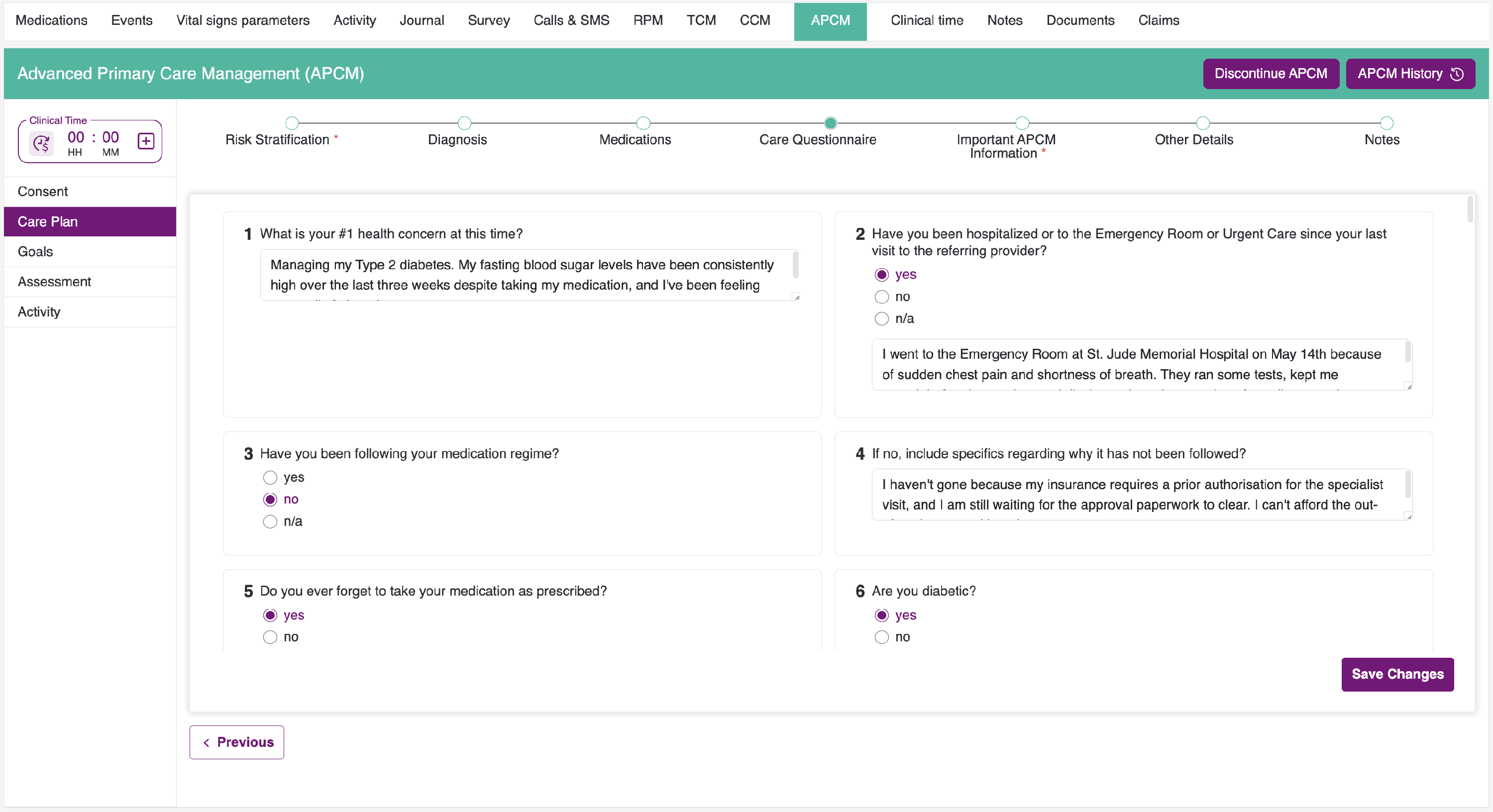
- Please click the Edit button. You will then see the screen as shown below. After you have made your changes, click the Save Changes button.
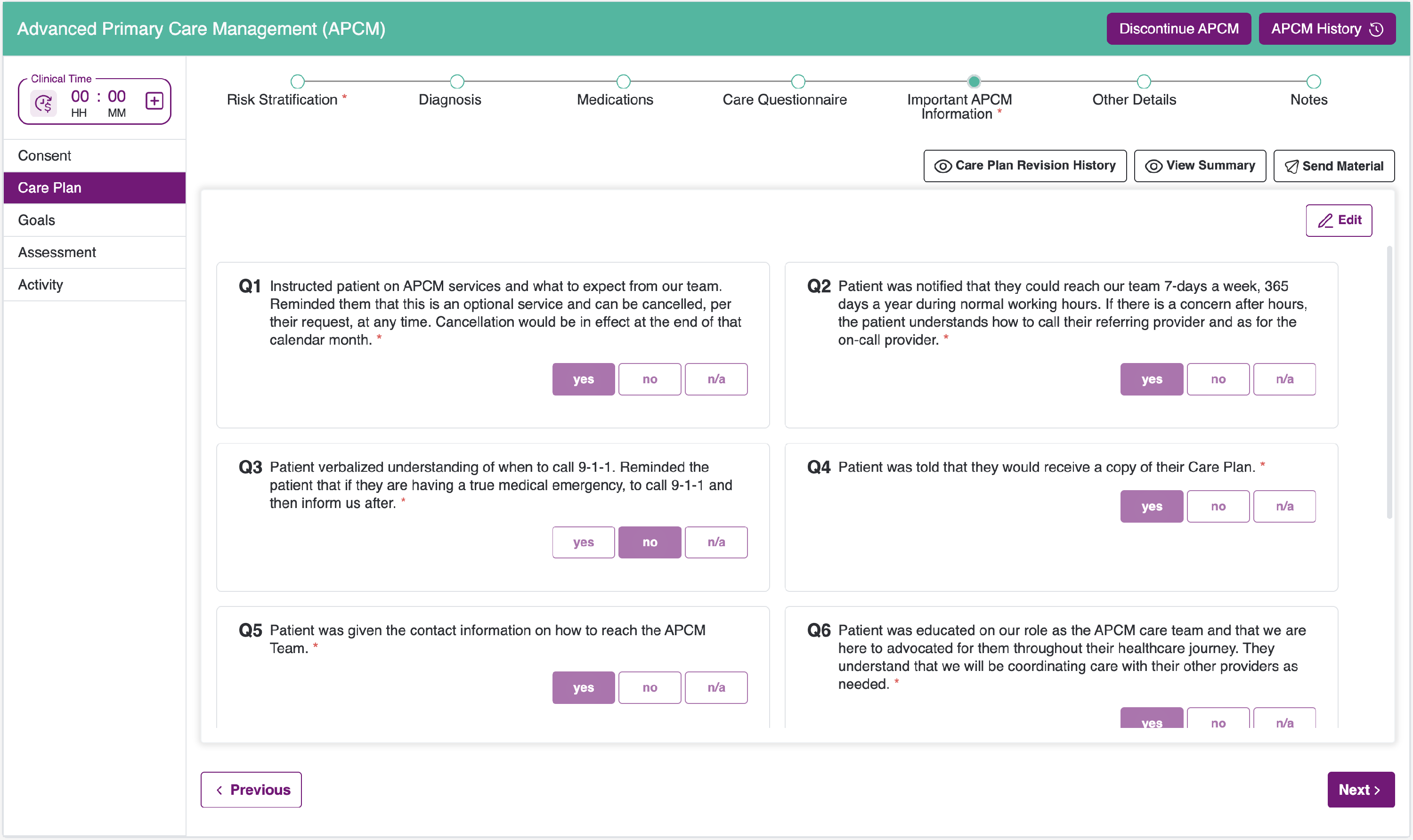
- In the APCM Important Information details section, please click the Edit button to make the necessary changes.
- Under the Other Details section, click the Edit button to make the necessary changes.
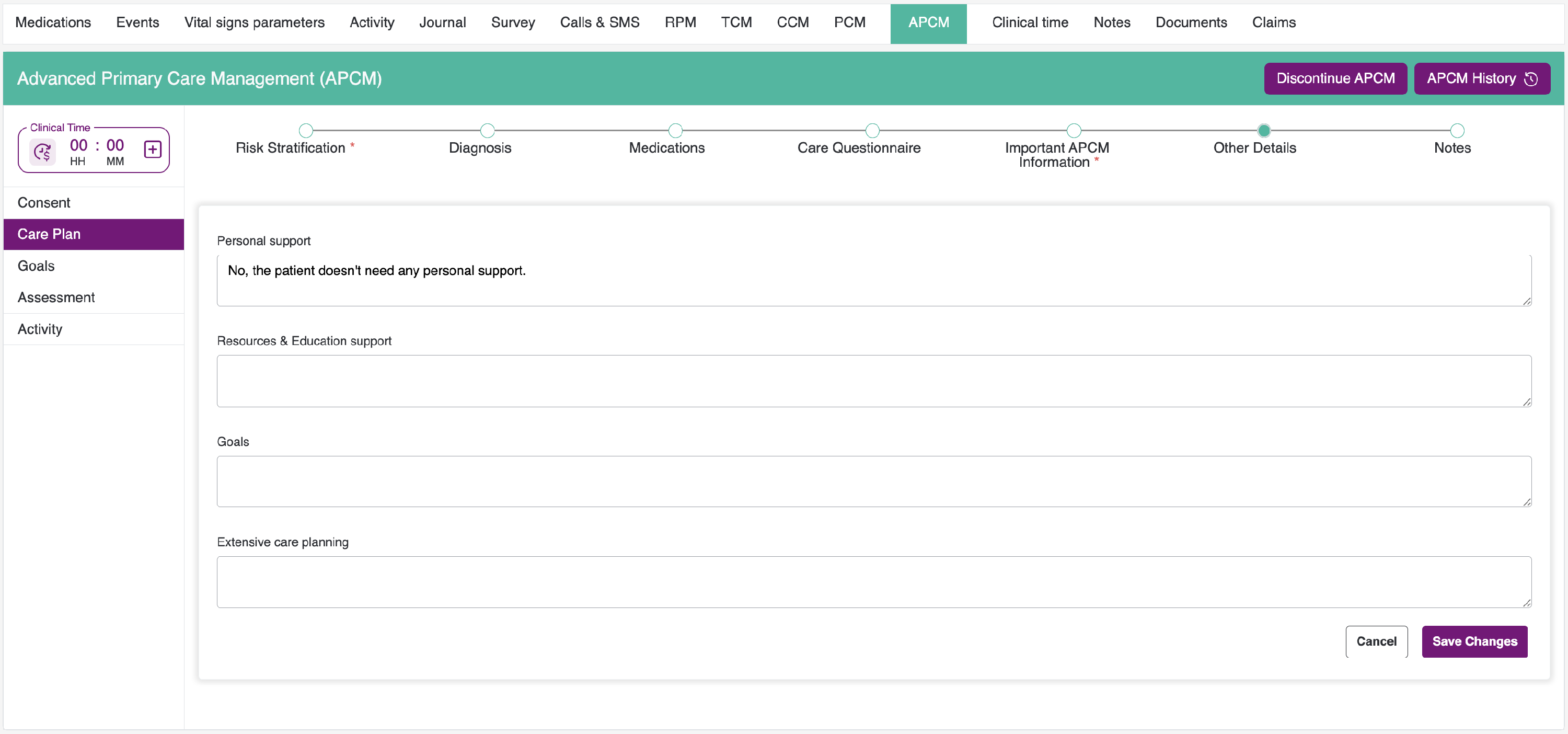
- Please make your changes, then click the Update Button. If you do not wish to proceed, click the Cancel Button instead. A confirmation prompt will appear to confirm whether you want to discard the changes.
- Activities can be added, but they cannot be edited or deleted.
APCM History:
When you click on APCM history, a small pop-up window will open next to the button. From there, you can review the care plan enrollment history.

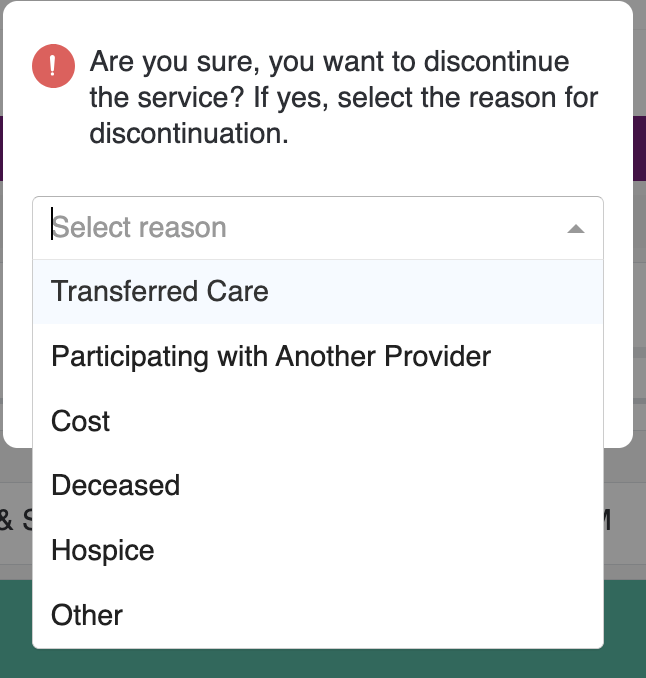
If you would like to discontinue the service, please click the “Discontinue APCM” button located next to the service history. Once you select the “Discontinue” button. will be prompted with a pop-up modal requesting the reason for discontinuing the care plan. You will also be able to choose from the available dropdown options, and the last option is “Others.” When you select “Others,” you will then see a text field below where you must provide the reason, as this is a mandatory field. Once you have entered the required information, click Discontinue, and the service will be discontinued.
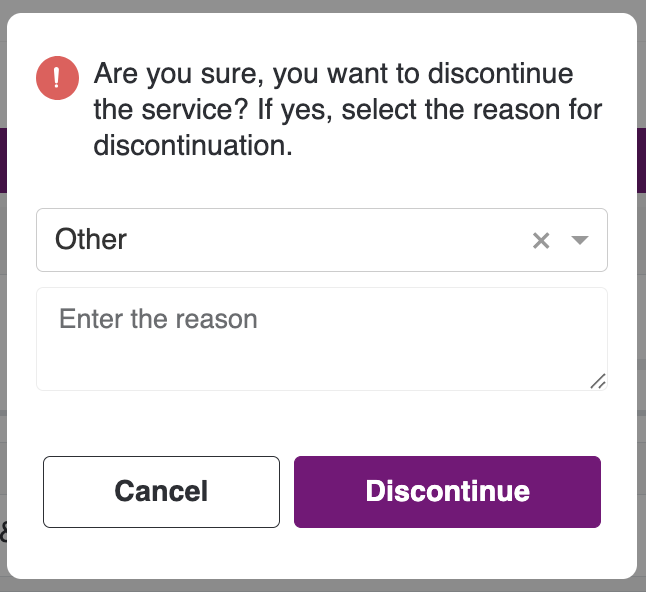
At this time, the APCM functionality is disabled, which prevents any actions such as adding, editing, or deleting entries within the care plan. However, you can still download and view the summary reports.

If you want to resume the service then click on the "Resume Service" button at the top. Upon clicking on it, you will be redirected to a new consent page where, upon accepting the content, the entire care plan will be enabled, and the enrolment date will be recorded in the APCM history.
From clinical time, you can manually add the bill by clicking the add icon.
Important Note: APCM is not time-based. The bill is generated on a monthly basis once per month.


- Service - The service will be auto-populated as apcm.
- Activity - Activity will be auto-populated as billing.
- Date - Select to which date you would like to be billed.
- From - select the from time.
- To - select the to time.
- Notes - Add a note that is related to the billing.
When adding the record, it will be saved in the clinical time section.
Note: You can also edit the service after it has been added.
There are multiple ways to add a bill.
- From Patient Listing.
- From Patient Dashboard.
-
Manual Log Entry From Clinical Time.
1.From Patient Listing.

As shown in the image above, when you select any service under APCM in the patient listing, the following pop-up will appear.
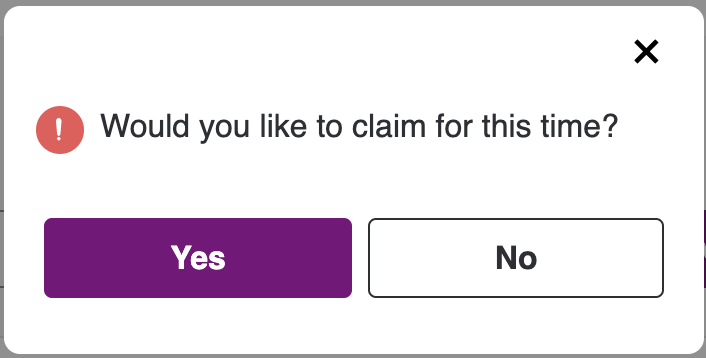
If you select Yes, the timer will begin and billing time will start, after which you will be redirected to that service within the patient dashboard. If you select No, you will be redirected to the specified service in the dashboard without initiating billing.
Billing Flow
-
If you have selected the APCM service and then clicked Yes to bill the time, you will be taken to the service with the billing timer set to ON. This action will disable other services, because when you are billing for a specific service, you cannot navigate to other services such as PCM, TCM, RPM, or AWV.
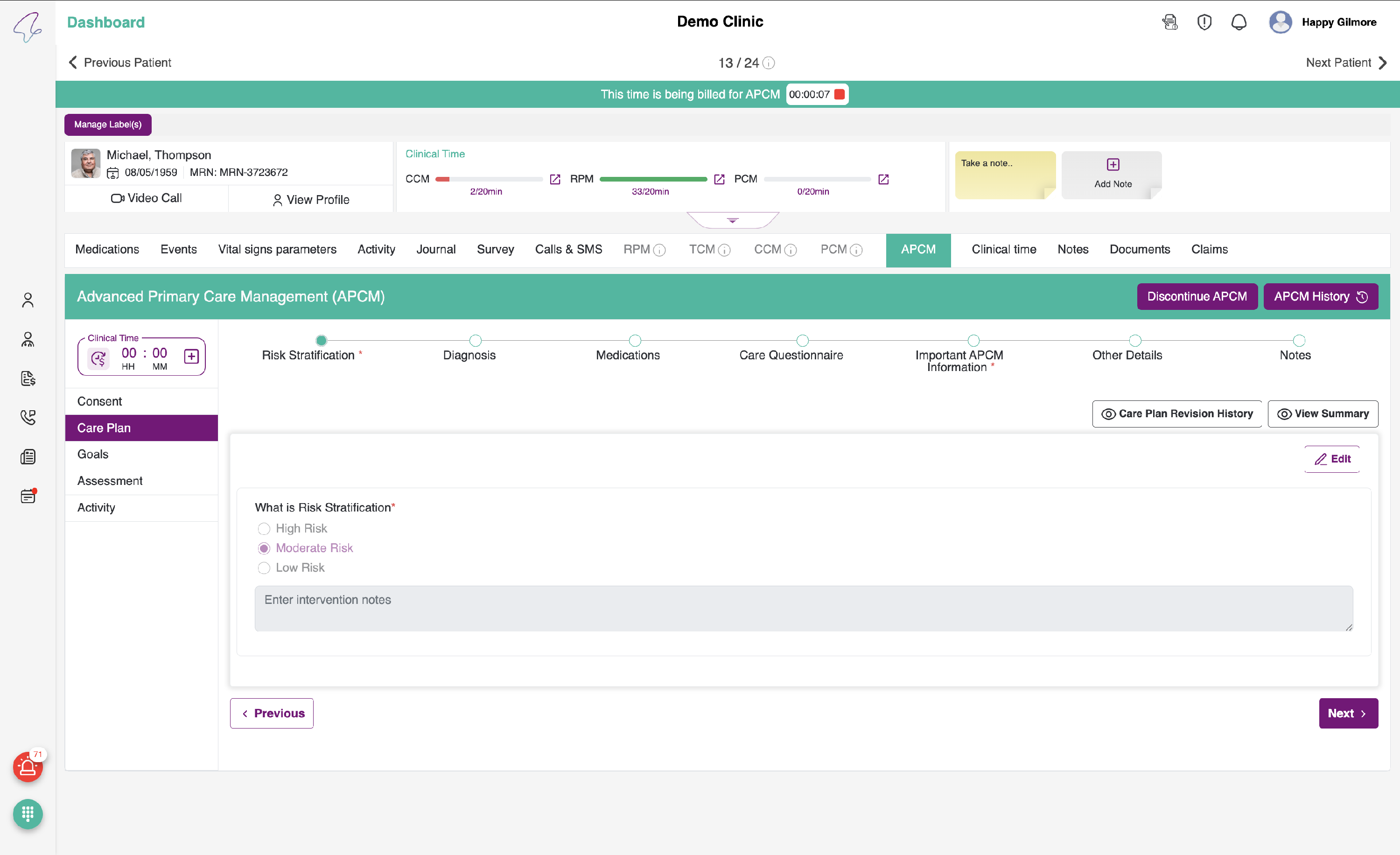
- If you would like to stop billing, please click the STOP icon located at the top, near the header, as shown below.
- After you STOP billing, the other services will be enabled, and the bill will be reflected in the clinical time billing activity section.
2. From Service:
If you would like to initiate the billing process while you are on a specific APCM service tab, you may start billing seamlessly by selecting the Start Billing icon at the top of the page and then following the instructions provided in the Billing flow.

- To bill the records located in the Billing section, please click the checkbox at the beginning of each record.
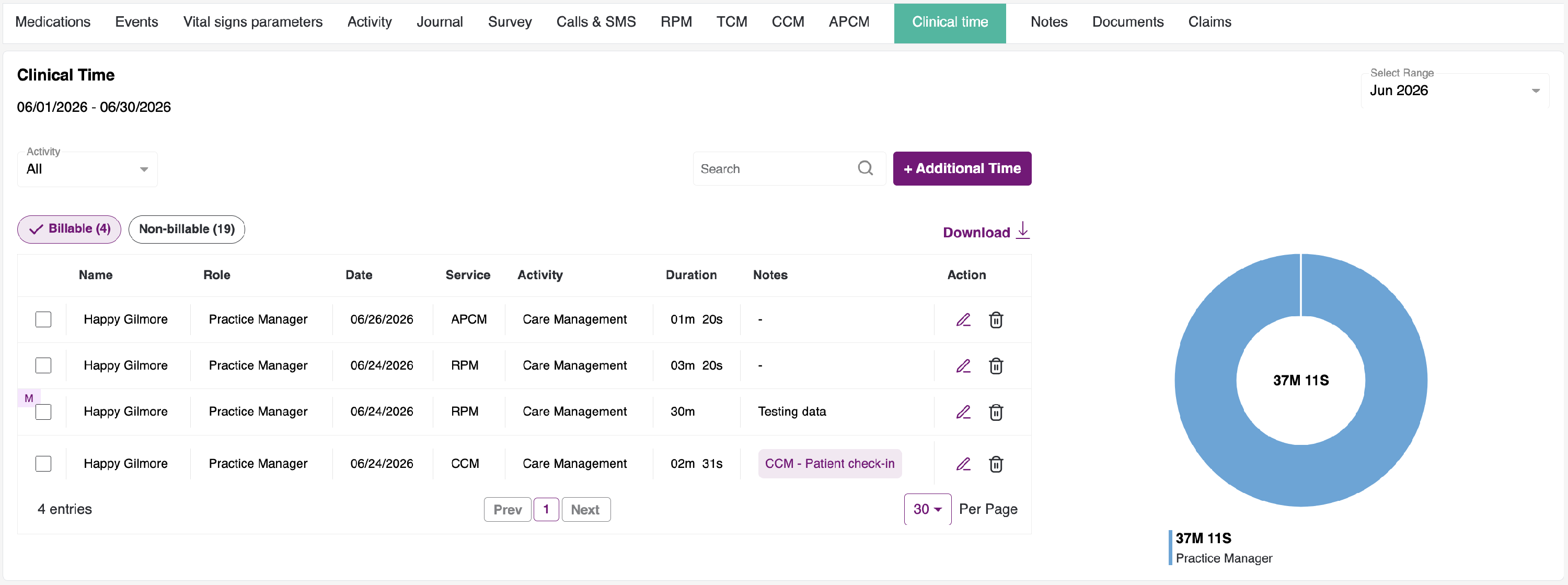
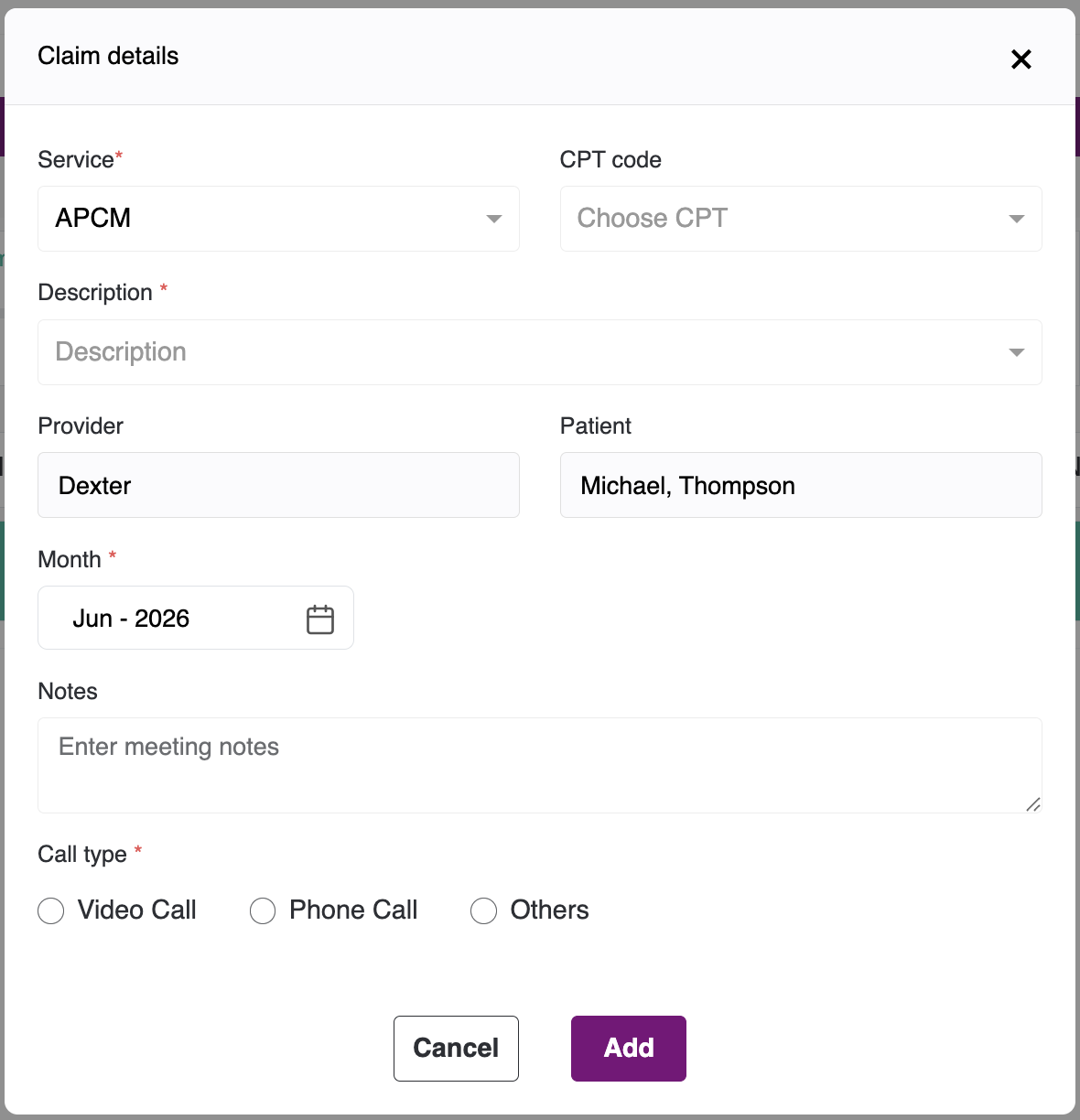
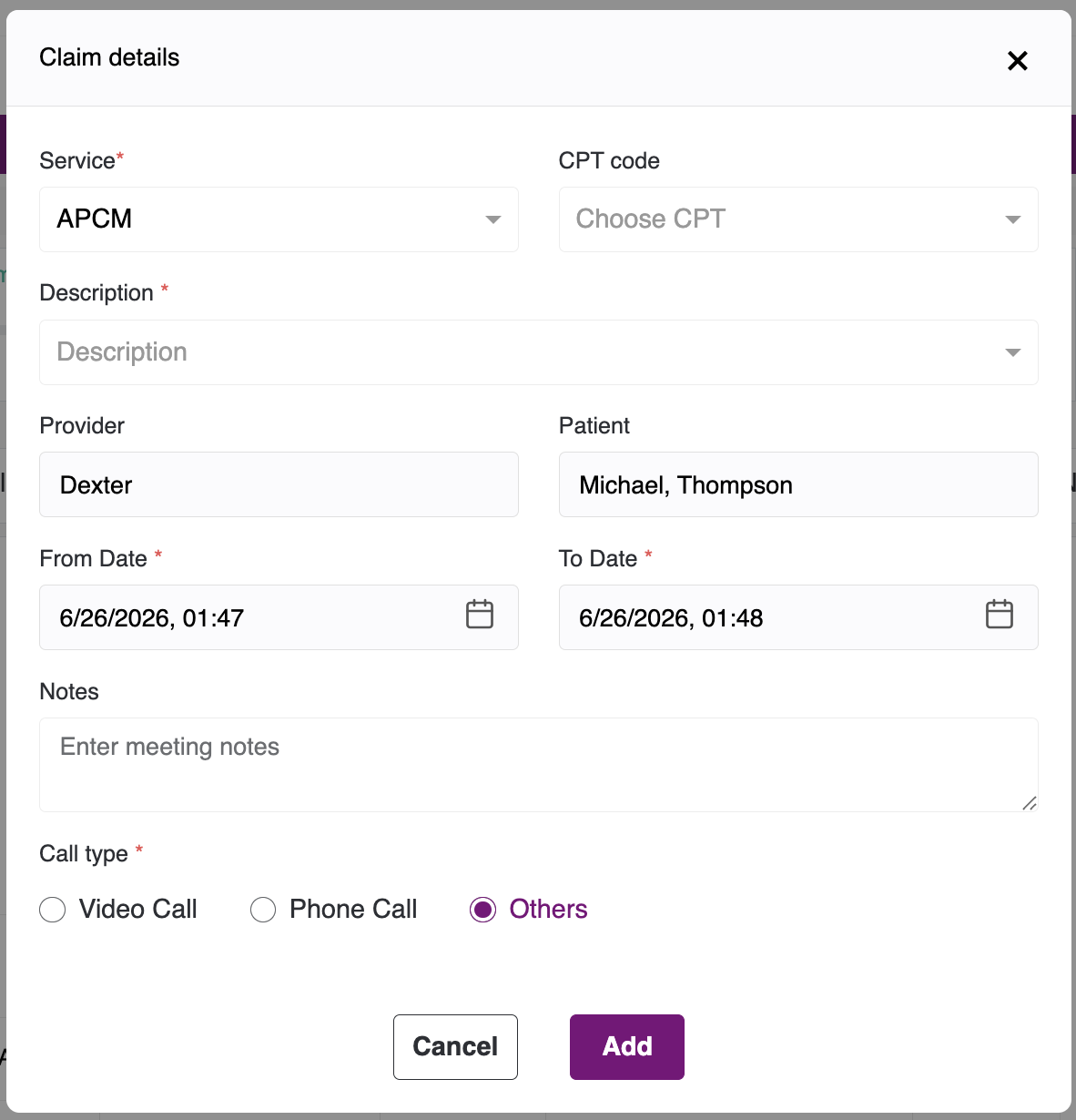
- You can see an "Add Bill" button on the Top Right of the table. Click on it to show a pop-up for adding a bill as follows.
-
Service - The service name will be pre-populated based on the record you selected in billings.
Note: If you select multiple records with different services, then it will be categorised as "others."
- CPT code: - Select the CPT code based on the billing type.
-
Description - Based on the CPT code, you will receive some descriptors from which you can select.
Note: If the desired descriptor is not available, scroll to the bottom of the dropdown, click on the other option, and enter your desired descriptor.
- Provider - The provider's name will be pre-populated based on the record you selected in billings.
- Patient - The patient's name will be pre-populated based on the record you selected in billings.
- From Date - It will be pre-populated, and the date and time will be based on the oldest record selected.
- To Date - It will be pre-populated, and the date and time will be based on the newest record selected.
- Notes - Add a note that is related to the billing.
-
Call Type - It will be pre-populated when you select the CPT code. It is also editable.
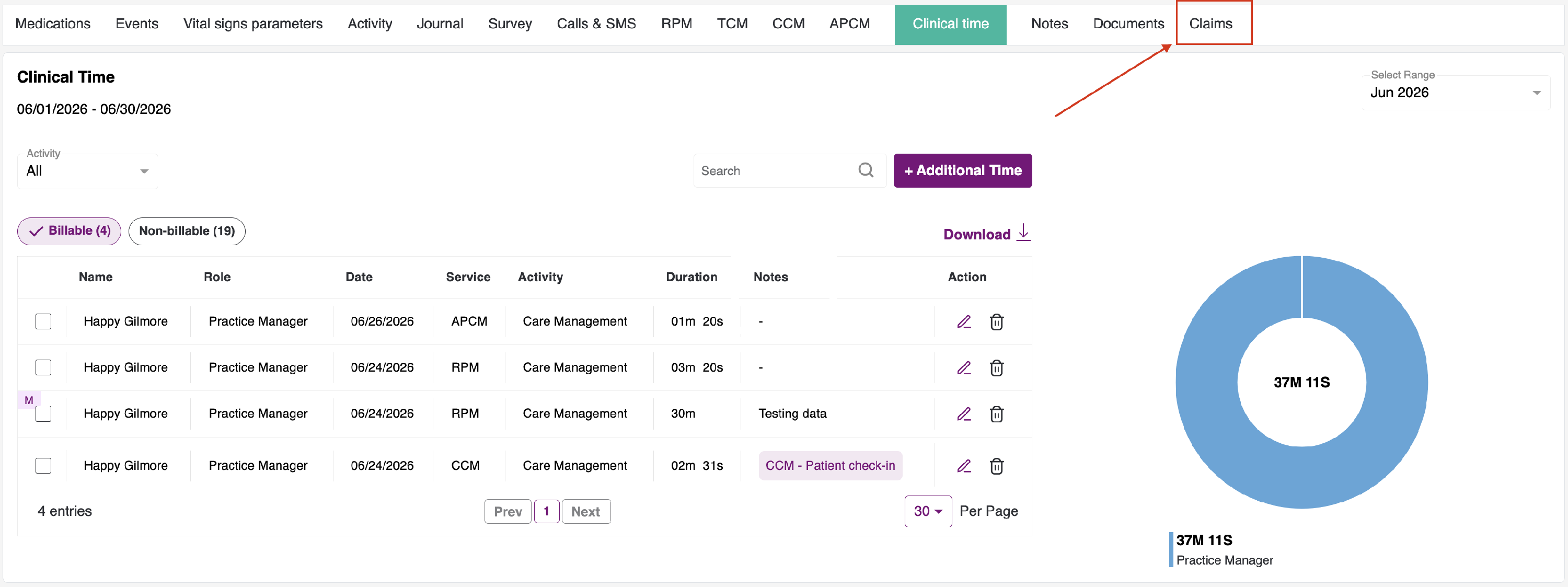
After clicking on Add, the billed records will be disabled. The bill will reflect in the Claims tab.
To submit the bill, click on the Bills Tab to navigate to the Bills section.
-
When you navigate to the Bills tab, please select the service type in which you added the bill from clinical time.
Note: If you added a bill with services other than clinical time, please select the 'Others' tab in the service section of the billing.
Clinical Time Logging:
- To view the Clinical Time Logging (Billing) for APCM, please go to the Patient Dashboard and click on the Claims tab. You will then be able to view the following screen.
- Each program has its own sub-tab, including APCM, TCM, CCM, RPM, and RTM, where you can review the billing logs for that specific program.

When you click the APCM, RPM, CCM, TCM, or Others tab, a calls list will be displayed with checkboxes for each row, including the following details:
- CPT code
- Description
- Status
- Action
- CPD codes vary by claim type, including APCM, RPM, CCM, TCM, and others. CPT codes for each reimbursement type are distinct.
- Billing period: You can select a From and To date range in the Billing Period section to display calls within the selected timeframe.
- Click the APCM tab.

- Users can use the Add Row option to add a row to the provided list by entering the required details, including Billing Type, CPT code, topic, Provider, Patient, date, Start Time, End time, Meeting Notes, and call type.
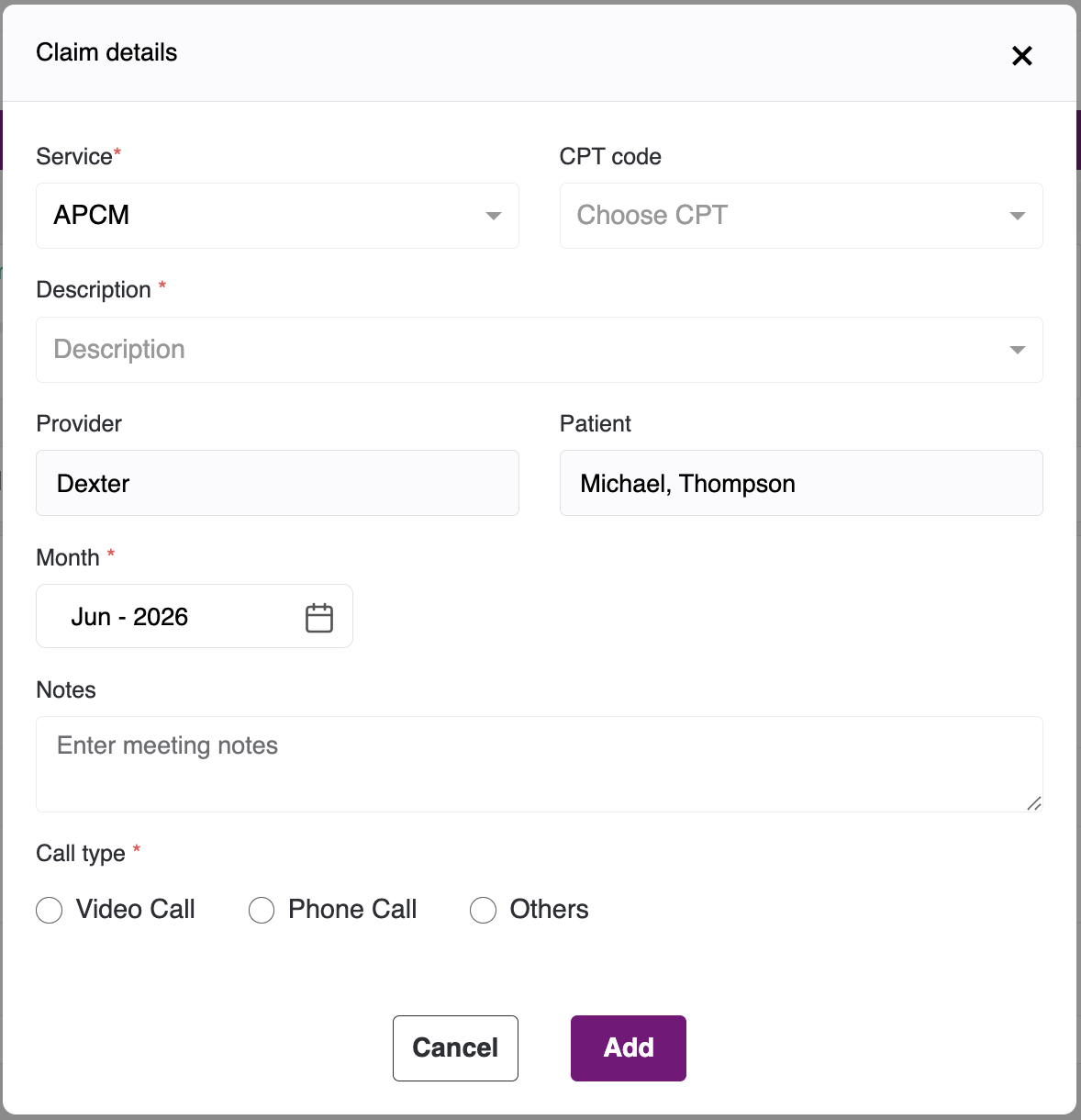
- To edit the call details, click the Edit icon in the Action column. This allows the user to update the details for the selected row, including billing type, CPT code, topic, date, provider, meeting notes, and call type.

- User can select the record from the list and click on Submit.
- The submitted bills cannot be edited.

Each reimbursement type tab has filters, as shown:
- All - Shows all the APCM call logs
- New - Displays all the newly submitted calls/ bills and are represented by Blue Color
- Submitted - Displays all the submitted calls/ bills and are represented by Light Green Color
- Rejected - Displays all the rejected calls and are represented by Red color
- On-Hold - Displays the calls which are kept on-hold and are represented by Amber Color
- Approved - Displays all the approved calls and are represented by Green color
- You can view two actions in the Action section Edit and Delete. All new and rejected bills will have these icons enabled.
- Once the bill is submitted, kept on hold, or approved, these icons will be disabled.
- When the user clicks on the rejected calls or bills, they can view the rejected reasons. This also displays the corresponding date along with the rejected reason.

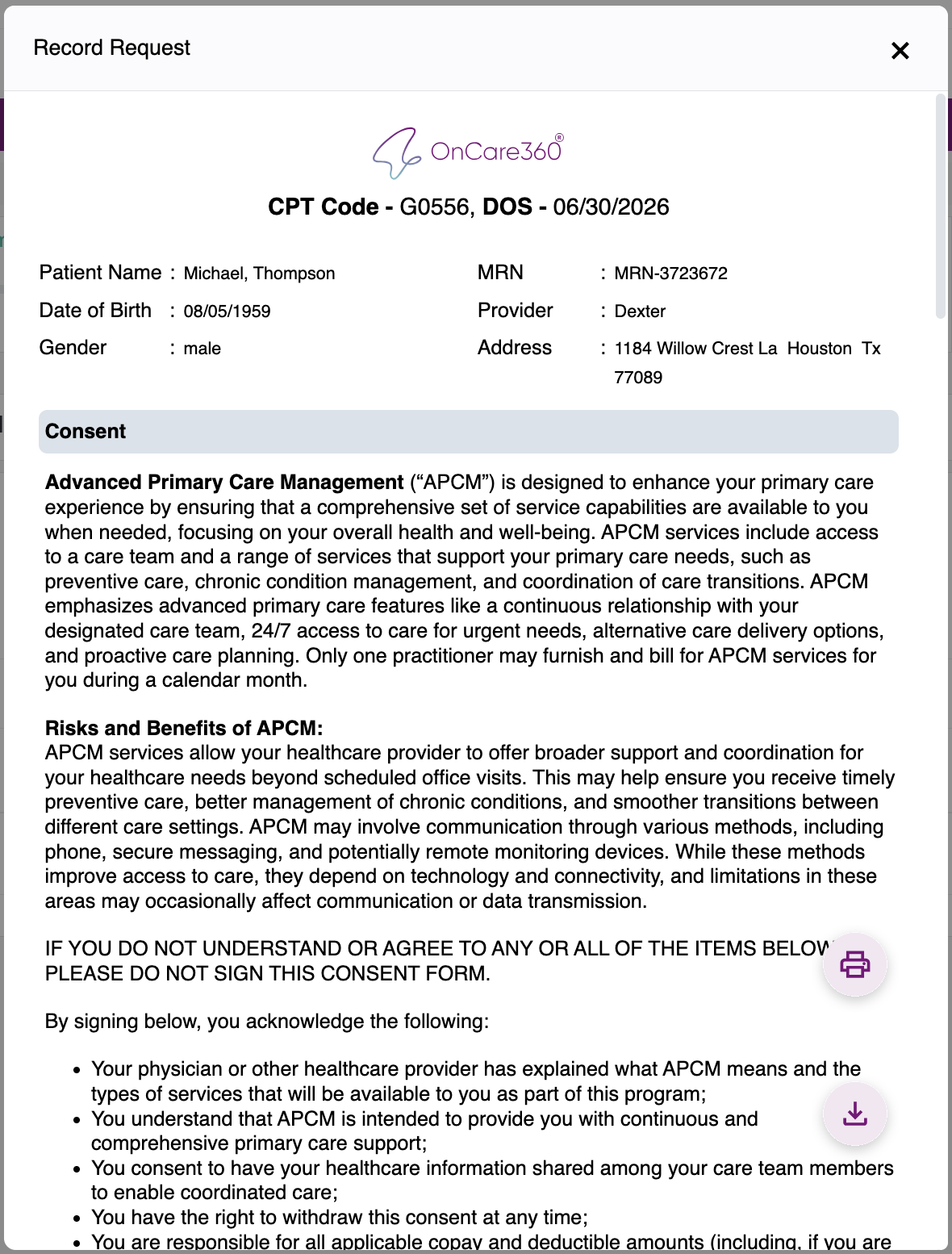
- When you click the download icon, you will be able to access the Summary of the APCM Episode. You may also download it by selecting the floating download button, or use the print button to print the PDF.
- You can also download the bulk bill document by clicking the Download Supporting Documents button.

Approve Time:
- The calls logs that are being submitted are saved in the Billing Portal. When the Admin logs in he can view the following screen.
- By default, we have All Programs and All Providers selected. You can change it based on your preferences.
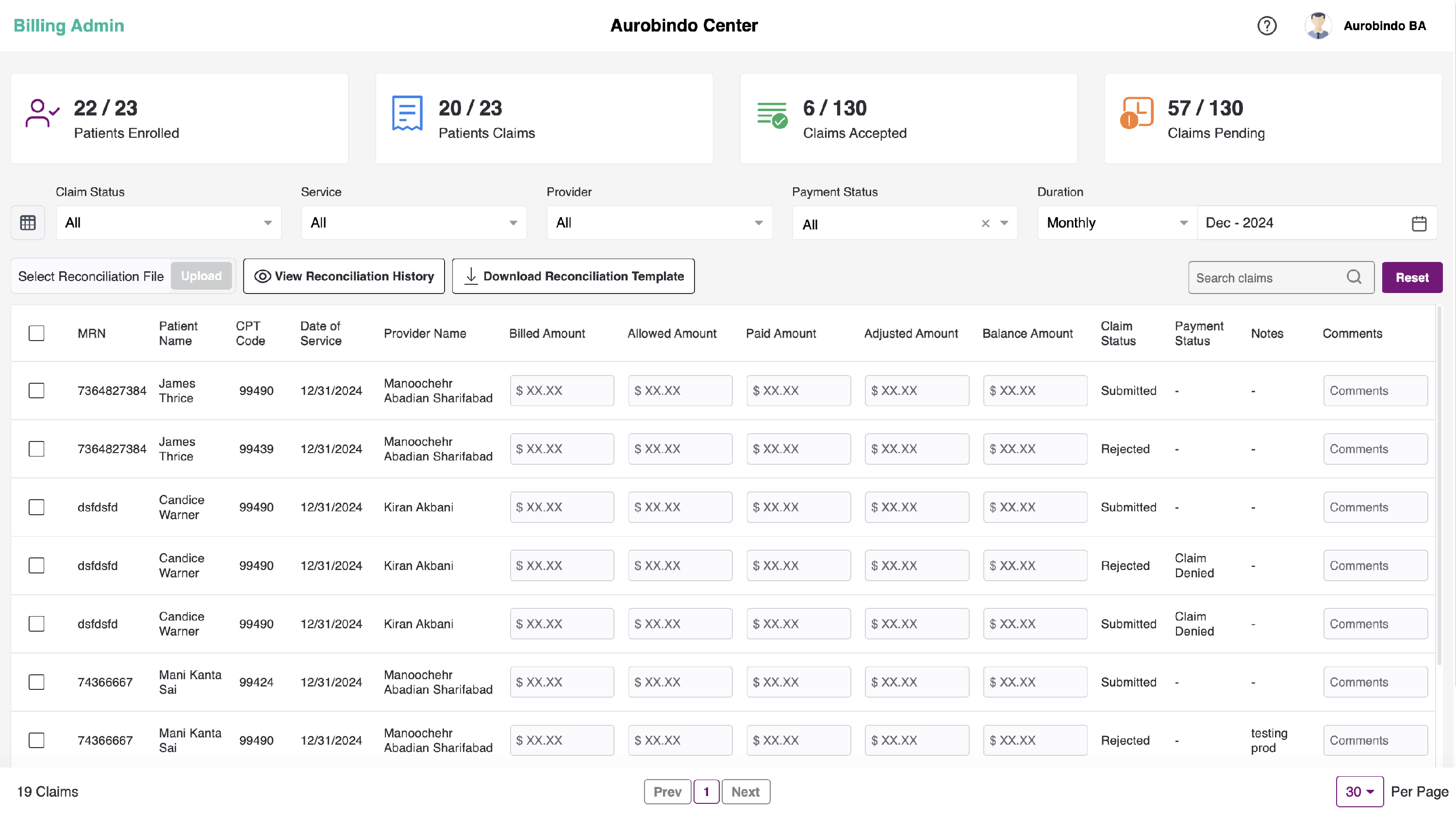
- On the dashboard, count for Patients enrolled, Patients billed, Bills accepted, Bills pending will be displayed.
-
On the left-hand side, there is a table icon. Upon clicking on it, a pop-up will appear where you can select the required table columns, as shown below.
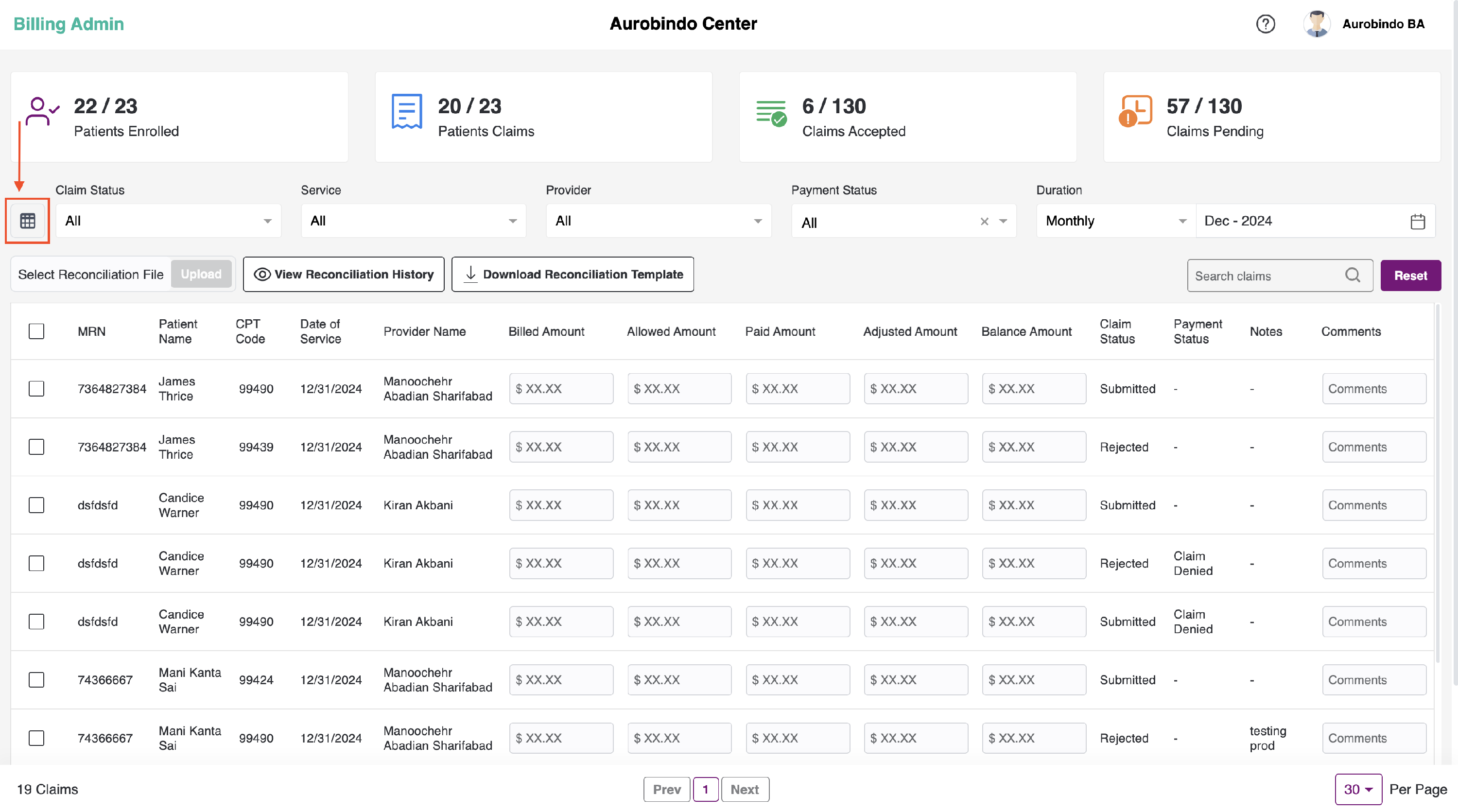

- There are 5 filters - Status, Program, and Provider, Duration and Search Bills, using which we can search the bills to review.
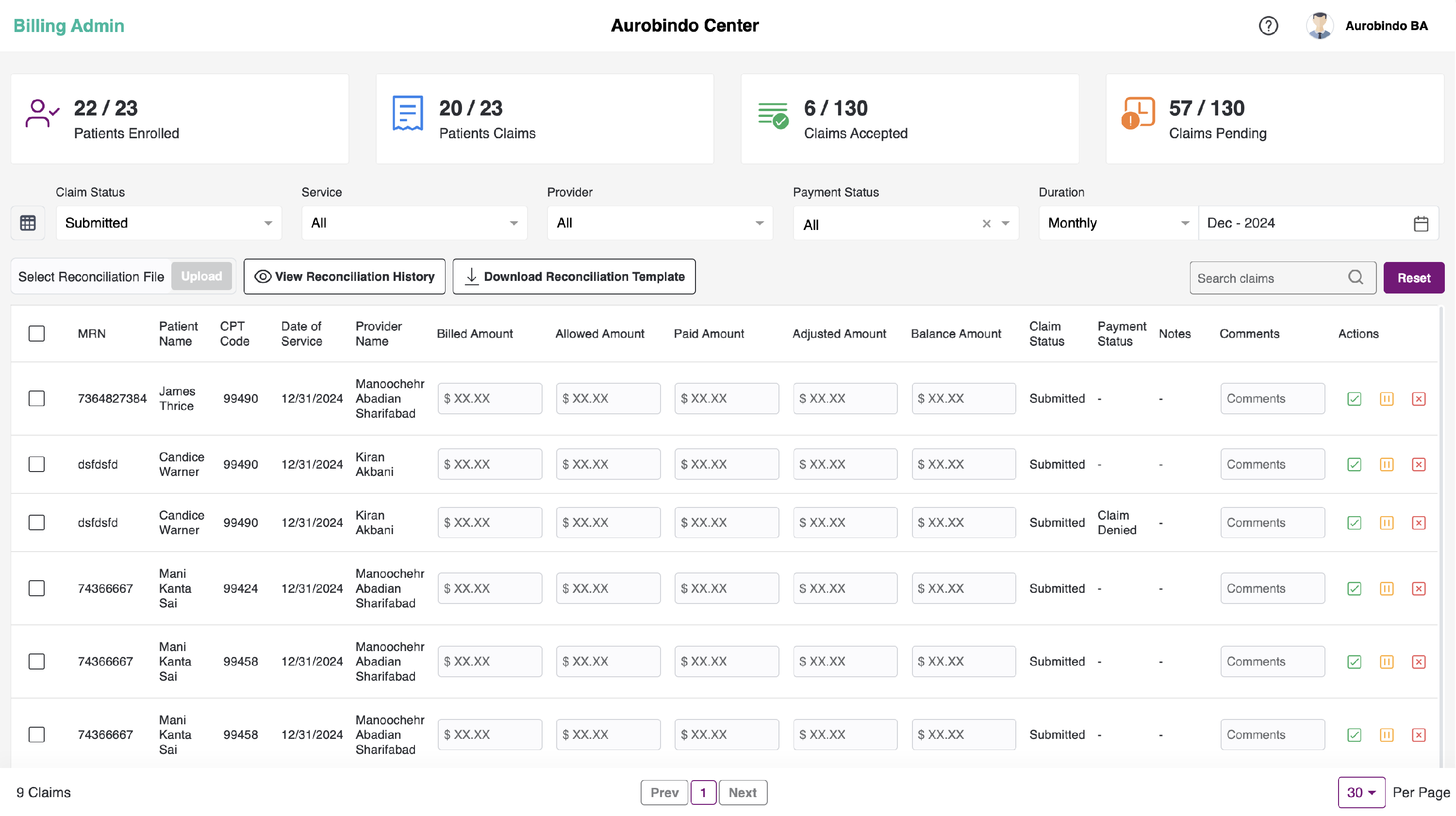
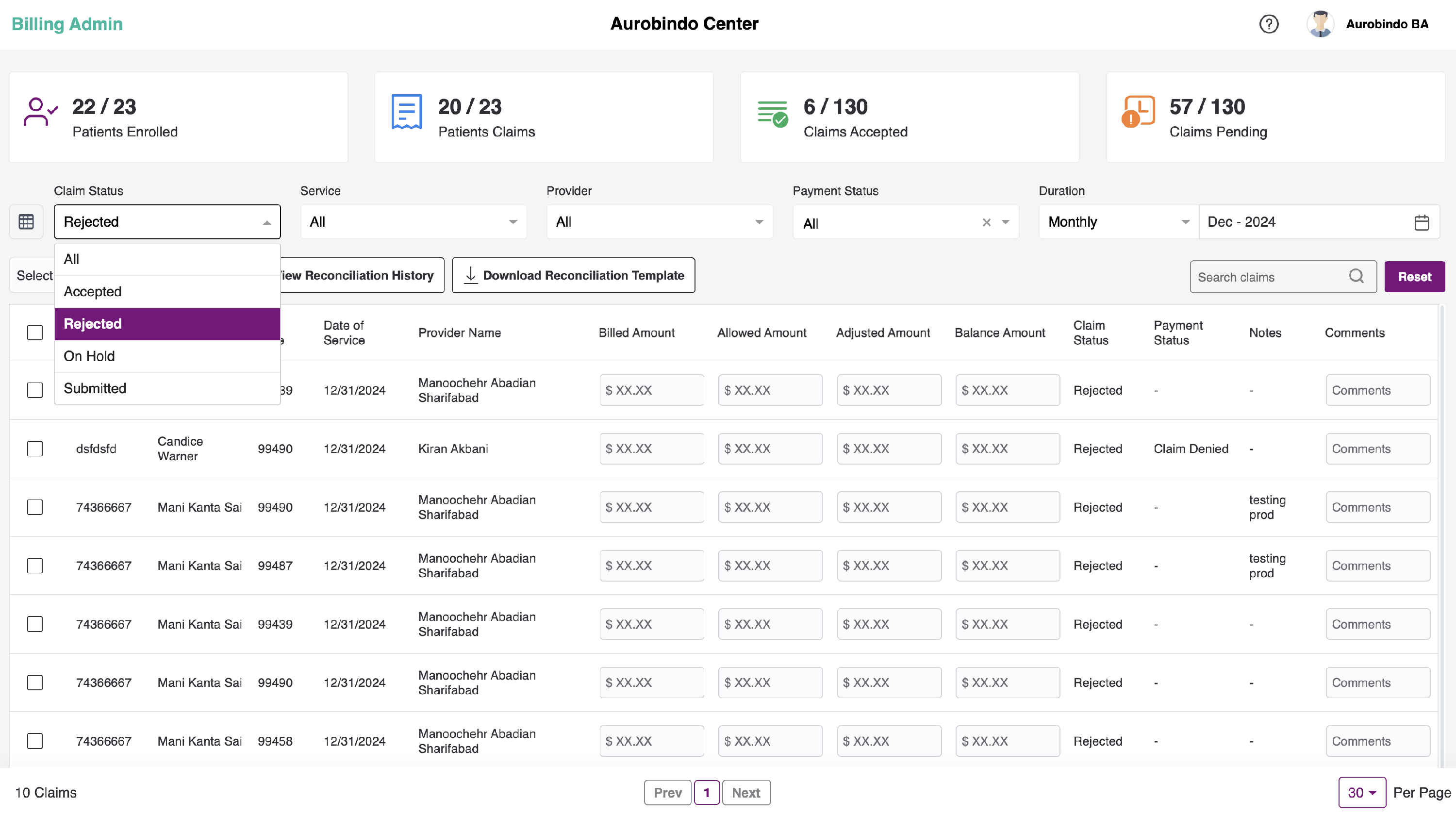
- User can filter the submitted billing list based on the Status of the bill in 4 categories.

- Submitted Bills
- Bills on Hold
- Accepted bills
- Rejected bills
- Patients which are qualified by rules engine for the set of rules mentioned for respective CPT code, will be ready to Bill and patients which do not qualify the set of rules mentioned are rejected by rules engine.
- User can filter the submitted billing list based on the type of billing or product (All/RTM/RPM/CCM/RTM/TCM/PMPM)
- Click on the Status filter and select Submitted Bill option and Program filter and select CCM . The following screen can be seen.
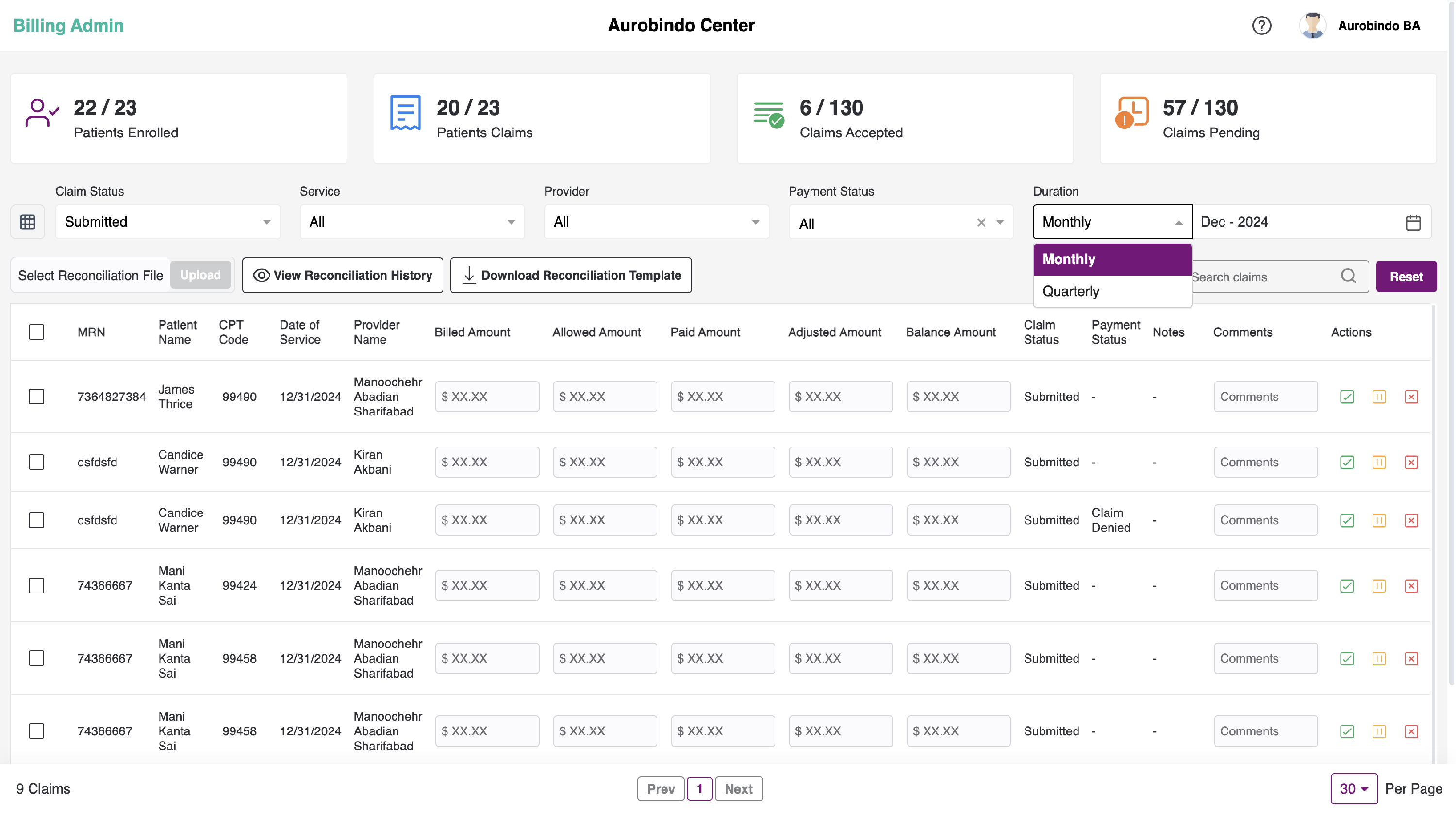
- User can filter the submitted billing list based on the selected duration of Date from and Date to. We can view the bills based on the Duration type - Monthly or Quarterly, by default, we have Monthly selected.
- User can filter the submitted billing list based on the provider name for the specific center.
- Search field will be available to search the required data on the dashboard.
- Below the filters, we can see the table with following headers:
- Checkbox - To select all the records
- Patient EMR ID
- Patient Name
- Date of Service ( Date on which the service was provided)
- CPT Type (RTM/RPM/CCM/TCM/Others CPT code and Topic)
- Note (Meeting Notes while scheduling)
- Provider Name
- Bill details (Bill ID and Month Date, Year on which billing was submitted )
- Actions (Approve /On Hold /Reject)
- All the submitted bills in the list, in the checkbox form, user can select the bulk actions to mark the selected bills as Approved or Rejected. And also can download the bills by clicking on the Download option.
- Click on the checkbox and click on the Accept selected bills at the right, to submit the bills. You will view a pop-up to confirm if you want to accept the bill or not. Click on Yes to accept the bill.
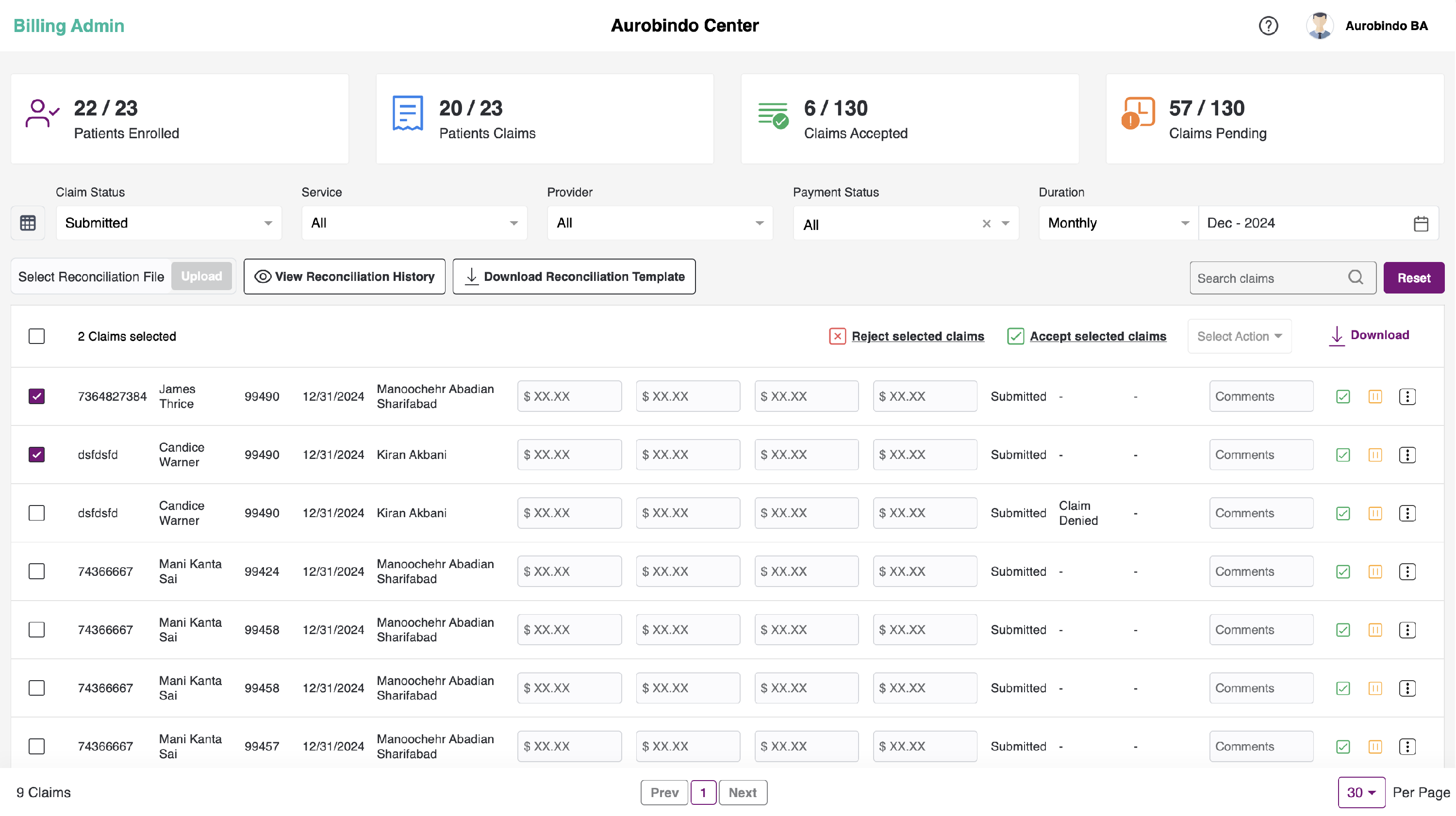
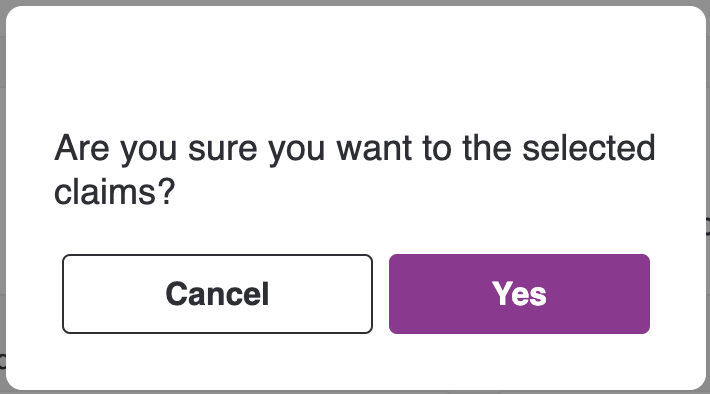
- We can also reject bulk bills by selecting the records and clicking on the "Reject selected claims" button, which will be visible in the headers once you select the bills. Upon clicking the button, a pop-up will appear where you have to enter the reason for rejecting the bills and click submit. The bills will then be seen under rejected bills.

- You can perform actions - Approve, On Hold and Reject for individual calls. After the call log is being Approved/ is On Hold / Rejected. Those call logs will be categorised into Accepted/Rejected/On Hold respectively.
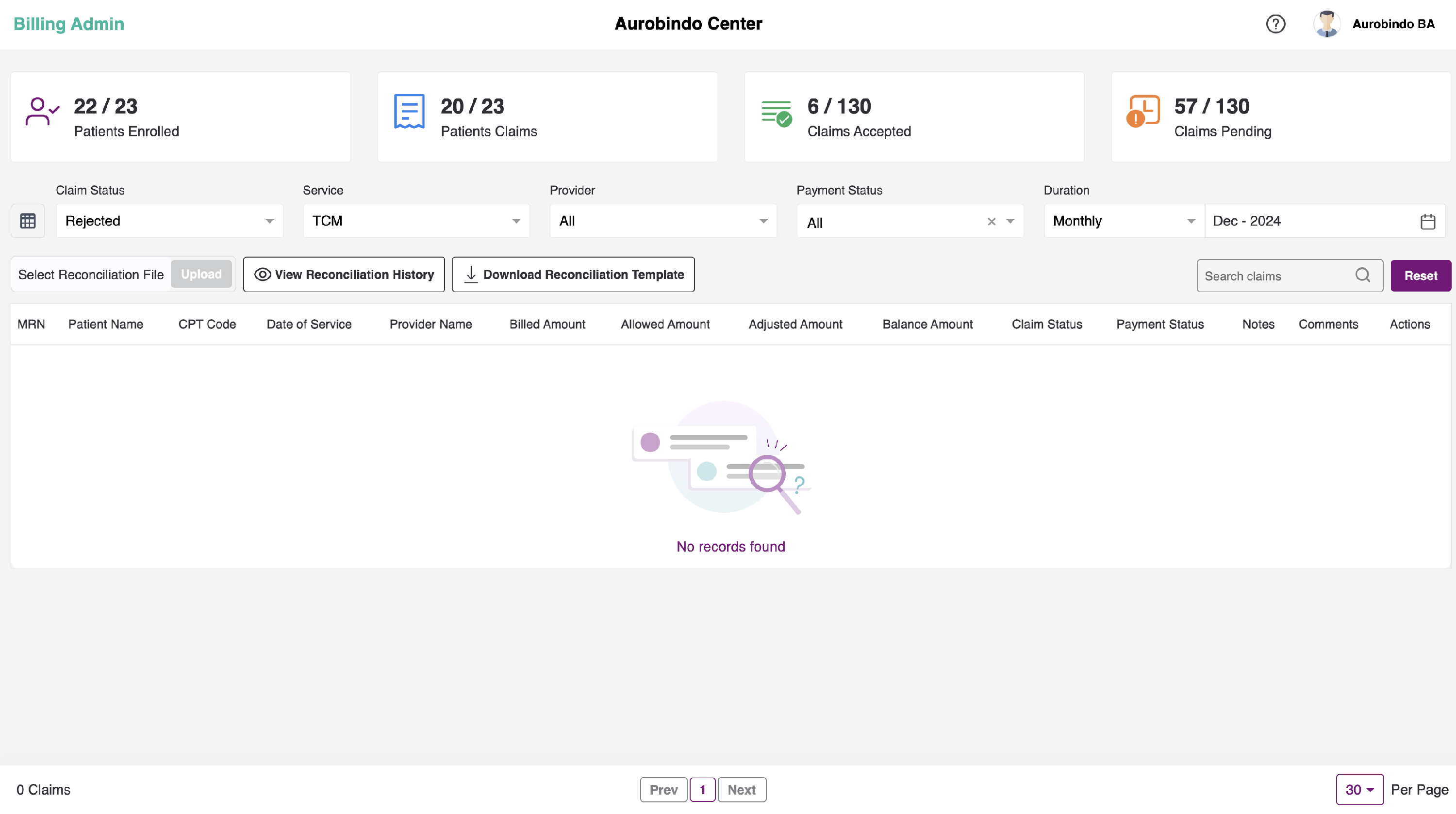
- If there are no calls logs, you will see an empty state showing No records found.
- After the bills are accepted, we can view them by selecting the Status as Accepted.
- Here, to download the Bill report, check the box for an individual record or check the box in the header to download report for all the reports.
- We can download the report w.r.t any Status - All, Ready to bill, Submitted, On-Hold, Rejected and Approved.
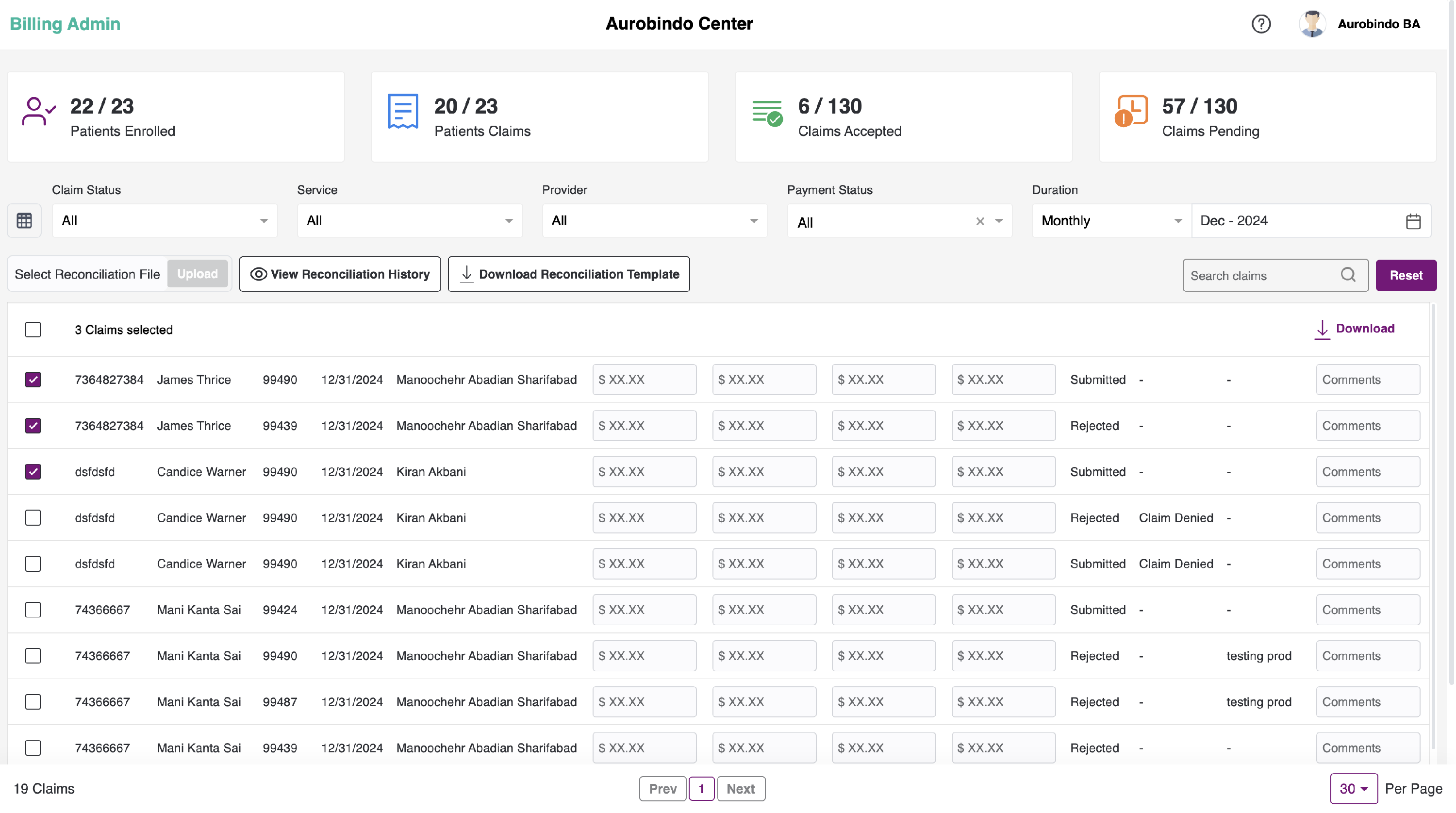
- You can view download option at the right, click on the download to download the report. You can view it in your downloads.
-
We can also add the Billed Amount, Allowed Amount, Adjusted Amount, Balance Amount for each bill in the input field where you can enter the amount and click outside the field. It will be saved, but it is only for reference and will not be referenced anywhere else.
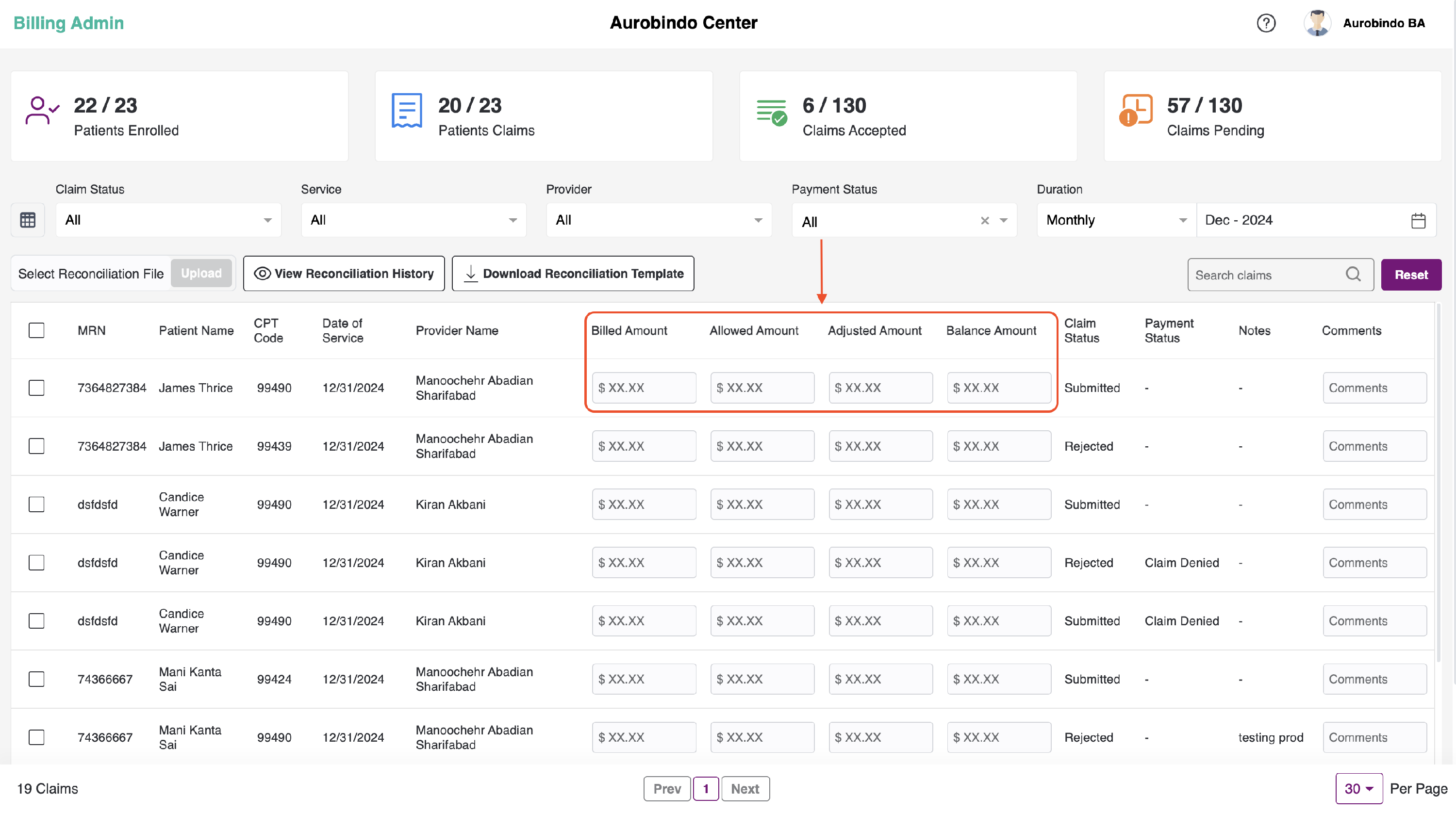
-
We also have the options of Claim Denied, Claim Failed, Closed, Patient Pending, Secondary Pending, and Claims On Hold to change the payment status of each claim. To access these options, select the submitted claim status and click on the more icon as shown in the below image.
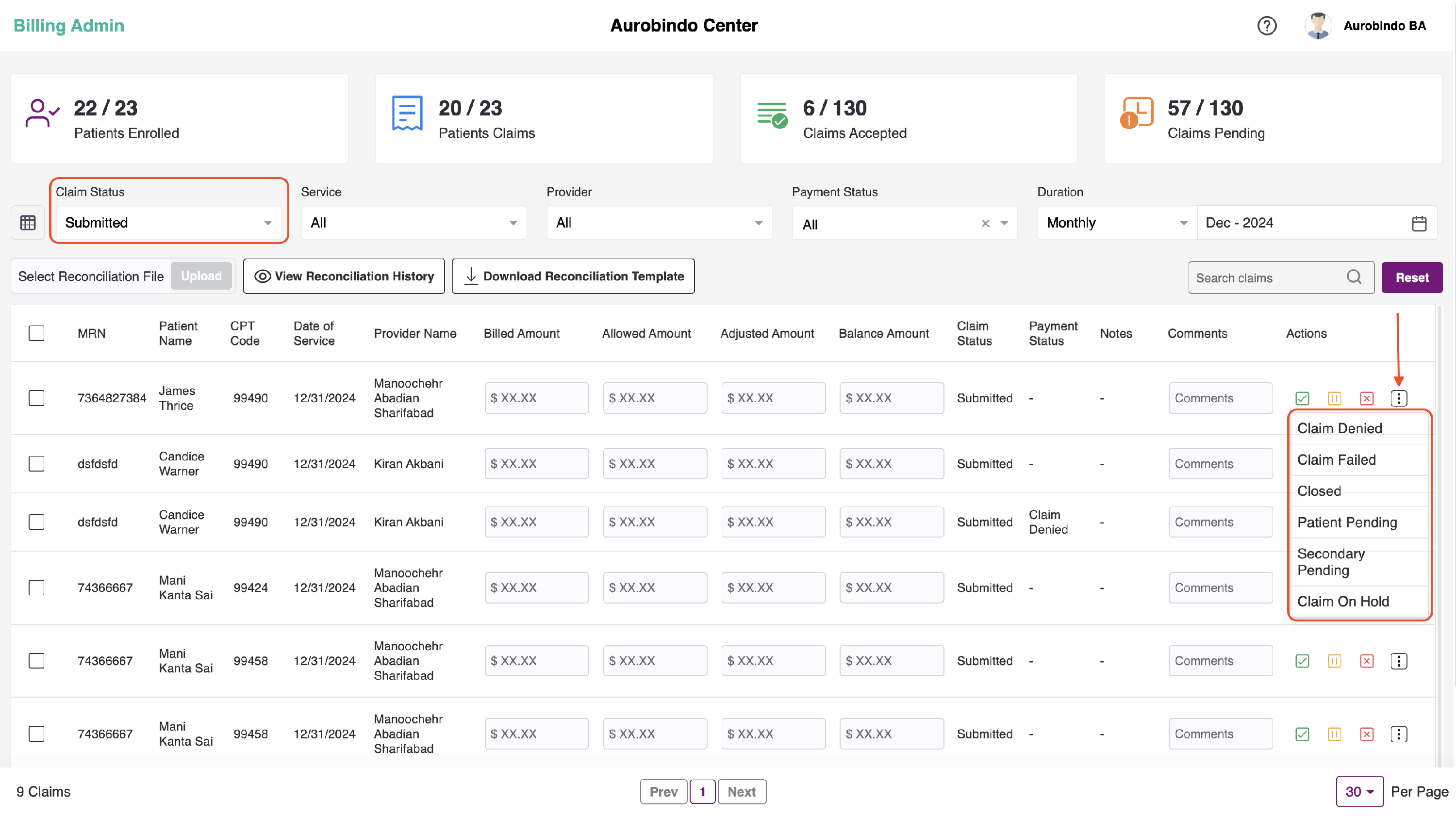
-
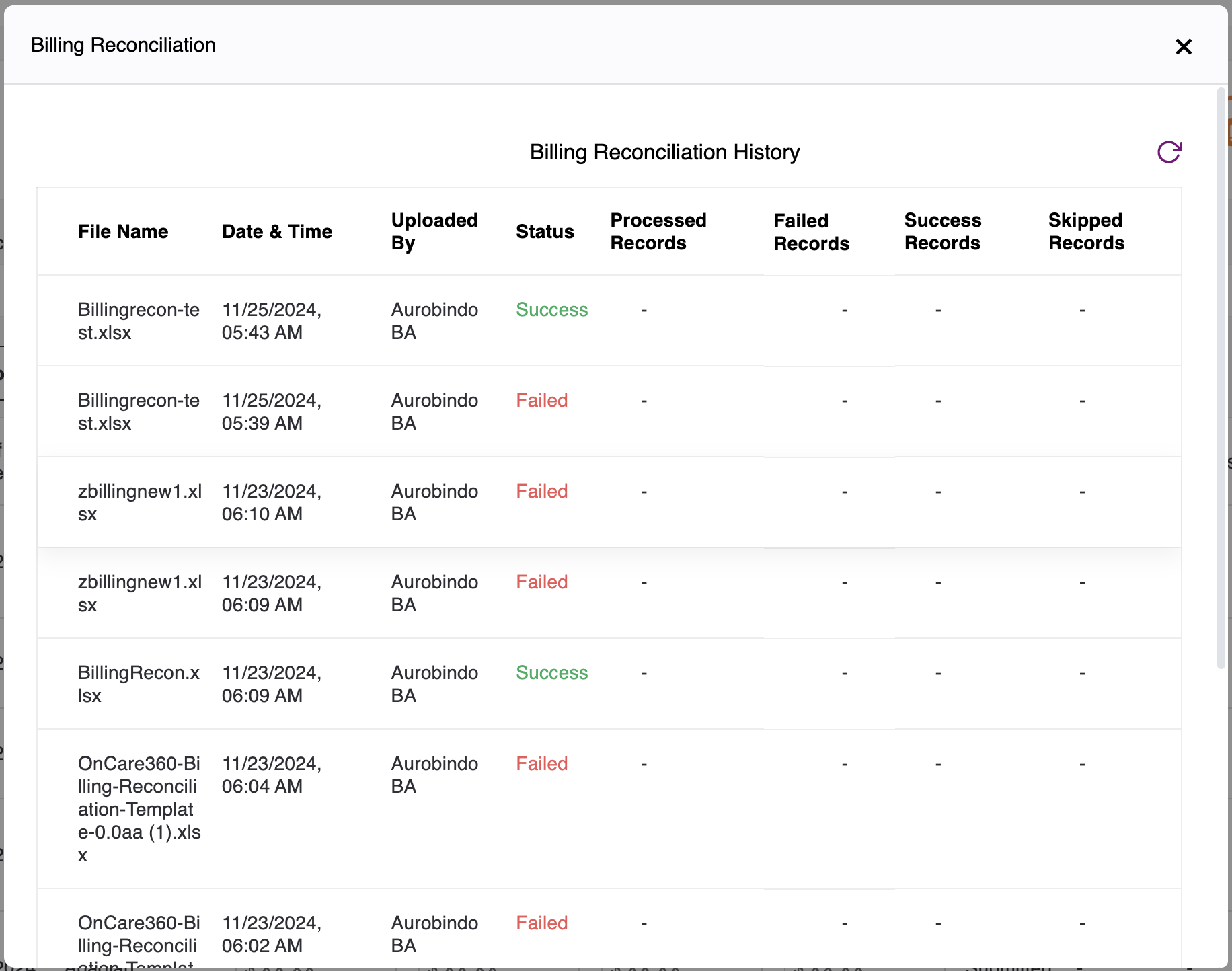
We also have the option to upload the billing reconciliation file. You can upload an Excel file with the claims data of each patient and check the history of the uploaded file. Additionally, you can download a sample file or sample reconciliation template by clicking on the "Download Reconciliation Template" button.
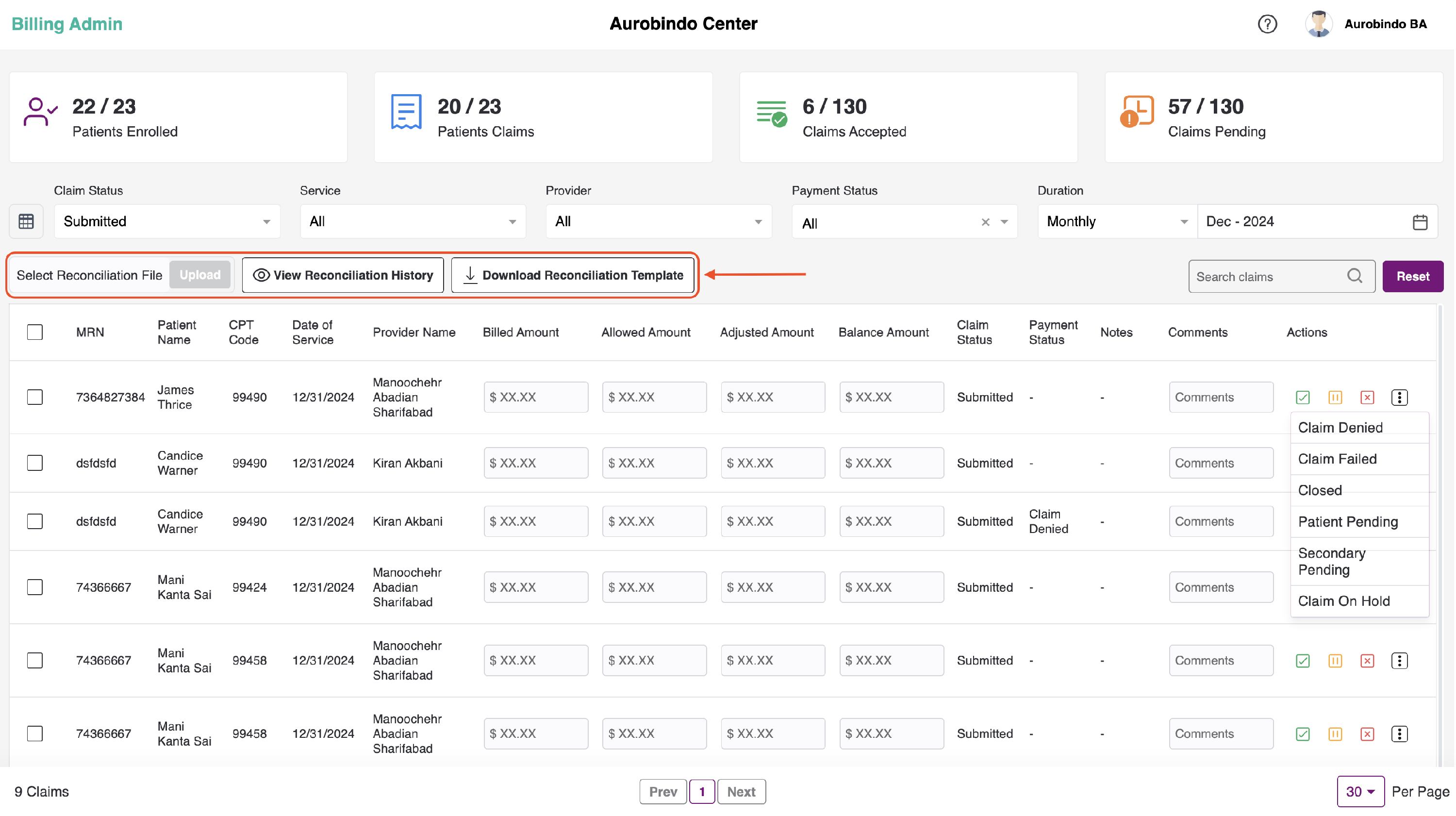
- Patients enrolled – the count of patients who have given the consent for subscriptions available for a center/ total number of patients of a specific center.
- Patients billed – the count of patients for whom the bills are submitted / the total number of patients enrolled.
- Bills accepted – count of bills approved / count of total bills(accepted+ rejected+ on hold+ submitted)
- Bills pending - count of bills in ready to bill state/ count of total bills(accepted+ rejected+ on hold+ submitted)
Due Reminders:
APCM – Monthly Call Due:
If the difference between the last billable APCM clinical time date and the current date is greater than 30 days, clinical time can be added.
APCM – Medication Reconciliation Due:
If the difference between the last added or updated medication date and the current date is greater than 90 days (one quarter), closing this alert will add 5 minutes of clinical time.

Once you click on the Complete Medication Reconciliation button, a popup will appear where you can add notes. These notes will be attached to the clinical time record.

APCM – Care Plan Update Due:
If the difference between the last care plan added or updated date and the current date is greater than one year, the care plan can be edited. No clinical time will be added.
APCM - FRA Due:
If the difference between the last FRA added date and the current date is greater than one year, adding or editing the FRA will resolve the alert. No additional clinical time will be added.