
Calls and SMS
Table of contents:
Program Indicators:
- Upon successful authentication, you will be directed to the Patients tab as your landing page (Patient List).

- Click on the Call & SMS Tab to navigate.
Calls Tab:
- In the Call & SMS tab, there will be two sections: one for Calls and one for SMS. By default, the view will open in the Calls tab.
- Whenever an incoming call, outgoing call, or voicemail is received or sent, the corresponding records will be displayed here.
- In this section, you will find five categories: Incoming, Outgoing, Missed, Voicemail, and All. These categories serve as filters, allowing you to refine the displayed data based on your selection.
- Incoming Call: If the patient initiates a call to the healthcare provider, the interaction is categorised as an incoming call.
- Outgoing Call: If the provider or program coordinator contacts the patient, the interaction is categorised as an outgoing call.
- Missed Call: This applies if the provider or program coordinator misses the call, or if the patient misses the call. You may mark the records by selecting the corresponding action to reflect that you have acknowledged it.
- Voicemail: If the patient or the provider/program coordinator is unable to answer the call, a voice message may be left, and the interaction will be categorised as a voicemail.

-
A search field is available to help you find records by the caller's name and the receiver’s name.
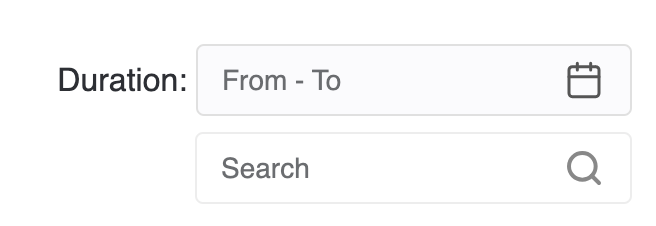
- With the duration filter, you can refine the records based on the selected duration.
-
You can initiate a phone call by selecting the phone icon located next to the receiver's name in each record.
- There is also an option to download the call records. To download the recording, click the More icon and then select the download option from the menu.

- In missed calls, you may mark the records by selecting the corresponding action to reflect that you have acknowledged them, as shown below.

SMS Tab:
When you select the SMS tab, the sub-tab will automatically default to the All Messages tab.
All Messages:

- You may use the search field to look up patients by name.
- Within this tab, you can initiate and manage individual conversations with patients.

- You can initiate a phone call by selecting the phone icon located at the far right end, as shown in the image above.
- You may also send a "New SMS" to a patient who is not currently listed in the message list by clicking the "New SMS" button.
- After you click the "New SMS" button, a pop-up will appear, and the Patients option will be selected by default.

-
Please click the select patient input field to choose from the list of patients.
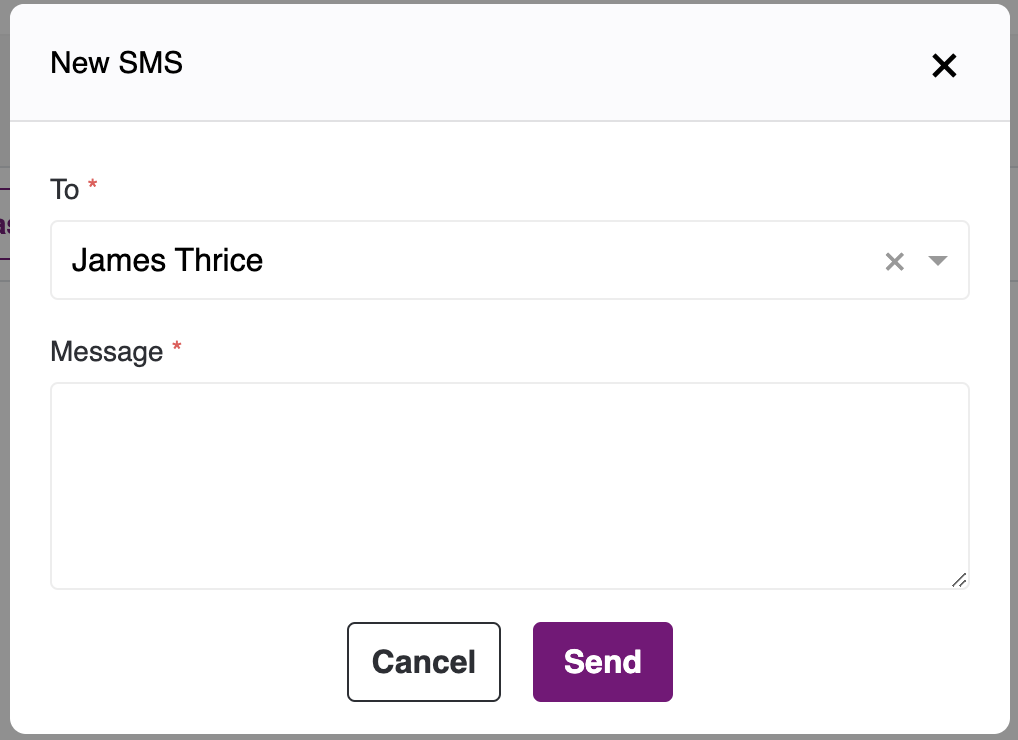
- Please compose your message and click Send.
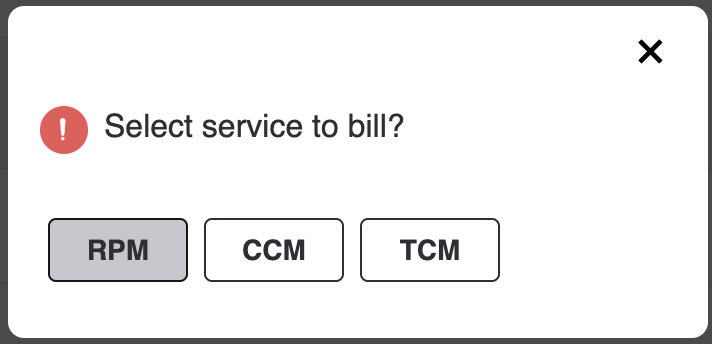
- A pop-up modal will appear if the patient has any active services (otherwise, the message will be sent directly). In the pop-up, please select the service type for the clinical time. After the service type is selected, the message will be sent, and 2 minutes of clinical time will be added under the service in the patient’s clinical time.

Note: If you want to send SMS to an unknown user, please follow the steps below.
First, select the Others option in the New SMS pop-up as shown below.

Patient Name: Select the patient name from the dropdown to link with.
Recipient Name: Enter the SMS recipient name.
Relationship to the Patient: Enter the relationship between the patient and the recipient.
Recipient Phone Number: Enter the phone number to which you would like to send the SMS.
Message: Enter the SMS content.
- Please compose your message and click Send.
- A pop-up modal will appear if the patient has any active services (otherwise, the message will be sent directly). In the pop-up, please select the service type for the clinical time. After the service type is selected, the message will be sent, and 2 minutes of clinical time will be added under the service in the patient’s clinical time.
As the chat will be labeled as “Other” when we send a message to an unknown number by linking to the patient, it will also be labeled as “Patient” for direct patient chats. In addition, when the SMS comes from the unknown number, it will be labeled as “unknown,” as shown below.

SMS Broadcast:
- In this broadcast feature, you can create a group to send messages to multiple recipients simultaneously. The message delivery is one-way, meaning you will not receive replies from the recipients collectively. Instead, any responses will be received individually.
- You can use the search field to find group names.

-
To create a group, please click the "New SMS" button. A pop-up window will appear, prompting you to select the service type (for clinical time). After you have selected the service, another pop-up window will open, allowing you to choose the list of patients you would like to add to the group. Enter your message, then click Send. Afterward, the group will be created, and you can review it in the SMS Broadcast list.
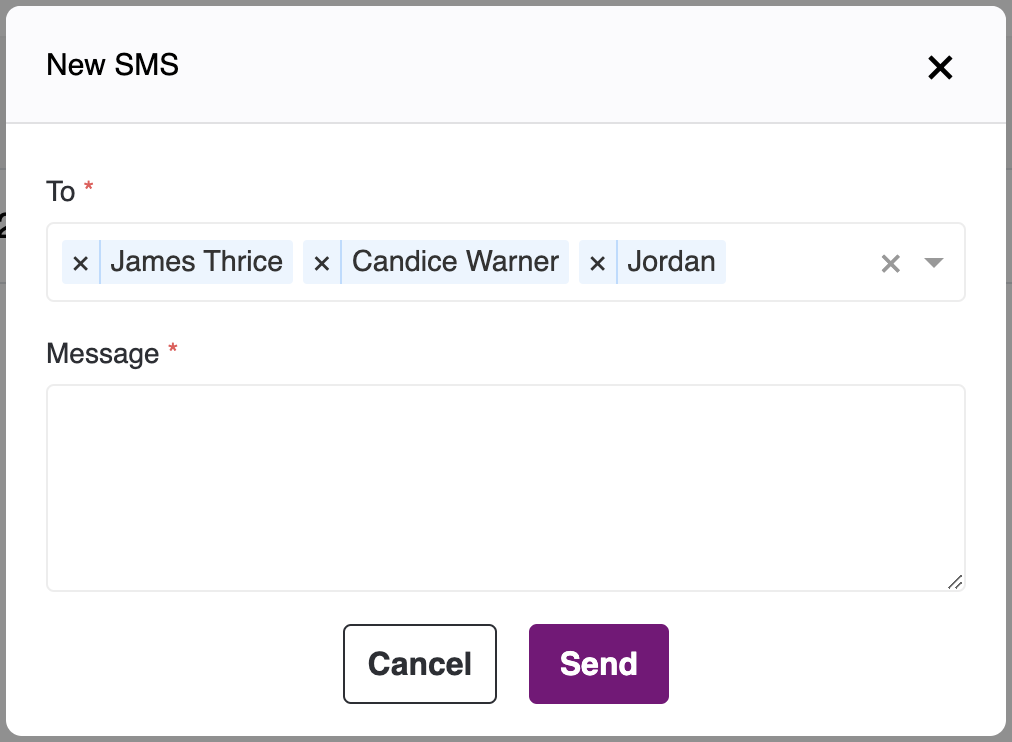
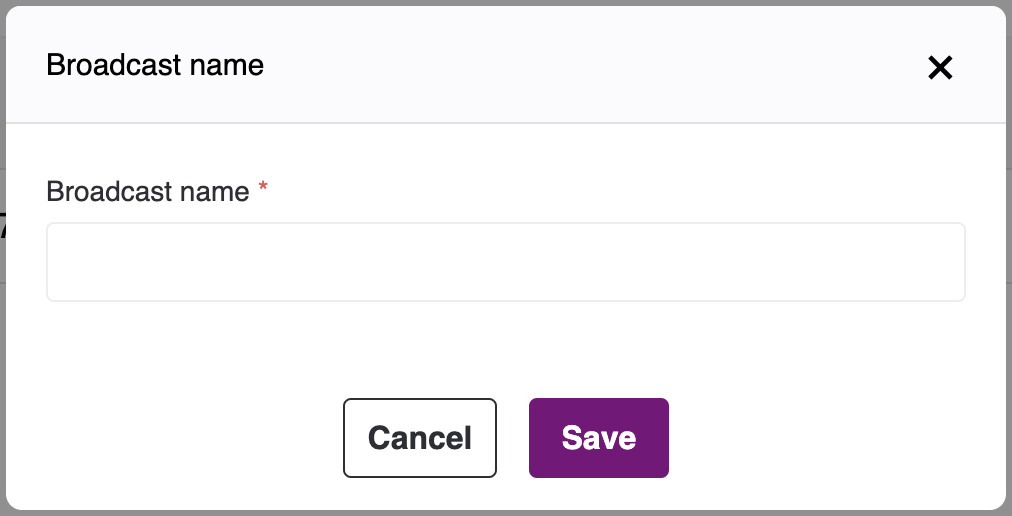
- If you would like to assign a name to the group, please do so by clicking the edit icon, as shown below.

- When you click the Edit button, a pop-up modal will appear for you to enter your group name.
- If you would like to view all patients in the group, please click the Info icon. You will then be able to review the full list of patients included in that specific group.
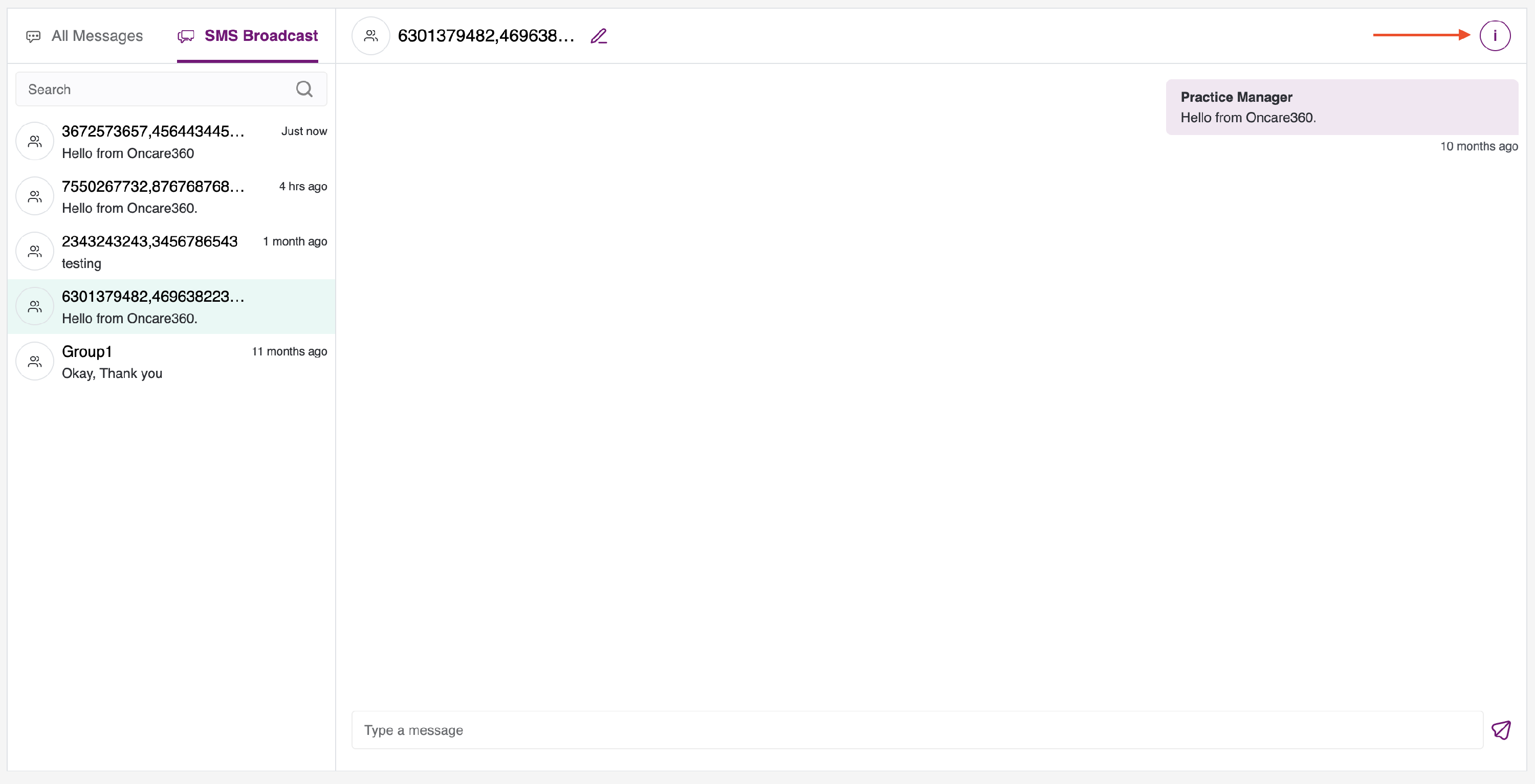

If you would like to close the information, please click the “X” icon in the top-right corner.