
Survey
- Click on More section, You can see the ‘Survey’ option, tap on it, it redirects to Survey screen, which has the questions for the day.
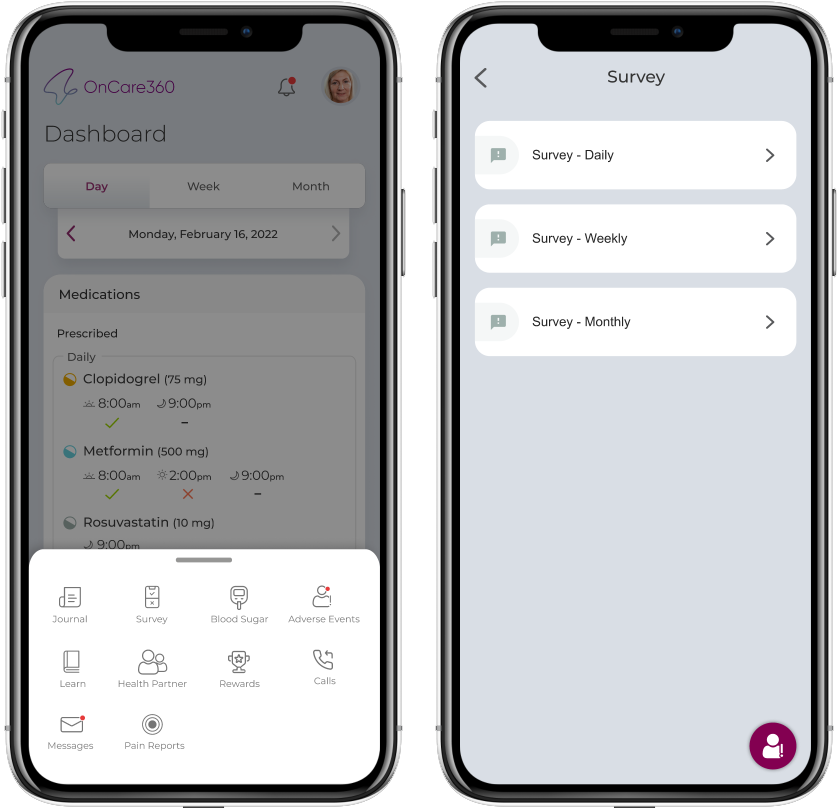
- If the survey questions were answered it will be shown in disabled state with the answers.
- Survey Questions form will be active and will be available everyday to answer from the time assigned.
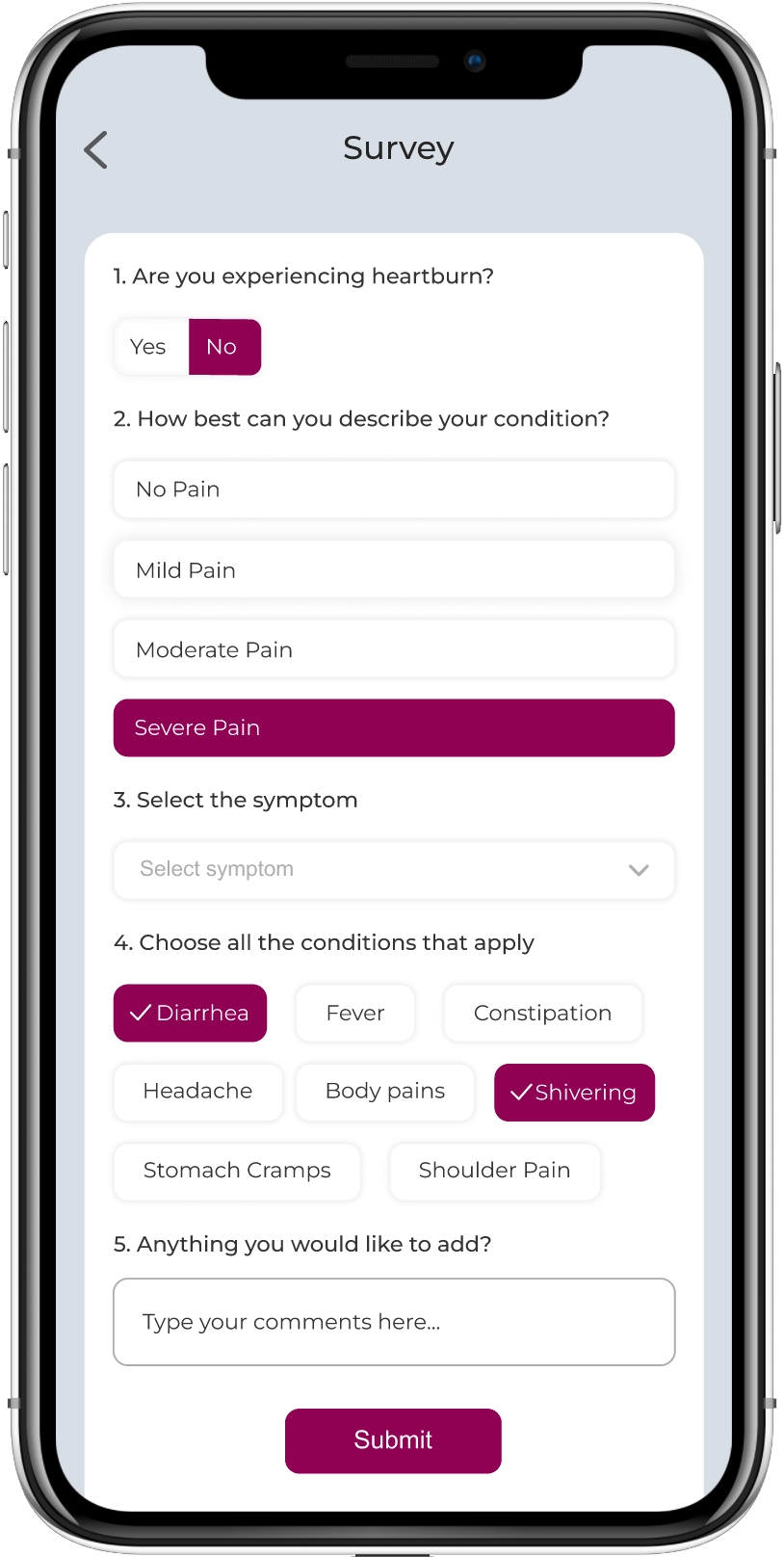
- Patients can answer the questions and click on Submit to record the answers. The record sent, cannot viewed.
- Next day the same questions will popup and the patient has to answer this every day.
- Notification will trigger everyday to remind patients to fill survey
- When no surveys are available screen with No surveys assigned will be displayed
Note:
- Questions remains the same for all days for one specific survey. Once submitted, answers cannot be edited.
- An icon to report ‘Adverse Events’ floats on the screen, tapping on which redirects user to Report Adverse event screen. You won't see this FAB when on the form.