
Medications
Table of Contents:
- Dashboard
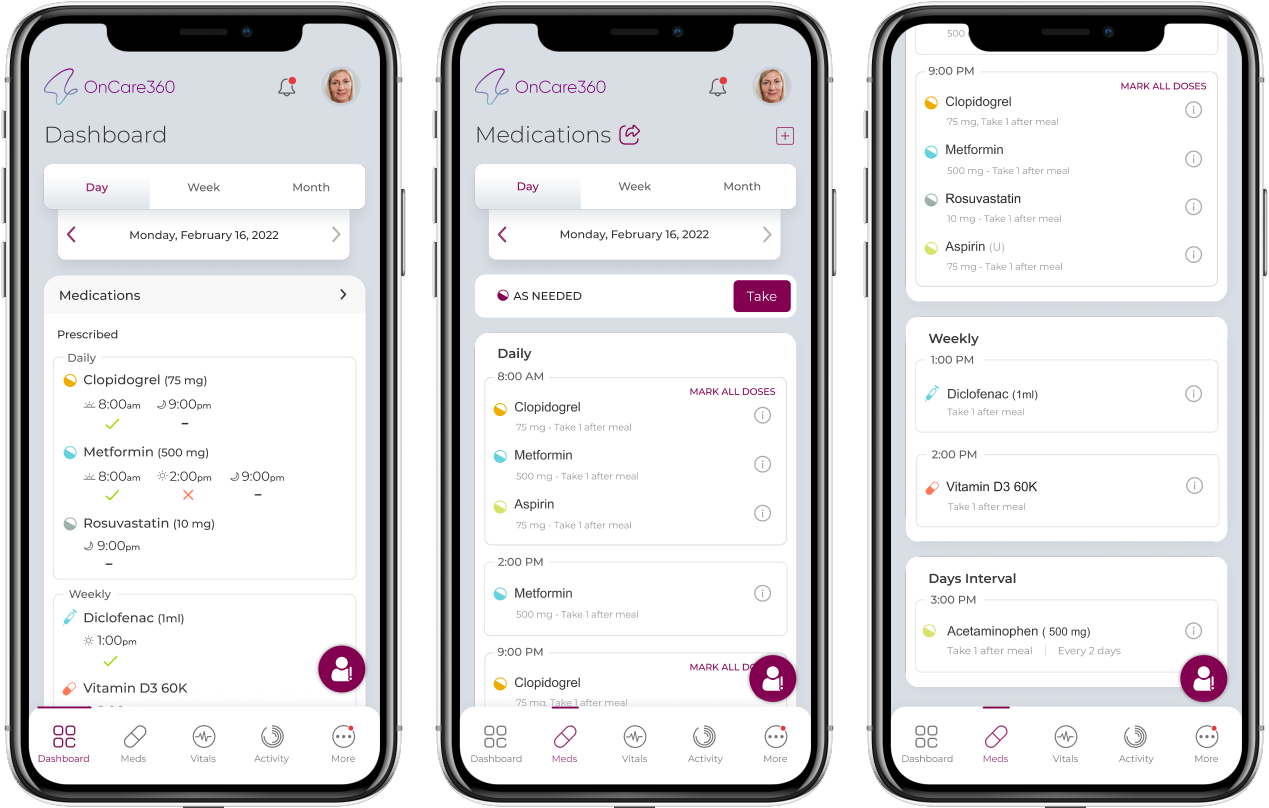
- Medications - Day view
- Medications - Week view
- Medications - Month view
- Medications Adherence
- As Needed Adherence
Instructions:
Dashboard
- Tapping on the Meds redirects to the Medications page (or) Tapping on the Medications prescription section redirects to this screen
- You can view export option beside Medications. On clicking it, you will view the following screen, where you get to select either Medications or Vitals.
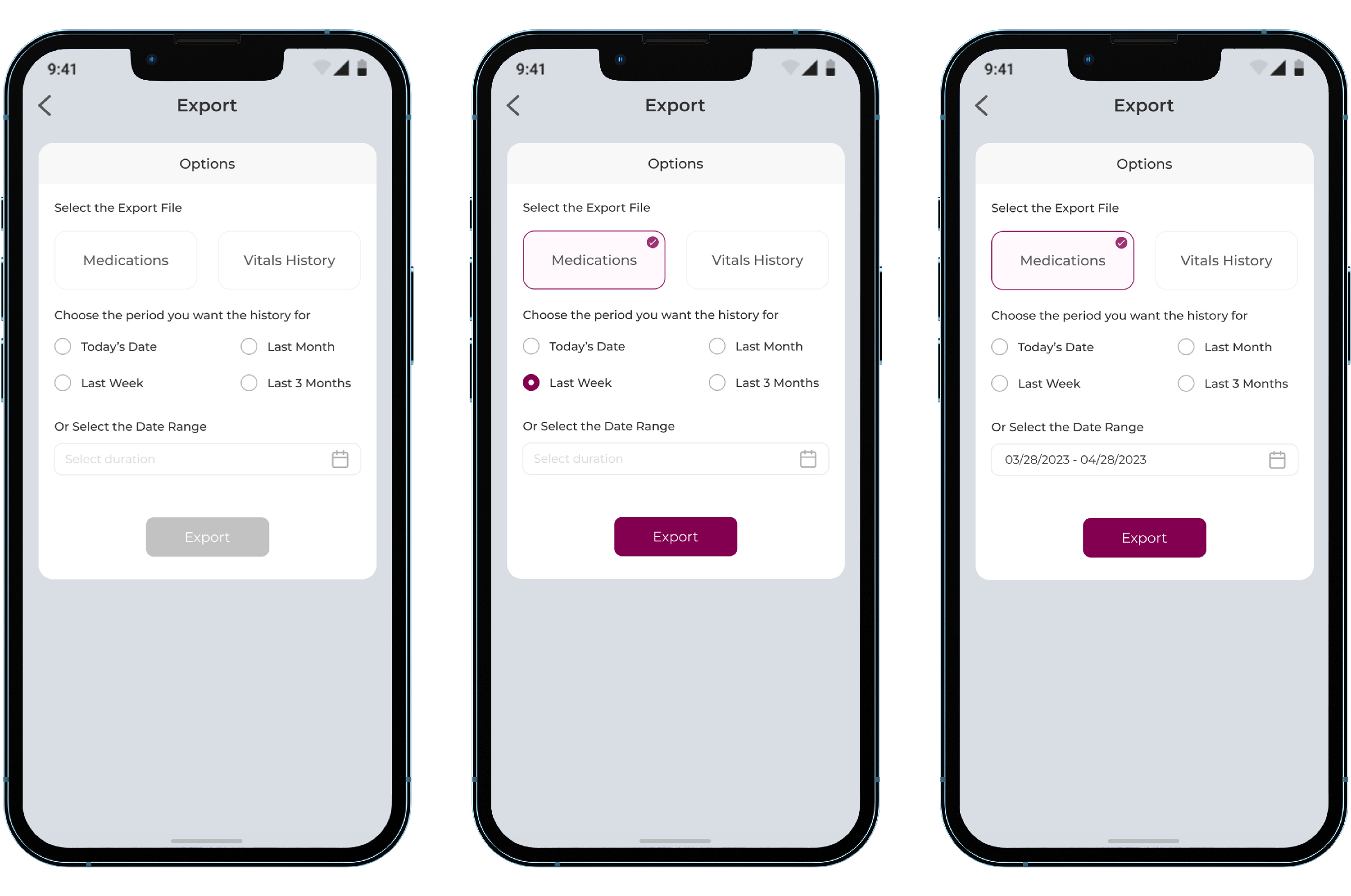
- The duration options - Today's date, Last month, Last week, and Last 3 months, or select the Date Range.
- The Export button will be disabled until you select all the options. Once you have selected the options, click on the Export button. The file will get downloaded.
- Medications section can be viewed by three timelines Day, Week and Month, by default Day is selected
3.Below the timeline tab added Medicines cards are available and each cards timeline view will be different
Medications - Day view – Displayed in Chronological order
- Daily section - Displays list of medicines prescribed with the time on which it needs to be taken
- Weekly section - Displays list of weekly medicine to be take, if no weekly medicine available this section will not be shown
- Monthly section- Displays list of monthly medicine to be take, if no monthly medicine available this section will not be shown
- Days Interval- Displays list of Days interval medicine to be take, if no days interval medicine available this section will not be shown
- As needed- You will see an option to take your “as needed” medicines at the right in the Daily section. On clicking, it displays list of Days interval medicine to be take, if no as needed medicine available this section will not be shown.
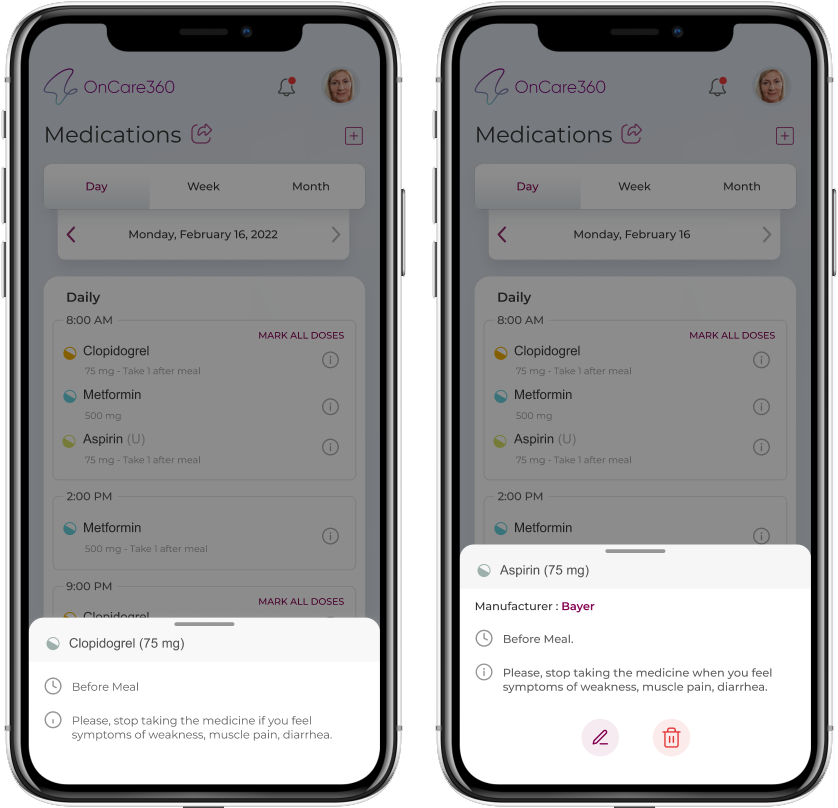
- An info icon will be available beside each medicine, taping on which displays medicine name , when to take the medicine, Manufacturer's details, and general usage instructions. You will also have edit and delete options for only patient added medications.
- Add medicine icon- On the right, below profile, on clicking icon, you’ll be redirected to Add prescription screen.
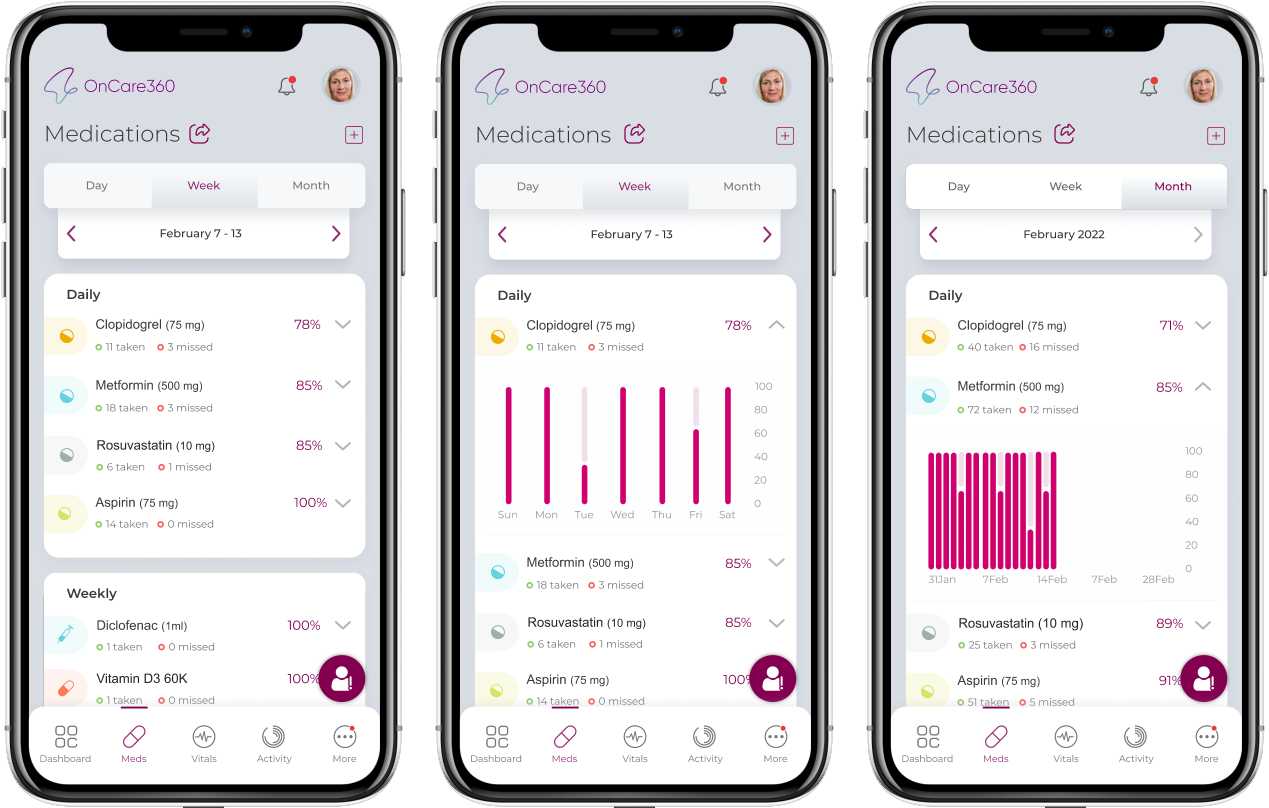
Medications - Week View
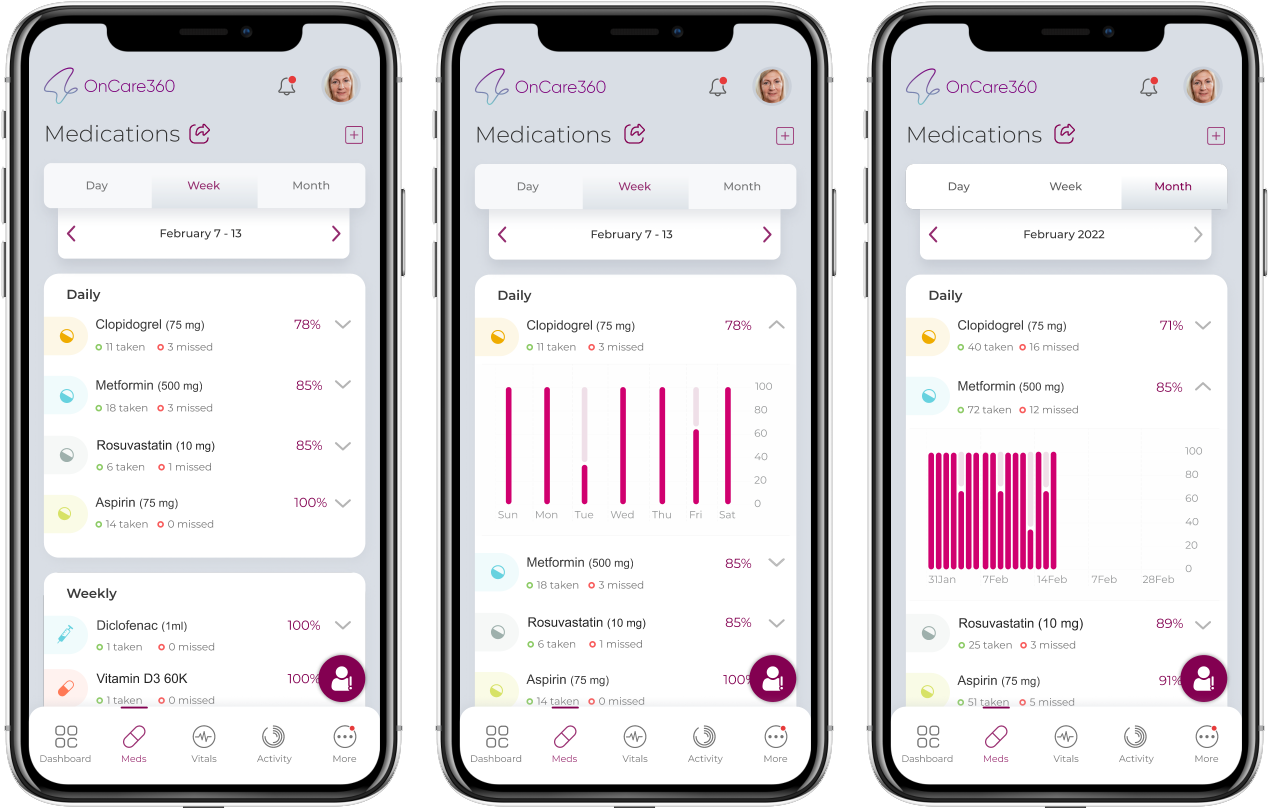
- Displays list of each medicines with the total tablets counts to be taken, total number of tablets missed and percentage of goal achieved based on the taken number
- Shows the count of tablets taken for a week and number of times it was missed.
- Tapping on the Medicine card will display a histogram chart showing which days medicines were taken and which days were not. (X- axis shows days and Y axis shows percentages)Above repeats for each medicine in the list.
Meds Tracker - Month View
- Displays list of each medicines with the total tablets counts to be taken and percentage of goal achieved based on the meds taken number for selected month
- Shows the count of tablets taken for the selected month and number of times it was missed.
- Tapping on each Medicine card will display a histogram chart showing which days medicines were taken and which days were not. (X- axis shows dates week wise and Y axis shows percentages)Above i , ii and iii repeats for each medicine in the list
Medication Adherence
- In the Meds Day view, If multiple medicines are prescribed at same time, user can use ‘MARK All Doses‘ and will have option to Mark all doses as taken or snooze or not taken
- Patient can also tap on individual medicine name and view option to mark the dose as taken/missed or snooze
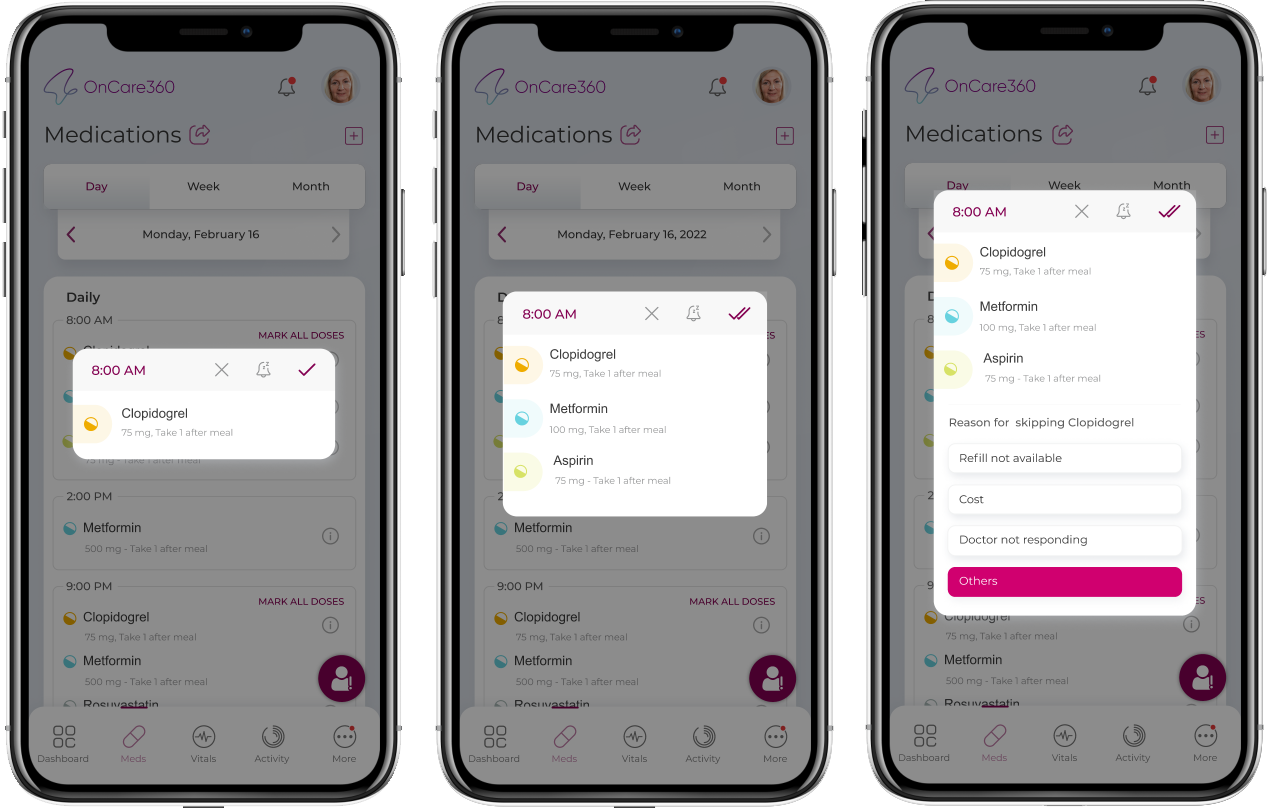
- Patient has to tap X NO, tick YES or snooze button. Therefore medicine intake values are recorded for each medicine.
- Patient can tap the tick YES button to mark the dose as taken
- Patient can tap on the Snooze button to view options to Remind after 30 min by default.
- Patient when taps ‘X’ NO, a form opens in the popup asking for the reason with 4 options
- Refill not available
- Cost
- Doctor not responding
- Others
- When ‘Other’s is selected a mandatory text area opens which allows user to Enter the reason why medicine was not taken
As Needed Medication Adherence
- In the Dashboard screen, we have an option to take the As Needed Medicines. You can a card below the calendar component with Take button.
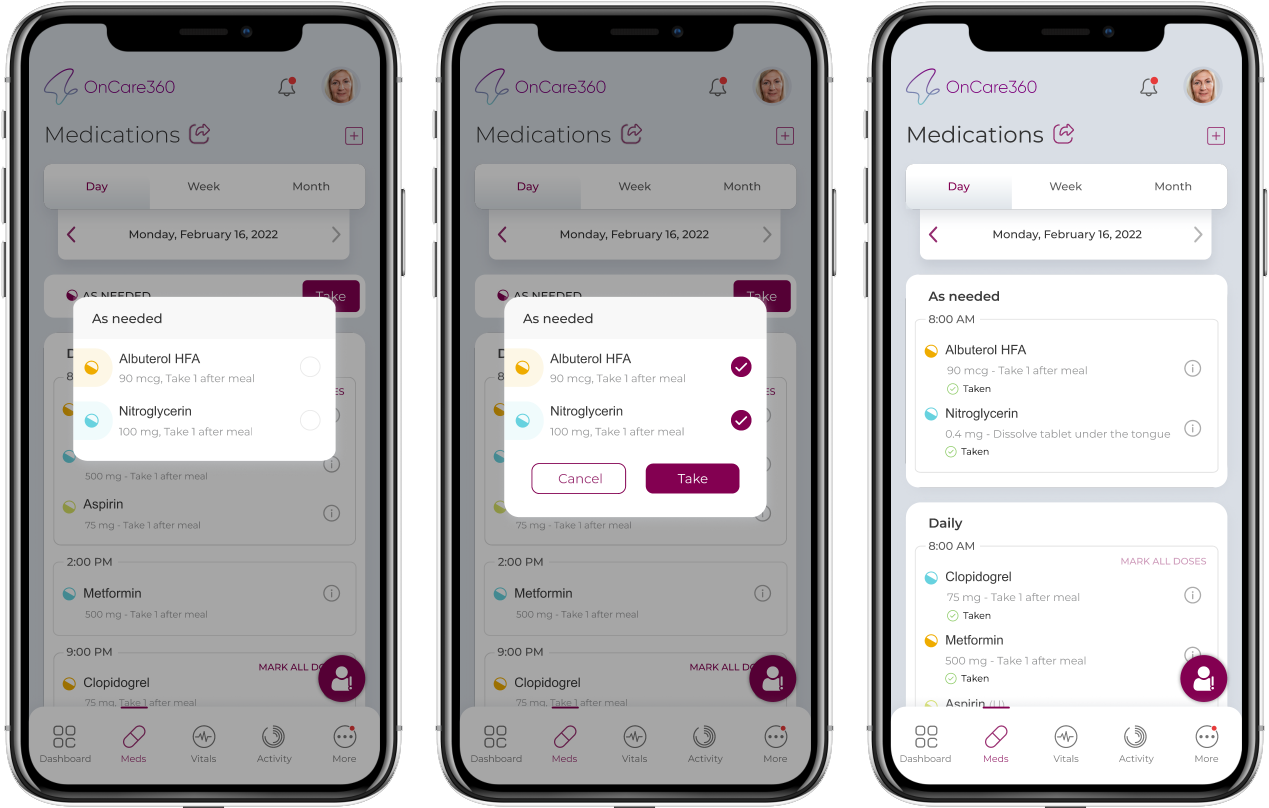
- Click on the Take button, you will see a As Needed pop-up.
- You can select one Medicine or Multiple at a time. On clicking the Medicines, you can see two buttons - Take and Cancel.
- To continue, click on the Take Button, else click on Cancel button.
- Once taken, you can see the time and the As needed medicine in the Medications Screen.
Note:
- As Needed Medicine can only be taken 5 times.
- An icon to report ‘Adverse Events’ floats on the screen, tapping on which opens Adverse Event popup to report an AE.